A Mac app is an odd gift. There is nothing to wrap, and the best ones are invisible after a week, because they have removed an irritation the owner had stopped noticing. That is also the test of a good one: it fixes a repeated annoyance in work the person already does. A utility bought for a problem they do not have is clutter with a licence key.
The ten apps here all have a review on this blog. I ordered them from general to specialised. Five small utilities come first, for screenshots, the menu bar, file dialogs and drag and drop. Two tools for particular setups follow, one for an external monitor and one for a home full of servers. Three apps for people who write close the list. All ten licences came from their makers, as the disclosure below says. Three of the reviews, for BetterDisplay Pro, ForkLift 4 and Bear Pro, are first looks based on documentation and independent sources, and those entries say so.
Disclosure: The licences and subscriptions for all ten apps in this guide, CleanShot X, Bartender 6 Pro, Default Folder X, Yoink, ScreenFloat 2, BetterDisplay Pro, ForkLift 4, Bear Pro, Craft Plus and Marked 3, were sent to me by their makers free of charge for review.
1. CleanShot X: screenshots as a workflow
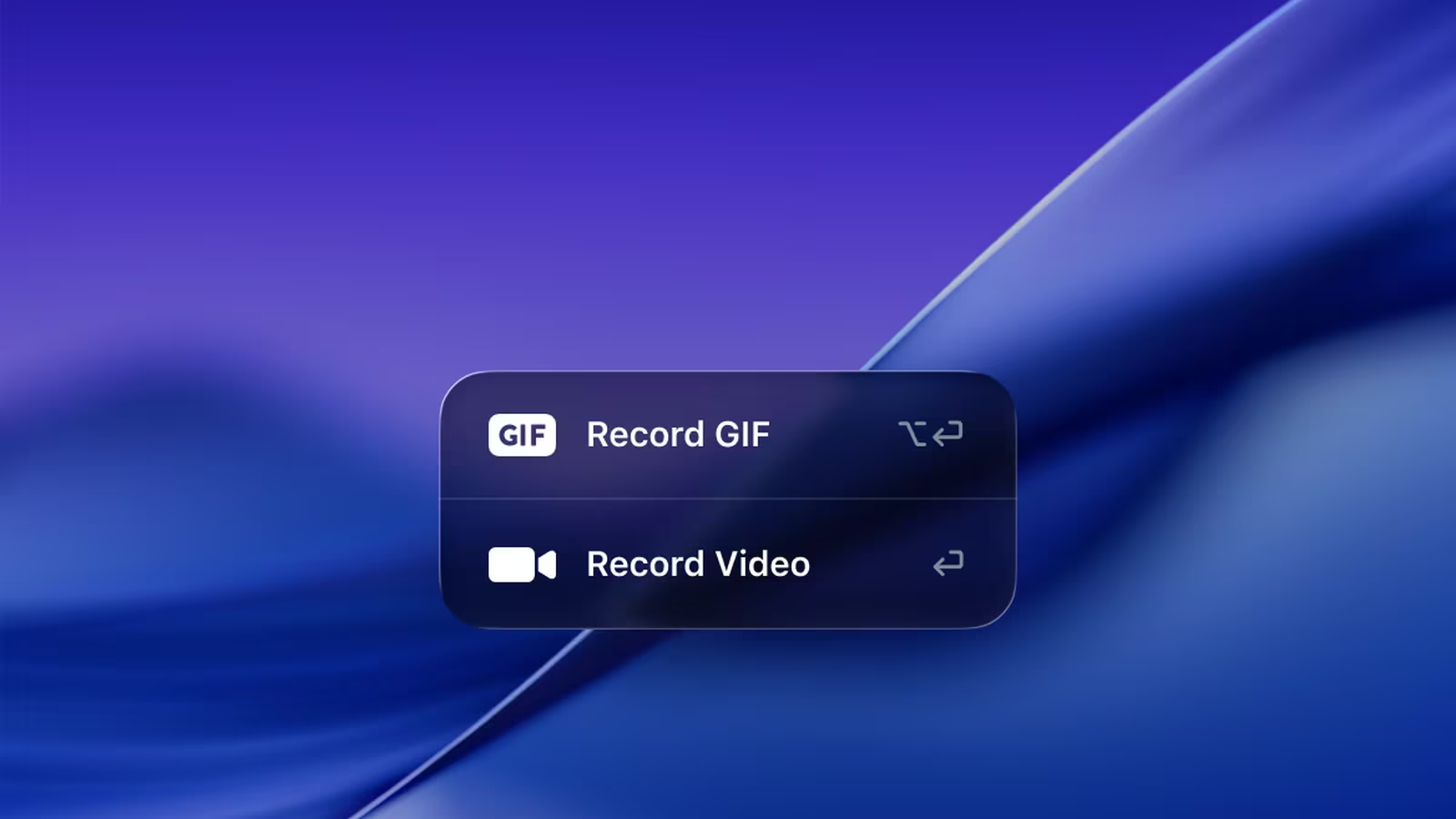
The list starts with the app whose purpose needs no explanation. CleanShot X turns capture, annotation, scrolling capture, short screen recordings, on-device OCR and optional cloud sharing into one workflow. It is for developers, designers, support staff and technical writers who communicate through the screen.
Two cautions. Scrolling capture stitches frames together, so a long capture needs inspecting before anyone treats it as evidence, and capture history becomes a store of sensitive images. For someone who takes a few screenshots a month, the built-in macOS tools are enough. The review found the one-time Basic licence easier to defend than the subscription. Here is my full review, and licences are sold on CleanShot’s pricing page.
Related reading

2. Bartender 6 Pro: order for a crowded menu bar
Where CleanShot adds a tool, Bartender tidies what is already there. It hides the menu bar icons you rarely need, brings them back through triggers when their state changes, switches layouts with profiles and finds hidden items by search. On a notched MacBook that runs many background tools, it makes the bar predictable again.
This pick carries the largest question of trust. Bartender runs all day and may ask for Accessibility and Screen Recording permissions, and it changed ownership in 2024 with unclear communication at first. Versions matter as well: Bartender 6 is the line for macOS 26 Tahoe, while Bartender 5 serves Sequoia and Sonoma. Read my Bartender review first, then see the Bartender purchase page.
3. Default Folder X: Open and Save, repaired
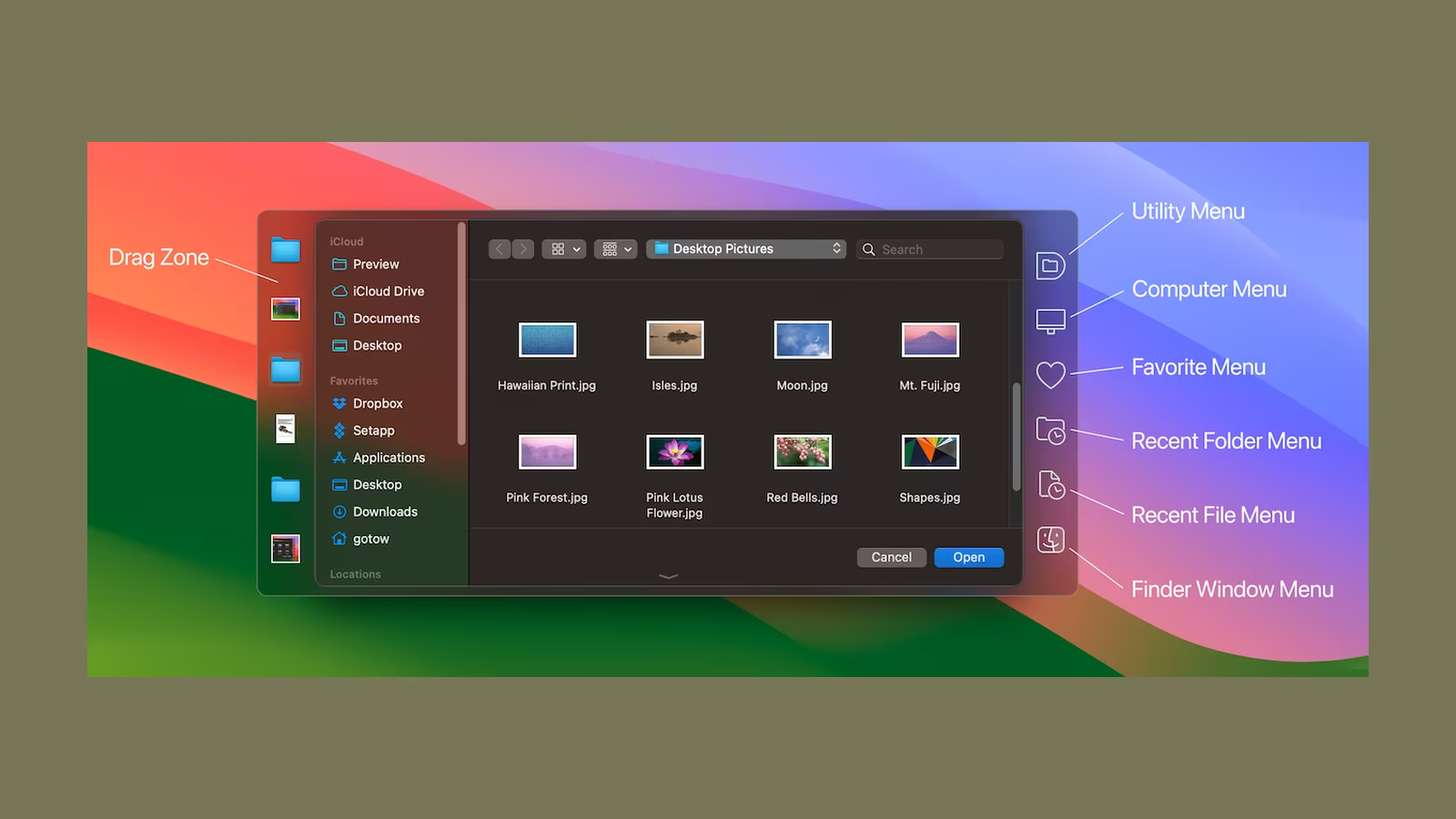
The third utility is quieter still. Default Folder X improves the Open and Save dialogs. Click a Finder window behind the dialog and it jumps to that folder, recent and favourite folders sit one menu away, and each application can have its own default location.
It hooks into a system interface it does not own, so it may need Accessibility or Automation permissions, and applications with custom dialogs may not behave. The price was $39.95 when I reviewed it, which is too much if the stock dialogs cause no trouble. A 30-day trial answers that. See the Default Folder X review and the app at St. Clair Software.
4. Yoink for Mac: a shelf for drag and drop
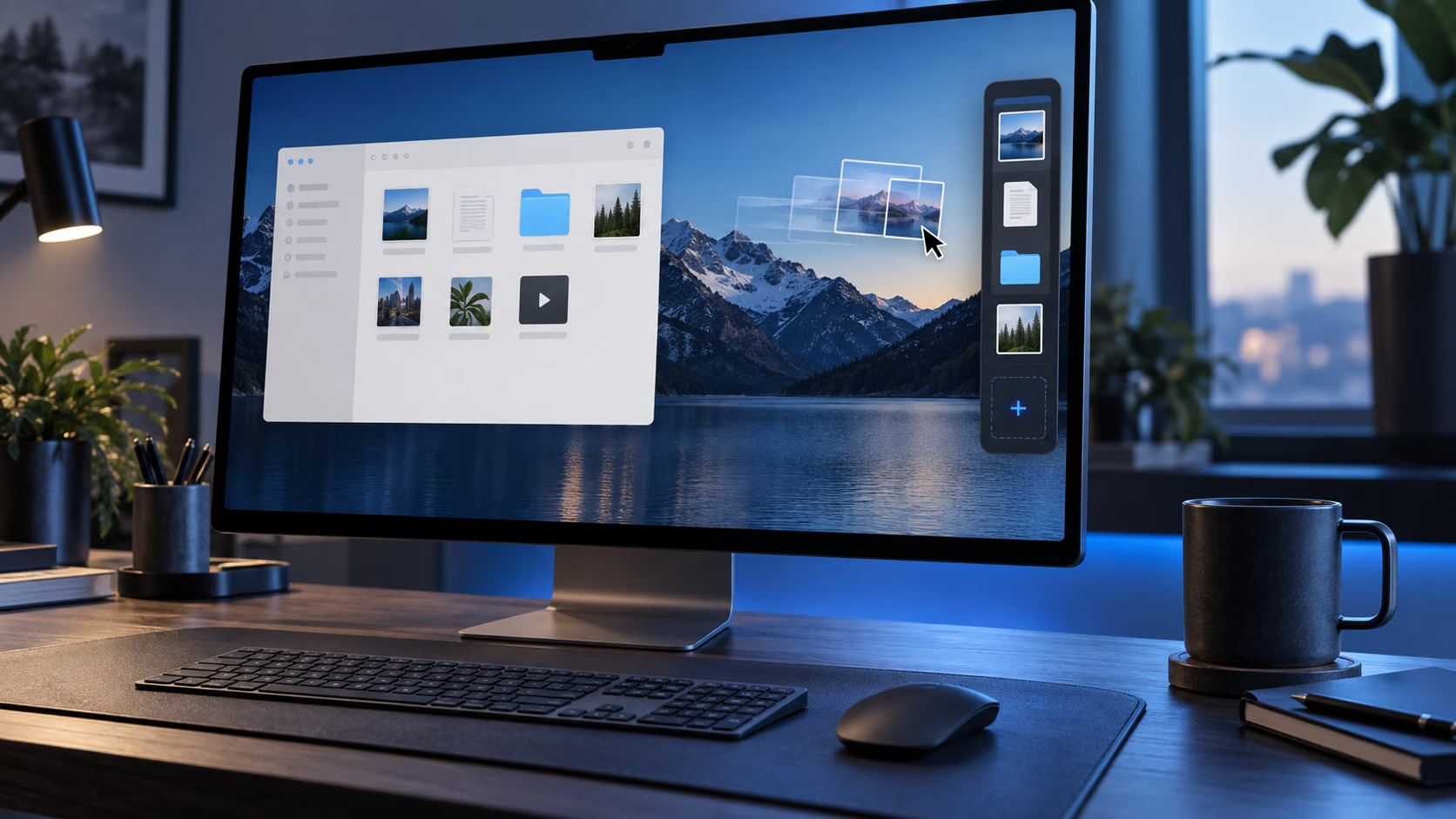
Yoink is the smallest idea of the five utilities and one of the easiest to like. Start dragging a file and a shelf appears at the screen edge. Drop the item there, switch Space or app with a free pointer, then drag it out at the destination.
The shelf is transport, not storage. Yoink generally keeps a reference to the original, not a backup copy, so the source must stay in place until the final drop is verified. The iPhone and iPad version is a separate purchase. The review describes the Mac app as a modest one-time price. More in my Yoink review, and the app comes from Eternal Storms Software.
5. ScreenFloat 2: a screenshot that stays on top

From the same developer comes a second utility with a different centre. ScreenFloat 2 keeps a capture floating above other windows, so an error message, a design fragment or a column of values stays visible while the work continues. The app also records, recognises text and files everything in a searchable Shots Browser.
That library is the catch. Searchable screenshots are sensitive storage, and redaction is non-destructive, so share a flattened export and check it in another viewer. If the recipient already has CleanShot X, the two overlap heavily. Choose by whether the repeated problem is sharing a capture or referring to one. The ScreenFloat review compares them, and the app is on the ScreenFloat page.
Related reading
6. BetterDisplay Pro: for the third-party monitor
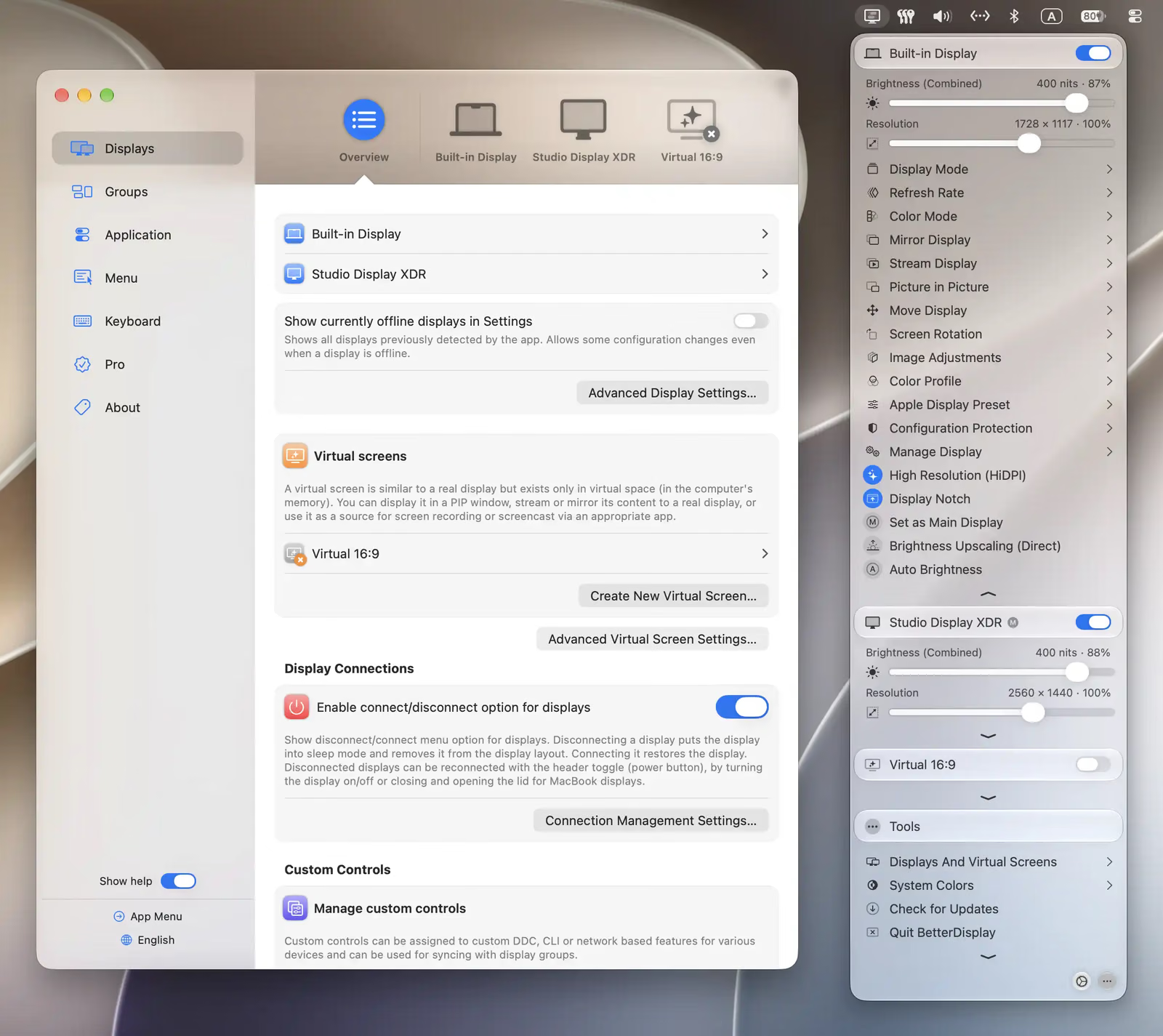
With the sixth pick the list turns from utilities for everyone to tools for a particular desk. BetterDisplay is a menu bar app for monitors that Apple did not make. The free version already covers DDC brightness, volume and input switching. The Pro licence adds flexible HiDPI scaling for sharper text below 4K and extra brightness on XDR and HDR displays.
My review is a first look, written days after the licence arrived and based on the developer’s guide and other published sources. The documented catches are a long menu and features that change the system display configuration. Version 5 needs macOS 26 Tahoe. Pro cost $21.99 as a perpetual licence when I reviewed it. See the BetterDisplay Pro review and betterdisplay.pro.
7. ForkLift 4: Finder for people with servers
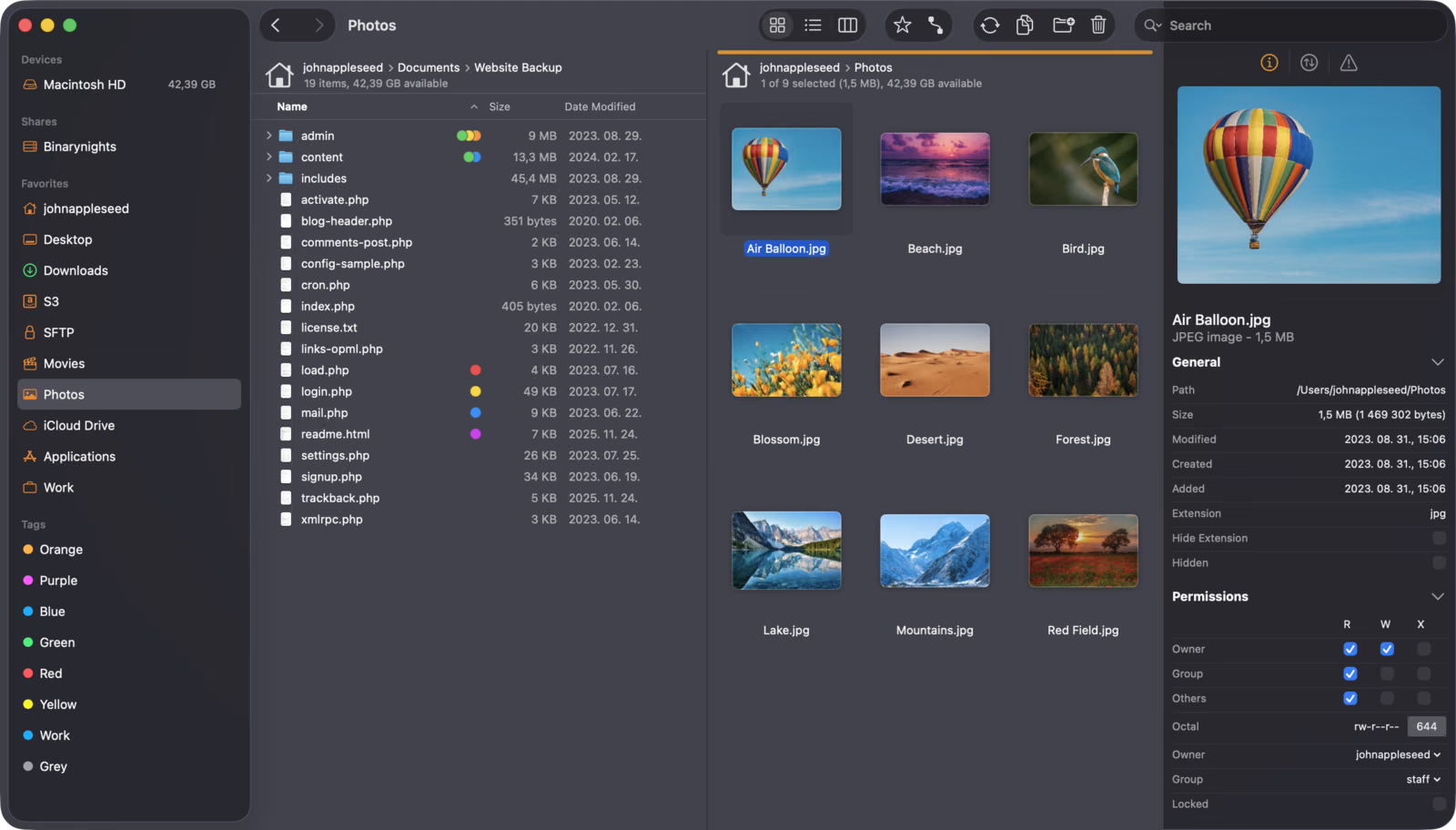
ForkLift 4 is the same kind of gift for another specialist, the person with a NAS or a few servers. It is a dual-pane file manager and transfer client with SFTP, SMB, WebDAV, Amazon S3 and cloud drives in one window, folder sync that previews every change before it runs, and Git status badges on local files.
This review is also a first look, built on BinaryNights’ documentation and two independent reviews. Those reviewers found column view cramped in narrow panes. ForkLift needs Full Disk Access, which is a broad permission. A single-user licence cost $19.95 with one year of updates when I reviewed it, and it keeps working afterwards. Read the ForkLift 4 review, then visit the BinaryNights store.
8. Bear with Bear Pro: Markdown notes on every Apple device
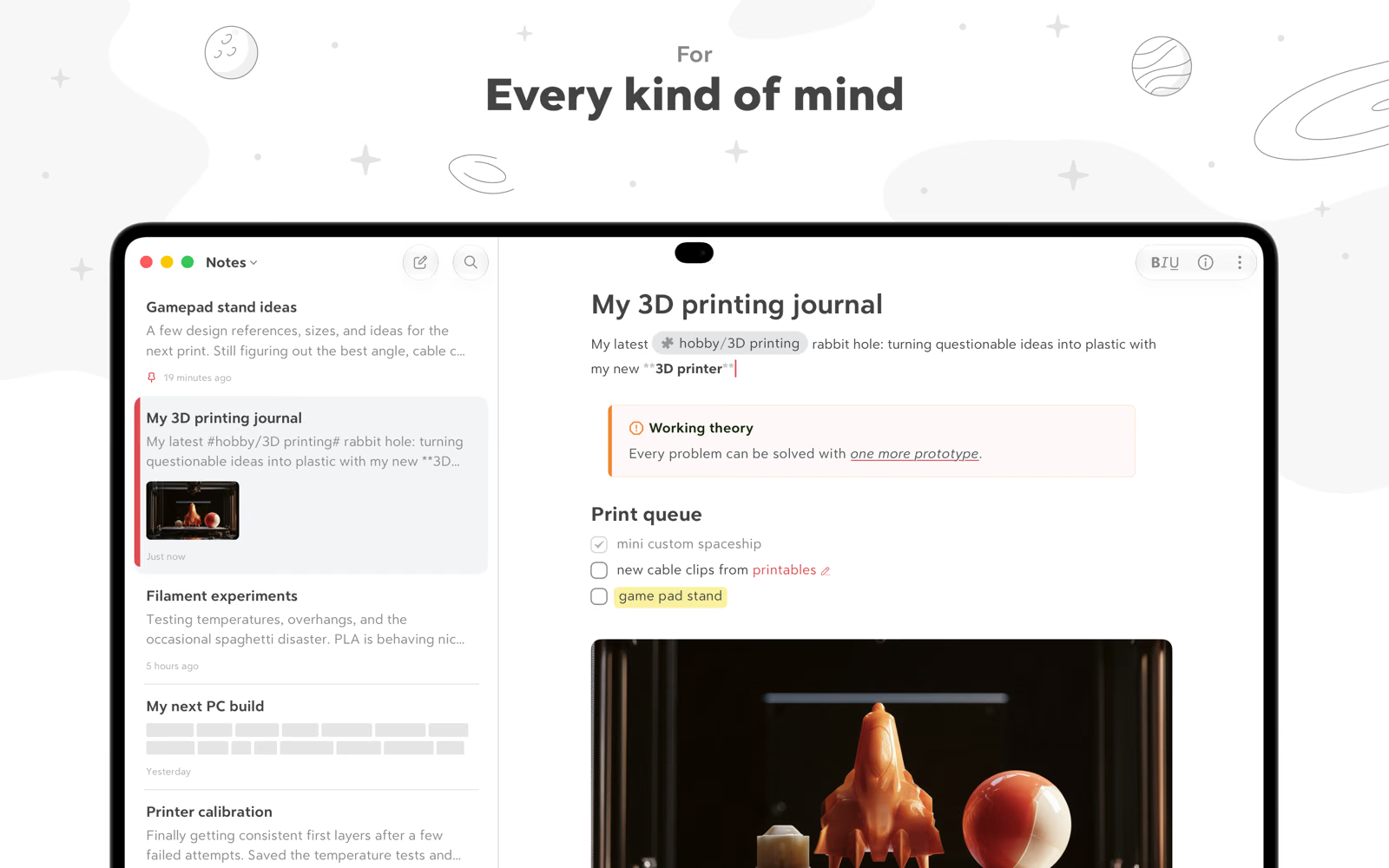
The last three picks are for people who write, beginning with notes. Bear is a Markdown notes app for Mac, iPad and iPhone with syntax-highlighted code blocks, foldable outlines, nested tags and wiki links. The app is free, and Bear Pro is the subscription that adds iCloud sync, note encryption and more export formats. It cost $29.99 a year when I reviewed it.
That review is a first look drawn from Shiny Frog’s documentation and independent writing. The trade is control. Notes live in Bear’s own SQLite database, not as plain files, and there are no plans for Android or Windows. For someone who keeps notes under Git, Bear is the wrong shape. Here is my Bear Pro review and Bear on the App Store.
9. Craft Plus: documents that look finished

Craft sits one step further from plain text than Bear. Its pages are built from blocks, so text, images, tables and nested pages can be arranged into something another person can read without a detour through design software. It suits polished briefs and shared documents across Mac, iPad and iPhone.
The harder questions come later. Sync conflicts, offline attachments and export fidelity need a deliberate test before important work moves in, and the 30 days of version history on Plus are recovery, not backup. Plus is a paid plan, so check the billing options before giving it. For someone who insists on plain-file ownership, the archive belongs in Markdown. Details are in the Craft Plus review, with plans on Craft’s pricing page.
Related reading
10. Marked 3: a preview for the plain-text writer
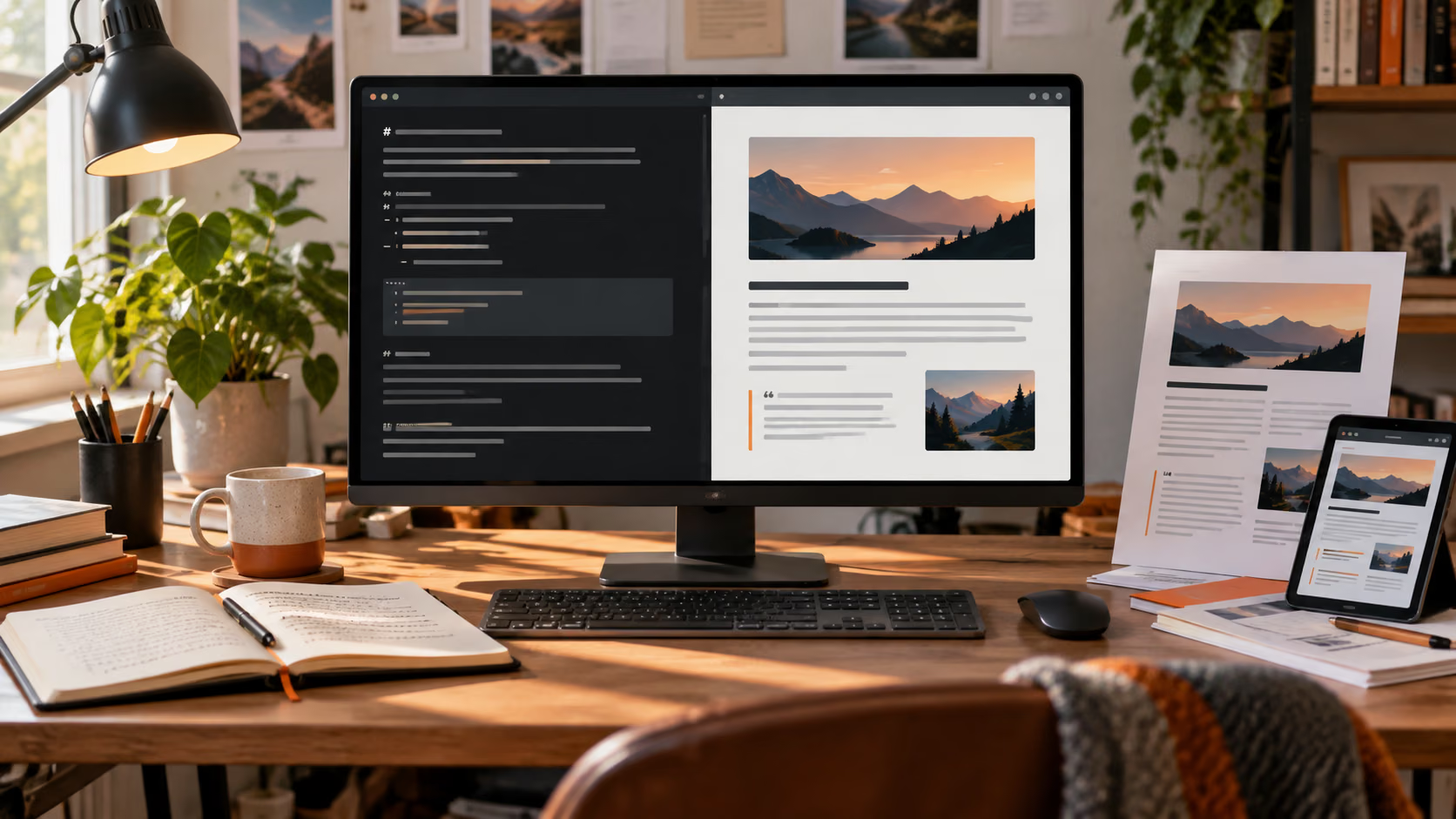
The list closes with the opposite philosophy. Marked 3 owns nothing. The writer keeps their editor and their Markdown files, and Marked watches the file and renders it in a second window. It adds proofreading signals, word counts, custom styles and export to PDF, HTML, DOCX and EPUB. It is for long-form writers and technical authors who produce several formats from plain text.
Its limit is fundamental. A general previewer cannot reproduce every publishing pipeline, MDX with live components least of all, so the real build stays the final check. If the recipient’s editor already previews accurately, Marked duplicates it. The review prefers the permanent licence to the subscription. See my Marked review and the options in Marked’s pricing section.
How to choose
Think about what the person does all day. For a colleague who files bug reports or writes documentation, CleanShot X. For the owner of a notched MacBook whose icons vanish, Bartender 6 Pro, if they are comfortable with its permissions. For someone forever dragging files between full-screen apps, Yoink, which is also a small, low-risk gift. For a desk with a third-party monitor, BetterDisplay Pro, and for the friend with a NAS, ForkLift 4. For writers, choose by their attitude to files: Bear Pro for notes on every Apple device, Craft Plus for documents that get shared, and Marked 3 for someone who will never leave their text editor.
Software has its own Christmas rules. Check on the maker’s store how a licence can be bought for another person before paying, and check which macOS version the app needs against the Mac the recipient owns. A one-time licence is a simpler present than a subscription that someone has to renew. Every app here has a trial or a free version, so letting the recipient try it first is often the kindest order of events. Refund terms differ between stores, so read them before ordering.
More gift guides from this series: for ears, 10 wireless headphones for every kind of listener; for the family console, 10 Nintendo Switch games the whole family can share; and for the house itself, 10 small smart home gifts that are easy to set up.
One email a week with practical Mac workflows, useful comparisons and honest tech recommendations.