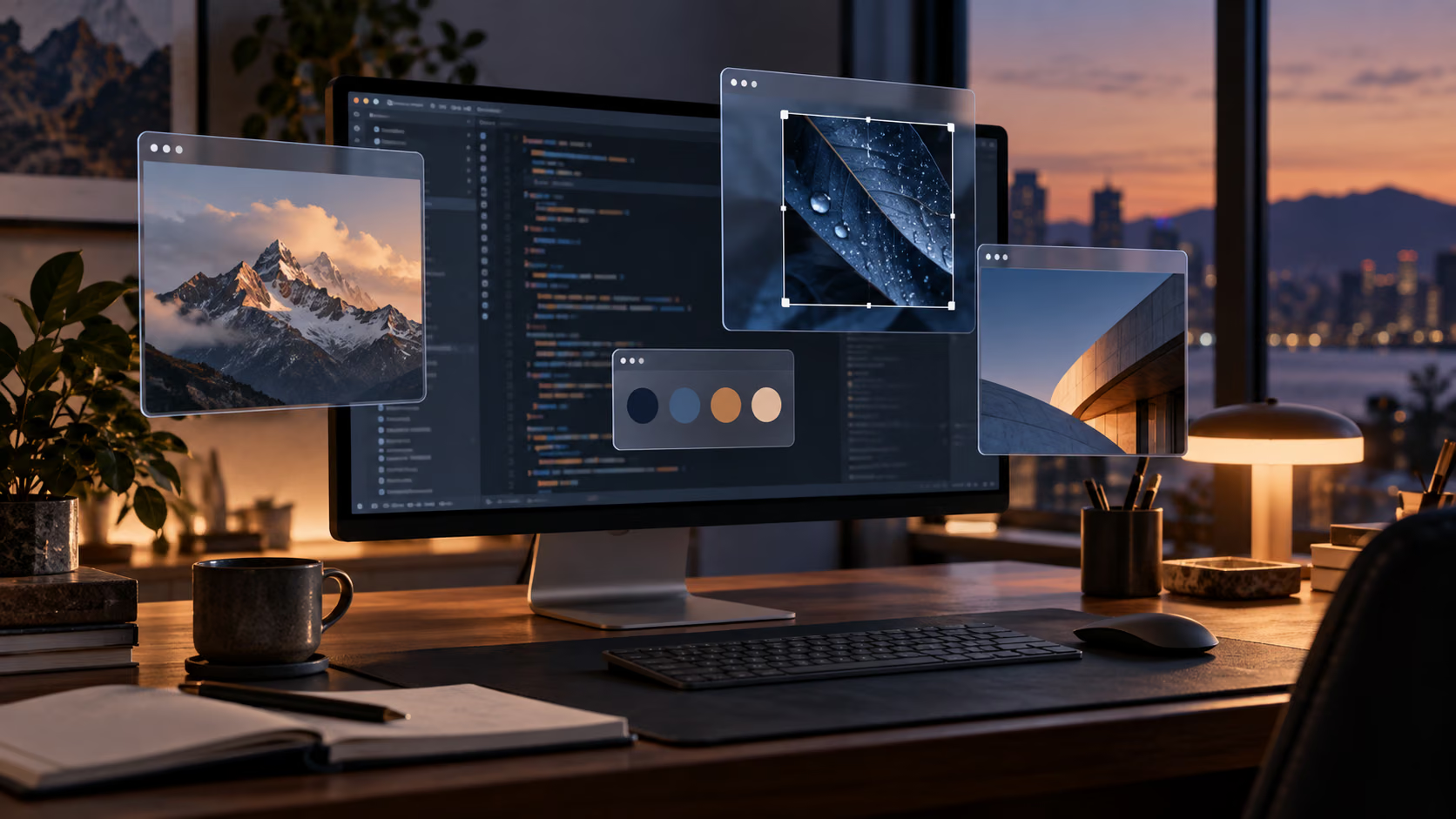
ScreenFloat is described as a screenshot application, but capture is not its most interesting idea. The useful part comes afterward. A shot stays above other windows while you work, like picture-in-picture for a static reference.
That changes a familiar task. An error message can remain visible while the fix is typed. A design fragment can sit beside the implementation. A column of values can be copied without switching repeatedly between windows. The screenshot stops being a file to open and becomes temporary working memory on the screen.
Version 2 has grown into a much larger capture, OCR, recording and library tool. Some of that breadth is welcome. Some risks turning a focused utility into a place where sensitive screenshots quietly accumulate. The core remains easy to judge: does a floating reference reduce window switching without becoming another window-management problem?
Floating is the feature worth buying
A normal screenshot opened in Preview behaves like any other window. Click the editor and the reference falls behind it. Split View can keep both visible, but it changes the whole desktop and uses more space than a small reference requires.
ScreenFloat creates a shot that stays above ordinary windows. It can follow the user across Spaces and full-screen applications, or be limited to a particular Space or frontmost app. Opacity is adjustable, and a shot can ignore clicks so work continues through it.
These controls make the difference between useful persistence and obstruction. A reference should remain where it helps, then disappear immediately when attention moves elsewhere. ScreenFloat can hide shots without closing them, which preserves the working set while clearing the screen.
I would begin with one use case. Capture a small design, terminal error or table, place it beside the relevant work and keep it there until the task ends. If that feels natural, learn app-specific visibility and click-through. Opening many shots at once recreates the clutter the utility is meant to remove.
Spaces and full screen are the real test
Always-on-top windows are easy on one desktop. A Mac workflow with several Spaces, full-screen apps, Stage Manager and changing displays is harder. The floating shot has to follow the intended context without appearing during a presentation or becoming stranded off screen.
The official ScreenFloat page says shots can remain visible in every Space and full-screen app, and can also be pinned to selected Spaces or applications. Those options should be tested on the user’s actual layout.
Create a small matrix during the trial: change Spaces, enter and leave full screen, enable Stage Manager, disconnect an external display, sleep the Mac and wake it. After each transition, check position, size, visibility and click behaviour. Repeat with a shot pinned to one app.
Related reading
The correct result depends on the configured rule, not on showing everywhere. A private reference appearing over a shared full-screen presentation is a failure even if the floating engine worked perfectly. Configure presentation behaviour before the meeting.
Capture is broad without abandoning speed
ScreenFloat can capture an area or window, take timed shots and record a selected area. Holding a shortcut can recapture the previous frame, and frequently used regions or aspect ratios can be saved. These are practical additions because they feed the floating workflow directly.
Recapture is particularly useful for before-and-after comparison. The frame stays identical while the interface changes underneath it. That removes the small alignment errors that make visual changes harder to judge.
Timed capture helps with menus and states that need the pointer elsewhere. A system service is available for contextual menus, which are awkward to capture because clicking the screenshot tool closes the menu. These details show an application designed around real Mac behaviour rather than a generic camera button.
The default shortcuts should be reviewed immediately. Screenshot utilities often compete for the same combinations, and keeping two active can produce uncertain results. Assign ScreenFloat a deliberate set, leave the macOS shortcuts available during the trial and remove collisions.
Recording belongs to the same temporary workspace
ScreenFloat 2 records screen areas with Mac output and microphone input. It can show pointer clicks and key presses, pause, mute tracks and place edit markers for later cuts. The result can remain as a floating shot or enter the library like an image.
This is enough for a short bug reproduction, instructional clip or interface comparison. Marking mistakes while recording makes later trimming faster. Separate system and microphone tracks are valuable because one can be removed without destroying the other.
It is not a full video editor, and it does not need to be. The advantage is staying inside the capture-to-reference workflow. Complex narration, multiple scenes and detailed audio treatment belong in a dedicated tool.
Before recording, close private windows and notifications, confirm audio permissions and make a ten-second test. A visible level meter is useful, but the exported file is the truth. Play it in another application and confirm both audio and picture before recording something that cannot be repeated.
OCR turns the picture back into data
ScreenFloat scans shots for text and barcodes. Recognised lines can be copied, and a capture modifier can copy text directly to the clipboard without keeping a normal screenshot. This is useful for error messages, serialised data and text inside applications that do not allow selection.
OCR is transcription assistance, not a trustworthy parser. Code and identifiers are difficult because punctuation carries meaning. Lowercase l, uppercase I, the number 1, O and zero are familiar confusions. Quotes, hyphens and backticks can change a command.
Test on representative content typed by you, then compare every character. Include prose, a terminal, small text, mixed contrast and the languages actually used. Whole-identifier accuracy matters more than a flattering character percentage when the result will enter code.
Never execute a recognised command without reading it. OCR can save retyping while still requiring verification. That boundary keeps the feature useful.
Barcode extraction deserves similar caution. A QR code can contain a URL, contact or event, but recognising the payload does not make it safe. Inspect destinations before opening them.
Redaction is non-destructive, which changes the risk
ScreenFloat can recognise text and faces and apply QuickSmart redaction. Its markup and redaction are non-destructive, so they remain editable or removable inside the application’s project state.
That is excellent for correction. It is also a reason to distinguish the working shot from the shared export. If a redaction can be removed in the source, sending the source may reveal the concealed information. Export a flattened copy in the intended format, then open that file in an unrelated viewer and verify that the hidden content is absent.
Cropping sensitive material out is safer when context permits. For credentials, tokens or personal information, the best screenshot is one captured after the data has been removed or replaced. Blur and pixelation may still leak shape or length.
ScreenFloat’s privacy option can require authentication for folders containing hidden shots. That protects casual access to the library, not every exported copy, backup or synced version. Sensitive capture needs a lifecycle: capture, use, share a verified derivative and delete when no longer needed.
Related reading

The Shots Browser is both library and liability
Captured material enters the Shots Browser, where it can be named, tagged, rated, favourited and organised into folders or smart folders. Search can use metadata and recognised content. Spotlight indexing is optional, and iCloud can synchronise shots and their annotations between Macs.
For repeated reference material, this is genuinely useful. A technical writer can collect interface states by project. A designer can find earlier comparisons. A support workflow can keep annotated examples without scattering them across the desktop.
Screenshots often contain information that was never intended to become an archive. Searchable OCR increases the value of the library and the sensitivity of a breach. Review retention, Spotlight indexing and iCloud settings before the first month quietly becomes permanent history.
Measure storage growth with your material. Note the library size, make a known number of normal screenshots and recordings, then check again. Video will dominate. ScreenFloat lets users limit which media and file sizes sync through iCloud, which is useful for both quota and exposure.
I would use project folders for durable references and delete one-time shots. A capture tool should not become the least governed document system on the Mac.
Editing tools are practical and reversible
ScreenFloat includes crop, resize, rotation, annotation and a Fold feature that removes an unnecessary middle section and joins the remaining parts. De-retinising can reduce pixel dimensions and file size before sharing. Video can be trimmed and sections removed.
Fold is unusually useful for screenshots containing a large empty gap or an irrelevant central region. It communicates that content was omitted more honestly when the join is visually apparent. It should not be used to make two separate states look contiguous without explanation.
Non-destructive editing preserves options in the library. Export profiles and drag modifiers can produce a particular format, size or version without changing the working shot. This supports several destinations from one source.
Always inspect the final pixels. HEIC, JPEG and aggressive resize settings can soften small interface text. A documentation image needs legibility at the width where the site will display it, not only when zoomed in on the Retina screen.
Automation is available without making it mandatory
ScreenFloat integrates with Shortcuts, AppleScript, widgets, services and a URL scheme. A double-click on a floating shot can run a chosen workflow, such as crop, annotate and send to a destination. Recurring capture frames can also be called without manually drawing the region again.
This is the right kind of automation for screenshots because the input and outcome are visible. A documentation workflow can title a shot, tag it with the project and export a web-sized PNG. A testing workflow can recapture the same region after a change.
Keep workflows small and reversible. An automation that uploads or deletes should make that action explicit. Avoid placing sensitive recognised text in URL parameters or logs. Test after app and macOS updates, especially when system services or privacy permissions are involved.
Widgets can be useful for recent shots and capture controls, but they also display information outside the main app. Do not put a private shot on a desktop that appears during screen sharing.
ScreenFloat and CleanShot solve different centres
CleanShot X centres on a fast capture, annotation and sharing pipeline. ScreenFloat centres on keeping captured information visible and building a searchable local library. Both now record, annotate and recognise text, so their feature lists overlap heavily.
The decision should begin with the repeated moment. If the problem is producing polished screenshots and links quickly, CleanShot is the more direct fit. If the problem is switching back and forth to consult a reference, ScreenFloat’s floating model is distinctive.
Using both is possible but can create duplicate shortcuts, histories and resident utilities. Choose one primary capture tool and configure the other around its unique function. For example, keep system or CleanShot capture shortcuts and send selected images into ScreenFloat only when they need to float.
macOS itself remains the baseline. Preview can annotate, Quick Look can inspect and window tiling can hold a reference beside the work. Those options are enough when the need is occasional.
The best trial uses one repeated interruption
Do not evaluate ScreenFloat by capturing random windows for an afternoon. Choose a task that normally causes repeated switching, such as copying values from a specification into code, comparing a design with a build or entering information from a receipt.
Count how often the source window would normally be reopened, then complete the same task with one floating shot. Check whether the image obstructs controls, follows the correct Space and remains legible at the size needed. The application is worth keeping when it removes friction from that real loop. A long feature checklist cannot establish the same thing.
Related reading
Also test the moment the task ends. Closing or filing the shot should be fast enough that yesterday’s references do not become today’s desktop clutter.
Pricing is refreshingly direct
ScreenFloat 2.3.9 currently requires macOS Monterey 12.3 or newer. The official site lists a one-time price of 19.99 euros, $17.99 or £17.99, with the same functionality in the direct, Mac App Store, trial and Setapp versions. That is unusually clear.
At $17.99, the purchase does not need to replace an entire creative suite. It needs to prevent enough repeated window switching to remain installed. The trial can establish that in a few real tasks.
The direct and App Store builds have equal advertised functionality, so distribution preference can decide. Existing Setapp subscribers should compare continued bundle cost with buying an inexpensive permanent licence if ScreenFloat is one of the few applications they use.
Compatibility and pricing change, so confirm them on the official product page before purchase.
Verdict
ScreenFloat 2 succeeds because its central idea is still sharp after the feature list expanded. A screenshot that floats above the work can replace repeated app switching with a reference that occupies exactly the space it needs.
OCR, recording, non-destructive editing and the Shots Browser make it capable enough to become a primary capture tool. They also create responsibility. Verify recognised text, flatten redactions before sharing and treat the searchable library as sensitive storage rather than harmless desktop clutter.
I would recommend ScreenFloat to developers, writers, designers and anyone who regularly copies or compares information between applications. Start with one floating reference and test it across the Spaces, displays and full-screen modes you actually use. If the shot stays present when needed and disappears when not, $17.99 is a very reasonable one-time price for a Mac utility that understands attention better than another window does.
Screenshot: Eternal Storms Software.
One email a month: new articles, reviews and the upcoming live webinar + free recording. No spam, unsubscribe anytime.