The built-in Mac screenshot tool is good enough until screenshots become part of the job. Then its limits arrive together: no proper scrolling capture, a basic annotation flow, awkward desktop clutter and screen recordings that often need another application before they are ready to share.
CleanShot X is popular because it turns that collection of small interruptions into one workflow. Capture, inspect, annotate, copy, save or upload. The result appears in a small overlay instead of immediately becoming another file on the desktop. None of those steps sounds transformative alone. Repeated twenty times during a bug report, review or tutorial, they matter.
The app is easy to recommend and therefore easy to review badly. A list of more than fifty features says almost nothing about whether a screenshot can be trusted as evidence. Scrolling capture can duplicate a line. OCR can misread punctuation. A cloud upload can fail after the local image has disappeared. The useful question is not how much CleanShot can do. It is whether the shorter workflow remains correct.
The quick access overlay is the centre of the app
After a capture, CleanShot can place a temporary preview near the edge of the screen. From there the image can be dragged into another application, copied, saved, annotated or dismissed. This is the part I would miss first if I returned to the system tool.
The overlay fits how screenshots are actually used. Many are disposable. A picture copied into a chat or issue tracker does not need a permanent filename. Saving every capture to the desktop creates a cleanup task that has nothing to do with the original work. CleanShot keeps the decision open for a moment, then gets out of the way.
That flexibility is more useful than a large editing suite. A developer can capture an error, drag it into a ticket and continue. A technical writer can open the same capture in the annotation editor. Someone documenting a visual regression can pin several recent shots long enough to compare them.
There is a small risk in making the overlay the temporary home of an image. If the user dismisses it before copying or saving, the expected artefact may be gone. Capture history reduces that risk, but it is worth learning the retention settings before relying on them. A fast workflow should not become a fragile one.
Scrolling capture has to be verified
CleanShot’s scrolling capture is the obvious reason to pay because macOS does not provide an equivalent system feature. It can capture content longer or wider than the visible viewport. The application scrolls through the source, records overlapping frames and stitches them into a single image.
Related reading
That last word is important. Stitching is an inference. Fixed headers, lazy-loaded images, animated elements and virtualised lists can confuse it. A duplicated line in a decorative webpage may be harmless. A duplicated line in source code or a configuration guide changes the evidence.
I would never treat a long capture as automatically correct because the preview looks smooth. For code, compare the first and last line numbers and inspect the seams at regular intervals. For a webpage, look closely around sticky navigation and content that loaded while scrolling. If the source contains repeated visual patterns, verify them against the original rather than trusting continuity.
A repeatable test is simple. Create a page with numbered lines, several coloured separators and a sticky element. Capture it at different scroll speeds. Count missing, repeated or distorted markers. That tells you more about suitability for your content than a generic claim that scrolling capture works.
CleanShot also documents both vertical and horizontal scrolling capture on its features page. Horizontal capture is useful for wide timelines, canvases and tables, but it has the same correctness boundary. The wider the source and the more it redraws while moving, the more carefully I would inspect the result.
Annotation is fast because it is narrow
The annotation editor is not trying to replace an image editor. It provides the things screenshots usually need: arrows, rectangles, text, highlighting, numbering, cropping and redaction. That limited scope is a strength. The controls are available immediately and the output remains easy to read.
For bug reports, I prefer one rectangle or arrow over a paragraph explaining where to look. Numbered steps work well when the image shows a sequence. A background tool can make a small capture presentable without opening design software. These are ordinary features, but their proximity to capture changes how often they are used.
Speed can be tested without pretending there is one universal number. Choose ten annotation tasks and produce the same result with CleanShot and the macOS path through Preview. Count interactions and time the complete flow from shortcut to copied final image. Repeat after the CleanShot shortcuts become familiar. The difference is the value of the workflow, not the time spent drawing an arrow in isolation.
Redaction deserves more caution. Pixelation or blur may conceal information visually, but it should not be treated as a formal data-removal guarantee without testing the exported file. Crop sensitive material out when possible. If a screenshot contains credentials, personal data or a private URL, the safest capture is the one that never includes them.
Screen recording covers the common cases
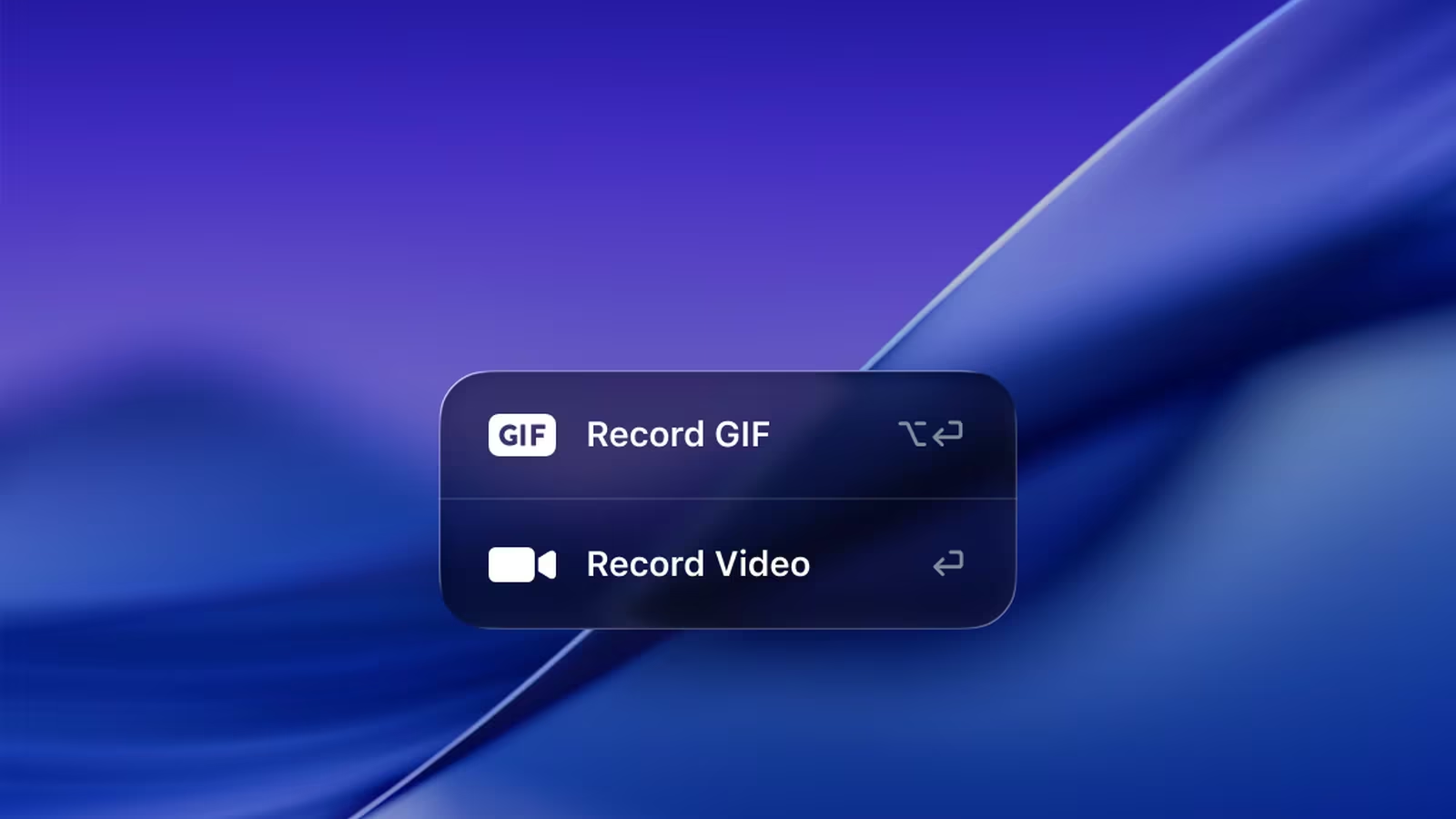
CleanShot can record a selected area, a window or the screen, with options around audio, webcam and pointer presentation. The current product also includes a video editor, which closes the gap between capturing a short demonstration and sharing something that looks intentional.
For a software bug, this is usually enough. Start recording, reproduce the problem, trim the dead time and export. Highlighting clicks or keeping the pointer visible can make a support recording easier to follow. A short loop can sometimes replace a video entirely when audio is unnecessary.
It is not a production editor. Complex narration, multiple tracks, colour work and carefully mixed audio still belong elsewhere. That is not a weakness if the expectation is right. CleanShot is valuable because a forty-second explanation does not have to become a video project.
Recording also invokes macOS privacy controls. Screen access and microphone access should be enabled only for the features you use. Before recording a desktop, close notifications, private chats and unrelated windows. Hiding desktop icons inside the capture cannot prevent a notification banner from exposing information.
The export decision matters too. GIF is convenient but inefficient for long or detailed motion. Video preserves more detail at a smaller size and is usually the better choice for interface demonstrations. Test the final artefact in the destination, because issue trackers and messaging tools may recompress it.
OCR is useful precisely because it is imperfect
CleanShot includes on-device optical character recognition. Selecting text from an image is valuable when an error message cannot be copied, a video call shows a command or documentation arrives as pixels. Keeping the recognition on the device is also the right privacy default for this kind of utility.
OCR output still needs review. Code is a difficult input because a single character can change meaning. The letter O and zero, lowercase l and uppercase I, straight and curly quotes, hyphens and minus signs are common failure points. Never paste a recognised shell command into Terminal and execute it without reading it.
The fair way to judge OCR is with content you already know. Prepare samples containing prose, code, small text, mixed contrast and several languages. Compare the recognised output character by character. An accuracy percentage is useful only when the sample resembles what you intend to capture.
Related reading
I see OCR as a transcription shortcut, not a source of truth. It removes retyping, then hands the text back for verification. Used that way, even imperfect recognition saves time without creating false confidence.
Cloud sharing is convenient and optional
CleanShot Cloud can upload a capture and return a link quickly. That is ideal for temporary collaboration, particularly when a messaging platform would compress the image or when the recipient needs the original resolution. Pro plans add more storage and sharing features.
The convenience changes the privacy model. A local screenshot becomes a hosted document accessible through a URL. Before uploading, consider what the image contains, how long it should exist and whether the destination’s policy allows third-party hosting. A secret-looking link is not the same thing as an access-control system.
Network failure should also be boring. The local capture must remain recoverable if an upload fails. Test this intentionally during the trial: start an upload, interrupt the connection and confirm where the image can be found. Then check deletion and expiry controls rather than assuming old links disappear.
For sensitive work, I would keep capture and annotation local and upload through the organisation’s approved system. CleanShot remains useful without its cloud. That separation is one of the product’s better qualities.
History is helpful, but it becomes a data store
Capture history solves the moment when an overlay was dismissed or a screenshot from yesterday is needed again. The official feature description says history can search and restore previous captures. This makes screenshots feel less disposable, which is both useful and potentially risky.
Screenshots often contain more than users remember: customer names, internal URLs, meeting details, email addresses, tokens or fragments of private conversations. A searchable archive of them deserves the same attention as Downloads or clipboard history. Review where it is stored, how long it is retained and what backup systems copy it.
I would choose a finite retention period and delete sensitive captures immediately. If the Mac is shared or managed, ask whether storing this history is appropriate at all. Convenience should not quietly create a second document archive outside the systems already governed by policy.
Disk use is easy to estimate. Record the history folder size, make a known number of typical captures and recordings, then measure it again. The result will vary with resolution and video use, but it gives a personal growth rate that can be multiplied by a month of work.
Automation is a real advantage for repeatable work
CleanShot exposes a URL scheme documented in its automation API. That makes it possible to trigger capture actions from Shortcuts, launchers or scripts without pretending the app is a full command-line tool.
This is valuable when the output format and destination are consistent. A documentation shortcut could start an area capture with a chosen background and then copy the result. A support workflow could capture a window and open annotation immediately. The gain comes from removing decisions, not from automation for its own sake.
URL schemes can accept parameters, so do not pass sensitive information through them unnecessarily. Keep automations small, name them by outcome and test them after major app updates. A screenshot shortcut that silently changes destination is exactly the kind of convenience bug that wastes time later.
Pricing is really an update decision
CleanShot’s current pricing page lists a Basic one-time licence at $35, including one year of updates and 1 GB of cloud storage. The Pro option is $10 per user per month when billed annually and includes the subscription features and updates. The site currently requires macOS 13 or later.
The Basic licence is the sensible reference for an individual. The application continues working after the included update period, so the purchase is not a disguised annual rental. Paying again is a decision about newer versions and compatibility, not continued access to the copy already bought.
Pro is harder to justify unless the hosted sharing features are genuinely part of a team workflow. Cloud storage quotas and branded sharing pages are not valuable merely because they exist. Compare the annual cost with the approved storage and collaboration tools you already have.
There is also a free system baseline. Shift-Command-3, Shift-Command-4, the Screenshot toolbar and Preview cover ordinary capture and simple markup well. CleanShot earns money only when the repeated workflow around those captures is the expensive part.
Related reading
Where it fits and where it does not
CleanShot is strongest for developers, designers, support staff and technical writers who communicate through the screen. Scrolling capture, the quick overlay and immediate annotation work together. Buying the app for one isolated feature misses why it feels coherent.
It is unnecessary for someone who takes a few screenshots each month. The macOS tools are reliable, familiar and already installed. It is also not a substitute for a privacy process, a professional video editor or visual regression testing. A screenshot can illustrate a test result; it is not the test.
The app should be configured around the existing muscle memory. It can use familiar shortcuts and replace the system capture actions, but I would keep a way to invoke Apple’s tool during the trial. That makes the comparison honest and provides a fallback if an application blocks third-party capture.
Verdict
CleanShot X is the Mac screenshot utility I would choose when captures are work products rather than occasional pictures. The quick access overlay removes file clutter, annotation is available at the right moment, recording stays appropriately small in scope and OCR turns pixels back into editable text.
Its most impressive feature, scrolling capture, is also the one that requires the most scepticism. Inspect stitched output before treating it as technical evidence. Review capture history like any other store of sensitive information, and keep cloud sharing aligned with the data inside the image.
For an individual, the one-time Basic licence is easier to defend than the subscription. Use the trial on a real week of bug reports, documentation and calls. If CleanShot replaces a chain of capture, Preview, export and cleanup several times a day, it earns its place quickly. If the built-in shortcuts already end with the artefact you need, the best screenshot tool remains the one macOS includes.
Image: CleanShot.
One email a month: new articles, reviews and the upcoming live webinar + free recording. No spam, unsubscribe anytime.