Plug a Mac into a monitor that Apple did not make and you quickly find the edges of the Displays settings. You get a handful of scaled resolutions, no brightness slider for most third-party screens, and no way to switch the monitor’s input without reaching behind it for the buttons. BetterDisplay is a menu bar app that fills those gaps. It is developed by waydabber at Kodeon Software, it is free to download, and a Pro licence unlocks the more ambitious features.
Quick verdict
Install the free version for DDC brightness and input switching, and buy Pro if you want sharper scaling on a sub-4K monitor or extra XDR brightness.
- Best for
- Mac users who work every day on a third-party external monitor or want more brightness from a MacBook Pro XDR display.
- Main benefit
- It adds per-display brightness, input switching, flexible HiDPI scaling and brightness upscaling that macOS's own Displays settings do not offer.
- Biggest drawback
- The menus and settings are deep, and some features change the system display configuration.
BetterDisplay Pro licence
betterdisplay.pro · Worldwide
Check price and availability: BetterDisplay Pro licence at betterdisplay.proProduct link.
Time with the product: A first look after the licence arrived on 13 November 2026.
Reviewed version: Pro licence for BetterDisplay v5 (perpetual, current major version)
Compatibility: BetterDisplay v5 runs on macOS 26 Tahoe and macOS 27 on Apple Silicon and Intel Macs, with older releases for earlier macOS versions.
Review context: The review focuses on HiDPI scaling, DDC brightness and input switching, and XDR brightness on a MacBook Pro and Mac mini sharing an external monitor.
My setup is exactly the kind it was built for: a 14-inch MacBook Pro with M4 Max, a Mac mini and an external monitor that both of them share. Over the coming weeks I want to find out whether BetterDisplay can make that monitor look and behave as if it belonged to the Mac. My stance on utilities like this is simple: if an app replaces a daily annoyance with one slider in the menu bar, it earns its place.
Disclosure: Kodeon Software sent this BetterDisplay Pro licence free of charge for review and I keep it. No money changed hands, and Kodeon Software had no approval over the text.
Screenshots: BetterDisplay Guide, used with the developer’s permission.
Related reading
What macOS leaves out
The Displays pane in System Settings is designed around Apple’s own screens. On a built-in Retina panel everything just works. On a 27-inch 1440p office monitor, you get a short list of resolutions, and the ones that make text a comfortable size often look soft.
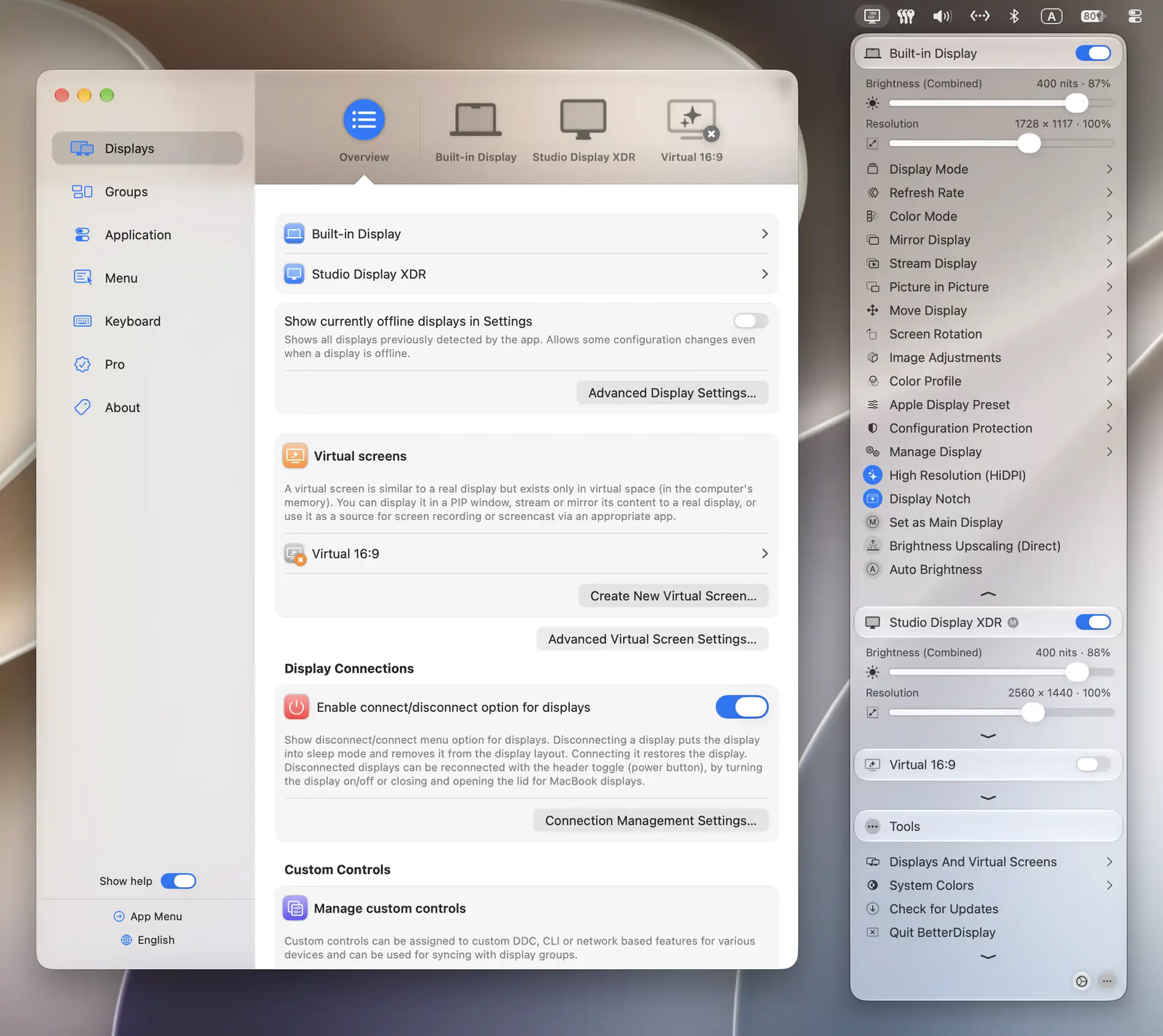
BetterDisplay gives every connected screen its own block in the menu bar with brightness, volume and a resolution slider, plus submenus for refresh rate, colour mode, mirroring and more. The project’s website reports more than ten million downloads, which says a lot about how many Mac users hit the same walls.
Sharper scaling on non-Retina monitors
The headline feature is what the developer calls flexible scaling. macOS draws its sharpest image in HiDPI mode, rendering the desktop at twice the size and then fitting it to the panel. On monitors below 4K, Apple simply does not offer most HiDPI options. TidBITS described the problem back in 2021, when Josh Centers wrote that Macs do not provide HiDPI scaling for sharp text on monitors below 4K and that the Intel-era workarounds did not work on M1 Macs. His fix was BetterDummy, the app that became BetterDisplay.
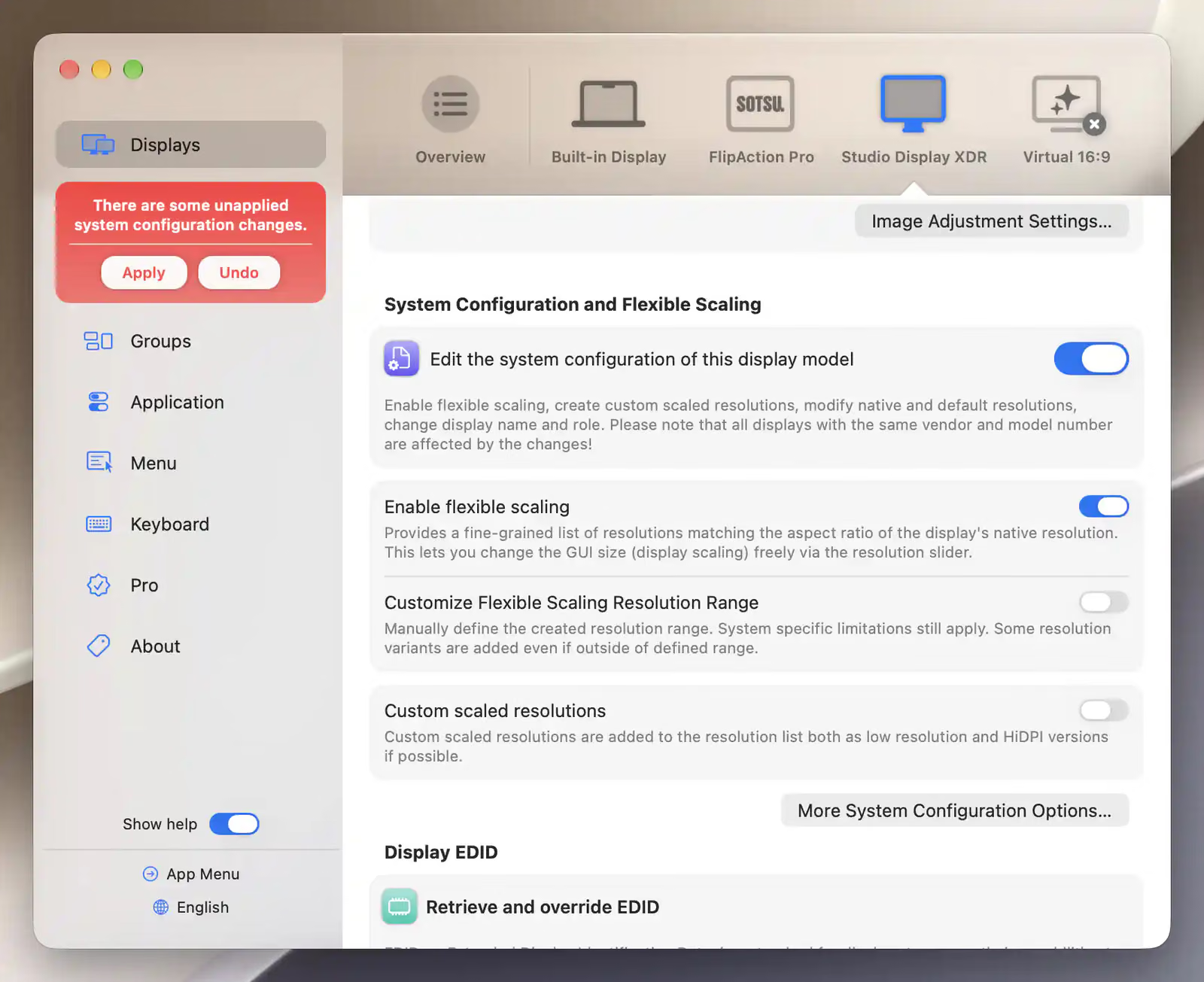
Today the approach is cleaner. According to the HiDPI tutorial in the guide, you enable flexible scaling for the display model, approve a system change, and the resolution slider then offers closely spaced HiDPI desktop sizes. On eligible external displays on Apple Silicon, no reboot is needed. Over DisplayLink or Sidecar, the guide suggests a virtual screen mirrored to the real display instead.
I like that the guide is honest about the limit: HiDPI improves rendering detail, but the panel’s physical pixel count still decides how sharp the image can look. A 1440p monitor will not become a 5K display. Flexible HiDPI scaling is a Pro feature, while the resolution slider and custom scaled resolutions are free.
Brightness and input switching over DDC
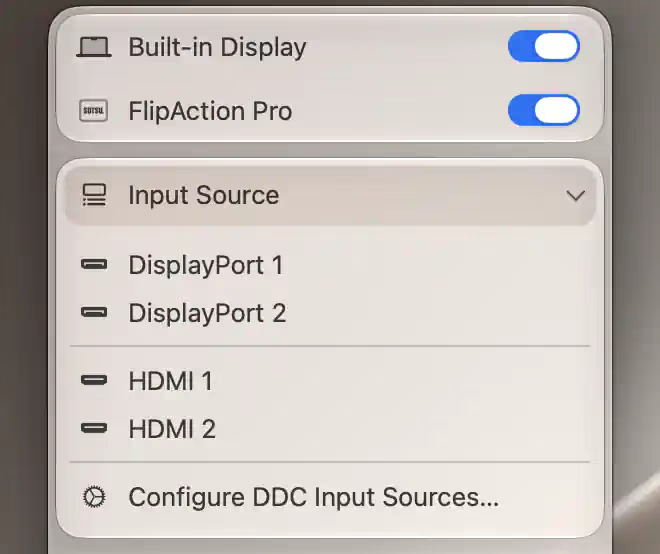
DDC is the protocol a computer uses to send commands to a monitor over the video cable, the same commands its buttons send. BetterDisplay uses it for hardware brightness, contrast, volume and the input source, and it can detect which features your monitor reports and configure itself. The DDC section of the guide warns that support depends on the display and connection, and some TVs do not speak DDC at all.
Related reading
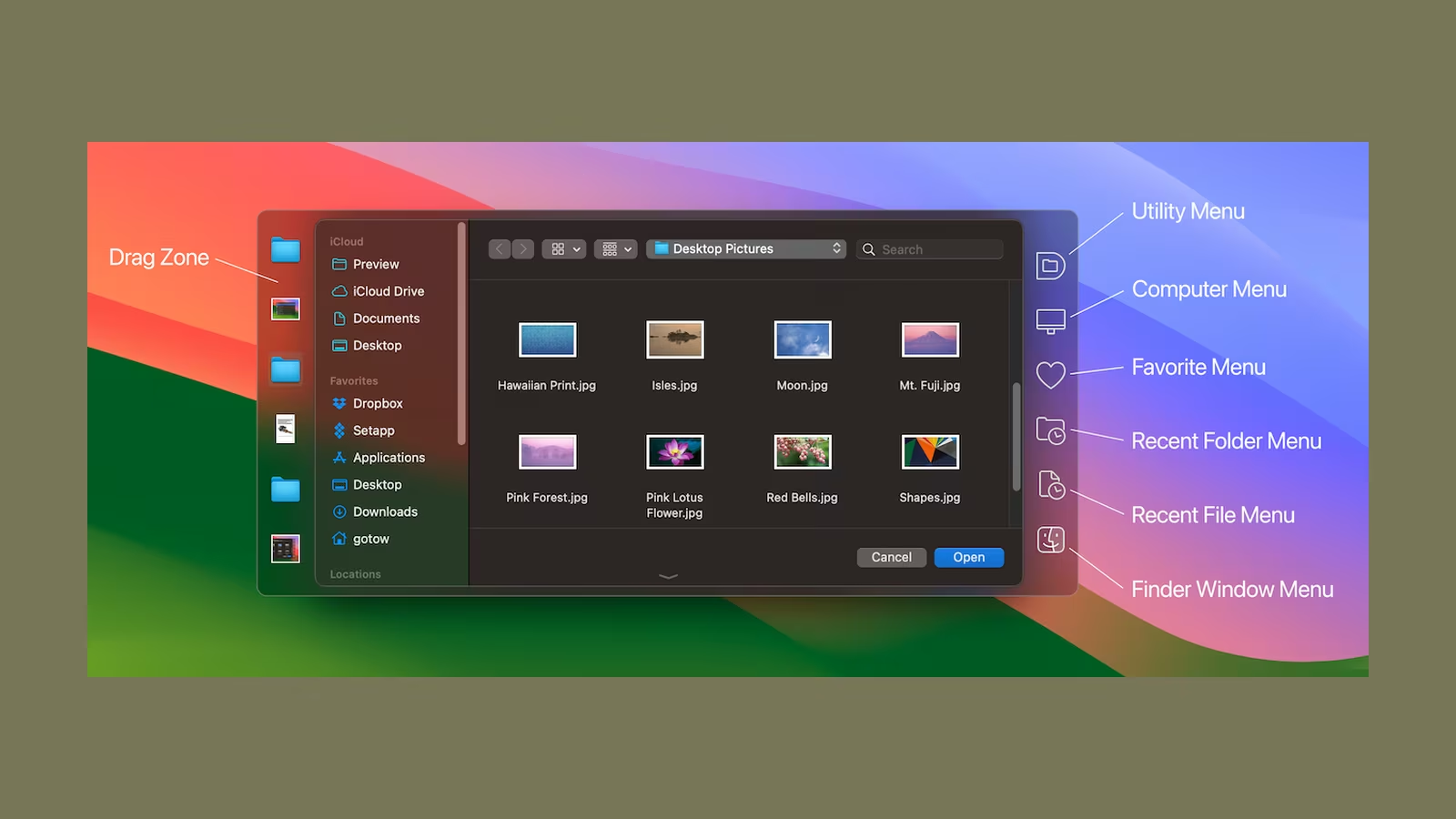
Input switching is the part I care about most. With two Macs on one monitor, switching should be a menu click, not a hunt for a joystick behind the panel. All the DDC features, input switching included, are in the free version.
The built-in HDMI port is where BetterDisplay separates itself from older tools. The MonitorControl troubleshooting page lists the built-in HDMI ports of the M1 and entry-level M2 Mac mini, the 2018 Intel Mac mini and the Mac Studio among the ports it cannot use for DDC, and names BetterDisplay as an app that supports them. BetterDisplay’s feature list confirms free DDC through built-in HDMI on those Mac minis, which matters if yours drives its monitor over HDMI rather than USB-C.
Extra brightness on XDR and HDR displays
The 14-inch MacBook Pro’s mini-LED XDR panel can go far brighter than macOS lets the desktop use, because the extra range is reserved for HDR content. BetterDisplay unlocks part of it for ordinary windows. The site promises up to 2,000 nits on XDR displays and display-dependent boosts on external HDR screens.
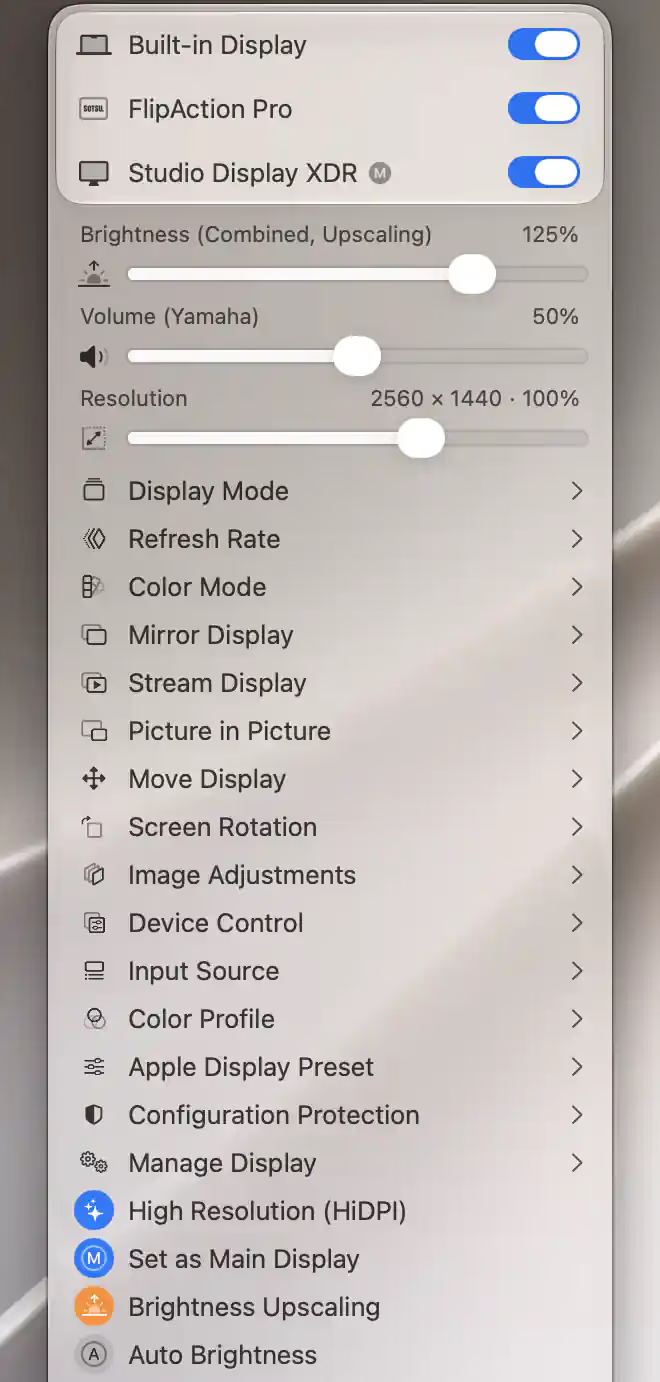
The brightness upscaling tutorial describes a direct method for compatible built-in XDR displays and software methods for external XDR and HDR screens. The caveats are spelled out: an SDR-only monitor gains nothing, the slider percentage is not a measured luminance, more output means more power and heat, and the direct method does not work on the new PROLED MacBook Pro panels. All upscaling is Pro. Next to a bright window, this is the feature I expect to use most on the laptop.
Virtual screens and Picture in Picture
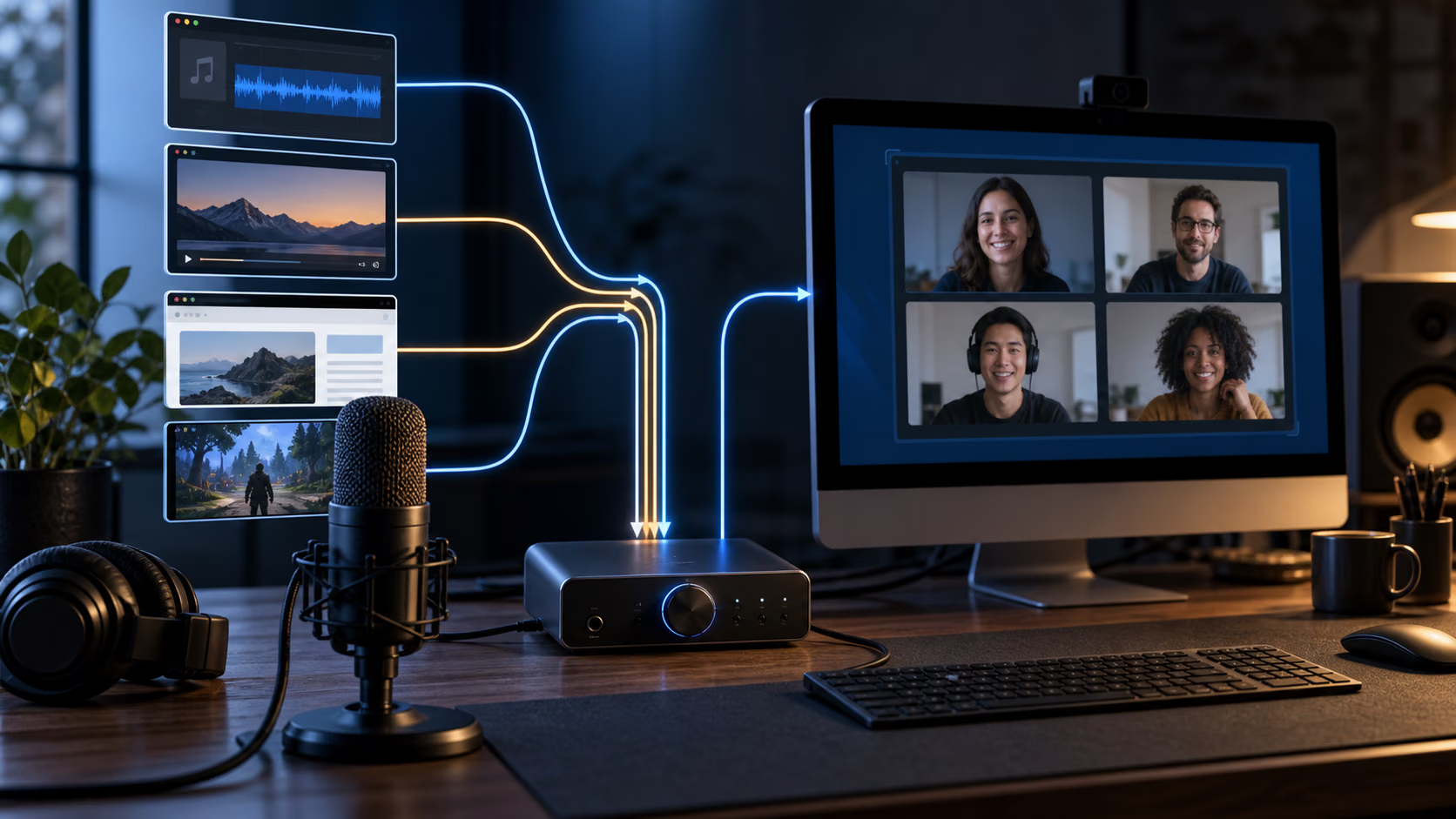
A virtual screen is a display that exists only in the Mac’s memory. You can mirror it to a real monitor, stream it into a window or record it. Creating one is free, while custom, HDR and high refresh rate virtual screens are Pro. Picture in Picture, also Pro, shows any real or virtual display, or selected windows, in a floating window.
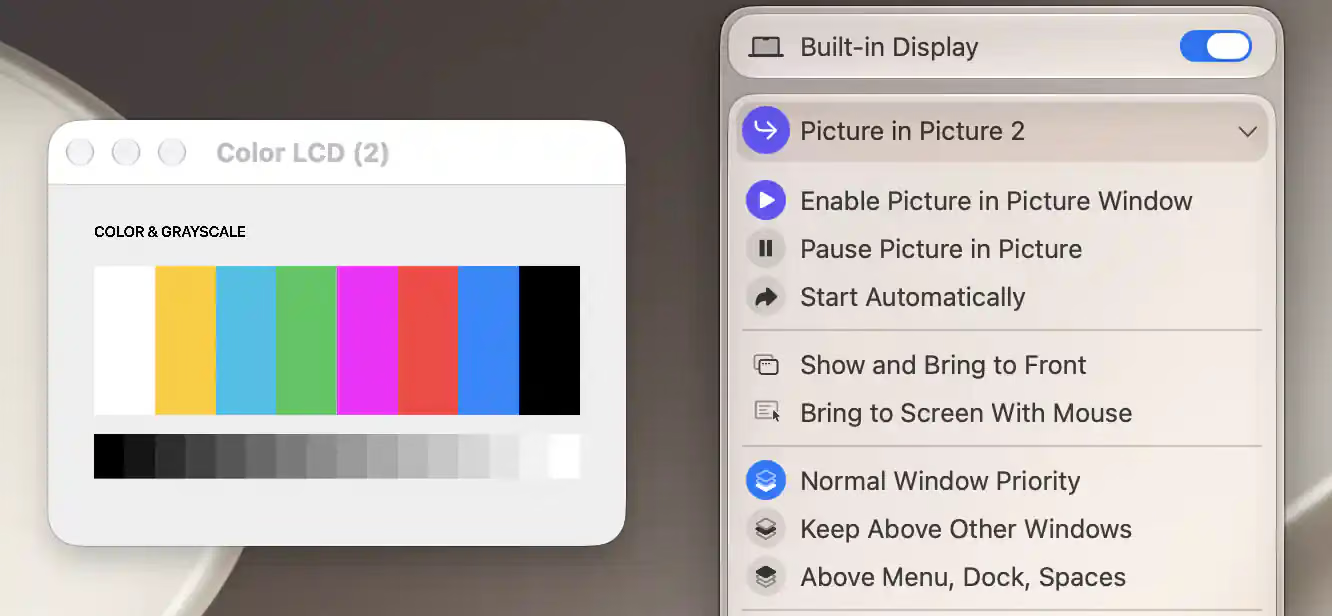
Most people will never need these. If you run a headless Mac mini over Screen Sharing or record presentations at a fixed resolution, they solve problems macOS cannot.
Free versus Pro
The free version is unusually generous: DDC brightness, volume and input switching, native brightness keys for external screens, the resolution slider, custom scaled resolutions and virtual screens. Pro adds flexible HiDPI scaling, XDR and HDR brightness upscaling, Picture in Picture, display disconnection, layout protection, EDID overrides and advanced colour tools. Every download starts with a 14-day trial with everything unlocked. One condition is easy to miss: business users must buy a licence to keep using any features, free or Pro, after the trial.
Related reading

Price and where to buy
A Pro licence costs $21.99 or €19.99, tax may apply, according to the BetterDisplay website. It is perpetual, not a subscription, covers the current major version with at least two years of free updates, and is sold through Paddle. Download only from betterdisplay.pro or the GitHub repository, because the developer warns about lookalike sites. Version 5 needs macOS 26 Tahoe or later, with older releases kept for older systems.
What this review is based on
The Pro licence arrived on November 12–13, 2026, so this is a first look rather than a long-term test. Features, prices and licence terms come from the BetterDisplay website, its Guide and the GitHub README. The history of HiDPI on Apple Silicon comes from TidBITS, and the built-in HDMI comparison from MonitorControl’s troubleshooting page. I have not yet tested scaling sharpness on my monitor, DDC input switching between the MacBook Pro and the Mac mini, or upscaled brightness on the MacBook Pro’s display, and those are what the coming weeks are for.
Verdict
BetterDisplay looks like the most complete answer to a question every Mac user with a third-party monitor eventually asks. The free version alone covers brightness, volume and input switching. Pro is worth its modest one-time price if your monitor is below 4K and you want sharper scaling, or if you own a MacBook Pro with an XDR display and want more brightness on the desktop.
The trade is complexity: the menu is long and some features touch the system configuration. For anyone who lives with an external monitor every day, that seems a fair price.
What worked
- The free version already includes DDC brightness, volume and input switching, including built-in HDMI on M1 and entry-level M2 Mac minis.
- The guide is clear about limits, such as HiDPI not exceeding the panel's physical sharpness and upscaling not helping SDR-only monitors.
What bothered me
- Flexible HiDPI scaling, XDR and HDR upscaling and Picture in Picture all require Pro.
- Business users must buy a licence to keep using any features after the 14-day trial.
Who should not buy it
- People who only use Apple displays or a single built-in screen and are happy with macOS's default scaling.
Alternatives I would consider
- MonitorControl. A free open-source app for DDC brightness and volume if you do not need scaling or brightness upscaling.
Evidence and sources
The article separates my judgement from specifications and claims credited to their sources. All screenshots come from the official BetterDisplay Guide, used with the developer's permission.
- BetterDisplay website
- BetterDisplay Guide
- BetterDisplay Guide: HiDPI tutorial
- BetterDisplay Guide: DDC Control
- BetterDisplay Guide: brightness upscaling tutorial
- BetterDisplay on GitHub
- TidBITS
- MonitorControl troubleshooting wiki
Features, compatibility and rated figures from the maker are manufacturer information. My opinions are identified in the review.
Conclusion
A one-time perpetual Pro licence with at least two years of updates is modest for a tool used every day.
BetterDisplay Pro licence
betterdisplay.pro · Worldwide
Check price and availability: BetterDisplay Pro licence at betterdisplay.proProduct link.
One email a week with practical Mac workflows, useful comparisons and honest tech recommendations.