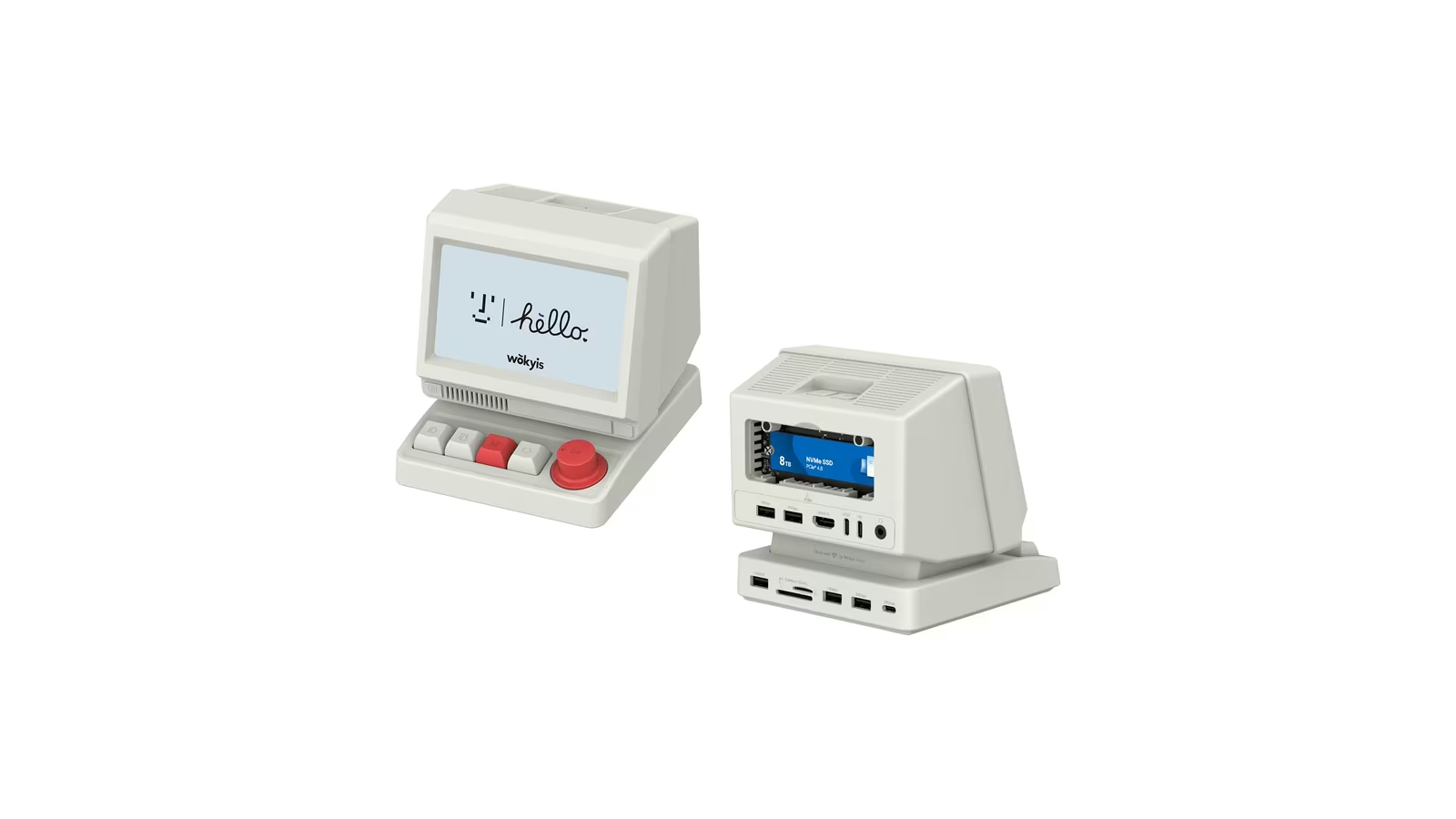
The Wokyis i5 looks like a 1984 Macintosh that has been shrunk to the size of a coffee mug. That is the reason most people notice it and the least important thing about it. Underneath the beige shell is a USB-C laptop dock with a 10 Gbps NVMe bay, a 5 inch screen, four mechanical shortcut keys with a volume knob, and 65 W of charging for the host.
Wokyis started with the M5, a dock shaped to sit under a Mac mini. The i5 is the laptop version of the same idea. The host is a MacBook or a Windows notebook on a single USB-C cable, the dock powers it, and the retro screen shows either storage status or whatever is plugged into the HDMI input.
The design does a lot of work in photographs. The review question is whether the dock underneath is a sensible purchase against plain aluminium docks that cost the same and hide under the monitor.
One cable, with conditions
The i5 connects to the host through a single USB-C port. Wokyis lists compatibility with MacBook, Windows and Android laptops that support the DisplayPort protocol over USB-C. That last clause is the one to check. The dock needs a host port with DisplayPort Alternate Mode, which every Thunderbolt and USB4 port has and many cheap USB-C ports do not.
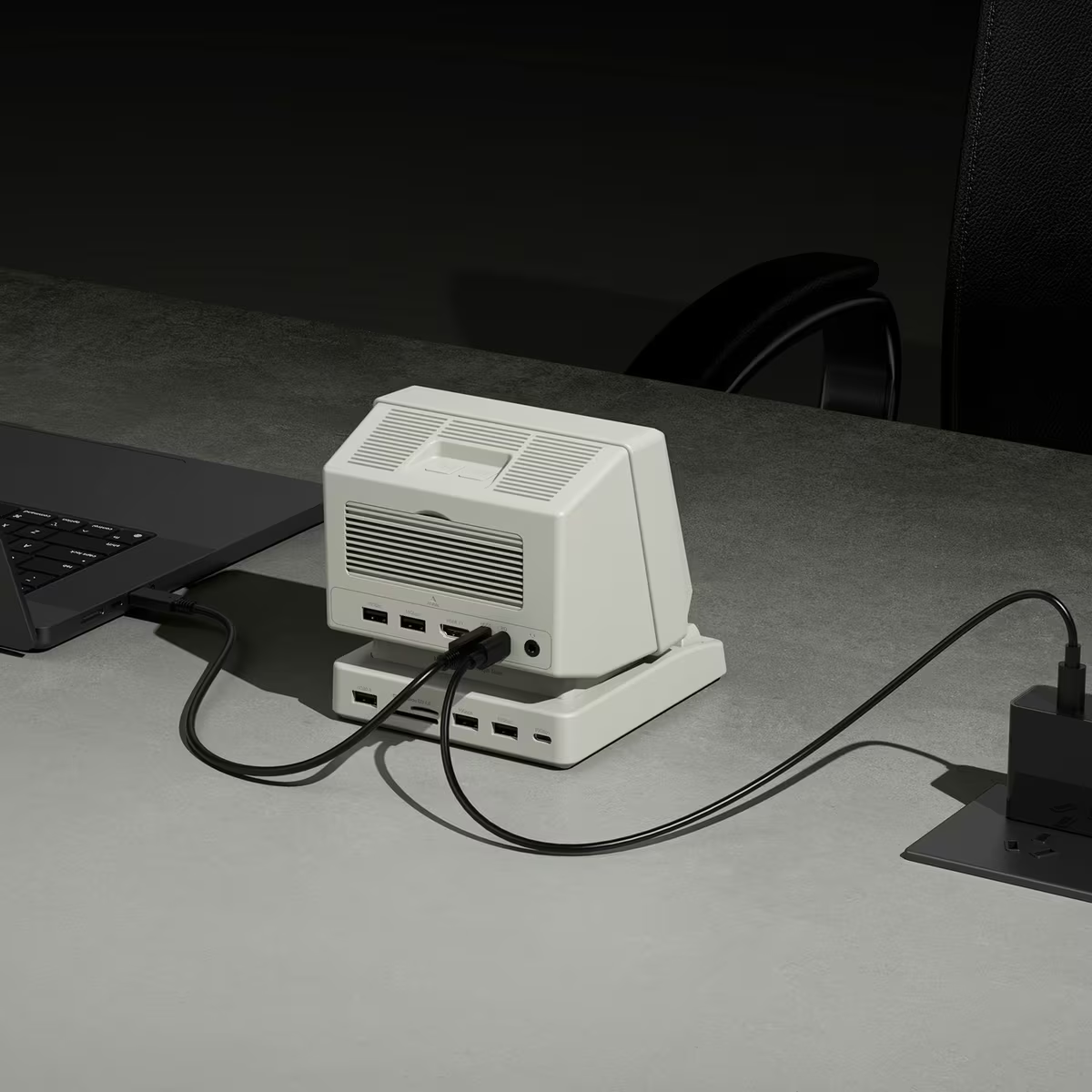
The data side is USB 3.2 Gen 2, which is the 10 Gbps in the product name. This is not a Thunderbolt dock. Thunderbolt 3, 4 and 5 hosts work with it, but they work at USB speed. The M5 for Mac mini is explicit that Thunderbolt 2 and USB 3.0 ports are not supported, and the same logic applies here.
That distinction sets expectations for everything else. A 10 Gbps link is shared by the NVMe bay, four USB-A ports, one USB-C port, the card reader and the audio interface. Copying a large file from the SSD while a USB webcam and an external drive are active will show the ceiling.
Related reading
65 W to the laptop, 35 W for the dock
Power is the clearest advantage over a bus powered hub. The dock accepts up to 100 W on its power input, keeps about 35 W for itself and its ports, and delivers up to 65 W of USB Power Delivery to the host through the same cable that carries data.
65 W is enough to charge a MacBook Air at full speed, and a 14 inch MacBook Pro charges on it too, more slowly under heavy load than on Apple’s higher wattage adapters. A 16 inch MacBook Pro under sustained load draws more than that, so it will charge slowly or hold level rather than gain. For a Windows ultrabook, 65 W is the standard figure and will match the original adapter.
Wokyis does not include a power adapter, so the charger is the component to choose first. The dock expects up to 100 W on its power input; a smaller charger leaves less for the host. Also confirm what happens on the SSD when the laptop is unplugged: a dock that keeps the NVMe bay powered and mounted on a second host only matters if the cable is the same one carrying data, so in practice removing the laptop unmounts the drive. Eject first.
The NVMe bay is convenient and slow for what you put in it
The M.2 slot takes 2230, 2242, 2260 and 2280 NVMe drives up to 8 TB, and Wokyis lists PCIe 4.0 and 5.0 drives as supported. Supported means they work. It does not mean they run at their speed.
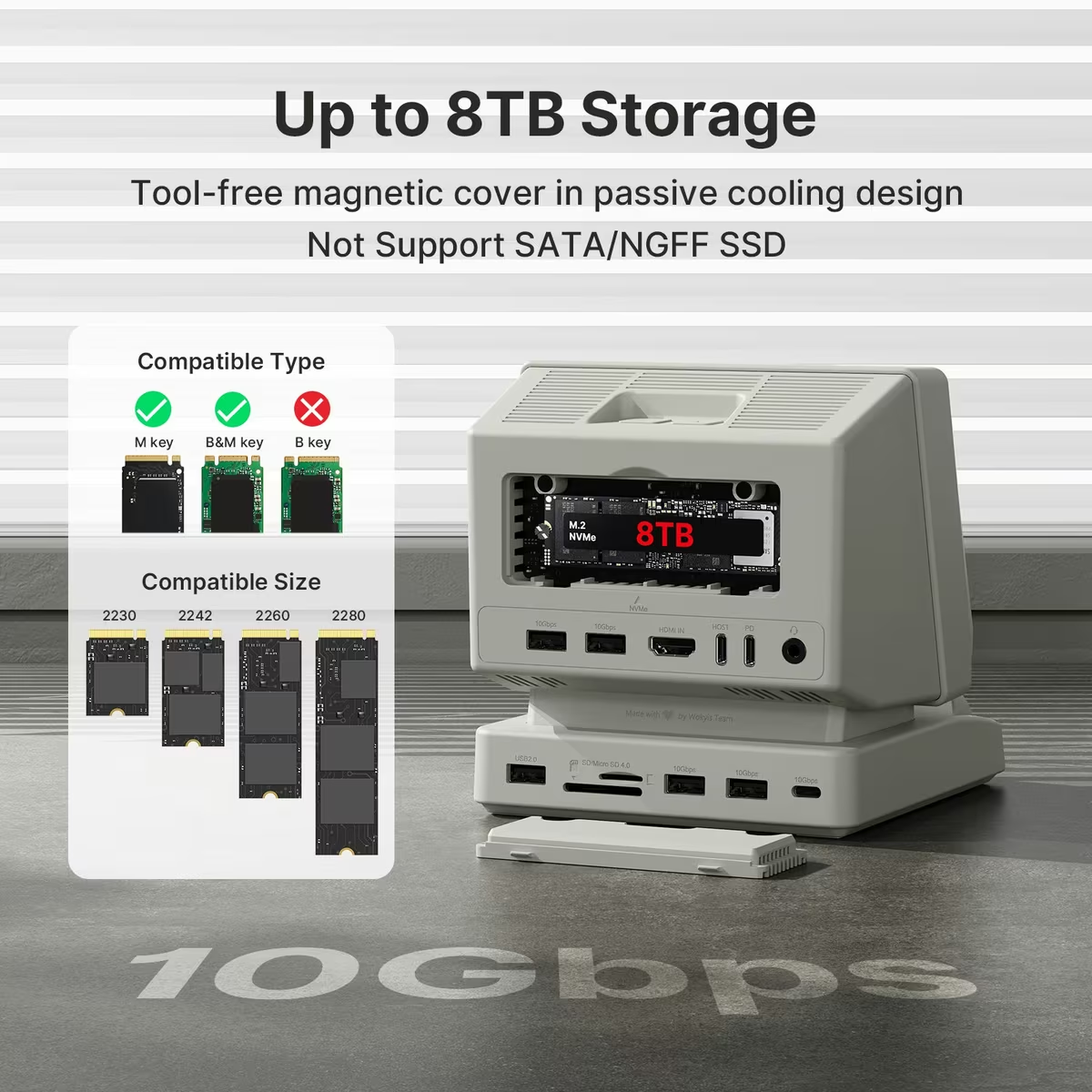
The bay sits behind a USB 3.2 Gen 2 bridge. Real world transfers over 10 Gbps land around 1,000 MB/s, which is a fifth of a PCIe 4.0 drive and a tenth of a PCIe 5.0 drive. A fast drive in this enclosure is money spent on a speed the interface cannot reach.
The right drive is a mid range PCIe 3.0 or 4.0 model with good sustained write behaviour and low idle heat. The dock includes a silicone thermal pad and an aluminium cover for the SSD, which is the right approach, because a 2280 drive in a plastic housing needs somewhere to send heat. Check the drive temperature on the dock’s screen after a long copy.
For the workloads a laptop dock actually sees, 1,000 MB/s is fine. Time Machine, a photo library, a scratch disk for video proxies, a Steam library. It is not a boot drive for a Mac and it is not a substitute for a Thunderbolt enclosure for someone editing 8K footage. Wokyis sells an 80 Gbps version of the Mac mini dock for that budget; the laptop i5 is the 10 Gbps one.
The 5 inch screen has two jobs
The screen is a 5 inch IPS panel at 1280 x 720. Its first job is to show the dock’s own status, most usefully the SSD capacity, temperature and activity. That turns the enclosure into a visible gauge, which is the kind of thing that sounds trivial and prevents pulling a drive during a write.

Its second job is the HDMI input. The port is input only. Plug in a Raspberry Pi, a games console, a second computer or the laptop’s own HDMI output and the retro screen becomes a small monitor. At 5 inches and 720p it is a status monitor, not a workspace. A terminal window is readable. A web page is not.
The most practical use is a headless machine on the desk. A Pi or a mini PC with its HDMI going into the i5 gets a permanent boot screen without a monitor, which is the job a proper monitor is too large for. Combined with the port count, the dock becomes a small bench.
Related reading
The panel is bright enough for a desk and has the viewing angles of an IPS panel. It is not a touchscreen, and it does not extend the Mac desktop. The Mac sees the dock as a USB hub, storage, audio and a card reader. The screen is driven by the dock’s own controller.
Four keys and a knob that do one thing each
The i5 has four dedicated keys with mechanical switches and a knob beside them. They are fixed function: copy, paste, screenshot and lock screen on the keys, volume and play or pause on the knob. There is no software to remap them, and Wokyis does not claim there is.
The idea is that the actions people perform most often should not require a chord. Copy and paste on physical keys next to the laptop is a small convenience that turns out to be used constantly when working with a mouse in one hand. Lock screen is the most useful of them, because locking a MacBook from a desk key is faster than reaching for the keyboard.
The keys send standard keyboard shortcuts, which means they follow the host. On a Mac, copy sends Command-C; the dock handles the platform difference. The switches are clicky and audible, which is consistent with the retro look and may be unwelcome in a shared office.
Fixed function is a limitation. Anyone who wants a macro pad should buy a macro pad. These are the shortcuts most people would map first anyway.
Ports and the audio surprise
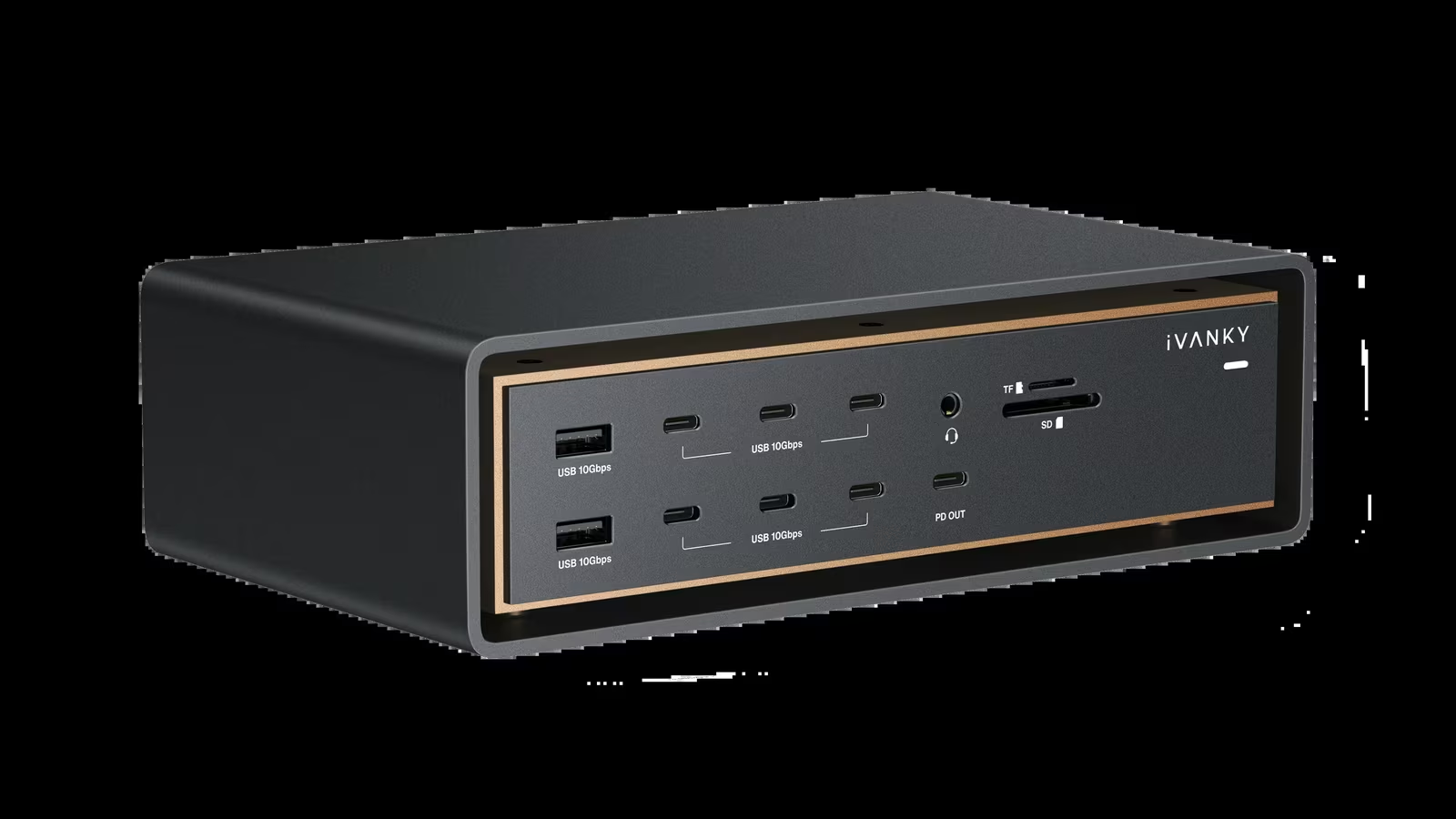
Beyond the host link, the dock has four USB-A ports at 10 Gbps, one USB-C port at 10 Gbps, an SD and a microSD slot supporting UHS-II at up to 312 MB/s with both usable at the same time, a 3.5 mm audio jack and the HDMI input.
Ten ports is a lot for a dock this size. The four USB-A ports are the most useful for a Mac, which has none. Each provides 5 V at 0.9 A, so they will run keyboards, drives and a webcam but will not fast charge a phone.
The audio jack is on a USB 2.0 audio interface that Wokyis specifies at up to 32 bit and 384 kHz. That is a higher specification than the built in jack on most laptops, and it is a sensible way to give a wired headphone a stable output that does not change when the laptop is unplugged.
There is no Ethernet port and no display output for the Mac. Both are worth stating plainly, because a dock at this price normally has at least one of them. The i5 is a storage, power and USB dock with a screen. It is not a monitor hub.
Size and the desk
Wokyis gives the i5 as roughly 133 mm wide, 145 mm deep and 138 mm tall. It is taller than it looks in pictures because of the screen. It needs a fixed spot on the desk with the front facing the user, so the screen and keys are reachable, and a clear path for the cable to the laptop.
The body is plastic with an aluminium SSD cover. It does not feel premium in the hand and it is not meant to. The beige finish and the screen bezel are the design, and either you want a small Macintosh on the desk or you do not. It is the kind of object that makes people smile, which is a legitimate reason for it to exist as long as the dock underneath works.
Cable management is the practical cost. A laptop dock is supposed to be one cable; this one is one cable to the laptop plus a power lead plus whatever goes into the HDMI input. Wokyis lists two 100 mm USB-C cables in the box, one to the laptop and one to the charger, along with a thermal pad and screwdrivers. At that length the dock sits right beside the laptop; a longer cable rated for at least 10 Gbps and 100 W is worth adding.
Price and the alternatives
Wokyis lists the i5 at 169.99 USD on sale against a regular price of 199.99 USD, and retailer and regional prices vary. Wokyis sells direct and through Amazon.
Related reading
At that price the honest comparison is a plain USB-C 10 Gbps dock with an NVMe bay, which costs 80 to 120 USD from several brands, plus a small HDMI monitor and a macro pad. The i5 bundles the three into one object that takes less desk space than the parts and looks like something. Whether that bundle is worth the premium is a taste decision, not an engineering one.
The wrong buyer is someone who needs Thunderbolt storage speed, an external display for the Mac or an Ethernet port. The right buyer is someone with a MacBook and a desk, who wants power, four USB-A ports, a storage drive they can see the state of, and a small screen for a Pi or a console.
What to check in the return window
Sustained copy speed to the SSD with a 50 GB file, and the drive temperature after it. Whether the laptop charges at the full 65 W with the charger you pair it with. Whether the Mac reconnects storage and audio cleanly after sleep. Whether the HDMI input shows a Pi’s boot screen from power on. Whether the shortcut keys behave the same after a switch between a Mac and a Windows laptop.
Verdict
The Wokyis i5 is a competent 10 Gbps laptop dock wearing a costume. The costume is the point of the purchase and it is executed well: the screen has real jobs, the keys cover the shortcuts most people would pick, and the dock sits on the desk as an object rather than a cable box. The limits are those of the interface, because this is a USB 3.2 Gen 2 dock, not a Thunderbolt one.
Why I recommend it
- 65 W to the laptop. Delivered over the data cable, it is enough for a MacBook Air and the standard figure for a Windows ultrabook.
- A storage bay you can watch. The M.2 slot takes NVMe drives up to 8 TB under an aluminium cover, and the screen shows the drive’s capacity, temperature and activity. Around 1,000 MB/s suits Time Machine or a photo library.
- A small monitor for another machine. The 5 inch 1280 x 720 screen has an HDMI input, so a Raspberry Pi gets a permanent boot screen without a full size monitor.
- Shortcuts that follow the host. Copy, paste, screenshot and lock screen on the keys, volume and play or pause on the knob, all sent as standard shortcuts, so copy becomes Command-C on a Mac.
- USB-A for a Mac that has none. Four USB-A ports at 10 Gbps, plus SD and microSD slots usable at the same time.
Why it may not be for you
- One shared 10 Gbps link. A PCIe 4.0 drive runs at a fifth of its speed and a PCIe 5.0 drive at a tenth, and the USB ports and card reader share the same link.
- No Ethernet and no display output for the Mac. The screen does not extend the desktop.
- Conditions on the laptop. The host port must support DisplayPort Alternate Mode, which many cheap USB-C ports lack, and a 16 inch MacBook Pro under sustained load will charge slowly or only hold level.
- Fixed, clicky keys. Nothing can be remapped, and the audible switches may be unwelcome in a shared office.
- A charger to buy. There is no power adapter in the box, and the dock wants up to 100 W to pass the full 65 W to the laptop.
- A charger to buy. There is no power adapter in the box, and the dock wants up to 100 W to pass the full 65 W to the laptop.
- You pay for the look. The i5 lists at 169.99 USD on sale, while a plain USB-C 10 Gbps dock with an NVMe bay costs 80 to 120 USD.
I would buy the i5 for a MacBook desk where nostalgia is welcome and the storage need is a Time Machine drive or a photo library, not a video scratch disk. For Thunderbolt storage speed, a display output for the Mac or Ethernet, buy a plain Thunderbolt dock.
Product images: Wokyis.
One email a month: new articles, reviews and the upcoming live webinar + free recording. No spam, unsubscribe anytime.