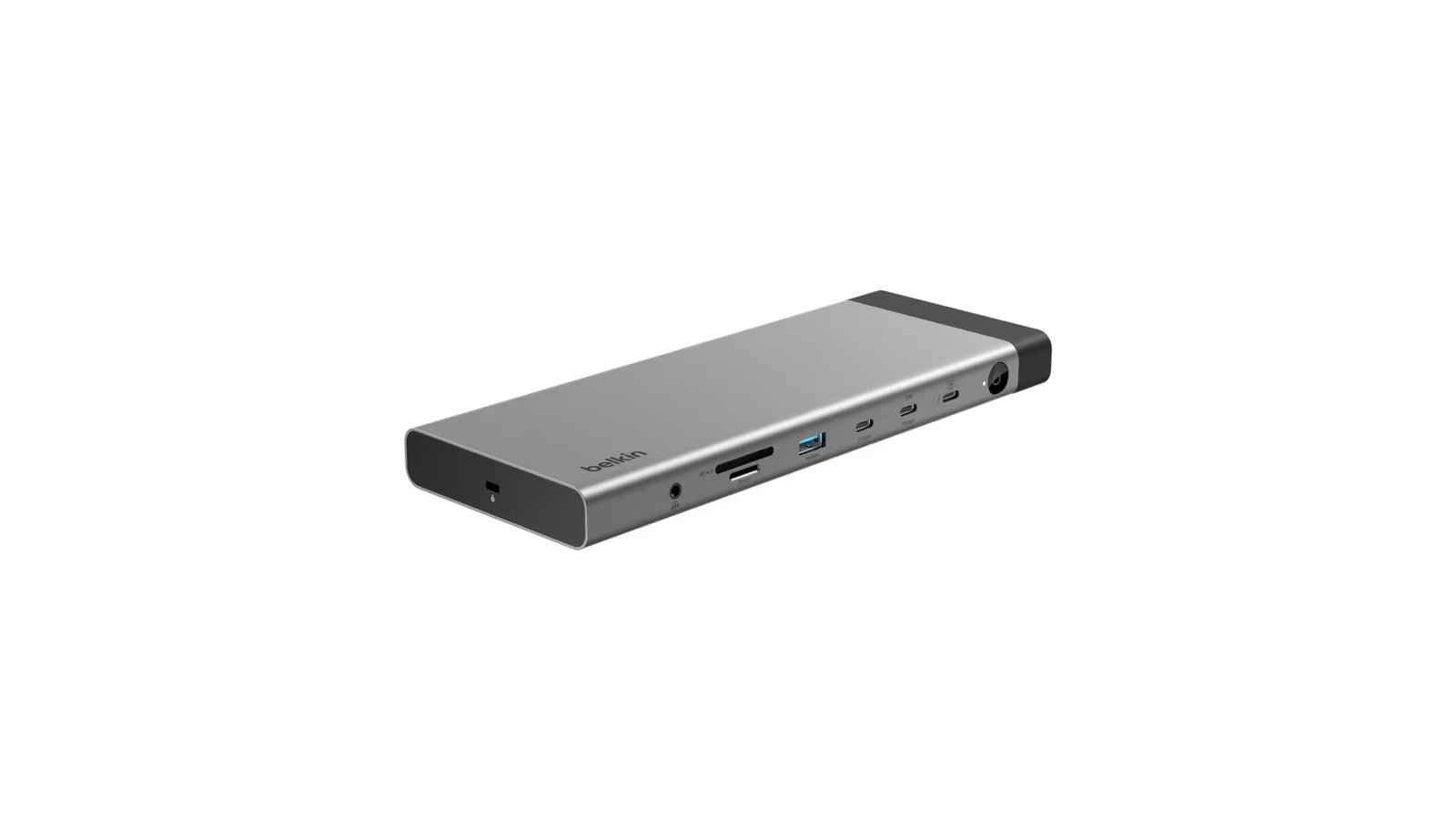
The best reason to buy a Thunderbolt 5 dock is not that one accessory needs 80 Gbps. It is that a serious desk asks one cable to carry several demanding things at once.
A display, fast storage, a 2.5 gigabit network adapter, card readers, audio and laptop charging all share the connection. The large number on the box is therefore a transport budget, not a speed that every port receives independently.
Belkin’s Connect Thunderbolt 5 Dock, model INC031, is built for that dense desk. It has fourteen ports, up to 140 W of host charging and enough display outputs to make compatibility the main question before price. At $349.99 on Belkin’s US store when checked, it is too expensive to buy as a generic port expander. It needs to replace adapters, a charger and cable clutter while preserving the performance of an equally capable computer.
The dock can do that. It can also be complete overkill for a Mac whose display engine or Thunderbolt generation becomes the real limit.
The ports are generous and sensibly varied
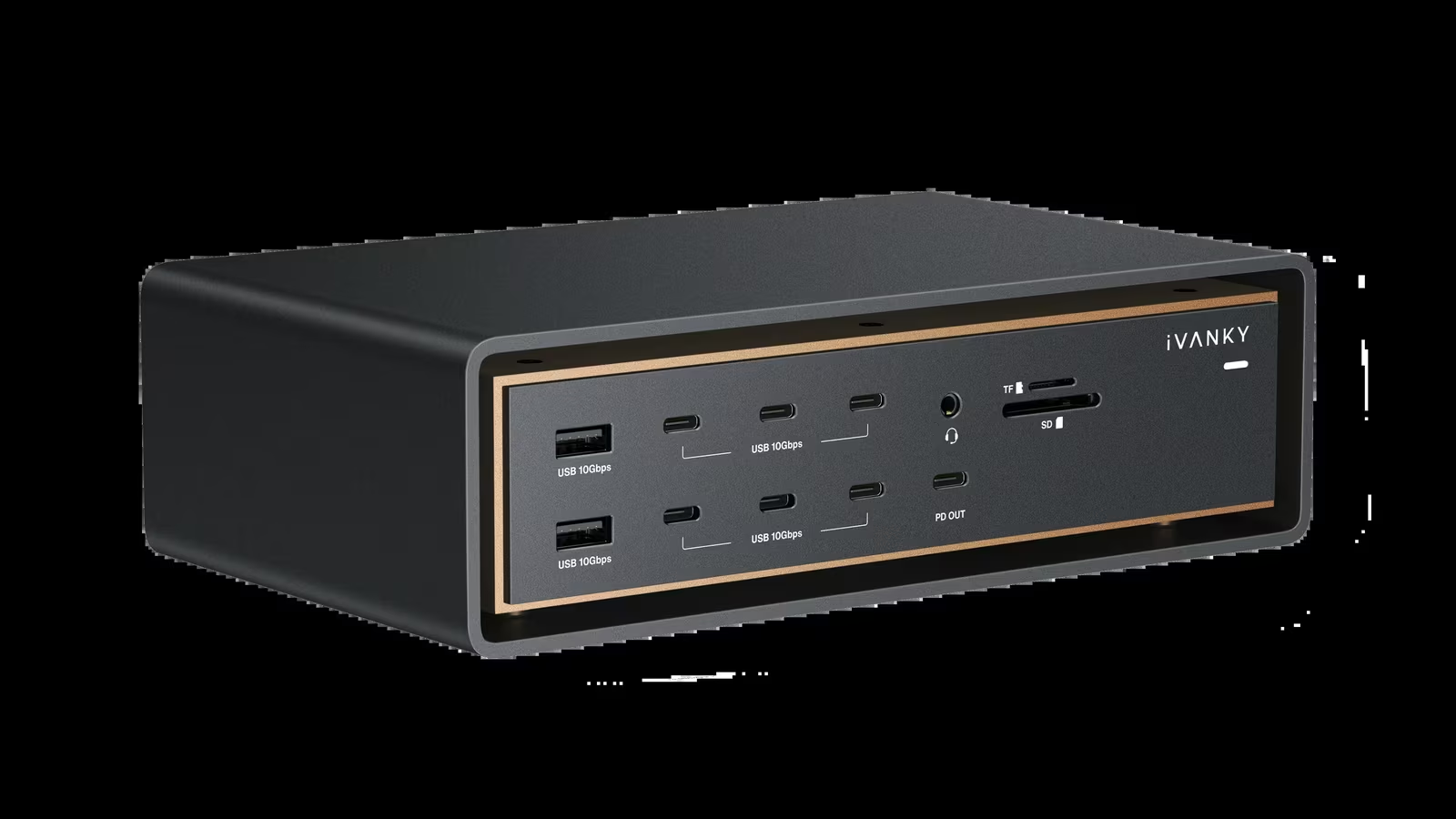
The official specification lists one upstream Thunderbolt 5 port with up to 140 W Power Delivery and two downstream Thunderbolt 5 ports that can each supply 15 W. There are two 10 Gbps USB-C ports, one of which supplies 30 W, plus one 10 Gbps USB-A port and two 5 Gbps USB-A ports.
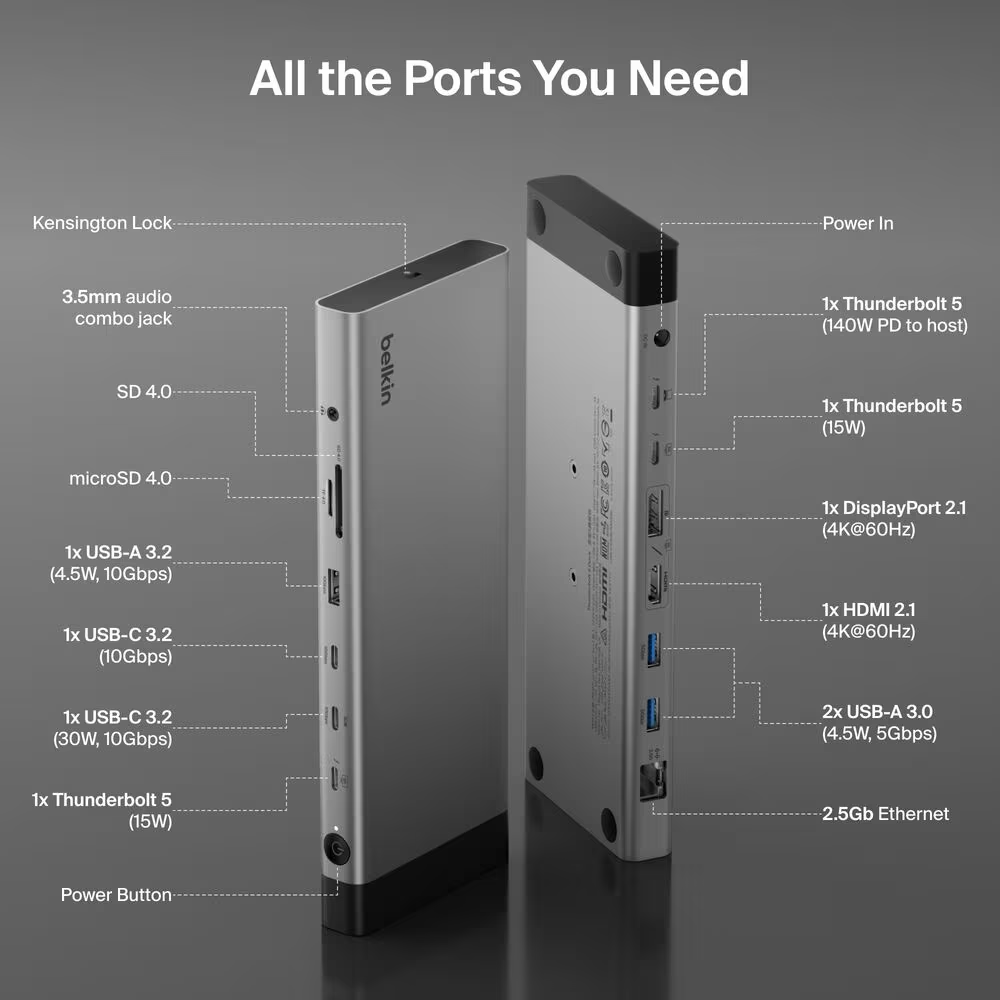
DisplayPort 2.1 and HDMI 2.1 provide conventional display connections. The dock also includes 2.5 gigabit Ethernet, full-size SD 4.0, microSD 4.0 and a 3.5 mm combination audio port. A power button and Kensington lock slot complete the desk oriented design.
This mix avoids two common mistakes. It does not pretend that USB-A has vanished from real desks, and it gives high power USB-C charging its own port rather than asking a downstream Thunderbolt connection to do every job. A phone, tablet or small computer can use the 30 W port while storage keeps the faster tunnel.
The 1 m Thunderbolt cable is long enough for most laptop stands. The dock itself measures 222 by 85.09 by 20.06 mm, so it is a low horizontal unit rather than something intended for a travel pouch. That width can help cable separation, although port placement still determines whether thick plugs block neighbours.
Related reading
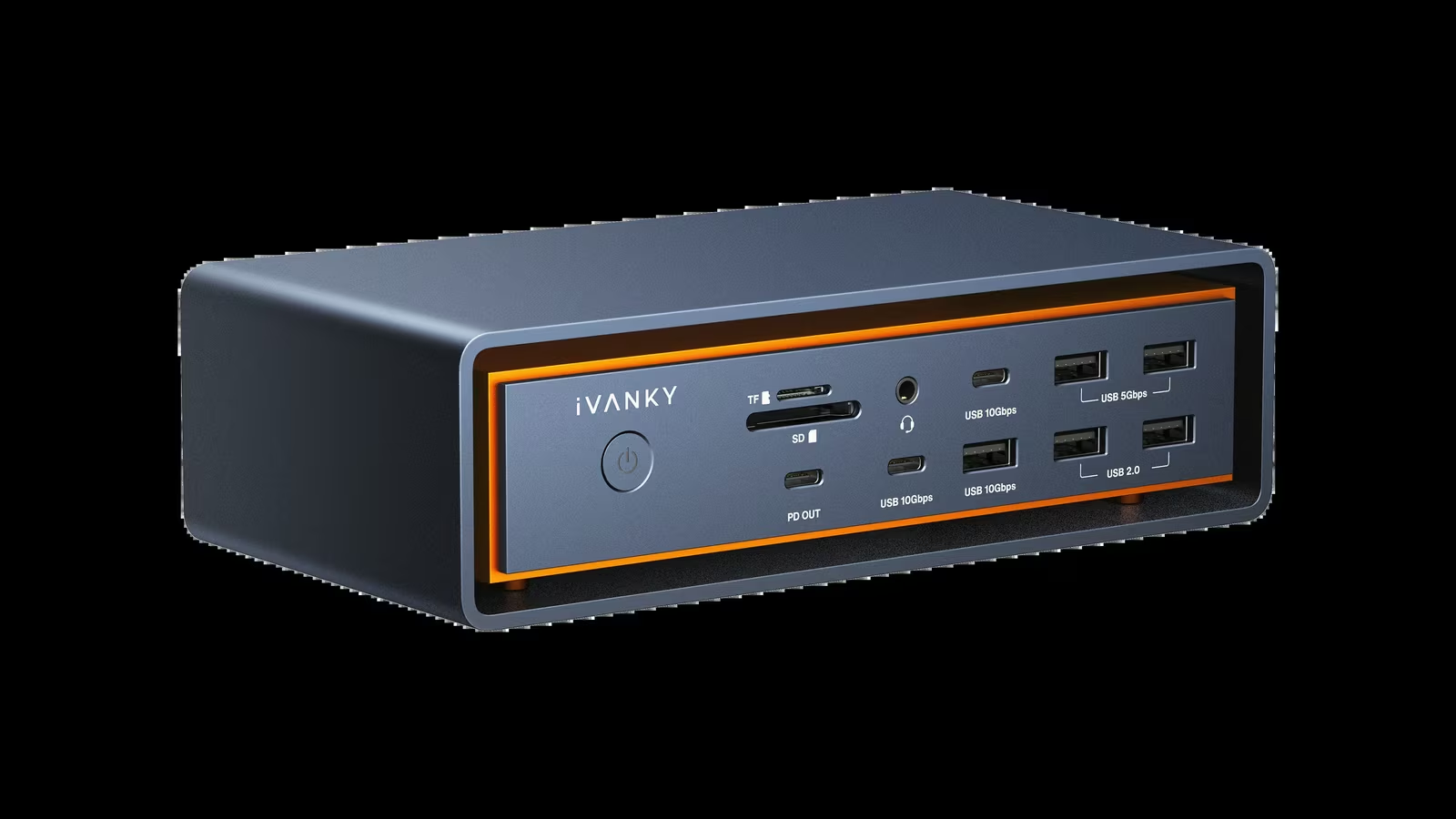
Count the ports against actual devices. A keyboard and receiver do not benefit from 10 Gbps. Put them on the slower USB-A ports and reserve the faster connections for capture hardware, SSDs and card readers. The dock is valuable because it lets the desk allocate bandwidth deliberately.
Thunderbolt 5 improves the pipe, not every endpoint
Thunderbolt 5 provides 80 Gbps of bidirectional bandwidth. Bandwidth Boost can allocate up to 120 Gbps in one direction for display intensive workloads. This is not a permanent 120 Gbps data mode, and it does not mean an SSD suddenly transfers at 15 GB/s.
Display streams, PCI Express traffic and protocol overhead all consume the link. The connected host must support the relevant Thunderbolt generation, DisplayPort modes and number of external displays. The cable must also be certified for the required rate.
A Thunderbolt 4 Mac can use the dock, but the upstream link remains Thunderbolt 4 class. The extra ports can still be convenient, yet the computer cannot acquire Thunderbolt 5 bandwidth through a newer dock. The same principle applies to plain USB-C hosts. Connector shape says nothing about tunnelling support.
Belkin says the dock is compatible with Thunderbolt 5, Thunderbolt 4 and suitable USB-C devices, but its support FAQ excludes Thunderbolt 3 laptops and monitors, Intel based MacBooks, ChromeOS and Linux. That is unusually important fine print. Anyone buying for an older Mac or a mixed operating system desk should confirm the exact computer before assuming graceful fallback.
The useful pre-purchase question is simple: which machine, which port and which display engine will drive the dock? If the answer is only USB-C, investigate that host’s DisplayPort Alt Mode, charging and data support independently.
Displays are limited by the computer first
Belkin advertises up to three external 4K displays at 144 Hz for a compatible Thunderbolt 5 Windows laptop. It also lists single display modes up to 8K at 60 Hz or 4K at 240 Hz on suitable systems.
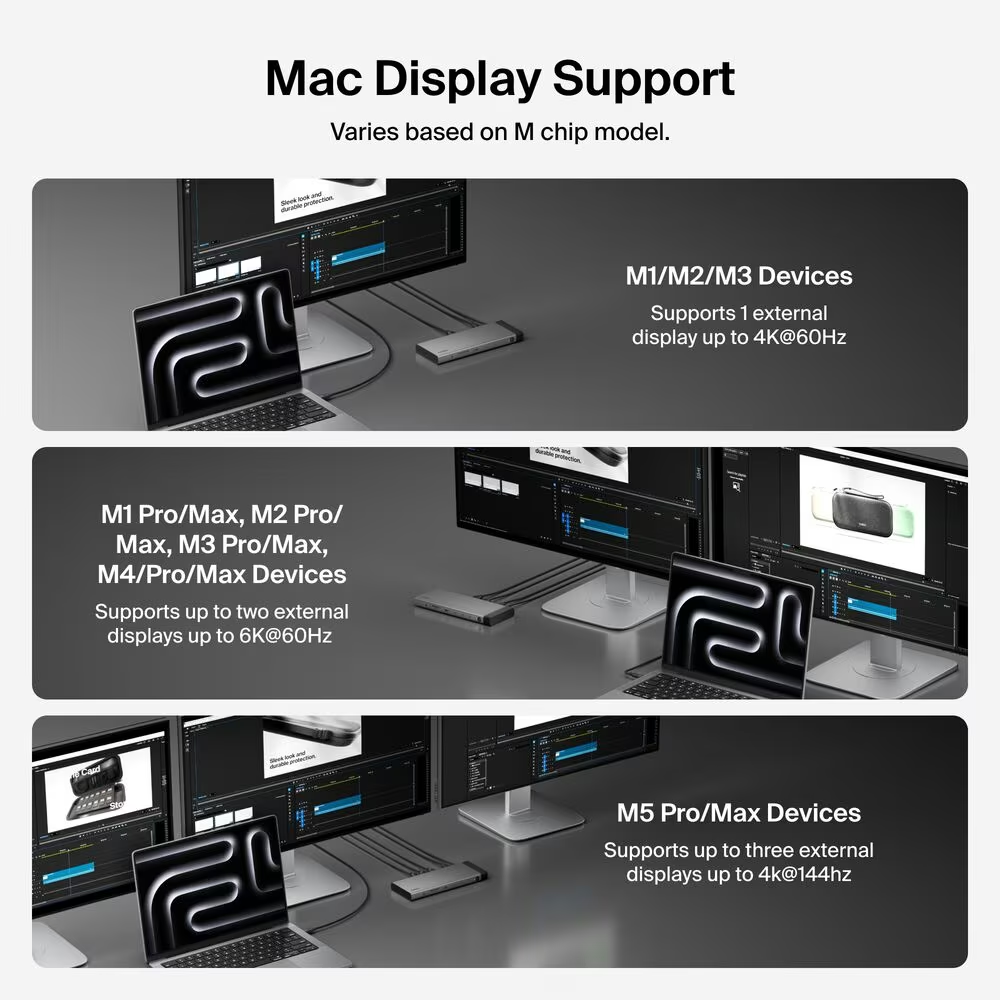
Those figures describe supported configurations, not a promise for every Mac. Apple silicon machines differ substantially in native external display capability. A base chip, Pro chip and Max chip may expose different numbers of displays even when their ports look identical. Clamshell mode can also change what a specific model supports.
This is where dock shopping often goes wrong. A passive dock cannot create native display engines the computer does not have. DisplayLink products can add compressed USB displays with software, but that is a different design with different latency, content protection and driver tradeoffs. Belkin’s Thunderbolt 5 display paths should be evaluated as native outputs subject to the host.
Before purchase, write down resolution, refresh rate, colour depth and connection for each screen. A 4K 60 Hz office monitor is a much lighter requirement than 4K 144 Hz with high dynamic range. Confirm the computer’s current technical specification, then compare Belkin’s display table for that platform.
On macOS, also check sleep and wake behaviour during the return period. Use the normal cable layout, close and reopen the laptop, unlock it and verify that every display returns at the chosen refresh rate. Repeat after a cold boot and after connecting the dock while logged in. A configuration that works only after cable reseating is not ready to become the centre of a desk.
Fast storage needs a clean test
The two downstream Thunderbolt 5 ports are the natural home for high performance NVMe enclosures. The right way to evaluate them is not one peak benchmark screenshot. It is a repeatable transfer that runs long enough to leave cache and reveal heat.
Use a drive and enclosure known to exceed the performance of the older dock being replaced. Record the filesystem, free space, test size and temperature. Run a sequential benchmark with no displays connected, then with the intended display setup and network traffic. The comparison shows whether the desktop workload meaningfully changes storage throughput.
Do not confuse link negotiation with useful file speed. An enclosure can report a high connection mode while its SSD, controller, thermal policy or filesystem becomes the bottleneck. Small file copies will also be limited by metadata and latency long before sequential bandwidth.
For backup disks, reliability matters more than a peak. Copy a directory larger than memory, verify it with checksums and leave the drive mounted through sleep and wake cycles. A dock that is fast but occasionally disconnects is a poor storage interface.
The Belkin has enough upstream bandwidth to make fast storage plausible alongside displays, especially on a Thunderbolt 5 host. The actual result remains a property of the complete chain. That is why a review without the host model, enclosure and workload should not publish a single universal MB/s number.
2.5 gigabit Ethernet is the right level for this dock
Gigabit Ethernet would feel out of place on a premium Thunderbolt 5 product. The 2.5 GbE port can serve modern fibre connections, a fast NAS and large local transfers without jumping to the cost and heat of 10 GbE.
Related reading
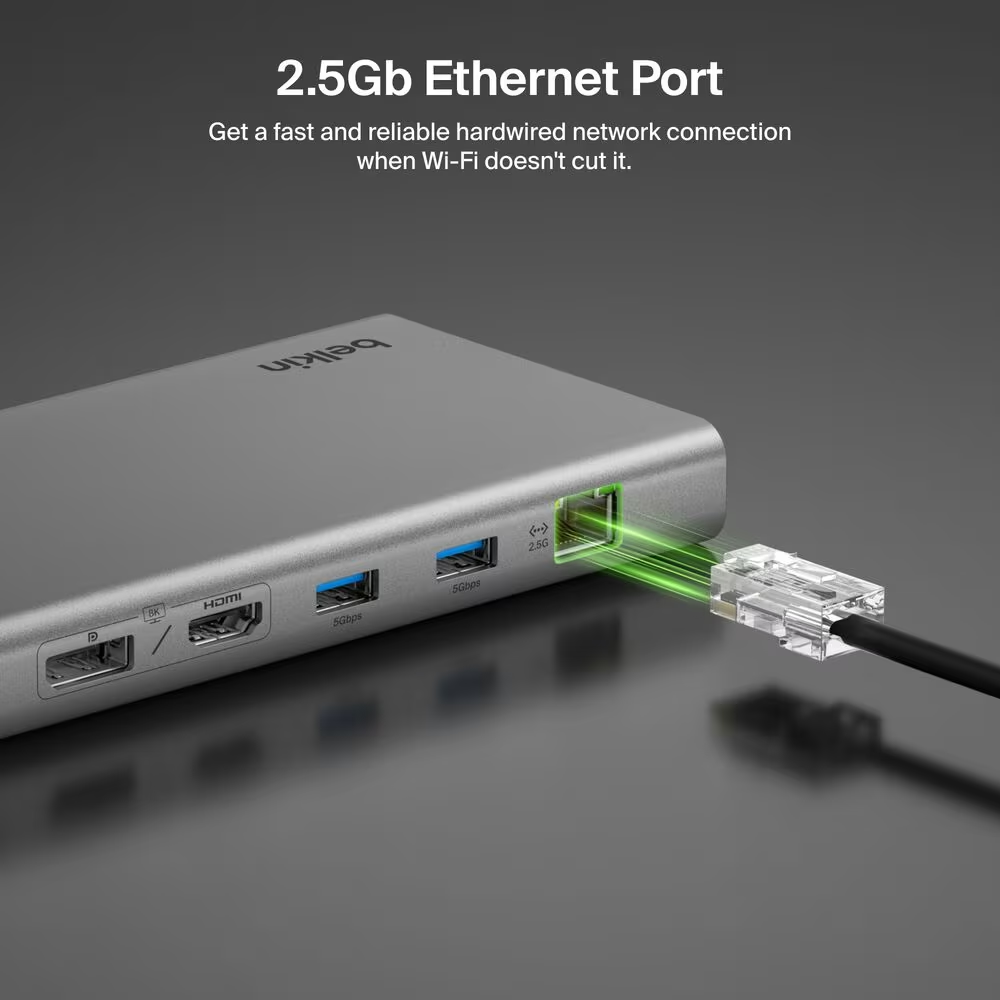
The network still runs only as fast as its slowest link. Router or switch, cabling, server interface and storage must all support 2.5 gigabit operation. macOS System Information or the switch administration page should confirm the negotiated link rate.
Test both throughput and continuity. An iperf3 run against a wired server isolates the network path from disk speed. Then leave a long file copy running, sleep the Mac and verify reconnection. VPN software, content filters and endpoint security can affect results, so record whether they were active.
For a laptop dock, recovery after wake is more important than squeezing the last percentage from a benchmark. Ethernet should return without renewing the entire desktop. If it does not, update macOS, check Belkin support for firmware guidance and replace the cable before concluding that the Ethernet controller is defective.
Charging is a negotiation
The upstream port can deliver up to 140 W. That is enough to make the dock the only desk charger for many modern notebooks, including demanding MacBook Pro configurations that accept this USB Power Delivery level.
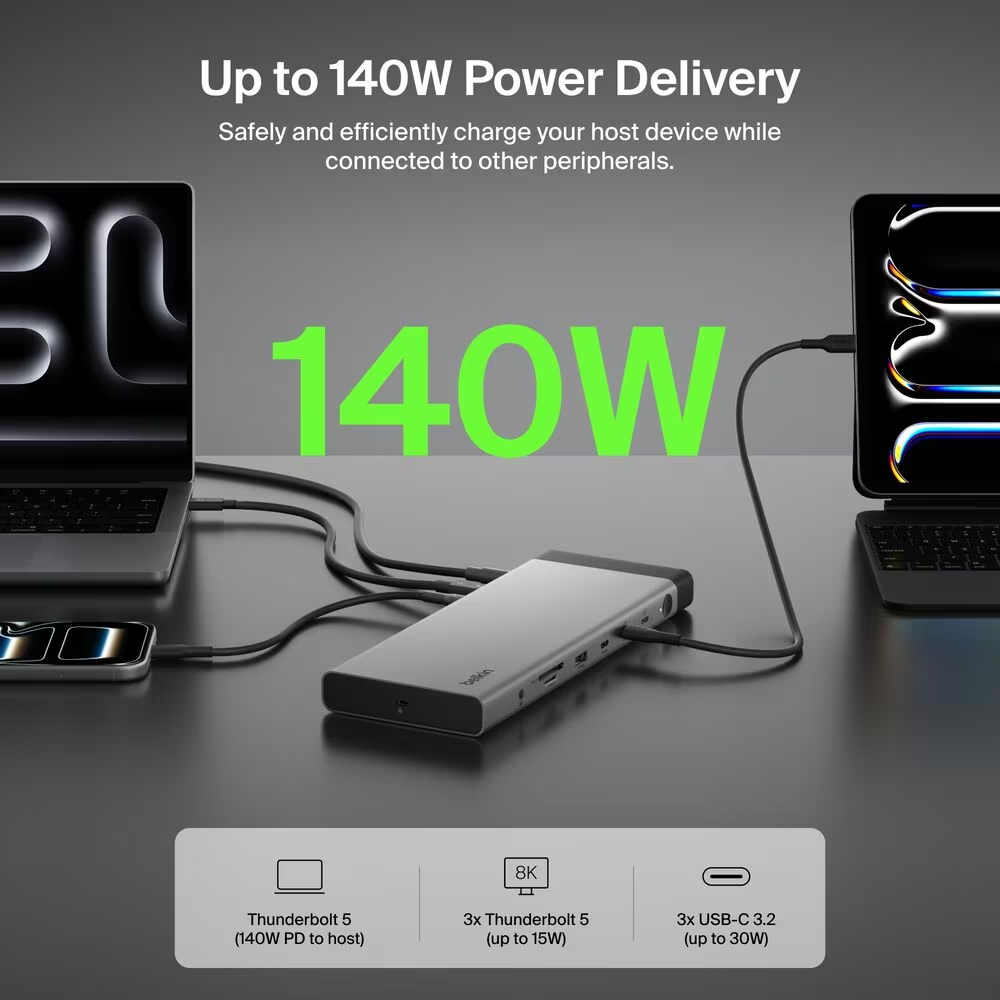
Up to remains the operative phrase. The host negotiates a power profile, current load varies and battery charging slows near full capacity. A macOS battery screen can show whether the computer recognizes external power, while a USB-C power meter can reveal the negotiated voltage and current if a more detailed check is needed.
Run a realistic load with the battery below 70 percent. Compile code, export video or execute another sustained task while displays and storage are active. The battery percentage should rise or remain stable according to the host’s demand and thermal policy. A falling percentage may indicate that the machine needs more power than the negotiated profile, but battery health management can also pause charging intentionally.
Use the supplied power adapter and cable for diagnosis. A random USB-C cable can support charging yet fail the required Thunderbolt data mode, or carry fast data without the expected power. Cable substitutions are useful only when their certification is known.
The 30 W downstream USB-C port is a practical addition. It can charge an iPad or phone without occupying a separate wall adapter. Its power comes from the dock’s supply, so the overall design and power allocation still matter when every port is loaded.
A dock is judged through inconvenient transitions
The stable desktop state is easy. The revealing moments are boot, login, sleep, wake, unplug and reconnect.
Test the configuration in the order it will be used. Connect everything to the dock, then attach the laptop with one cable. Verify monitors, audio output, Ethernet, cards and storage. Eject removable drives, disconnect, reconnect and check whether macOS restores the chosen audio and display arrangement.
Try the SD and microSD slots with the actual camera cards. SD 4.0 describes interface potential, while card type and reader support decide speed. Import a real shoot rather than relying only on a synthetic test. Confirm that two cards can be inserted without making either difficult to remove.
Audio deserves a short call test. Check headphones, microphone selection and the Mac’s output volume behaviour. A combo jack may use a headset wiring standard that differs from specialist microphones. Anyone with an audio interface should keep that interface on USB or Thunderbolt and treat the dock jack as convenience.
Finally, touch the dock and its power adapter after an hour of load. Warmth is normal for high speed controllers. Instability, a smell, power cycling or a surface too hot to touch comfortably is not.
Cable management can preserve reliability
The host cable carries power, display and data, so it should not hang from the MacBook port under the weight of other leads. Route it with a gentle bend and enough slack for the laptop stand. Keep the power brick where air can circulate.
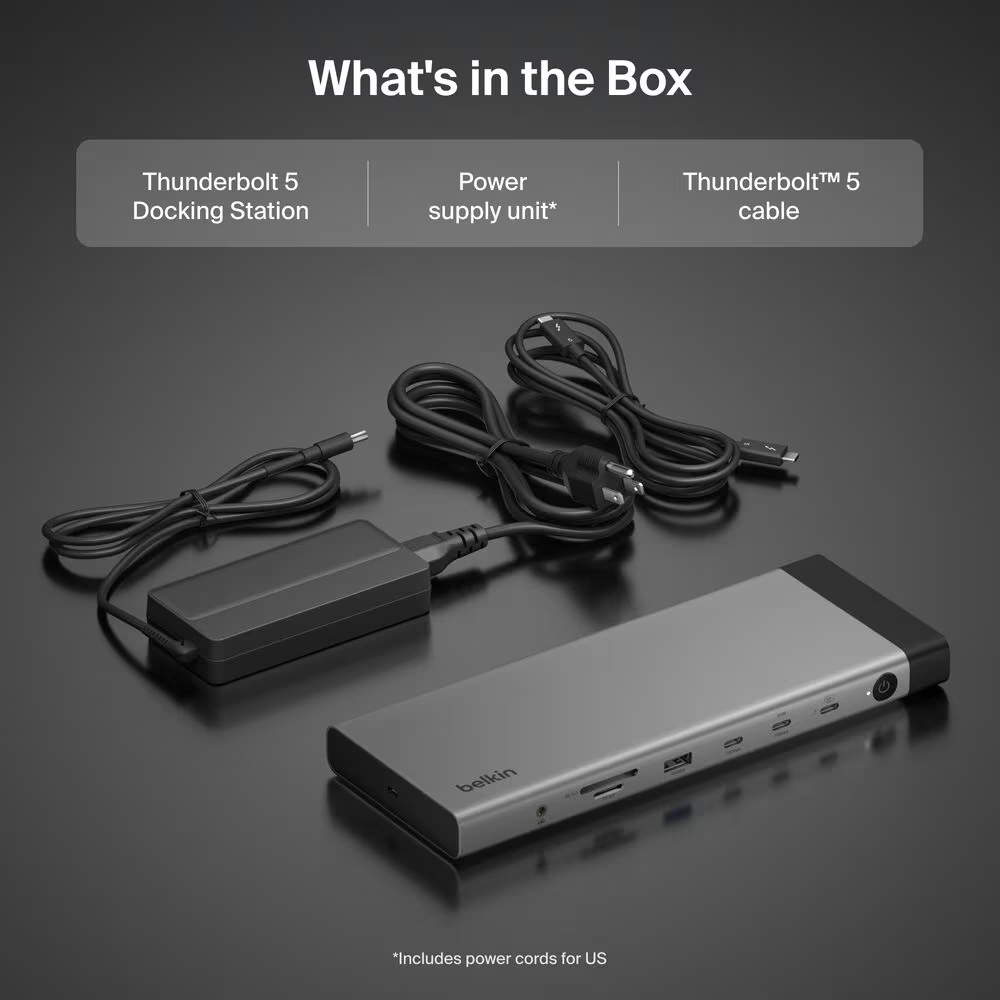
Label the two downstream Thunderbolt ports and the 30 W USB-C port if the desk is changed frequently. Identical connector shapes make it easy to place a fast drive on a slower path or expect charging from the wrong socket.
Related reading
After the configuration is stable, photograph the rear connections. That small record helps after moving the desk and makes intermittent faults easier to reproduce. A dock earns its one cable promise only when the cables behind it remain understandable.
Price and the cheaper answer
At a current US list price of $349.99, the INC031 competes with serious Thunderbolt docks, not portable hubs. Its value comes from high host charging, two downstream Thunderbolt 5 ports, 2.5 GbE, card readers and conventional display outputs in one supported unit.
A Thunderbolt 4 dock is the better buy when the host is Thunderbolt 4, the screens are modest and storage does not need the larger PCIe tunnel. A compact USB-C hub is enough for one 4K display, Gigabit Ethernet and occasional cards. Separate adapters can even be more resilient because one failure does not remove the whole desk.
The Belkin earns its price when one cable genuinely replaces several devices and the host can use its capabilities. It does not earn it merely by being the newest standard.
Also count the three year limited warranty and local retailer support. A central dock affects every working day, so a small price difference matters less than a straightforward replacement path.
Verdict
On its specification, the Belkin Connect Thunderbolt 5 Dock is a strong centre for a current high end desk. The catch is that its 80 Gbps is a shared budget, and the host decides how much of it a desk will ever use. That makes the INC031 a conditional recommendation: the decision belongs to the computer, the displays and the fast peripherals, not to the number printed on the box.
Why I recommend it
- A sensible port mix. Fourteen ports, including two downstream Thunderbolt 5, two 10 Gbps USB-C, USB-A at 10 and 5 Gbps, DisplayPort 2.1, HDMI 2.1, SD 4.0 and microSD 4.0. It does not pretend that USB-A has vanished from real desks.
- 140 W for the laptop. That is enough to make the dock the only desk charger for many modern notebooks, and a separate 30 W USB-C port charges an iPad or phone.
- Room for fast storage. The two downstream Thunderbolt 5 ports suit NVMe enclosures, with enough upstream bandwidth to make fast storage plausible alongside displays on a Thunderbolt 5 host.
- 2.5 gigabit Ethernet. It can serve modern fibre connections and a fast NAS without the cost and heat of 10 GbE.
- A straightforward replacement path. A three year limited warranty and local retailer support matter for a device used every working day.
Why it may not be for you
- $349.99. At that price it competes with serious Thunderbolt docks and is too expensive to buy as a generic port expander.
- The host sets the ceiling. A Thunderbolt 4 Mac stays a Thunderbolt 4 class link, and a base Mac with limited external displays or a desk with one ordinary monitor will not reveal most of what the dock adds.
- Compatibility exclusions. Belkin’s support FAQ excludes Thunderbolt 3 laptops and monitors, Intel based MacBooks, ChromeOS and Linux.
- Display figures are not a Mac promise. Three 4K displays at 144 Hz are advertised for a compatible Thunderbolt 5 Windows laptop, and a passive dock cannot create display engines the computer does not have.
Buy it only after mapping every display, cable and fast peripheral and confirming the exact Mac or PC against Belkin’s table, and use the return window to test sustained storage with the displays active, 2.5 GbE recovery, 140 W charging under load and repeated sleep cycles. A Thunderbolt 4 host with modest screens is better served by a Thunderbolt 4 dock, and one 4K display with Gigabit Ethernet needs only a compact USB-C hub.
Product images: Belkin.
One email a month: new articles, reviews and the upcoming live webinar + free recording. No spam, unsubscribe anytime.