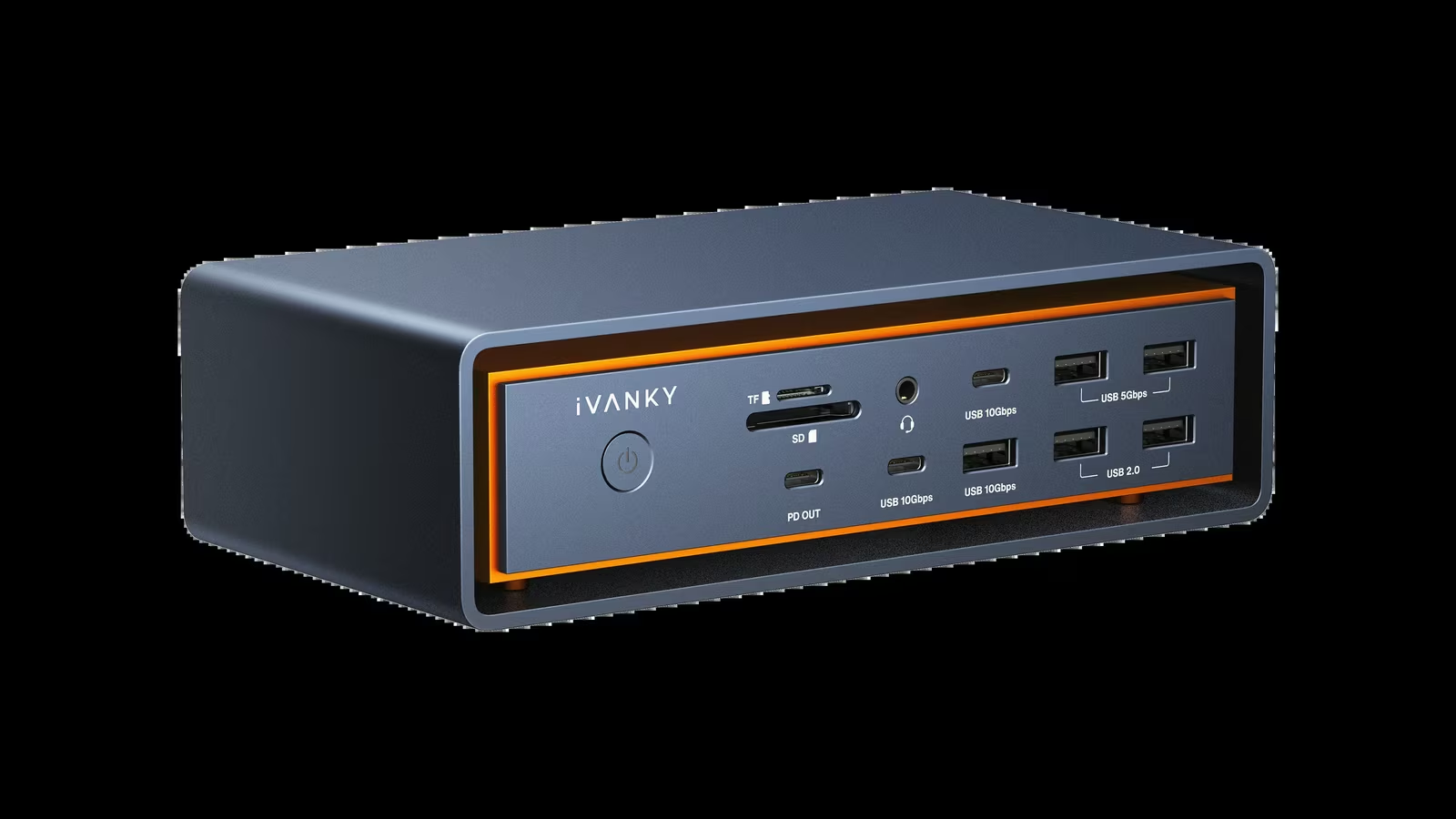
The FusionDock Max 2 sits one step below the FusionDock Ultra in iVANKY’s Thunderbolt 5 range. In my FusionDock Ultra review I called the Ultra the king of docks, and I meant it. The Max 2 deserves its own verdict. It is an excellent dock, it costs $250 less at current prices, and for a large share of Mac owners it is the one to buy.
The two docks differ mostly in how many displays they can drive, and that difference comes down to one Apple rule that is easy to miss. Once the rule is clear, choosing between them is quick. Most of this review is about who should buy the Max 2 and why, with the port list and the power figures in support.
My own desk runs a 14 inch MacBook Pro with an M4 Max, the chip where the gap between the two docks is widest. That makes it a useful reference point for everything below.
One Thunderbolt 5 controller and one DisplayPort path
Like the Ultra, the FusionDock Max 2 connects to the Mac through two USB-C host ports, each rated by iVANKY at 80 Gbps with Bandwidth Boost to 120 Gbps. The inside is different. iVANKY describes the Max 2 as a Thunderbolt 5 controller and a DP Alt chip working in unison. Macworld’s review described the result well: effectively a Thunderbolt 5 dock and a DisplayPort Alternate Mode dock in one enclosure.
The second path is what lets the dock add a display beyond Apple’s per-port limit on older Max chips, which the next section explains. It is also why the Max 2 needs two of the Mac’s ports for its full display count. The included 1.2 m dual USB-C cable makes that a single plug on a MacBook Pro, and its magnetic connectors split apart to match the port layout of a Mac Studio or Mac mini.
On a 14 inch MacBook Pro with M4 Max, which has three Thunderbolt 5 ports plus HDMI, SDXC and MagSafe 3, the Max 2 leaves one Thunderbolt port free. The box includes the dual cable, a separate 1.2 m Thunderbolt 5 cable, a 240 W power adapter and its cord, a user manual and a quick start guide.
Related reading
Three displays on M4 Max, four on M5 Max
Apple’s display support article contains the rule. An M4 Max MacBook Pro supports up to four external displays in total, but a supported hub or a daisy chain can carry at most two of them over a single Thunderbolt port. Apple gives the same two display figure for M2 Max and M3 Max. On M5 Pro the per-port figure rises to three, and on M5 Max to four.
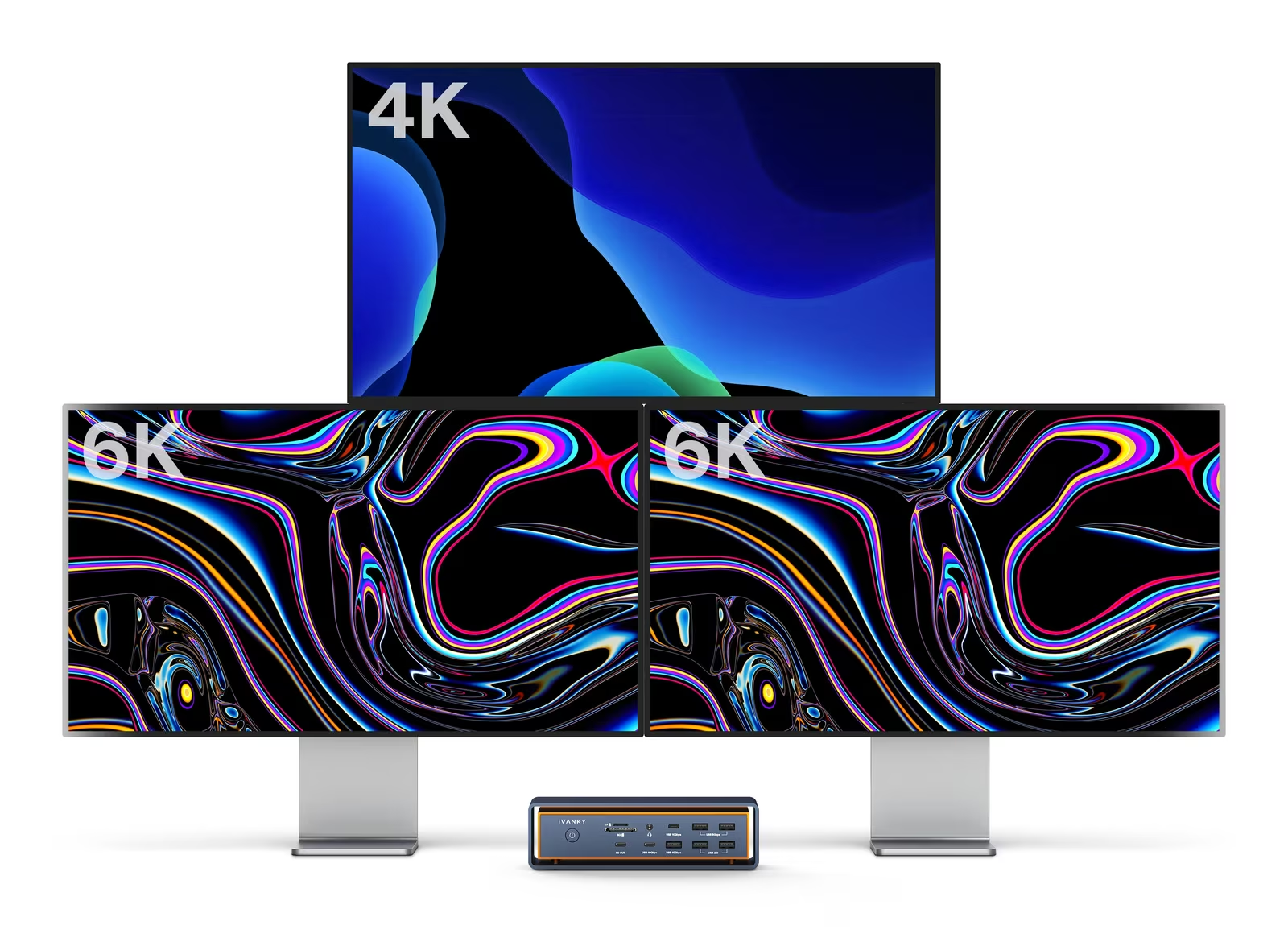
iVANKY explained to me how this shapes the Max 2. On an M4 Max, the Thunderbolt link carries two displays, which is Apple’s ceiling for one port, and the HDMI output adds a third through the second path. That is why the Max 2 supports up to three displays on that chip. The FusionDock Ultra supports four on the same Mac because it uses two separate high-bandwidth controller paths that split the display streams into two groups. With M5 Max, Apple allows four displays through a single hub, so the Max 2 then supports four as well.
iVANKY’s product page lists the resulting configurations. M1, M2, M3 and M4 Max MacBook Pros get two 6K displays at 60 Hz over Thunderbolt and one 4K display at 60 Hz over HDMI. M5 Pro gets up to three, either three 6K displays at 60 Hz across the Thunderbolt ports or two 6K over Thunderbolt plus one 4K over HDMI. M5 Max gets up to four: three 6K displays at 60 Hz plus one 4K at 60 Hz, or four through daisy chaining. The troubleshooting guide adds the rest of the range. Two displays work on MacBook Pros with M1 through M4 Pro, the base M4, the Mac mini with M2 Pro, M4 or M4 Pro, and every Mac Studio. Three work on the Max chips, every Mac Studio and the Mac mini with M4 or M4 Pro.
The consequences are simple. On any Pro chip, the Max 2 already delivers every display Apple allows. On an M5 Max, it delivers four, the same as the Ultra. Only on an M1 through M4 Max MacBook Pro or a Mac Studio, with a fourth screen in the plan, does the Ultra’s extra display path matter.
Twenty-three ports with a practical mix
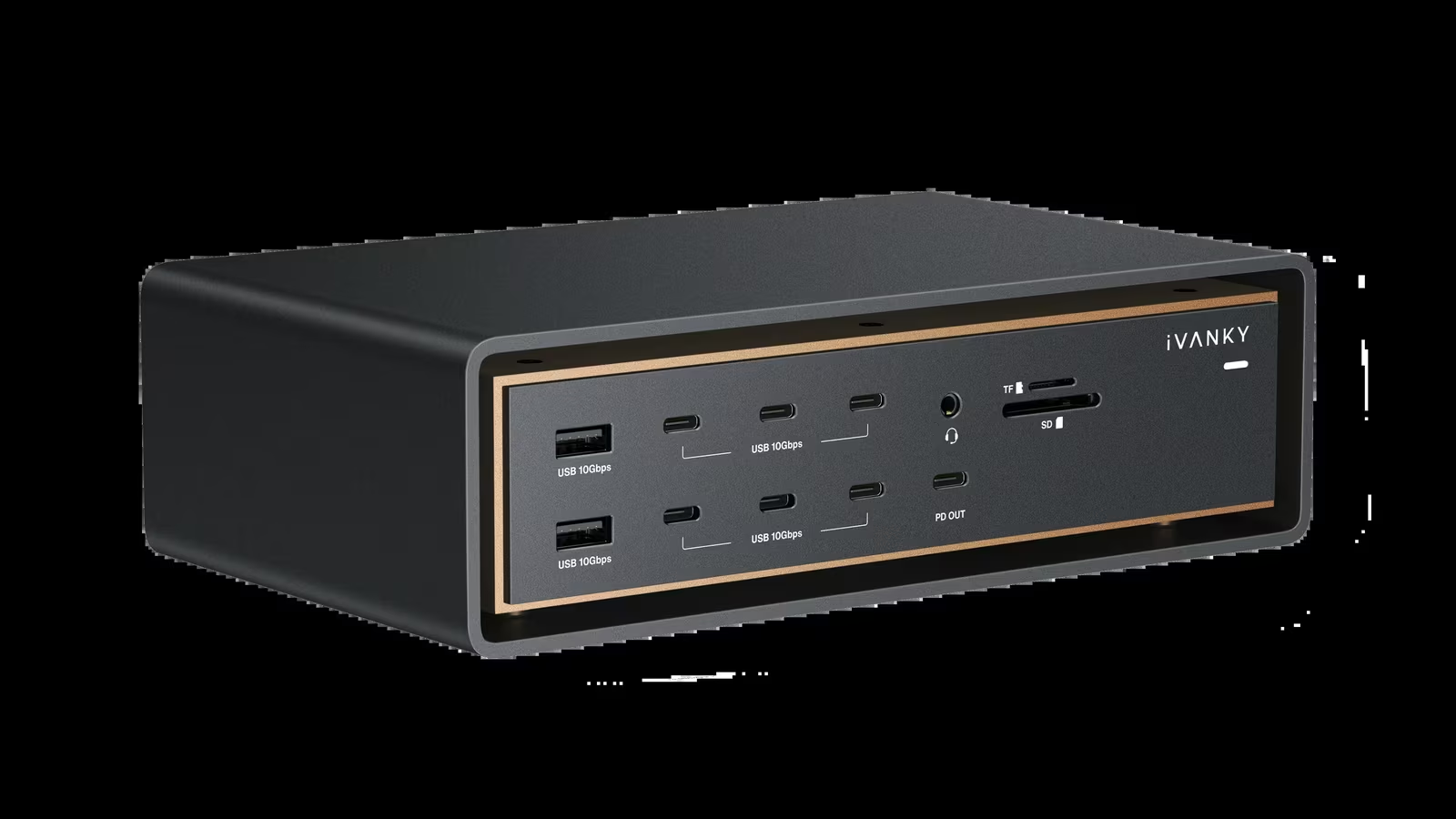
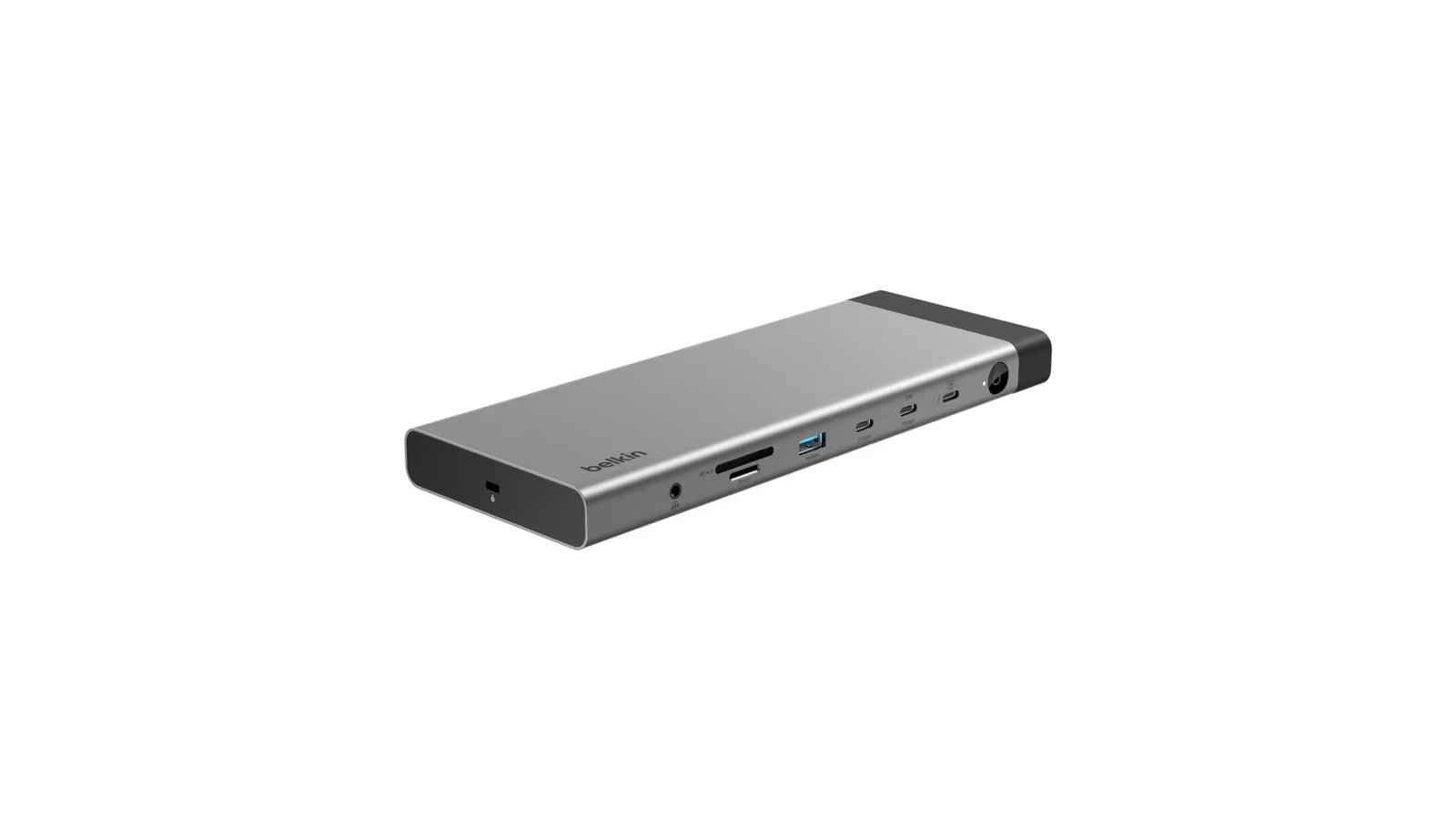
iVANKY counts 23 ports on the Max 2. Three downstream Thunderbolt 5 ports, each rated at 80 Gbps with Bandwidth Boost to 120 Gbps, handle high resolution displays and fast storage, and each supplies 15 W. Five USB-C ports run at 10 Gbps, and one of them is the front 30 W Power Delivery port.
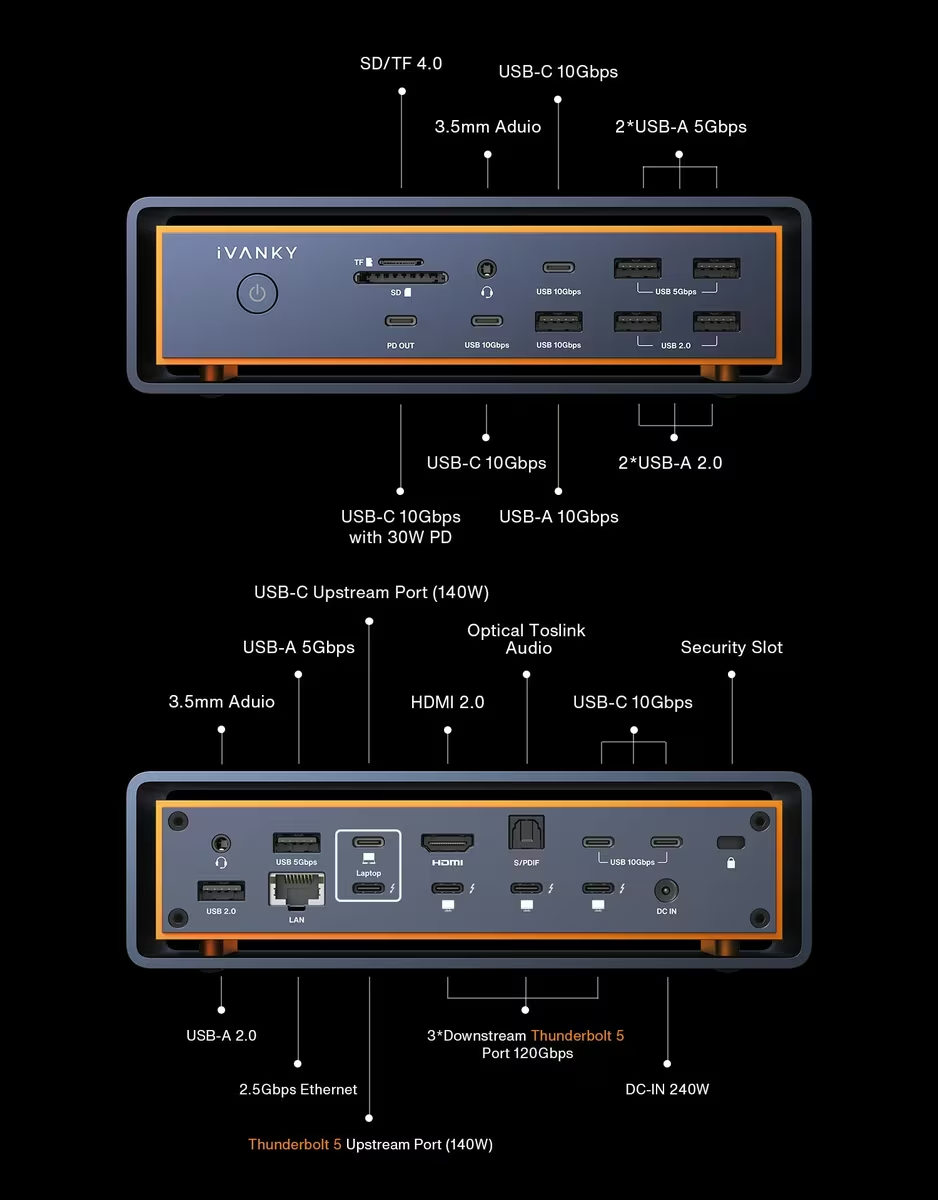
USB-A is where the Max 2 is more generous than the Ultra, with seven ports against four. One runs at 10 Gbps, three at 5 Gbps and three at USB 2.0’s 480 Mbps. The slow ports are the right home for a keyboard, a mouse receiver, a hardware security key or a label printer, and they leave the fast ports free for drives and card readers. For a desk that still has a drawer of USB-A accessories, this matters more than any bandwidth figure.
Cards and audio closely match the Ultra: SD 4.0 and microSD 4.0 slots with UHS-II, a front 3.5 mm combo jack, a rear 3.5 mm output and an optical output. As on the Ultra, iVANKY’s FAQ notes that the optical port has no system level volume control, so the 3.5 mm output is the one to use when the Mac’s volume keys should work.
Two omissions define the Max 2 against its bigger sibling. There is no DisplayPort output, so the video ports are the three Thunderbolt 5 ports and one HDMI 2.0 port. A monitor with only DisplayPort input connects to a Thunderbolt port with a USB-C to DisplayPort cable. The Ethernet port runs at 2.5 gigabit, where the Ultra offers 10. The FAQ asks for Cat5e, Cat6 or Cat6a cabling no longer than 328 ft for the full rate, and describes setting 2500Base-T manually if macOS negotiates lower. Unless the NAS and the switch on the other end are 10 gigabit, 2.5 GbE is the right level for this dock.
Power, cooling and compatibility
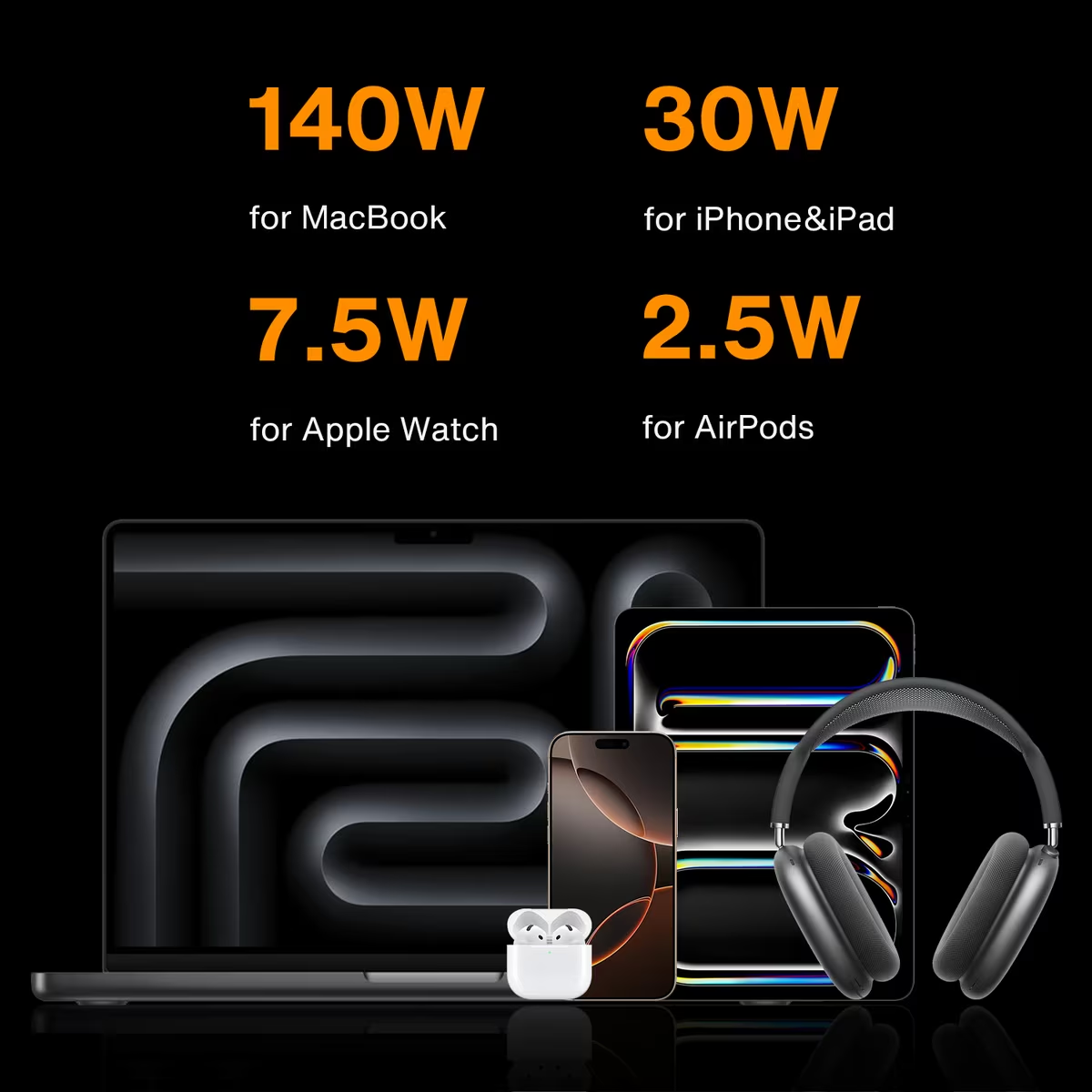
Host charging matches the Ultra. The upstream connection supplies up to 140 W to the Mac from the 240 W adapter, and Apple ships the 14 inch MacBook Pro with M4 Max with a 96 W charger, so the dock has more than enough for that laptop. The front USB-C port supplies up to 30 W, where the Ultra offers 45 W. That is enough for a phone or a tablet, and it keeps a separate wall charger off the desk. Each of the three Thunderbolt 5 ports supplies 15 W for bus powered drives.
Related reading
The Max 2 is actively cooled. iVANKY describes a copper thermal core with active cooling, and the FAQ explains that the fan keeps the dock stable during high-power, full-load operation and stops when the dock is disconnected. Like the Ultra, it is a dock that can be heard when it is working hard, which is the price of this much Thunderbolt 5 hardware in one box. Give it an open spot on the desk, not a closed drawer.
Compatibility is the same as the Ultra’s. The Max 2 is for Apple silicon Macs, requires macOS 15.1 or later, and is not compatible with Intel MacBooks or Windows laptops. Only the 2024 iMac models support more than one external display through it. The warranty is 24 months.
Check the monitors before ordering
The Max 2 has firmer monitor rules than the Ultra, and they belong in the buying decision rather than in a support ticket.
6K output works only on the three downstream Thunderbolt 5 ports. Dual 6K at 6016 × 3384 and 60 Hz is supported with Apple’s Pro Display XDR, and iVANKY’s FAQ says both displays must be Pro Display XDR units for that configuration. The FAQ also advises against the LG UltraFine 5K (27MD5KL) and the Samsung ViewFinity S9 5K because of compatibility issues, and recommends Apple displays instead. The Ultra supports a pair of either, one per port group. Anyone who owns two of those 5K panels should buy the Ultra.
For wake from sleep, iVANKY recommends USB-C to USB-C or HDMI to HDMI cables rather than adapters, and reconnecting the dual USB-C cable if the dock does not wake on its own. The HDMI port does not accept HDMI to DisplayPort cables. All of this is easier to plan around before the monitor arrives than after.
Max 2 or Ultra
The decision comes down to four questions, and the chip comes first.

Any MacBook Pro with a Pro chip should get the Max 2. Apple limits M1 through M4 Pro to two external displays and M5 Pro to three, and the Max 2 delivers the full count on each. An M5 Max should also get the Max 2 unless something else on the Ultra’s list is needed, because both docks drive four displays on that chip. On an M1 through M4 Max MacBook Pro or a Mac Studio, the answer depends on the screen count. Three displays or fewer means the Max 2. Four means the Ultra.
The network is the second question. A 10 gigabit NAS or switch points to the Ultra, and everything slower is well served by the Max 2’s 2.5 GbE.
The monitors are the third. Two LG UltraFine 5K or Samsung ViewFinity S9 5K panels point to the Ultra, as does a strong preference for a native DisplayPort 2.1 output. Apple displays, 4K monitors over HDMI and USB-C monitors suit the Max 2.
The peripherals are the last. The Ultra has twelve 10 Gbps USB ports, the Max 2 has six plus six slower USB-A ports. A desk full of fast SSDs and capture devices favours the Ultra, while a desk full of USB-A accessories favours the Max 2.
Price
iVANKY’s store lists the Max 2 at $449.99, reduced to $399.99 at the time of writing, against $749.99 and $649.99 for the Ultra. The gap is $250 at the reduced prices and $300 at the full ones, with the same 240 W adapter and the same pair of 1.2 m cables in the box.
Related reading

$399.99 is still serious money for a dock. For anyone who needs two displays or fewer, a single-cable Thunderbolt 5 dock is a reasonable alternative. iVANKY’s own FusionDock Pro 3 has one Thunderbolt 5 upstream port, three downstream Thunderbolt 5 ports, dual 6K support on MacBooks, 2.5 GbE and 140 W charging, and is listed at $299.99. It has no HDMI port and three USB-A ports. The Max 2 earns its premium over that class when the third display, the HDMI output, the five 10 Gbps USB-C ports or the seven USB-A ports carry real weight on the desk.
Verdict
The iVANKY FusionDock Max 2 is an excellent Thunderbolt 5 dock with a clearly defined audience. The Ultra remains the king for a four display M4 Max desk, but for almost every other Mac setup I can think of, the Max 2 is the smarter purchase, and it has done everything I asked of it.
Its limits sit in the monitor rules, the network port and the Mac ports it occupies.
Why I recommend it
- Every display Apple allows on most Macs. Three native displays on an M4 Max, one more than a single Thunderbolt port allows on that chip, four on an M5 Max, and the full count on any Pro chip.
- $250 less than the Ultra. $399.99 against $649.99 at current prices, with the same adapter and cables in the box.
- Seven USB-A ports. Six of them run at 5 Gbps or USB 2.0 speed, the right home for a keyboard or a mouse receiver, leaving the fast ports for drives.
- 140 W for the laptop. That is more than the 96 W charger Apple ships with the 14 inch MacBook Pro with M4 Max, and the front USB-C port adds 30 W for a phone.
- Cards and audio covered. UHS-II SD 4.0 and microSD 4.0 slots, front and rear 3.5 mm jacks and an optical output.
Why it may not be for you
- Two ports for the full display count. The dual USB-C cable leaves one Thunderbolt port free on a 14 inch MacBook Pro with M4 Max.
- Stricter about monitors. iVANKY advises against the LG UltraFine 5K and the Samsung ViewFinity S9 5K, dual 6K needs two Pro Display XDR units, and there is no DisplayPort output.
- 2.5 gigabit Ethernet. A 10 gigabit NAS or switch points to the Ultra.
- A fan. It is audible when working hard and wants an open spot, not a closed drawer.
- Apple silicon only. It requires macOS 15.1 or later and does not work with Intel MacBooks or Windows laptops.
Buy the Max 2 for any Pro chip MacBook Pro, for an M5 Max, or for an M1 through M4 Max desk with three screens or fewer. Buy the Ultra for a fourth display on an M1 through M4 Max MacBook Pro or a Mac Studio, a 10 gigabit network or a pair of those 5K panels. With two displays or fewer, a single-cable dock such as iVANKY’s FusionDock Pro 3 at $299.99 is a reasonable alternative, though it has no HDMI port.
Product images: iVANKY.
One email a month: new articles, reviews and the upcoming live webinar + free recording. No spam, unsubscribe anytime.