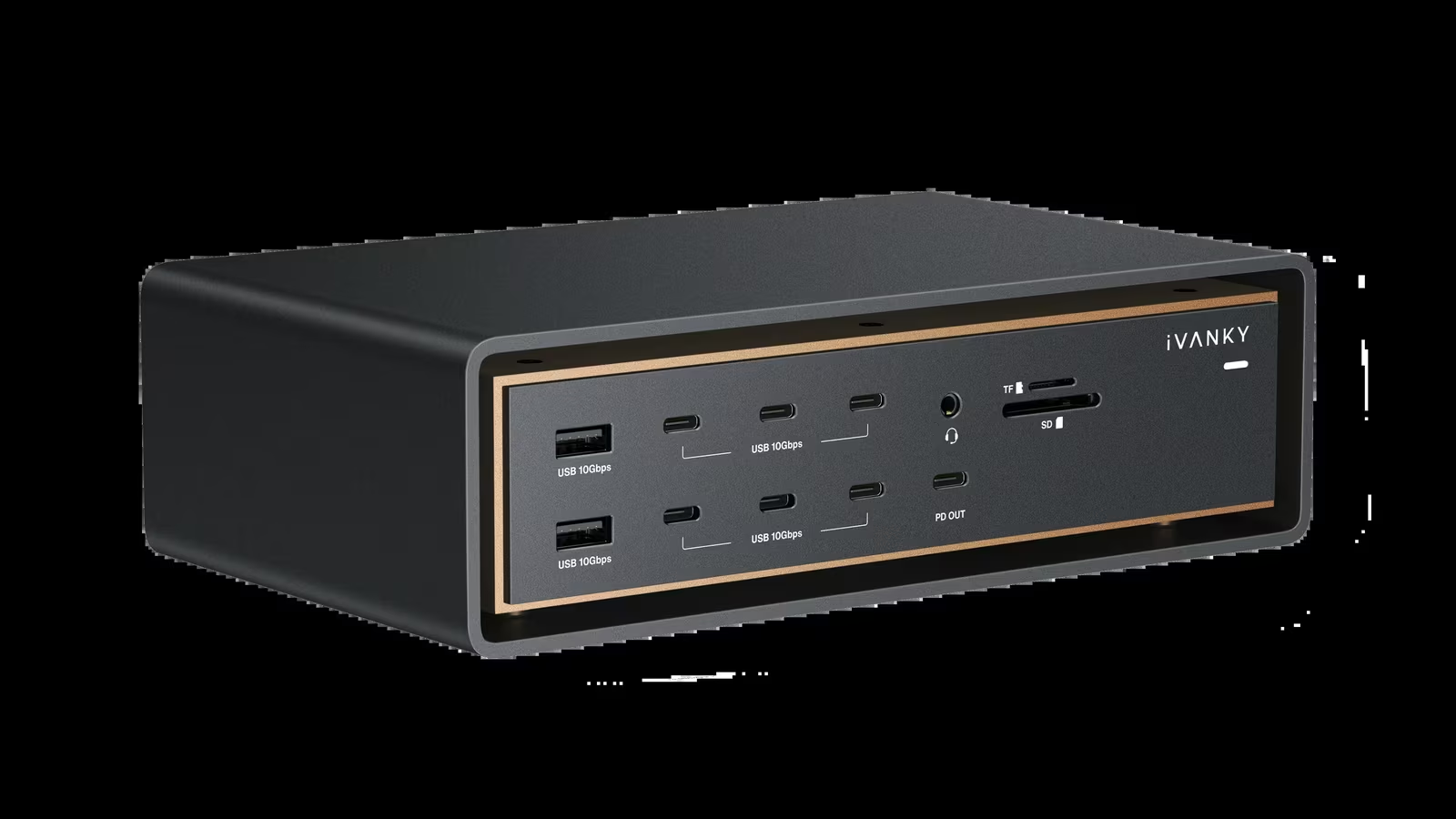
Most docks ask one Thunderbolt port to carry everything. The iVANKY FusionDock Ultra asks for two, and that one decision explains almost everything it can do that other Mac docks cannot.
My daily machine is a 14 inch MacBook Pro with an M4 Max, which is exactly the kind of host the Ultra was built around. On that desk it is the best dock I have used, and the one I would call the king of docks without hesitation. It drives four external displays natively, it has 26 ports without a slow one among them, it puts 10 gigabit Ethernet next to the laptop and it can charge the Mac at up to 140 W.
It is also a fan cooled, $649.99 box that occupies two of the laptop’s three Thunderbolt ports. Those facts decide who else should buy it, so they get as much space here as the port list.
Two host links, two halves of one dock
The FusionDock Ultra has two upstream USB-C host ports, each rated by iVANKY at 80 Gbps with Bandwidth Boost to 120 Gbps. The company calls the design a dual-chip architecture, and iVANKY explained to me that the Ultra uses two separate high-bandwidth controller paths and splits the display streams into two groups, one behind each host connection. The practical picture is two capable docks sharing one chassis, one power supply and one set of cables.
The included 1.2 m dual USB-C cable turns that into a single plug on a laptop. iVANKY describes its connectors as magnetically articulated. On a MacBook Pro the two plugs click together and go into two neighbouring ports. On a Mac Studio or Mac mini they split apart to match a different port layout. For the Mac mini, iVANKY’s FAQ notes that the M1 and M2 base models have exactly two Thunderbolt ports, so both are used, while the M4 model has three and any two will do.
The cost is easy to state. A 14 inch MacBook Pro with M4 Max has three Thunderbolt 5 ports, rated by Apple at up to 120 Gb/s, plus HDMI, an SDXC slot, MagSafe 3 and a headphone jack. The Ultra takes two of those Thunderbolt ports. The third remains free for a fast external SSD or anything else that wants its own Thunderbolt link, and MagSafe stays available for travel.
The box holds the dock, the dual USB-C cable, a separate 1.2 m Thunderbolt 5 cable, a 240 W power adapter with its cord, a user manual and a quick start guide.
Related reading
Four displays on an M4 Max, and why it takes two cables
Apple’s own numbers set the ceiling. The 14 inch MacBook Pro with M4 Max supports up to four external displays. Apple’s display support article adds the constraint that matters for docks: on M4 Max, a supported hub or a daisy chain can carry up to two displays over a single Thunderbolt port, and that does not raise the machine’s total. The same article gives the same two display limit for M2 Max and M3 Max.

A single-cable Thunderbolt dock on those Macs therefore stops at two native displays, however many video outputs it has. The Ultra reaches four because each host link carries its own pair. iVANKY’s troubleshooting guide spells out the wiring rule. The rear video outputs form two groups, and a four display setup needs two screens in each group. Putting all four in one group is not supported. The quad configurations iVANKY lists as supported are four 4K displays at 60 Hz, or four 6K displays at 60 Hz using Apple’s Pro Display XDR.
There are six display capable outputs on the back: the four downstream Thunderbolt 5 ports, one DisplayPort 2.1 port and one HDMI 2.0 port. iVANKY’s guide limits 6K output to the four Thunderbolt 5 ports, and its FAQ says only those ports and the DisplayPort output handle resolutions above 4K. The HDMI port is therefore the place for a 4K monitor or a television. High resolution panels belong on Thunderbolt.
Other Macs get what their chips allow. iVANKY’s tables give one external display for the base M1, M2 and M3, two for the base M4 and M5 and for M1 through M4 Pro, and three for M5 Pro using any three of the six rear outputs. M1 through M4 Max, M5 Max and every Mac Studio get four. The Mac mini with M4 or M4 Pro reaches three, and among iMacs only the 2024 models with four Thunderbolt ports get more than one external display through the dock. The product page states the principle plainly: the dock “cannot override” the built in display limits of the Mac.
The split design has one more benefit. iVANKY supports two LG UltraFine 5K displays on the Ultra, one per port group, and gives the same guidance for a pair of Samsung ViewFinity S9 5K monitors. The cheaper FusionDock Max 2 advises against both of those monitors in its FAQ, so for a 5K pair the Ultra is the iVANKY dock to buy.
Twenty-six ports, grouped by job
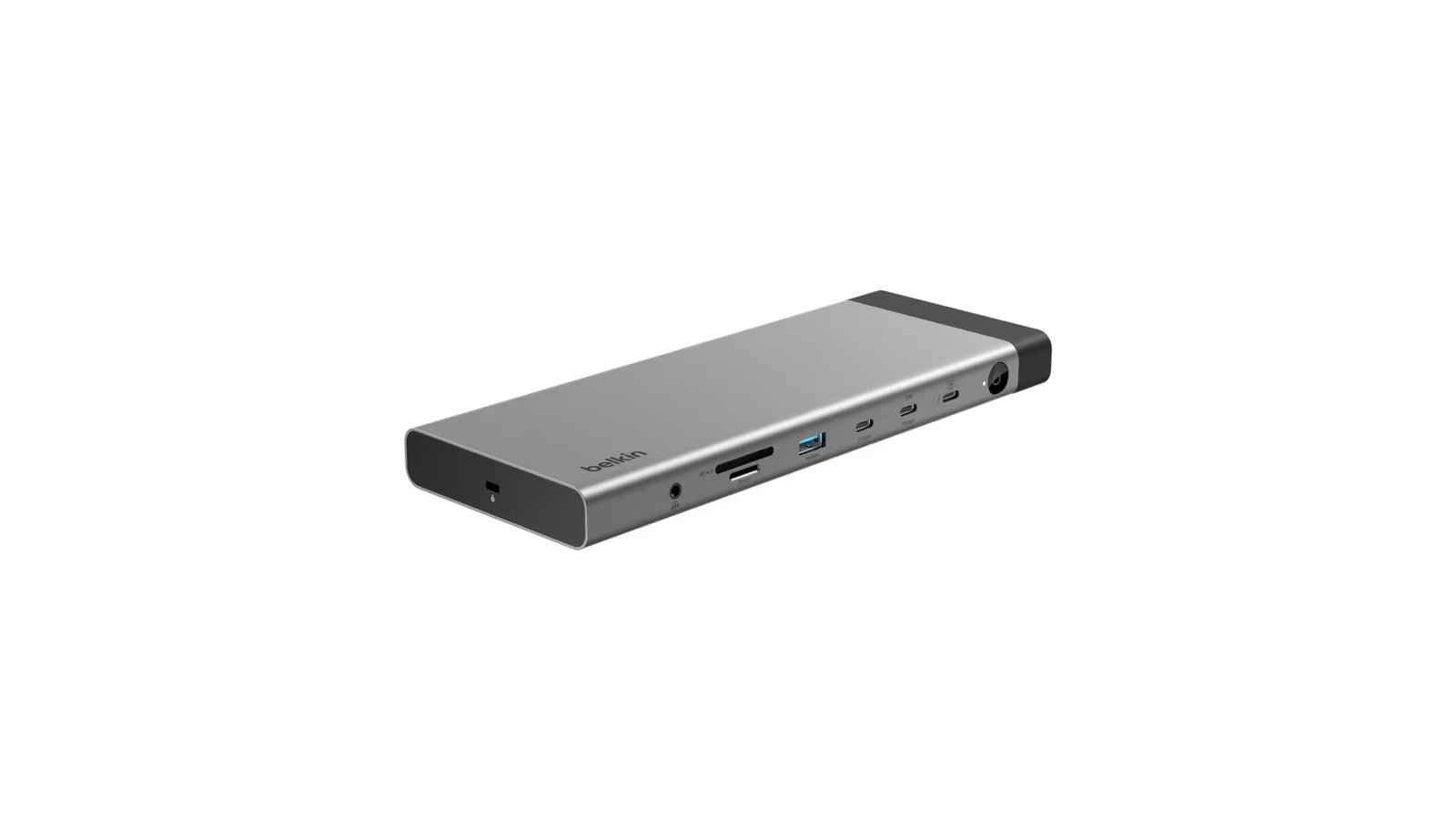
iVANKY counts 26 ports. The easiest way to read them is by what each group is for.
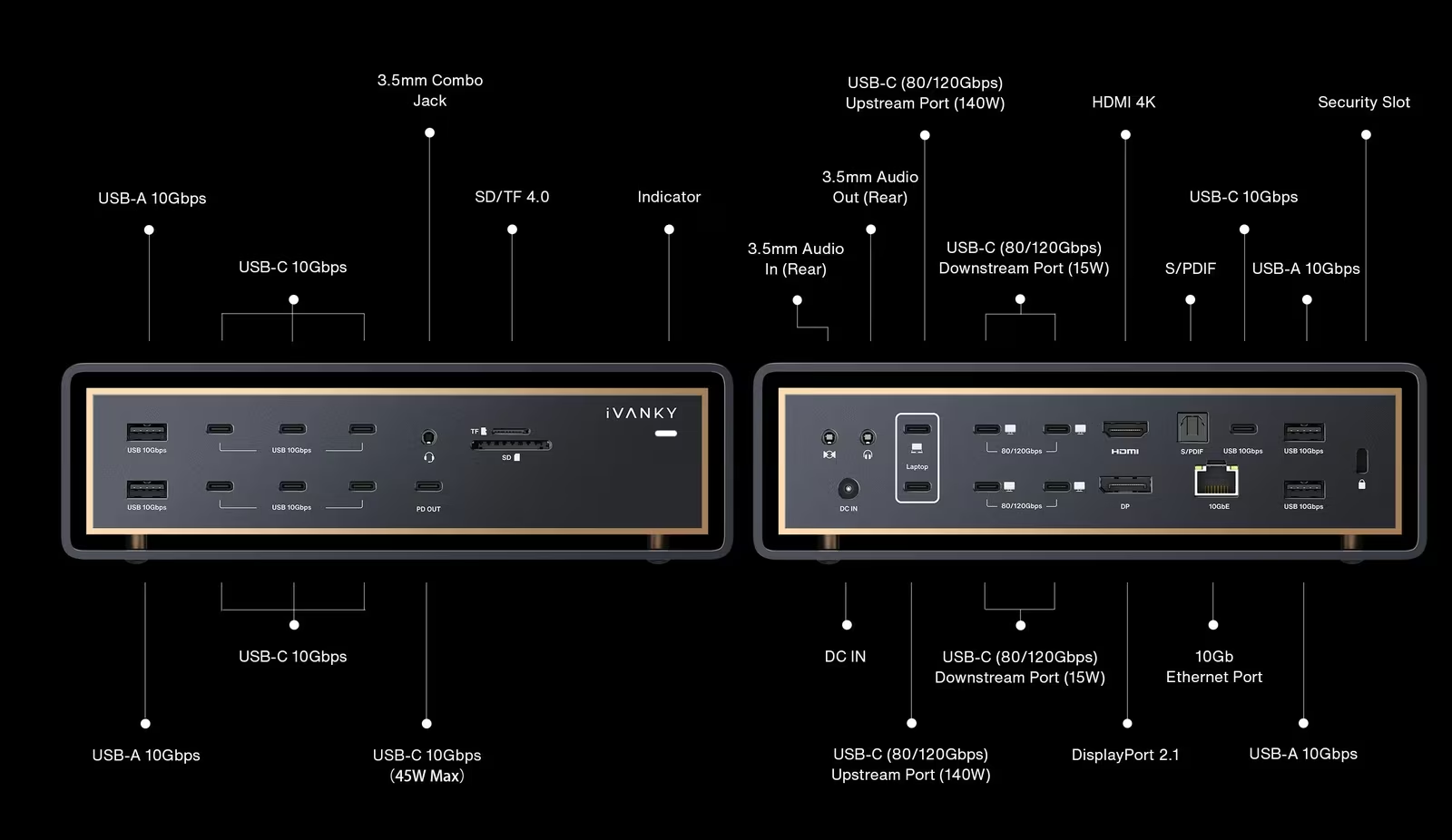
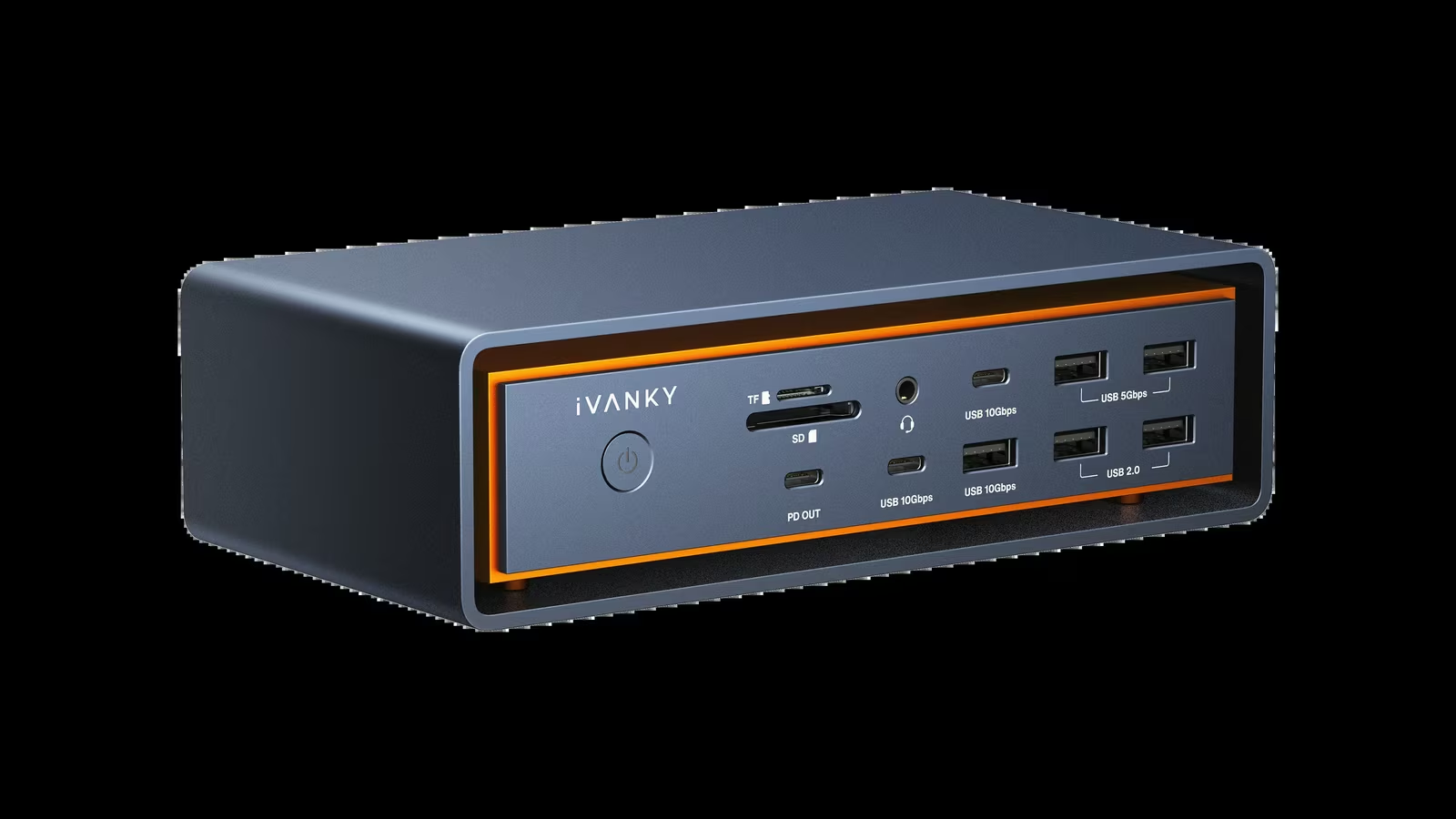
Fast storage and displays get the four downstream Thunderbolt 5 ports, each rated at 80 Gbps with Bandwidth Boost to 120 Gbps and each able to supply 15 W to a bus powered device. General peripherals get eight USB-C ports at 10 Gbps, one of them a dedicated 45 W Power Delivery port on the front, and four USB-A ports, also at 10 Gbps. Nothing on the list runs at 5 Gbps or at USB 2.0 speed. With twelve 10 Gbps ports on top of the Thunderbolt ones, there is no need to ration fast connections between a capture device, a card reader and an SSD enclosure.
Media work gets full-size SD 4.0 and microSD 4.0 slots, both UHS-II. Audio gets more attention than usual: a front 3.5 mm combo jack for a headset, a rear 3.5 mm line input and line output, and an optical Toslink output. iVANKY’s guide notes that the optical output has no system volume control, so volume has to be set on the amplifier or the speakers. When the Mac’s volume keys should work, use the 3.5 mm output instead. A security slot completes the list.
10 gigabit Ethernet is the second headline
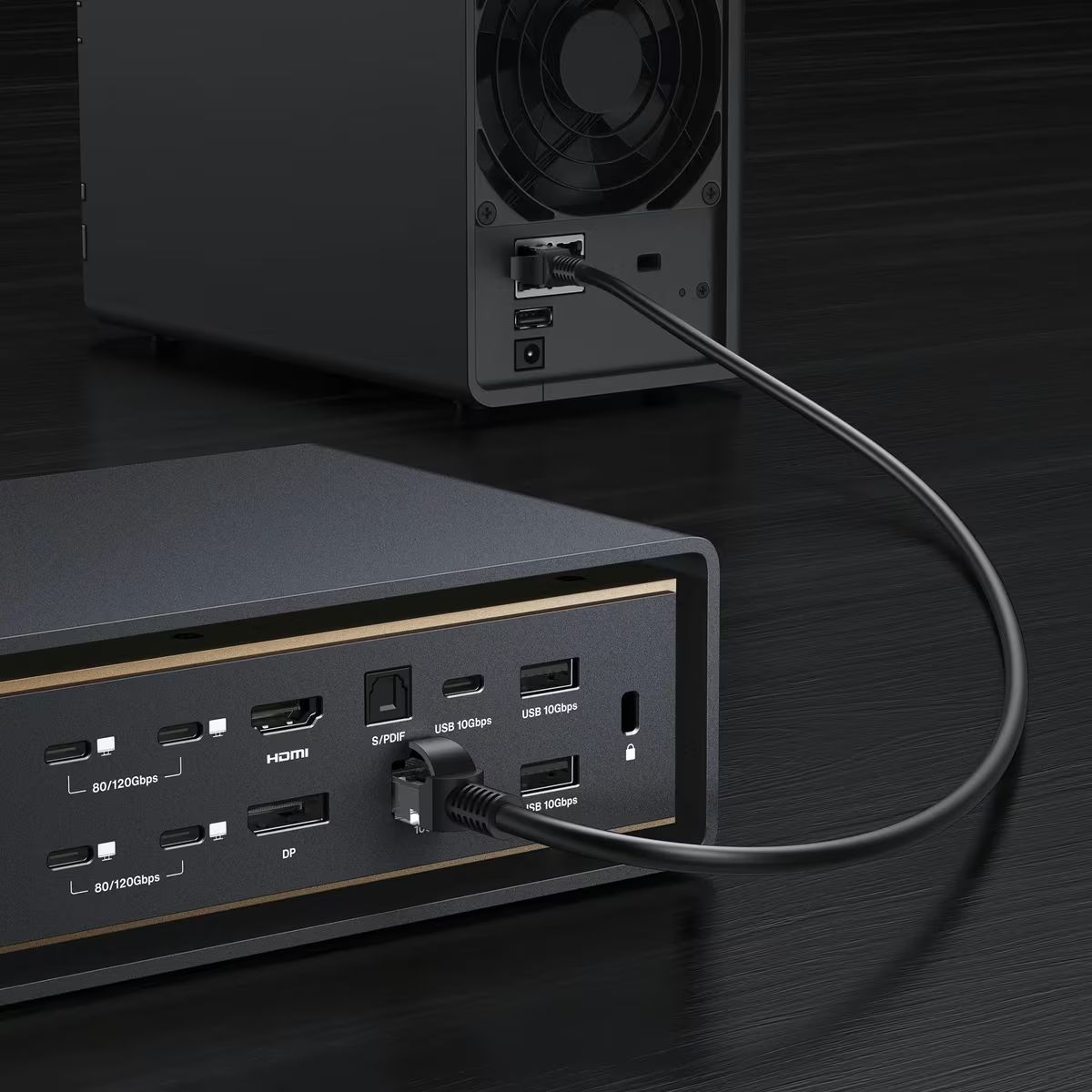
The Ultra’s RJ45 port runs at up to 10 Gbps. Together with the four display paths, this is the clearest dividing line in iVANKY’s Thunderbolt 5 range, because the FusionDock Max 2 has 2.5 gigabit Ethernet.
Related reading
10GbE pays off with a NAS or a workstation on a 10 gigabit switch, where project folders and video media can live on the network. It does nothing for an internet connection slower than the port, or for a switch that tops out at 1 or 2.5 gigabit. Every link in the path has to support the rate.
iVANKY’s FAQ is specific about that path. It asks for Cat6a, Cat7 or Cat8 cabling no longer than 328 ft, and warns that older Cat5 or Cat6 runs may reduce performance. If macOS does not negotiate the full rate, the FAQ describes setting the interface manually to 10000Base-T at full duplex in the Network settings. When a link will not come up at all, the troubleshooting guide recommends removing stale network services and avoiding any duplex option that includes Energy Efficient Ethernet.
Power for the laptop and everything around it
The upstream connection delivers up to 140 W over USB Power Delivery 3.1, from the 240 W external adapter. Apple ships the 14 inch MacBook Pro with M4 Max with a 96 W adapter and supports fast charging from 96 W or higher, so the dock supplies more than that laptop’s own charger does.
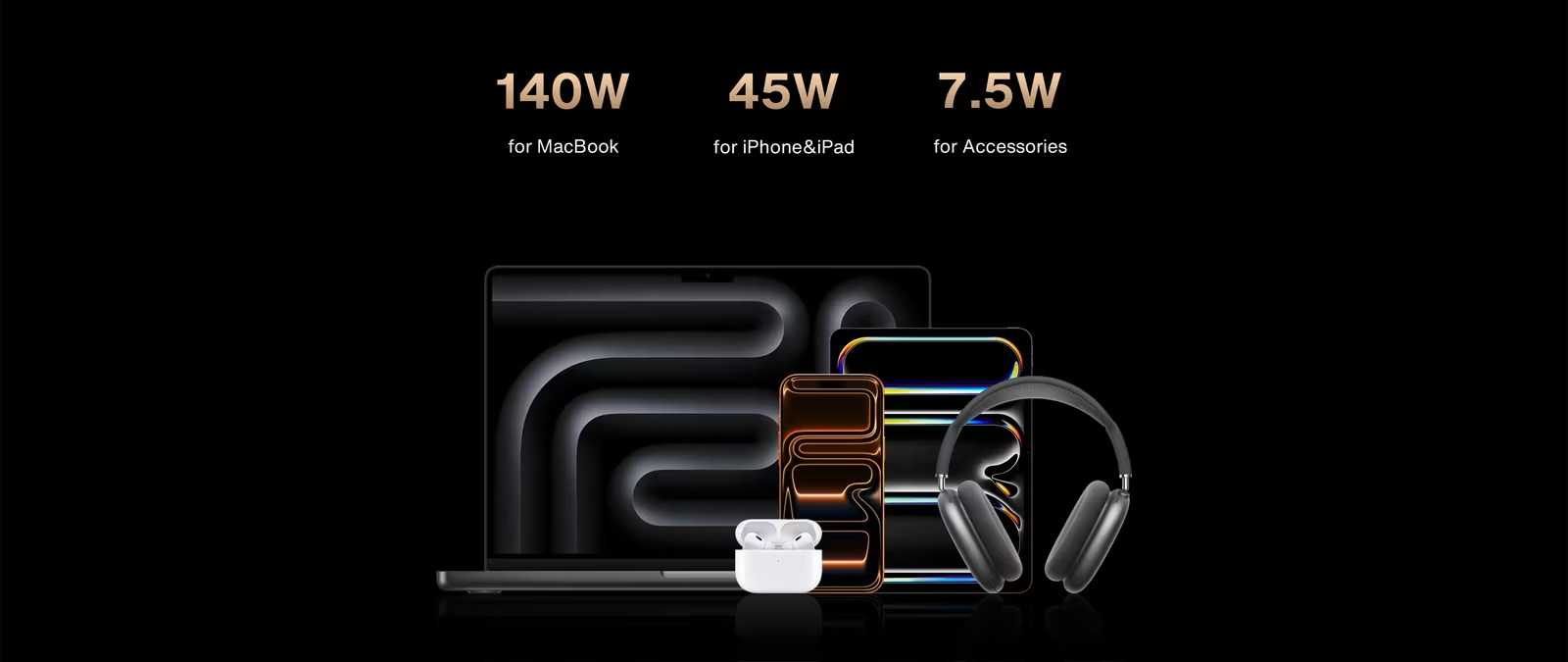
The remaining budget goes to peripherals. The front USB-C port supplies up to 45 W, which covers a phone or a tablet, and each of the four downstream Thunderbolt 5 ports supplies 15 W. iVANKY’s guide adds a detail that matters on a shared desk: the ordinary USB data ports do not provide power when no host is connected. With the laptop unplugged, the 45 W port and the Thunderbolt ports still charge devices.
Two fans, and where the dock should sit
The Ultra is actively cooled. iVANKY’s product page describes dual fans with adaptive control that keeps speeds low and ramps up only during sustained, demanding operation. It rates the noise at 44 to 46 dBA at 1 cm in a controlled quiet room, and the FAQ puts the low speed state below 20 dB. The reason iVANKY gives is stability. The dual-chip design drives up to four displays and 26 ports, and the fans are there to prevent flicker, throttling and instability under heavy load.

That is the honest trade for this much hardware in one enclosure. A passively cooled dock is silent at all times. The Ultra is designed to be quiet most of the time and audible when it is working hard, and anyone recording voice at the desk should choose its position with that in mind.
Placement matters for more than noise. iVANKY’s guide asks for a well ventilated spot and says not to operate the dock inside a PC case or a confined, enclosed space. It links occasional display flicker to electromagnetic interference, and among its suggested steps are connecting the two host plugs in a fixed order and trying a Thunderbolt 5 cable shorter than one metre. On the desk surface or an open shelf, with the power adapter nearby and not buried under paper, the Ultra has what it needs.
Compatibility fine print
The Ultra is for Apple silicon Macs only. iVANKY states that it is not compatible with Intel Macs or PCs, and it requires macOS 15.1 or later. The FAQ lists Thunderbolt 5, Thunderbolt 4 or USB4 as the host requirement, so an older Apple silicon Mac is supported at the speed of its own ports and with its own display limits.
That rules out a desk shared with a Windows work laptop. It also means buying the Mac first and the dock second, after checking the new Mac’s display count.
The troubleshooting guide covers monitor quirks in unusual depth, including recommended ports for high refresh rate displays, a note that the HDMI port does not accept HDMI to DisplayPort cables, and USB-C to USB-C cables for more reliable wake from sleep. Warranty is 24 months.
Price and who should buy something else
iVANKY’s store lists the FusionDock Ultra at $749.99, reduced to $649.99 at the time of writing, with both cables and the 240 W adapter included. That is a lot of money for a dock. It is fair for what the Ultra contains: two high-bandwidth host paths, four native display paths on a Max chip, 10GbE and twelve 10 Gbps ports in one chassis with one support contact.
Related reading

It is still the wrong purchase for several very good Macs. A MacBook Pro with a Pro chip is limited by Apple to two external displays on M1 through M4 Pro and three on M5 Pro, so it pays for display paths it cannot use. An M5 Max changes the arithmetic too, because Apple’s support article allows up to four displays over a single Thunderbolt port on that chip, and a single-link dock can reach four there. A desk on a 2.5 gigabit network, or on Wi-Fi, gets nothing from the 10GbE port. For those buyers the FusionDock Max 2 costs $250 less at current prices, and I review it separately.
The Ultra is the right purchase for an M1 through M4 Max MacBook Pro or a Mac Studio that needs four screens, a desk with a 10 gigabit NAS, a pair of LG UltraFine 5K displays, or simply more fast peripherals than a smaller dock can serve.
Verdict
The iVANKY FusionDock Ultra is the best dock I have had on my desk, and on a Max chip MacBook Pro it is the king of docks. It gives each pair of screens its own host link, which solves the one problem a single-cable dock cannot solve on an M4 Max. On my M4 Max desk it has done everything I asked of it.
The costs are real, though, and it makes sense only when its extra capability is genuinely needed.
Why I recommend it
- Four displays on a Max chip. On M2, M3 and M4 Max, Apple allows only two displays through a hub on one Thunderbolt port. The Ultra reaches four, including four 6K displays at 60 Hz with Apple’s Pro Display XDR.
- Twenty-six ports, none of them slow. Four downstream Thunderbolt 5 ports, twelve 10 Gbps USB ports and UHS-II card slots, with nothing at 5 Gbps or USB 2.0 speed.
- 10 gigabit Ethernet. Project folders and video media can live on a NAS behind a 10 gigabit switch.
- 140 W for the laptop. That is more than the 96 W adapter Apple ships with the 14 inch MacBook Pro with M4 Max, and the front USB-C port adds 45 W for a tablet.
- A pair of 5K monitors. Two LG UltraFine 5K or two Samsung ViewFinity S9 5K displays are supported, one per port group. The Max 2 advises against both.
Why it may not be for you
- Two Thunderbolt ports. The dual host cable leaves only one of the MacBook Pro’s three free.
- Fans. It is quiet most of the time and audible when working hard (iVANKY rates it at 44 to 46 dBA at 1 cm), which matters at a desk used for voice recording. It also needs a ventilated spot.
- Apple silicon only. It requires macOS 15.1 or later and does not work with Intel Macs or PCs, so a desk shared with a Windows work laptop is out.
- The price. $649.99, reduced from $749.99, is a lot of money for a dock, and a Pro chip Mac pays for display paths Apple will not let it use.
Buy it for an M1 through M4 Max MacBook Pro or a Mac Studio that needs four screens, a 10 gigabit NAS or a pair of 5K displays. With a Pro chip, an M5 Max (where Apple allows four displays over one Thunderbolt port), three screens or fewer, or a 2.5 gigabit network, the FusionDock Max 2 is the better buy at $250 less.
Product images: iVANKY.
One email a month: new articles, reviews and the upcoming live webinar + free recording. No spam, unsubscribe anytime.