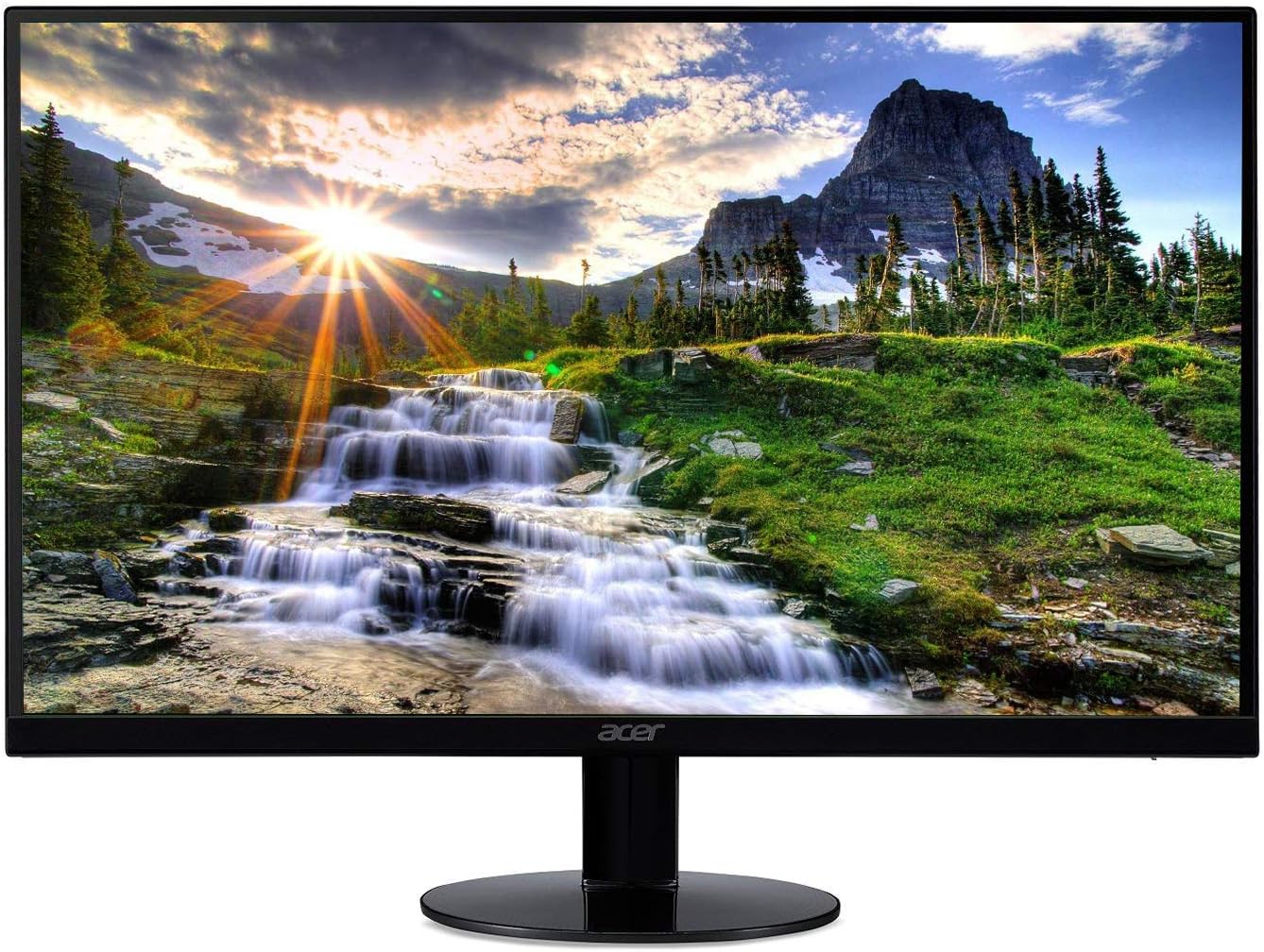
The stand on the Acer SB220Q bi tilts, and that is all it does. You cannot raise it, turn it or fit it to an arm. For a screen that most people buy as a second display beside a laptop, that one limit will shape your day more than the panel will.
Product image from the Amazon listing.
What You Get for the Money
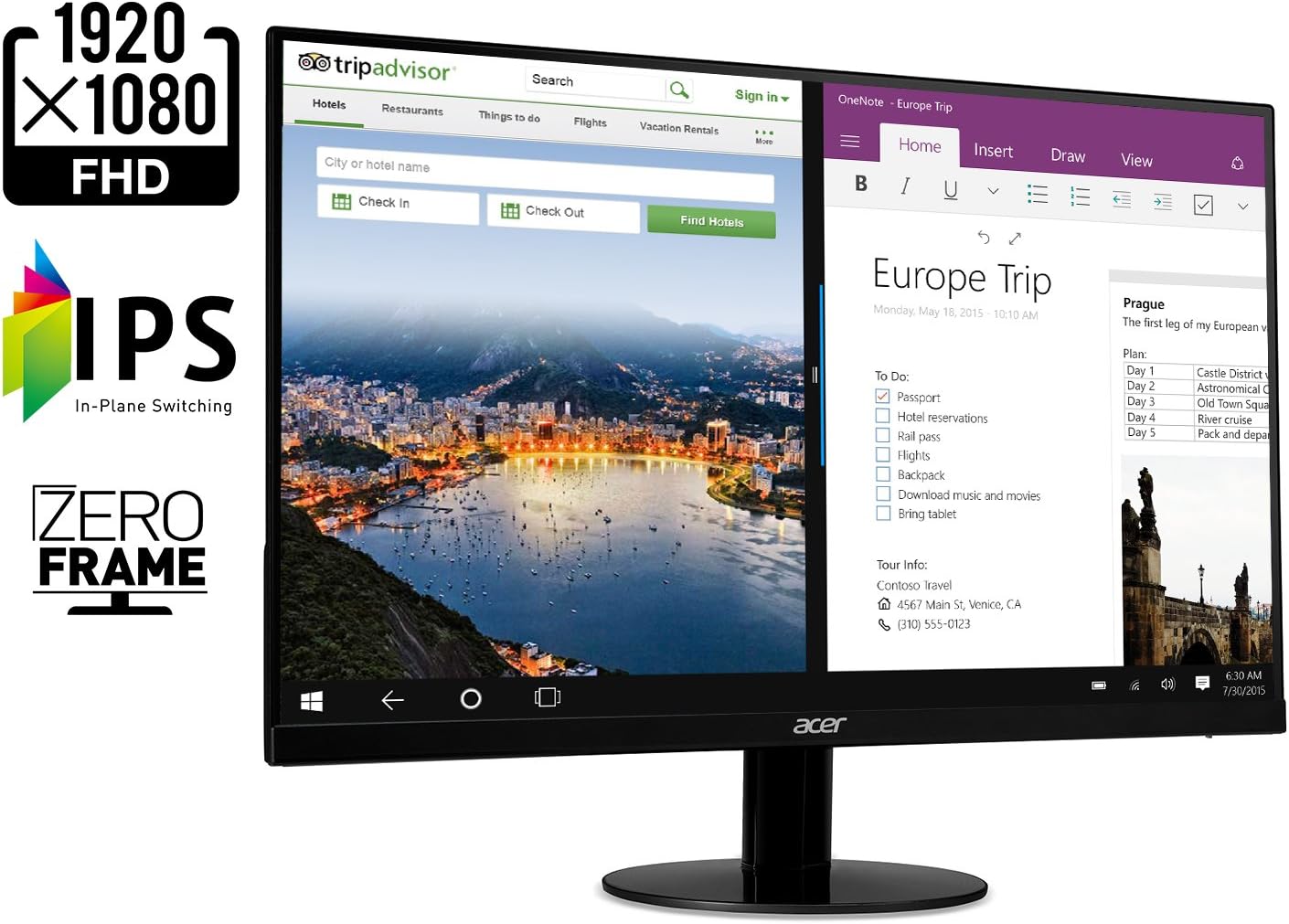
The basics are simple: a 21.5-inch IPS panel at 1920 by 1080, with a 75Hz refresh rate and FreeSync. Monitornerds ran the fullest test I found, and it lists one HDMI 1.4 port and one VGA port. There is no DisplayPort and no headphone jack.
That site’s numbers are good for a cheap screen and a little short of the box in places. It measured about 240 cd/m² of brightness against a rating of 250, and warned this may not beat glare in a bright room. It reported 93 percent of sRGB and a DeltaE of 2.35 out of the box, which is a tidy result at this level. Contrast came in at 870:1 against a claimed 1000:1, so dark scenes will look a bit gray. Input lag was close to 10ms.
Related reading

For a second screen, I read those numbers kindly. Email, chat, a browser and a spreadsheet do not need more. A photo editor who wants to judge color for print should look higher, but that person was never the target here.
The Stand Is the Real Compromise
Monitornerds calls the missing VESA mount “the biggest downside” of the stand, and I agree. Without those four screw holes on the back, you cannot use a monitor arm to fix the height. Some buyers name this as a drawback too, and one found the screen would not attach to a multi-monitor stand.
Ignore any listing that promises more. PCBuilder describes the stand as height adjustable, which does not match the tilt-only result from the test above, or owner comments that name the missing height adjustment as a drawback.
Here is what that means at a desk. A laptop screen sits low, and this monitor sits at one fixed height. If you want the two to line up, or if you want the top of the monitor near eye level, you will need a riser. A stack of books works. It is a small cost, but plan on it before you order.
Some owners also mention a slight wobble. One said it comes from the screw on the base plate, and that tightening it helps. The panel is light and thin, so I would expect some movement if you type hard on a loose desk, though owners treat this as a small annoyance.
Product image from the Amazon listing.
Backlight Bleed and the Panel Lottery
The most useful owner story sits in a Tom’s Hardware thread from 2018. An owner bought the SB220Q for about $89 and saw bleed in a bottom corner. It was minor, but it bothered them. Their grandfather bought the same model and got worse luck: more bleed, more glow, and a red stuck pixel near the center.
Two units, one family, two different results. Replies in the thread said that minor bleed is close to unavoidable at this price, that a swap could bring a worse panel, and that anyone set on an exchange should do it right away. The owner kept theirs.
Another buyer also describes bleed in the bottom corners, while Monitornerds said it found no cosmetic defects on its unit. So treat this as a lottery. Bleed like this mostly shows on dark scenes in a dark room, as one reply in that thread pointed out. For office work on white pages you may never see it. If you watch films on this screen at night, you might.
Related reading

My advice is plain. On the day it arrives, show a black image full screen in a dim room, then a white one. Look for bright corners and stuck pixels while you can still return it easily.
Connecting It to a Mac
This is where the listing says the least, so here is what I can and cannot tell you.
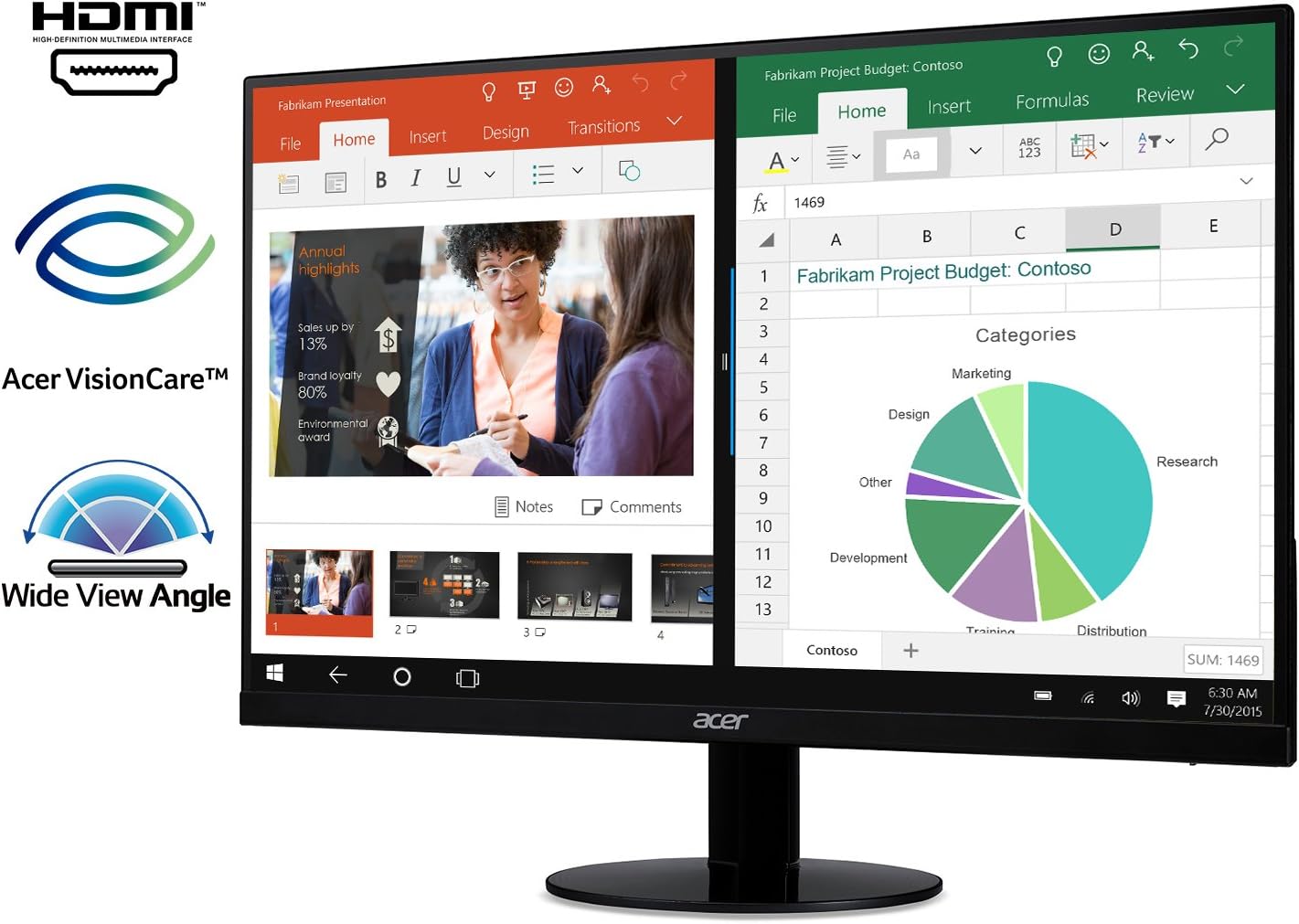
A recent MacBook has no VGA port, and many have no HDMI port either, so you will likely go through a USB-C hub or adapter. You will need an HDMI cable for that link, so check what is in the box and budget for one if it is missing.
I found no owner who reported running this exact monitor at 75Hz on a specific Mac. HDMI 1.4 can carry 1080p at that rate, but your adapter also has a say, so do not assume it. Treat 60Hz as the safe plan for office work and count 75Hz as a bonus if it shows up in Display Settings.
Text is a bigger question. A 1080p image on 21.5 inches gives about 102 pixels per inch, by my arithmetic. A Mac laptop screen is far sharper than that, so the jump is easy to see when the two sit side by side. One MacRumors poster with a 27-inch and a 23-inch Full HD screen complained about macOS fonts and wrote “there is no way to do it on 1080 screen with macos.” Those were different monitors, and both spread the same pixels over a larger area, so this Acer should look a little better. Still, it will not look like Retina.
If you read long documents all day on a Mac, this is my main reason to think twice. If the second screen holds Slack and a calendar, it should be fine.
Product image from the Amazon listing.
Sound, Gaming and Other Small Print
Sources disagree about audio. Monitornerds lists two 2W speakers and calls them mediocre. One owner lists no speakers as a drawback. With that conflict, plan on no useful speakers. With no headphone jack either, sound sent over HDMI may have nowhere good to go. Keep your audio on the laptop.
Gaming is a mild plus. Monitornerds found motion better than on a 60Hz screen, but with some trailing on light-to-dark changes, and none of the overdrive modes fixed that without adding overshoot. FreeSync is there, while G-Sync compatibility is not, since that needs DisplayPort. Fine for casual play. Fast shooters deserve a faster panel.
Related reading

One buyer reported off-and-on power trouble, then fixed it and kept the screen. That is a single report, so I give it little weight.
A Fair Second Screen, With a Riser Nearby
I would buy this kind of monitor for one job: extra space for a laptop, on a budget, in a room without harsh light. For chat windows, reference pages and a video call, 21.5 inches of decent IPS is plenty, and the factory color result is better than the price suggests.
Skip it if you need a monitor arm, if you want one cable to carry power and video, or if you read small text for hours on a Mac. Any of those points you toward a screen with VESA holes or a higher resolution, and that money would be well spent. Gamers with a serious interest in motion should skip it too.
If the job is a simple extra screen and you can live with a fixed height, the Acer SB220Q bi is a sensible choice, as long as you check it for bleed in the first few days and have an HDMI cable ready. This is an affiliate link. As an Amazon Associate I earn from qualifying purchases.
One email a month: new articles, reviews and the upcoming live webinar + free recording. No spam, unsubscribe anytime.