A Wi-Fi extender placed in a dead zone has a difficult assignment: repeat a signal that is already missing. The TP-Link RE220 makes more sense when it sits between the router and the weak room, where it can still receive a useful connection. That practical detail matters more than the large coverage numbers often printed beside products in this category.
This is a research-based review of the RE220, not a measured coverage test. I have not installed a unit in a house or recorded throughput and latency. TP-Link’s current product information supports the feature description. The placement and troubleshooting advice explains how I would assess whether this older AC750 model suits a particular home, with the exact hardware revision and firmware checked before purchase.
Identify the problem before extending it
Walk through the area with the device that actually struggles. A phone, a laptop, and a TV can behave differently in the same room. Check whether the problem is a weak connection, frequent disconnection, or slow internet everywhere. An extender may help the first two when distance or an obstruction is responsible. It cannot fix an overloaded internet connection or a fault affecting devices beside the router too.
Related reading

Try moving the router into a more open position before adding another box. A router buried behind a television or inside a closed cabinet may simply need a better location. Keep the first test simple: use the same device, the same service, and the same position before and after a change. A network upgrade is easier to judge when you know which problem it is meant to solve rather than looking for a generally higher number on a speed-test page.
What AC750 means here
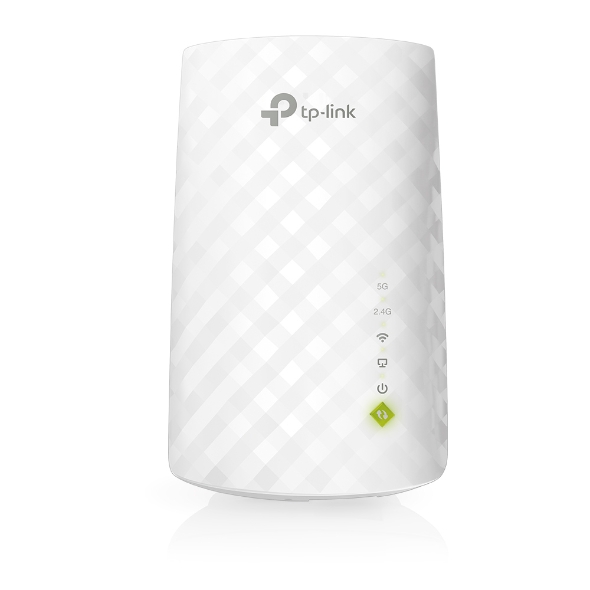
TP-Link specifies two wireless bands for the RE220, with advertised maximum link rates of 300 Mbps on 2.4 GHz and 433 Mbps on 5 GHz. The AC750 label combines those categories; it does not promise one device a 750 Mbps download. The product page describes setup through WPS, the Tether app, or a web interface, a signal indicator to help placement, and Ethernet-related operating modes. These details come from TP-Link’s official RE220 page.
Those specifications place it in an older, basic range-extension category. It can be a sensible way to investigate one awkward room when the required speed is modest. It is less compelling when the main goal is to make a fast fibre connection available at full speed throughout a large home. The internet plan, router, wireless path, client device, and extender all form part of the connection. The slowest or least reliable part can dominate what you experience.
Choose a socket for the signal
The ideal socket is not necessarily the one nearest the device that needs help. Start closer to the router, set up the extender, and use its signal indicator as guidance when moving it towards the weak area. A hallway position can be more useful than a socket behind the far room’s TV. Avoid locations crowded by metal objects or enclosed by furniture if another suitable socket is available.
Test more than one position before settling on the neatest-looking installation. A small move can change the path through walls and furniture. Keep notes of the location and result rather than trying to remember which version felt faster yesterday. The indicator helps you find a reasonable starting point, but the final check should be the activity you care about in the target room. A light on the extender does not prove a video call will remain stable there.
Coverage and capacity are different improvements
An extender can make a network available farther away while still delivering less useful throughput than a direct connection near the router. Wireless repeating uses radio time, and the path back to the router needs to carry the traffic too. I would not promise a fixed percentage reduction because that depends on the operating mode, bands, interference, and layout. The important point is that more signal bars do not automatically mean more available bandwidth.
For a doorbell, a simple tablet dashboard, or light browsing in a spare room, improved reliability may matter more than maximum speed. For large backups, high-bandwidth local media, or work calls that must remain stable, investigate a cable and access point or a more suitable whole-home system. The right choice depends on the task. Buying an extender because it is smaller and cheaper can be reasonable, as long as it addresses the actual requirement.
Name the networks so you can test them
During setup, use names that let you tell which connection the test device is using, when the available configuration allows it. A clear name for the extended network makes early troubleshooting easier. Otherwise you may stand beside the extender while the laptop continues using a weak connection to the original router, then judge the new equipment by a path it is not using.
Related reading

Once the arrangement works, decide how much simplicity the household needs. A shared network name can reduce the number of choices people see, but roaming behaviour also depends on devices and the exact system. Do not assume a basic extender gives the same coordinated behaviour as a deliberately matched mesh installation. Test moving between rooms on a call if that is part of your routine. If a device remains attached to the wrong connection, address that behaviour before declaring the coverage problem solved.
Hardware revision matters for mesh claims
The RE220 has been sold over several revisions and years. Features advertised for one revision or firmware build should not be assumed on every unit with the same name. If a listing mentions OneMesh or another coordinated feature, compare the exact extender revision, required firmware, and compatible router list on the manufacturer’s support pages. A general claim that it works with Wi-Fi routers is different from support for a particular coordinated mesh feature.
Download firmware only for the correct region and hardware revision, and follow the update instructions carefully. Save the model and revision in a note with the date of installation. This is useful later when the extender is tucked behind furniture and a support page asks which hardware you own. If buying old stock, check the current support information before paying, rather than assuming a familiar brand name guarantees every modern feature.
The Ethernet socket opens another possibility
TP-Link describes the RE220’s Ethernet connection as a way to connect a wired device through Wi-Fi, and also describes access-point use with a wired internet connection. Those roles are worth understanding separately. Connecting a TV by cable to an extender that still uses wireless backhaul does not remove the wireless part of the journey. It changes the final hop to the TV while the extender still needs a good connection to the router.
If you can run Ethernet to the target room, access-point mode may be more useful than repeating, subject to the exact revision’s supported modes and port limits. Read its specifications before expecting gigabit performance from the socket. For a permanent wired installation, also compare a purpose-built access point. The useful question is how the whole path works, not whether one short cable happens to appear at the far end of it.
Test reliability when the household is busy
A quiet midday speed test is only one view of the network. Try the intended activity while other people use the internet in their normal way. A video call, a game download, and a cloud backup can expose weaknesses that a short test misses. Keep the comparison fair by noting which other traffic is running. If every part of the home slows at the same time, the extender may not be the main constraint.
For work calls, watch for interruptions and audio gaps as well as headline speed. Try a sustained call from the usual chair with the laptop in its normal position. For a TV, play a full programme and check whether playback remains stable. These checks cost time, but they answer a more useful question than a theoretical coverage area. I have not performed them on the RE220, so I would make them part of your return-period evaluation rather than treat them as established results.
Keep the household recovery simple
Write down how to identify the extender, where it is plugged in, and how to restart it safely. A family member should not have to disconnect several power strips to find the right device. If a socket is controlled by a wall switch, consider how often someone might accidentally turn it off. Avoid hiding the unit so well that its signal light and reset controls become impossible to reach.
Related reading

After setup, check that it reconnects when the router restarts. Confirm the management password has been set appropriately and store it in your normal password manager. Disable or avoid features you do not need according to the documentation. A small network addition is easier to maintain when it follows the same basic habits as the router: known configuration, correct updates, and a clear way to return to a working state.
My verdict
I would consider the RE220 for one weak area where a modest connection is enough and a suitable halfway socket exists. I would not choose it as a general promise of fast Wi-Fi across a large home. If moving the router solves the problem, buy nothing. If a cable is practical, compare a wired access point. If several rooms need consistent roaming and capacity, assess a system designed around that broader job.
The RE220’s value is therefore highly specific to the building and the devices using it. A carefully placed inexpensive extender can be useful; the same box in the wrong socket can add another network without fixing the original problem. Buy it with a clear test in mind, judge it in the actual weak room, and keep the result based on reliable use rather than signal bars alone.
The exact TP-Link RE220 listing is on Amazon. This is an affiliate link. As an Amazon Associate I earn from qualifying purchases. Verify the revision, regional plug, supported modes, and firmware before ordering.
One email a month: new articles, reviews and the upcoming live webinar + free recording. No spam, unsubscribe anytime.