An old router can keep passing traffic long after the buying advice around it needs to change. The TP-Link Archer A7 is a good example of why a network review must consider maintenance as well as radio specifications. Its familiar AC1750 label describes an older wireless category. Before buying one today, I would investigate the exact hardware revision, available firmware, and support position before considering whether its ports and coverage fit the home.
This is a research-based review of the Archer A7 linked by Amazon ASIN B079JD7F7G. I have not measured throughput, latency, coverage, or long-term stability. TP-Link’s product, download, and lifecycle pages support the discussion. Where support is uncertain for a particular revision, that uncertainty is part of the buying judgment rather than a gap filled with an assumption that a working router must still be a sensible new purchase.

Read the label before the feature list
TP-Link sells networking products across hardware versions and regions. Firmware for one combination should not be assumed suitable for another. Check the model, version, and region printed on the unit, then select the matching section of the official download page. If buying online, ask for those details before relying on a generic Archer A7 description. A seller’s stock image does not identify the revision in the box.
Related reading
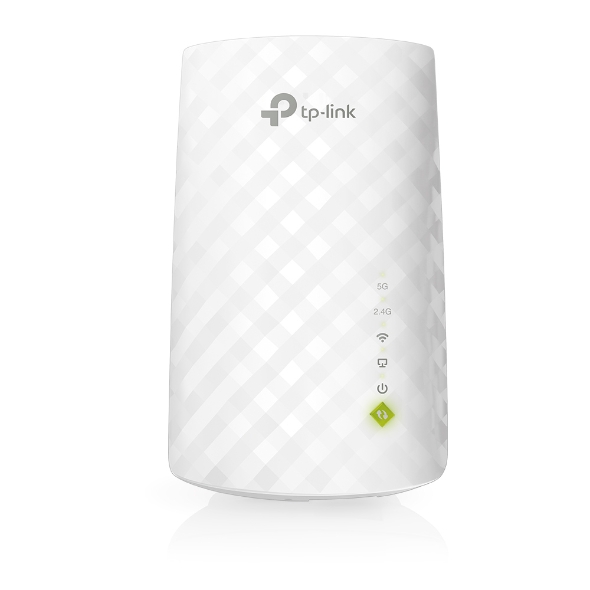
The official Archer A7 download page provides revision-specific firmware information. TP-Link also maintains lifecycle information, with Archer A7 versions appearing in its linked lists. Production ending and every form of maintenance ending are not automatically the same statement. Read the list headings and policy, and obtain a clear answer for the exact version if ongoing support is important to the purchase.
What AC1750 tells you
The Archer A7 is a dual-band 802.11ac router with gigabit Ethernet connections. Its AC1750 category combines advertised wireless link rates across bands; it does not mean one laptop receives a 1,750 Mbps internet connection. TP-Link’s product page establishes the model’s general design. Actual useful throughput depends on the client, signal path, interference, configuration, and the rest of the network.
For an existing owner, those limits can still be acceptable when the household’s tasks are modest and the supported configuration remains appropriate. For a new buyer, the comparison should be with current supported equipment at the actual price, rather than with an old launch price. A familiar model with years of positive reviews can be historically successful without being the most sensible starting point for a new network now.
A router sits at an important boundary
Unlike a passive accessory, a router handles traffic between networks and runs software that needs care. That makes clear maintenance information more important than a small saving. I would not choose an older unit for the main internet connection if I could not establish a satisfactory support position for the exact version. An inexpensive box can create an expensive administrative burden when its security status is unclear.
For a router you already own, check the installed firmware against the correct official download page and read release notes before updating. Follow the manufacturer’s instructions, including a stable connection and power during the process. Save any configuration information you need to restore service. Do not install firmware for another region or hardware version merely because its version number looks newer. Correct identity comes before the apparent size of an update.
Understand the existing internet equipment
Many homes already have an internet provider’s gateway that combines modem functions, routing, and Wi-Fi. Adding an Archer A7 without understanding that arrangement can produce two layers of routing. That may be acceptable for some purposes, but it can complicate inbound connections, gaming, discovery, and troubleshooting. Decide which device should perform which role before plugging a second router into the first.
If using the A7 as an access point behind another router, follow the supported setup for the exact firmware. The goal is a deliberate network arrangement with clear address assignment and management access. Do not improvise by changing several settings and hoping the internet still works. Keep a simple diagram showing the provider equipment, the A7, and any switches. That drawing can save time when a later fault makes every small box look like the possible cause.
Placement can matter more than antennas
The external antennas make the A7 look like a substantial wireless device, but the location still shapes coverage. A router on an open shelf has a different radio path from one behind a TV or inside a cabinet. Place it where it can serve the rooms that matter, while keeping power and cables arranged safely. Do not make the farthest hidden socket the default simply because it keeps the box out of sight.
Related reading

Test the actual work locations with the actual devices. A laptop at a desk can behave differently from a phone held in a doorway. Note whether problems affect one room, one device, or the whole home. If everything slows at once, investigate the internet connection and shared traffic. If one distant corner struggles, moving the router or adding a properly designed access point may address the problem more directly than replacing software settings at random.
Use Ethernet for fixed equipment when practical
A desktop computer, NAS, or TV that stays in one place may benefit from a cable. Wired connections also create a useful reference when diagnosing Wi-Fi problems. If a directly connected computer works normally while wireless devices struggle, the fault is more likely in the radio path or wireless configuration than in the internet service alone. The comparison does not solve everything, but it narrows the investigation.
Check negotiated link speeds at both ends when a cable performs unexpectedly. A damaged lead or an older adapter can limit the path even when the router has gigabit ports. Label the cable that reaches the provider equipment so it is not confused with a local device connection. Simple physical organisation is valuable on older equipment because it makes it easier to distinguish a new fault from an installation that has gradually become difficult to understand.
Keep management access controlled
Use a strong management password and follow TP-Link’s guidance for the services you need. Avoid enabling remote administration, port forwarding, or other exposed features without a clear purpose and an understanding of the implications. A feature existing in a menu does not mean it should be enabled. If another person manages the network, agree on changes rather than creating a configuration they cannot explain later.
Keep a recovery note in a suitable password manager, including the router’s management address, model, revision, and where configuration backups are stored. Protect those backups because they can contain sensitive settings. A household network should be recoverable without making passwords publicly visible on a loose sheet beside the router. The maintenance task is not complex, but it needs a little more care than simply remembering the Wi-Fi name.
Guest networks need an actual check
A guest-network feature can be useful when visitors need internet access without joining the same environment as personal equipment. Check the exact firmware’s options and verify the intended separation instead of assuming the label alone establishes it. A phone connected to a guest network should be tested against the resources you mean to keep separate, using a simple supported configuration.
Likewise, a USB sharing feature should not be treated as an automatic replacement for a NAS or a backup plan. Router processors, supported formats, access controls, and maintenance limits can shape its usefulness. Start with a harmless test file and documented permissions if you use such a feature. Do not make the router’s USB port the sole repository for important documents simply because a connected disk appears on the network.
An old router can have a narrower second life
If you already own an A7, a controlled secondary role may be more reasonable than buying another one as the main gateway. That still requires a supported configuration and a clear maintenance decision. An isolated learning setup is different from the network carrying family records and daily work. Keep the purpose explicit rather than letting old equipment become part of the main network through convenience alone.
Related reading

Third-party firmware is another separate project, not a feature I would promise with an ordinary purchase. It requires exact hardware compatibility, installation knowledge, and a recovery plan, and it can affect support. If you want that kind of experiment, research it directly for the unit you own. I would not describe it as a universal way to turn an uncertain older router into an automatically maintained modern product.
My verdict
For a new main-router purchase, I would favour a current model with clear ongoing support unless the A7’s exact revision and circumstances make a compelling, verified case. Its historical popularity and familiar ports do not outweigh uncertainty at the network boundary. For an existing owner, review firmware and lifecycle information first, then assess whether its actual performance still meets the household’s needs.
The useful question is no longer whether AC1750 once represented good value. It is whether this individual router has a well-understood, supported job today. If that answer is clear, older equipment can remain useful. If it is vague, spending a little more for a simpler maintenance future is a practical decision, especially for the device that connects every other device to the internet.
The workbook’s exact TP-Link Archer A7 listing is on Amazon. This is an affiliate link. As an Amazon Associate I earn from qualifying purchases. Check hardware version, region, firmware, and current support before deciding whether to buy.
One email a month: new articles, reviews and the upcoming live webinar + free recording. No spam, unsubscribe anytime.