A USB Wi-Fi adapter is only useful when the operating system can use it. That is the first question I would ask about this TP-Link AC600 adapter, ahead of antenna size or advertised speed. The workbook’s ASIN points to the Archer T2U Plus. It could be a practical way to connect a suitable computer, but a generic promise of Mac compatibility is not enough for a current Mac purchase.
This is a research-based review of ASIN B07P5PRK7J. I have not installed its driver, measured range or tested an Apple Silicon Mac with it. The assessment uses the listed model and TP-Link’s official product information. It does not endorse an unofficial driver or establish compatibility with an operating-system version not confirmed in the manufacturer’s current support material.
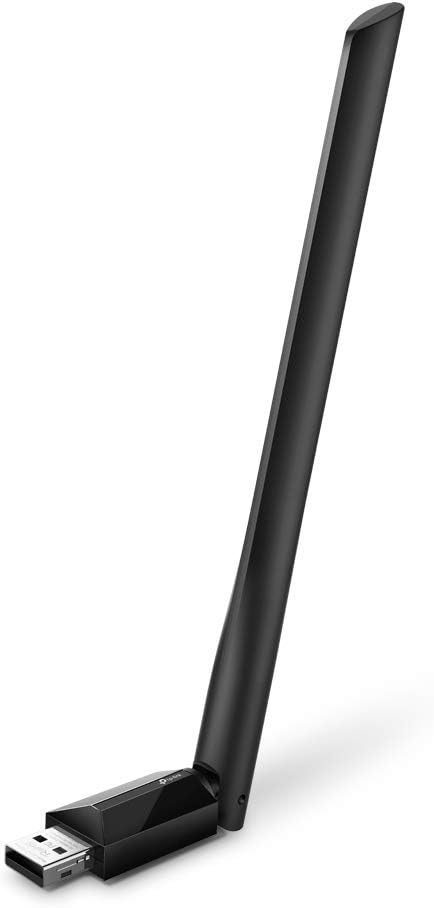
Product image: TP-Link product photography for the AC600 variant on the Amazon listing.
Identify the model before the operating system
The listing names the Archer T2U Plus and describes dual-band 802.11ac operation, with nominal rates up to 200 Mb/s on 2.4 GHz and 433 Mb/s on 5 GHz. The manufacturer’s page identifies it as an AC600 high-gain dual-band USB adapter and directs buyers to the download center for drivers. These are supplier specifications. They do not establish a measured connection speed or current support on every computer. Sources: Amazon listing, TP-Link Archer T2U Plus.
Related reading
Save the hardware version from the product label when it arrives. Driver support can depend on more than the family name printed on a shop page. Before purchase, find the exact regional support page and compare the listed operating systems with your computer. If the current version is not expressly supported, do not treat an older driver download as proof that it will work anyway.
For a Mac, this matters especially when the sales page mentions old OS X releases while the computer runs a much newer macOS version. A compatibility claim from another era is not a current verification. I would seek a clearly supported solution or choose a different connection method rather than buy the adapter on the hope that a random download will make it work.
Decide why you need an adapter
If the computer has no Wi-Fi, the task is simple to define: provide a supported wireless connection where a cable is inconvenient. If the built-in Wi-Fi is merely slow, investigate the cause first. Compare another device in the same location and check the router. An adapter cannot fix an internet service issue or make a badly placed router disappear from the equation.
If the built-in connection has stopped working, check the computer’s normal troubleshooting guidance before buying a workaround. A simple setting or software issue may not require new hardware. Conversely, an adapter can be a useful temporary route for a machine whose internal radio is unavailable. Choose it with a clear expectation about whether it is a short-term recovery tool or a permanent part of the desk.
For a desktop, also consider an appropriate wired connection. If the router or a wall Ethernet socket is close, a cable can be a simpler choice than adding drivers and a radio link. The best solution is the one that fits the room and computer with the least ongoing trouble. A USB accessory is convenient only if its full setup remains convenient.
Prepare the driver before losing the old connection
If the installation needs a driver, download the supported version from TP-Link while another connection is still available. Keep the installation instructions with it. Do not wait until the computer is offline and then discover that the only copy of the download is on the internet. A small amount of preparation can turn an awkward recovery job into an ordinary installation.
Use the exact manufacturer download for the confirmed hardware and operating system. Avoid treating a third-party driver collection as a shortcut. The driver becomes part of the computer’s software environment, so the source and support requirements matter. If installation asks for changes you do not understand, stop and read the official instructions rather than approving every prompt simply to see whether the adapter lights up.
Keep a fallback connection available during the first test. That could be the existing working network method or another supported route. If the adapter does not work, you should still be able to obtain guidance and remove the new software appropriately. A reversible setup is particularly valuable on a work computer that must remain usable the next morning.
Related reading

Put the antenna where the radio can work
The external antenna gives the product a more deliberate physical presence than a tiny flush dongle. That can be useful when the computer is low or surrounded by objects, but the actual result needs testing. Try an accessible USB position and follow the antenna guidance. A desktop tower pushed behind furniture is not an ideal starting point for judging any wireless link.
If the adapter interferes with neighboring USB ports or sits where it can be knocked, consider the physical arrangement before accepting the purchase. A suitable extension arrangement may help in some setups, but it becomes another part of the path to check. Do not buy on the assumption that a larger antenna is free of space costs. The desk, ports and cables still need to fit together.
Compare a few sensible positions while leaving the router and computer task unchanged. Note whether a position improves ordinary use rather than focusing only on signal bars. Stronger displayed reception is useful information, but it does not by itself establish the speed or stability of a video call. The aim is a repeatable connection that supports the work you actually do.
Choose a band by the result
Where your network exposes both bands, test the one that best serves the location. Do not select 5 GHz solely because its printed rate is larger, or 2.4 GHz solely because someone says it reaches farther. Walls, interference, the router and distance all influence the actual arrangement. The supplier itself qualifies performance by conditions. Your own room deserves a short, controlled comparison.
Use the same task at the same place for each comparison. A file download, a meeting or access to a local server can each reveal something different. Keep the test long enough to notice interruptions rather than stopping at the first fast result. If several household devices are busy, note that too. An honest comparison becomes easier when you know which conditions changed.
Remember that the AC600 class combines nominal capabilities. It is not a promise that a single internet download will run at 600 Mb/s. The provider connection, router, radio conditions and computer all contribute. I would assess the adapter against a defined need, such as reliable browsing in a room, rather than judge it for failing to match a misunderstood label.
Test more than a web page
After connecting, open several ordinary services and confirm that the correct network is selected. Then check the task that motivated the purchase. If that is work calls, make a test call and observe speech continuity. If it is a home server, transfer a representative copy of a folder and verify it at the destination. A successful connection icon is the beginning of acceptance, not the whole test.
Check sleep and wake behavior as part of normal use. A desktop that remains on all day and a laptop that repeatedly closes its lid have different routines. I have not measured this adapter’s behavior, so I would observe it directly during the return period. A connection that needs manual repair every time the computer wakes may be unsuitable even if a single speed test looks good.
If performance is inconsistent, change one variable at a time. Try a known USB port, a different sensible antenna position or a comparison near the router. Keep notes brief and concrete. Reinstalling several drivers while changing router settings makes it hard to understand the result. The product is a modest network accessory; troubleshooting should stay proportionate to its value and the importance of the computer.
Related reading

Support is part of the purchase price
A cheap adapter that lacks a supported driver for your system is not a bargain. The time spent maintaining a fragile workaround can exceed the saved purchase cost quickly. This is why I would be cautious with a new macOS release or any platform not clearly covered. It is better to choose a supported route than to make the computer depend on a driver project you did not intend to maintain.
For a supported Windows setup, still check the exact release and current instructions. Keep the model details so later updates can be verified. If the machine will be upgraded soon, consider that future operating system before buying. A network adapter often stays attached for years, and software support is as much a part of its useful life as the plastic housing and antenna.
My assessment
I would consider the Archer T2U Plus for a compatible computer that needs a modest dual-band Wi-Fi connection and has a sensible USB location. I would make driver support the first acceptance criterion, followed by stability during real work. I would pass when current platform support is unclear or a simple Ethernet route is available and more suitable. The right adapter starts with the operating system.
The exact item is available through my TP-Link AC600 Amazon link. This is an affiliate link. As an Amazon Associate I earn from qualifying purchases. This review does not establish current macOS compatibility or claim measured speed and range.
One email a month: new articles, reviews and the upcoming live webinar + free recording. No spam, unsubscribe anytime.