The Crucial MX500 is interesting when a computer still has a useful job and a compatible SATA drive bay. That is a better reason to consider it than the desire to buy a famous SSD name. I would begin with the machine, the files and the intended improvement. A storage purchase is successful when the complete upgrade works and the important data remains safe.
This is a research-based review of the 1TB 2.5-inch MX500 identified by ASIN B078211KBB. I have not benchmarked a sample, measured sustained writes or evaluated a drive after years of use. The review assesses the documented product and practical upgrade decisions. It should not be read as a claim about every MX500 revision or a guarantee that a new SSD cannot fail.

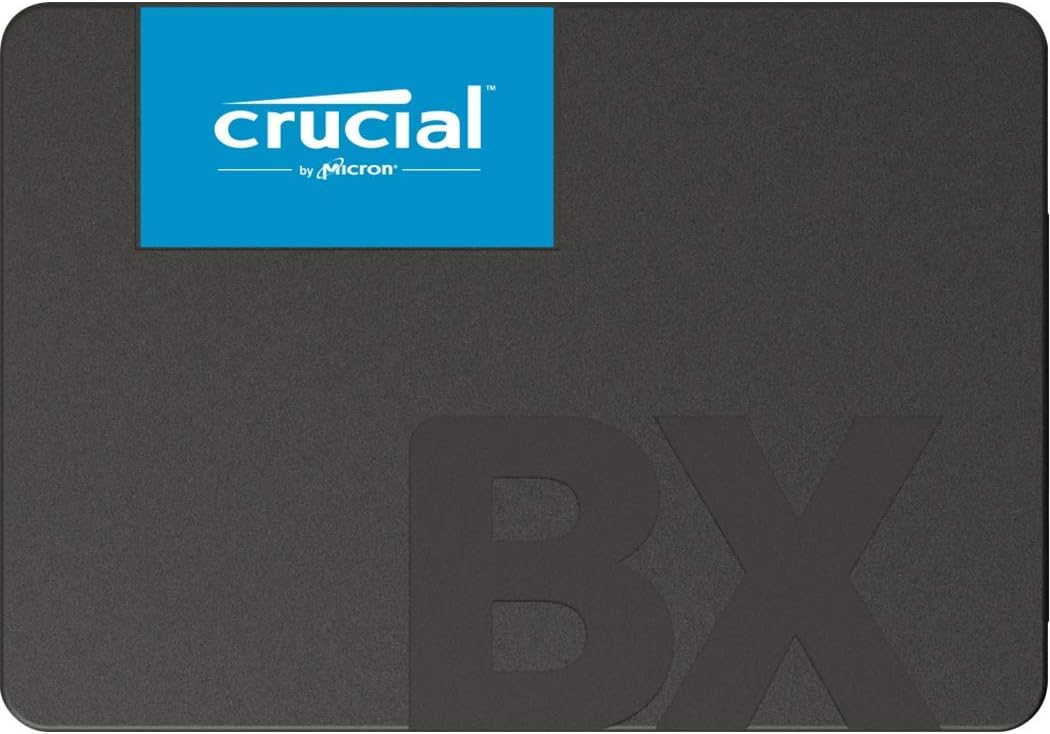
Product image: Crucial product photography from the Amazon listing.
Read the drive claims with a specific job in mind
The listing advertises sequential reads up to 560 MB/s and writes up to 510 MB/s, Micron 3D NAND and a five-year limited warranty. It also makes claims about power-loss immunity and hardware encryption. Those statements have conditions and should not be expanded into a promise that all unsaved work survives any interruption or that every file is automatically encrypted. No such testing was performed for this review. Source: Crucial MX500 listing.
Related reading
The most useful identity detail is the physical and interface match. This workbook item is the 2.5-inch SATA version. It is not a reason to assume compatibility with an M.2 slot or a machine with nonreplaceable storage. Check the exact computer’s service information and required parts before ordering. A drive can be a reasonable product and still be entirely unsuitable for the computer on your desk.
For an older machine, inspect the rest of the system too. Is its operating system still appropriate for the work? Are the screen, keyboard and battery in useful condition? A storage upgrade makes more sense when it supports a computer you can continue using confidently. If several expensive repairs are pending, compare the full plan with a replacement machine before paying for the first part.
Choose between more space and a faster experience
If the current drive is full, the first task is understanding what fills it. Look at large folders and decide which data needs to remain local. Keep valuable material backed up before removing anything. This can clarify whether 1TB is the right capacity or whether you are simply moving an unmanaged collection of files onto a larger disk. Extra space is useful when it supports a deliberate working arrangement.
If the goal is responsiveness, identify the slow actions. Starting the computer, opening projects and searching a large library are different tasks. Replacing a mechanical disk may be part of a sensible upgrade, but memory, software and other hardware can also limit the experience. I would not promise that this SSD fixes every kind of slowness without evidence from the particular computer.
Write down two or three ordinary checks for after the upgrade. That might be opening your main application, loading a representative project and accessing a shared folder. These give the work a clear endpoint. A benchmark is not the only way to decide whether the purchase helped, and a faster benchmark alone does not establish that the annoying daily task has improved.
Protect the files before planning the clone
Make a separate backup before changing drives. Then restore a small selection to a temporary location and open the files. Choose examples that matter, including something from recent work. A backup that has never been read is still an assumption. The upgrade is a good opportunity to confirm that the fallback exists while the original computer remains available.
Keep the backup separate from the source and destination drives during the operation where practical. Clearly label each device so you cannot confuse the old disk with the new one in an installation tool. The consequences of selecting the wrong destination can be much more serious than choosing the slower migration method. A simple label and a pause to verify the selection are worthwhile.
If the old drive is already failing, prioritize preserving important data and seek appropriate recovery help when needed. Do not run repeated stress tests merely to prove that replacement is justified. A new SSD can provide a destination for recovered files, but it does not create missing data. The storage hardware and the recovery process are separate parts of the job.
Related reading
Migration should follow supported instructions
Choose a migration method that supports the actual operating system and source layout. Check the current official tool requirements rather than relying on a software name from an old review. If you clone, confirm that the source fits the destination and that the process handles the partitions you need. Keep the independent backup even if the cloning tool reports success.
A fresh installation can be attractive when the existing system needs a cleanup, but it requires more preparation. Have the necessary installers, account access and application information available securely. Consider whether you can still obtain the software you rely on. The fastest hardware installation is not always the fastest route back to useful work if rebuilding the environment takes much longer afterward.
After migration, keep the old disk unchanged until the new setup has been used and checked. Label and store it appropriately. Do not immediately erase it to make an extra external drive just because the first boot succeeded. A few normal work sessions can reveal an overlooked folder or application setting. Preserving the old disk temporarily makes that discovery much easier to resolve.
The enclosure can become the bottleneck
If the MX500 will be used externally, choose an enclosure explicitly suitable for a 2.5-inch SATA SSD. Check its supported connections and supplied cable. The external interface and host computer then become part of the performance story. A drive’s published sequential rate is not a guarantee that every USB adapter, dock or cable can deliver a matching result.
For a fixed desk, prioritize an arrangement that remains secure and easy to identify. For travel, consider the protection and loose parts involved. Compare the complete enclosure-and-drive cost with a finished portable SSD. The bare drive price is only one line in that purchase. A slightly different product can be better value if it provides a simpler complete arrangement for the way you carry it.
Use the operating system’s proper removal procedure before disconnecting an external drive. Do not make it a habit to pull a cable while activity is still in progress. Label the volume with a meaningful name, especially if several disks are attached. These are ordinary ownership practices, but they matter more than an impressive brand name when a person is choosing which disk to erase or copy onto.
Verify capacity and files, not just the logo
After installation, confirm the model and expected capacity through the system’s normal tools. Use official support software only where it is appropriate for the operating system and connection. A familiar name on the box should not replace checking what the computer actually recognizes. Keep the purchase information in case a mismatch or support issue needs to be resolved.
Copy a representative collection of expendable test files and verify the result. If the drive is intended for photo work, include a real selection of images and the application that reads them. For code, open a copy of a project and perform the normal workflow. These checks do not establish maximum performance, but they confirm that the new storage can participate in the work it was bought to support.
If you measure transfer speed, record the source, destination, connection and file type. A small cached copy and a long sustained transfer answer different questions. I have no controlled long-write result here. I would not borrow one from a different capacity or revision and present it as this drive’s personal test. A clear limitation is more useful than an impressive but mismatched number.
Related reading

Keep the new setup recoverable
Review the backup configuration after the move. A newly named volume or reorganized user folder can change what is included. Make sure current work is still covered and perform another small restore. The old backup routine should not remain configured only for paths that no longer exist. A storage upgrade has improved little if it accidentally removes new files from the protection you previously had.
Do not treat power-loss or encryption marketing as a replacement for a backup and a proper security configuration. Read the exact requirements for any feature you intend to rely on. Hardware capability is different from a feature being enabled and verified in your system. If encryption matters, confirm its actual state through the supported operating-system tools rather than assuming it follows from the drive’s specification.
My assessment
I would consider the 1TB MX500 for a compatible SATA upgrade or a suitable external enclosure when the complete current price makes sense. I would value a verified migration, accessible support and a clear backup plan over a dramatic transfer claim. I would pass if compatibility is uncertain or the machine needs a different interface. The useful product is the one that fits the complete job.
Check the exact 2.5-inch item through my Crucial MX500 1TB Amazon link. This is an affiliate link. As an Amazon Associate I earn from qualifying purchases. This research review does not claim measured performance, power-loss testing or years of personal ownership.
One email a month: new articles, reviews and the upcoming live webinar + free recording. No spam, unsubscribe anytime.