The cheapest part of a computer upgrade is not always the part that decides the value. Installation time, adapters, migration and the remaining life of the machine all belong in the calculation. That is how I would approach the Crucial BX500 1TB. It is a candidate for a modest compatible SATA upgrade, not an automatic choice simply because a budget SSD appears cheaper than another model.
This is a research-based review of ASIN B07YD5KCB5 and the 1TB BX500 family identified in Crucial’s documentation as CT1000BX500SSD1. I have not benchmarked a sample, measured sustained writes or compared it directly with an MX500. The practical advice below is a purchase and upgrade assessment. It does not represent a measured performance verdict for a particular drive revision.
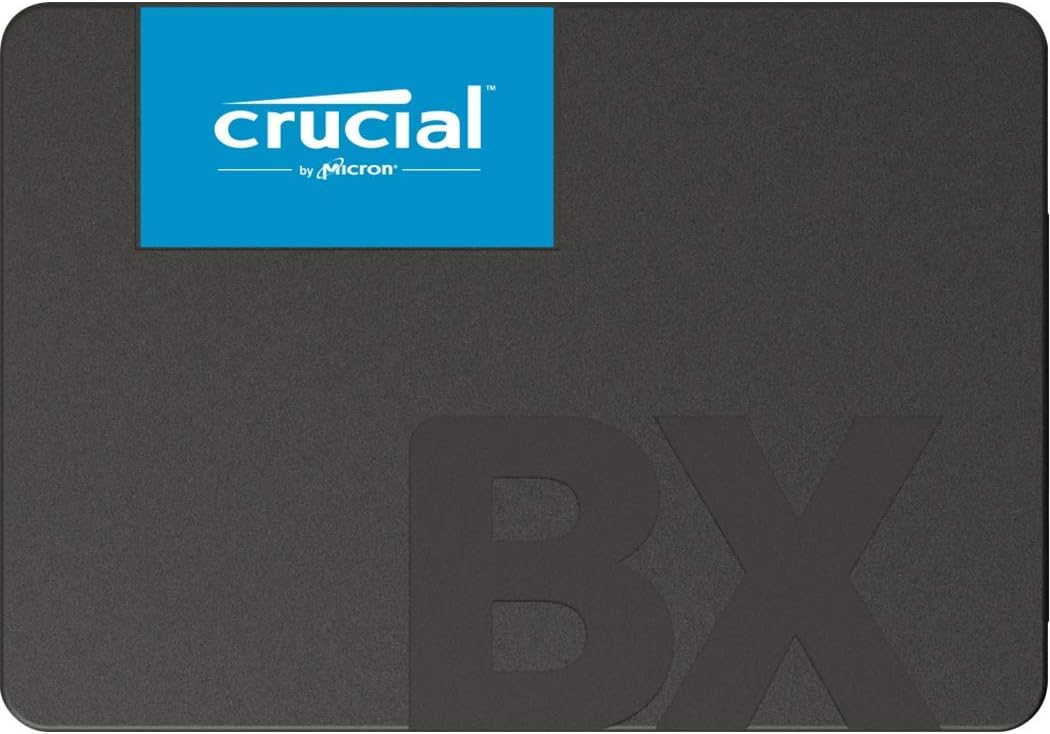
Product image: Crucial product photography from the Amazon listing.
The documented class of drive
Crucial’s product flyer specifies a 2.5-inch, 7 mm SATA 6 Gb/s SSD. For the 1TB CT1000BX500SSD1, it lists sequential reads up to 540 MB/s, writes up to 500 MB/s and a 360 TB written rating. The limited warranty is three years or the published written-data limit, whichever comes first. The flyer describes performance test conditions. These are manufacturer specifications, not results from this review. Source: Crucial BX500 flyer.
Related reading

The first practical question is compatibility. This is not an NVMe drive or a general internal upgrade for an Apple Silicon Mac. Confirm that the exact computer supports a replaceable 2.5-inch SATA drive and identify any required caddy, cable or mounting parts. A suitable connector and physical space matter more than a comparison of headline transfer rates. A cheap incompatible part is still an unnecessary purchase.
For an older machine, decide whether the complete computer remains useful for the intended work. Check the operating system, battery and other important components. If the goal is a simple secondary machine, a modest storage upgrade may be coherent. If several parts need expensive replacement, compare the total cost before beginning. The SSD should support a sensible plan for the computer rather than postpone making one.
Define the workload before comparing models
A computer used for browsing and documents has a different storage pattern from one that repeatedly writes large projects. Name the tasks that matter and their consequences if they are slow. I would not turn a sequential specification into a universal promise about every application. The useful drive is the one that serves your work at a sensible complete cost.
If you regularly move large files, look for trustworthy measurements that match the exact capacity and revision, or measure your own unit appropriately during evaluation. This review has no long-write result. It would be misleading to invent a curve or borrow a result from another SSD merely to make the comparison look complete. A clear statement of what is untested is more useful than a precise-looking number without evidence.
For light use, think about the upgrade as a whole experience. Starting the machine, opening ordinary files and having enough capacity may matter more than a small difference in a synthetic test. Yet light use does not remove the need for reliability and backup. A computer used only occasionally can still hold valuable files that would be difficult to replace.
Compare the BX500 and MX500 as complete offers
The workbook also includes the 1TB MX500. I would compare the exact current offers, their documented warranty terms, seller and intended workload rather than assume the model names create a fixed value gap. The price difference can change. There is no direct test in this article proving that one is faster for your files or more reliable over the years you intend to keep the machine.
If the difference in purchase price is small compared with installation time, read the documentation carefully and decide which specification better fits the job. If the difference is large and the workload modest, the budget model may deserve consideration. Keep the reasoning explicit. The useful comparison is not cheap versus premium as a slogan; it is whether the additional cost buys something relevant to the planned use.
Include every required part in that comparison. An external enclosure, adapter, cable or installation service can narrow the apparent price gap between bare drives. Do not compare one complete solution with another product’s drive-only number. A budget decision should remain budget-conscious after the SSD is ready to use, not only while it sits in an online basket.
Related reading
Preserve the current files first
Make a separate backup before changing storage. Open several files from the backup and check that it includes recent work. Use a mix of file types that matter to you, rather than only an empty test document. A successful restore is evidence that the backup can help. The purchase of a new drive should not become a reason to delay this first protective step.
If the old disk is failing, prioritize the important data and seek suitable help when necessary. Repeatedly testing a struggling drive to establish a before-and-after number may be a poor use of the time it still works. A new SSD is a possible destination for data, not a recovery method by itself. Keep the data-preservation task separate from the desire to demonstrate an upgrade.
Label the old and new disks clearly during migration. Verify the selected source and destination before an operation that writes or erases data. A low-cost SSD can be part of an expensive mistake if the wrong disk is chosen. A deliberate pause is worthwhile. There is no benefit in making the process look fast if it removes the only copy of something important.
Choose a supported migration route
Check the current requirements of the cloning or installation method for the operating system and drive arrangement. Do not assume that an old tool mentioned in a review supports your present setup. If you clone, confirm that the source data fits and that the necessary partitions are handled. If you install fresh, prepare the software and account access needed to make the computer useful again.
Keep a fallback until the new setup is verified. The old drive can remain untouched and labeled while you use the new one for ordinary work. A first successful boot is encouraging, but it does not prove that every project, application setting and user folder made the move. Preserving the previous state temporarily is a straightforward way to reduce the cost of an overlooked detail.
Follow the computer manufacturer’s service instructions for the physical installation. If the work is outside your comfort or appropriate tools, include qualified help in the project. A SATA drive is a familiar part, but laptops and small desktops can have delicate connectors and specific assembly requirements. The upgrade should not depend on forcing a part to fit because the purchase price was attractive.
Verify the job with ordinary data
After installation, confirm that the system recognizes the expected model and capacity. Then check the tasks you named before buying. Open the main application, load a representative project and verify a selection of copied files. Keep valuable material backed up while evaluating. A synthetic score is optional; knowing that your actual work is present and usable is essential.
If you time transfers, keep the conditions clear. Use the same source, connection and data when comparing, and distinguish a short copy from sustained writing. The manufacturer’s stated maximum has its own test conditions. It is not a commitment that every transfer in a busy operating system reaches that rate. I would report the actual setup and result rather than reduce the whole product to one convenient number.
Check available updates and support tools through official channels appropriate to the system. Do not download a firmware file merely because it mentions a similar drive name. Exact model and revision details matter. Save the purchase record and product information so support can identify the unit if needed. The useful life of an upgrade includes being able to obtain the right guidance later.
Related reading

Keep the budget from removing the backup
A new SSD should not become the only location for valuable files. It can fail, be erased accidentally or disappear with the computer. Decide where another copy lives and test a small restore after migration. The backup configuration may need attention if folders or volume names changed. A working drive does not prove that the previous backup still covers the new arrangement.
Plan space for growth as well. A drive chosen to fit today’s minimum can become crowded again as projects accumulate. Review large folders after the upgrade and keep the organization understandable. Capacity is most useful when you can find the current files and know which copies matter. The upgrade should leave the computer easier to manage, not merely postpone the next warning about free space.
My assessment
I would consider the BX500 1TB for a clearly compatible SATA computer doing a modest job when the complete offer is sensible. I would compare the MX500 and other appropriate options using current cost and documented requirements. I would not claim a sustained-write or reliability advantage without evidence. The right budget upgrade preserves the files, fits the machine and remains useful after installation.
The exact workbook product is linked through my Crucial BX500 1TB Amazon link. This is an affiliate link. As an Amazon Associate I earn from qualifying purchases. This research review contains no personal benchmark or direct MX500 comparison.
One email a month: new articles, reviews and the upcoming live webinar + free recording. No spam, unsubscribe anytime.