A blinking LED is a satisfying first result. You write a few lines, send them to a small board, and something in the real world responds. For a student, that connection between code and electronics can be the reason to keep going.
The interesting questions arrive soon afterwards. Why does the LED stay on? Why does a button press count twice? Why is a sensor value different from the number the program expects? Uploading another version of the same guess only gets you so far.
This is where the SEGGER J-Link EDU Mini earns its place. It is a small debug probe that connects a computer to a compatible microcontroller and gives the debugger access to the running program. For a technical secondary school teaching embedded systems, I think it is an excellent tool to have on the workbench.
The useful moment is when a student stops the processor and sees the value that explains a mistake. I would want that experience to be part of learning to program a board.
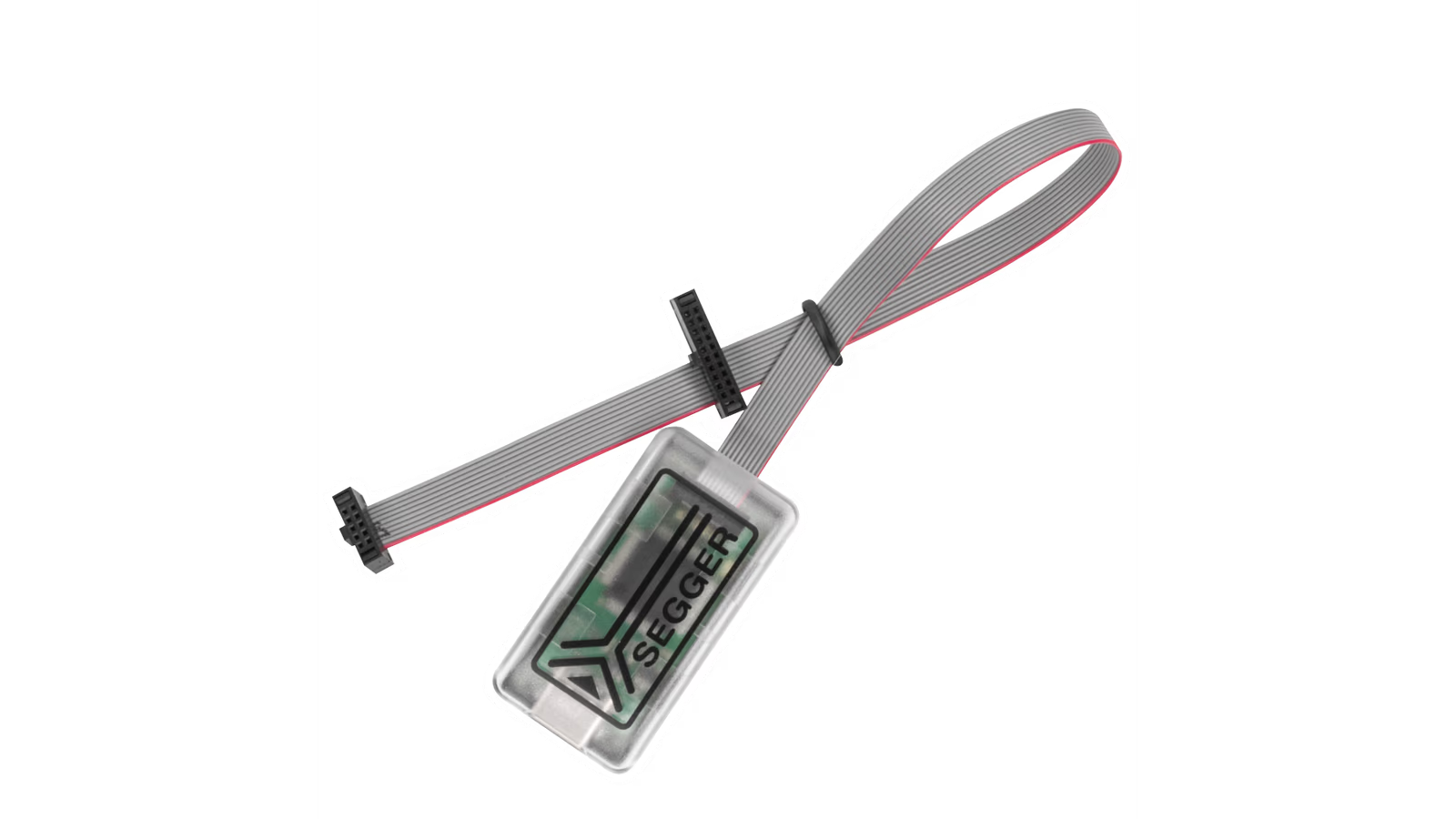
Official product image: SEGGER. Check the hardware revision and connector before ordering.
What the little probe actually does
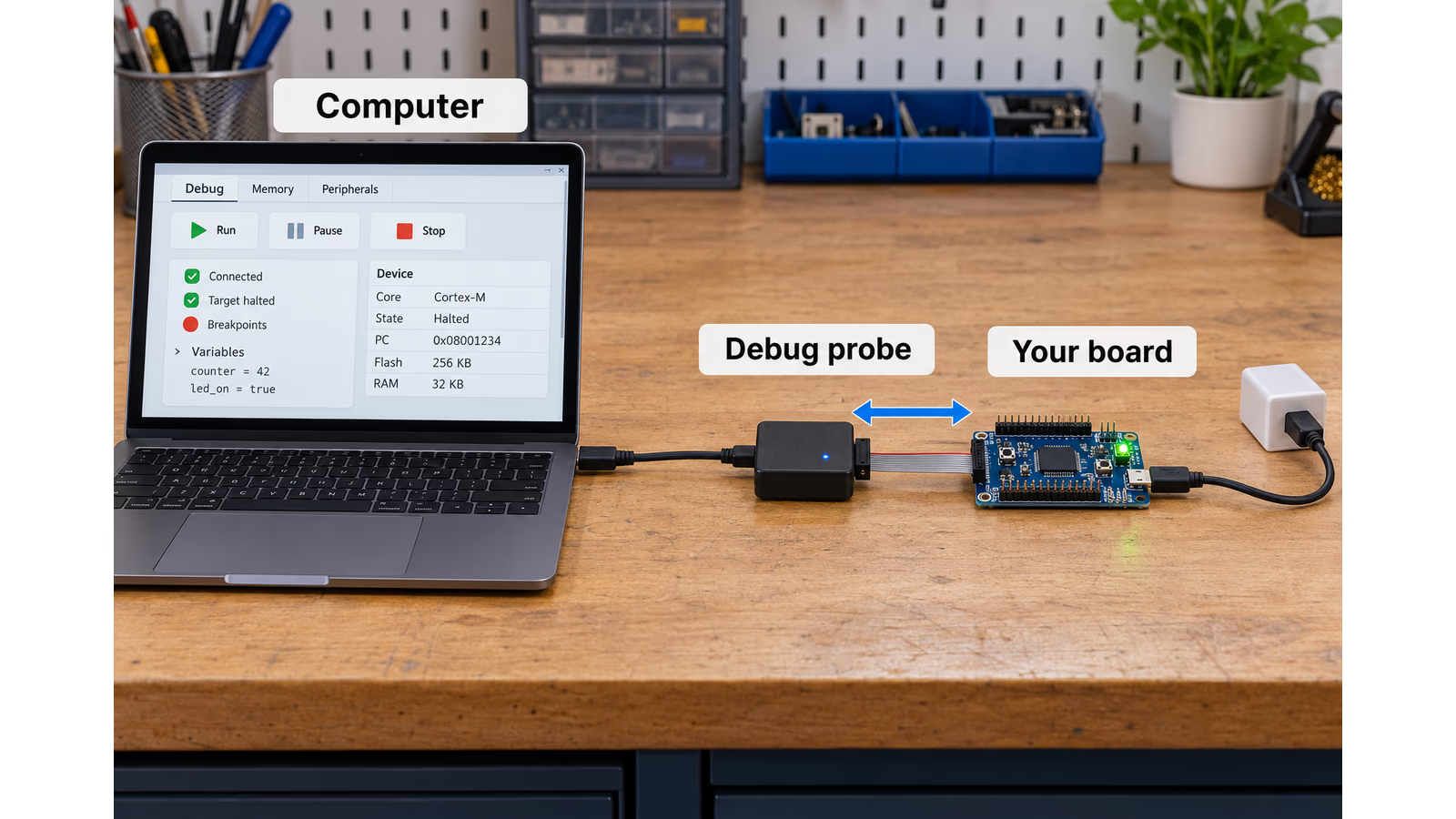
The J-Link EDU Mini sits between your computer and the board you are programming. USB connects it to the computer. A separate debug cable connects it to the target microcontroller’s debug interface.
For many Arm microcontroller lessons, that connection uses SWD, or Serial Wire Debug. JTAG is another supported interface. You do not need to understand every detail of either protocol before the first lesson. You do need a compatible chip, the correct connector and a properly configured debugger. SEGGER’s documentation explains the connection between the probe and target. J-Link user guide.
Related reading
AI-generated explanation with generic equipment. This shows the basic arrangement, not a photograph of the J-Link EDU Mini or a pin-by-pin wiring guide.
Programming and debugging are related, but different jobs. Programming puts the firmware onto the chip. Debugging lets you examine how that firmware behaves. A successful upload tells you that the transfer worked. It does not explain why your application made the wrong decision a moment later.
That distinction deserves a place early in an embedded course. Students should learn how to ask the board a useful question before their projects become too complicated to understand by looking at an LED.
A pause button for a program
A breakpoint tells the debugger where to stop execution. Once the processor reaches that point, you can look at the values the program is using. You can then step through the next part and see which path it follows.
Think of pausing a film just before an important event, except that you can also inspect some of what is happening behind the scene. The result is especially useful when the source code looks reasonable but the device behaves differently from what you expected.
SEGGER advertises Unlimited Flash Breakpoints for the EDU Mini. The feature extends breakpoint placement beyond the limited hardware resources built into a processor, on supported configurations. It does not give the chip unlimited hardware watchpoints, and the two should not be confused. EDU Mini features, flash breakpoint explanation.
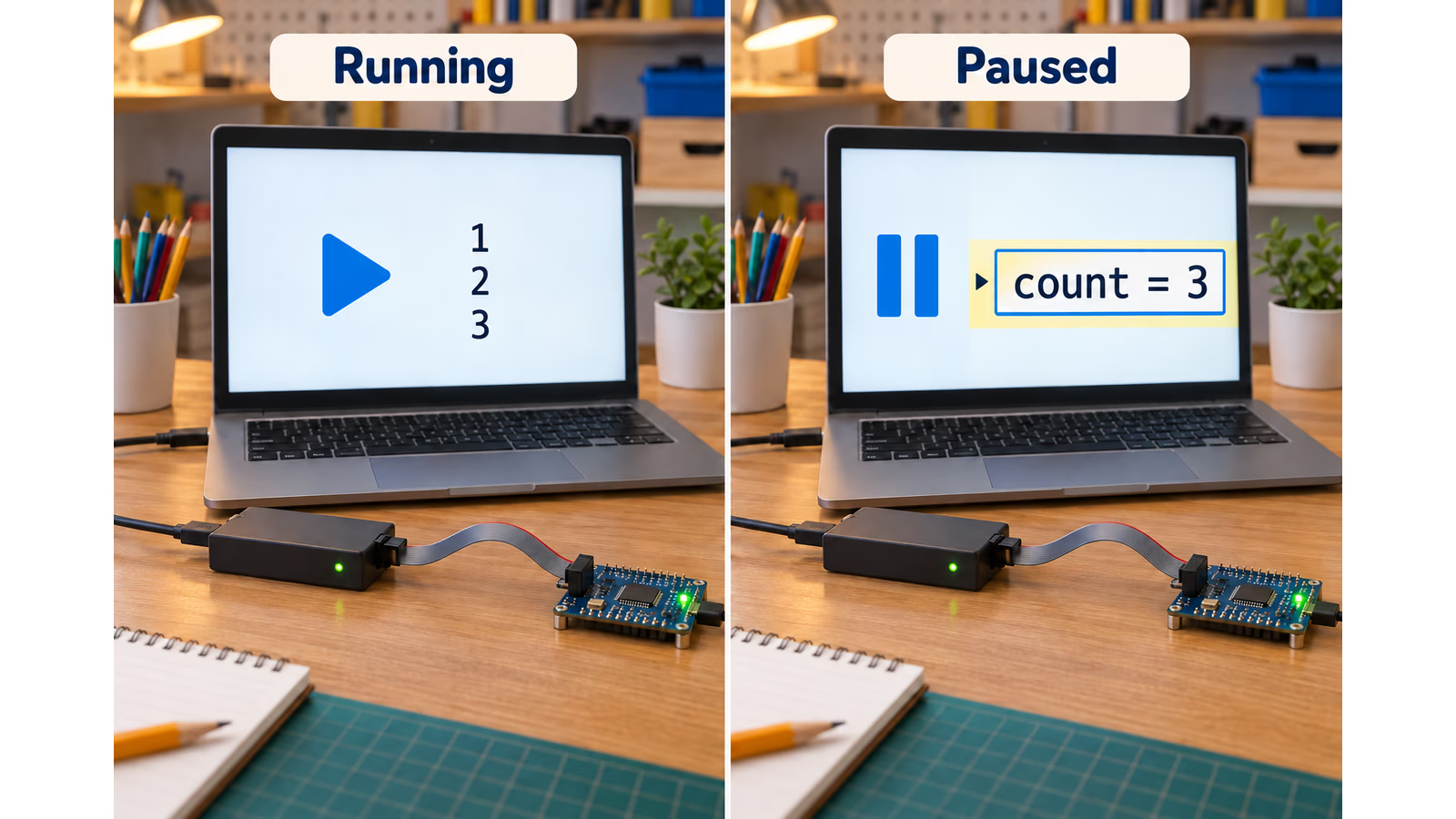
AI-generated illustration. The simplified screen explains a breakpoint; it is not a screenshot from a measured test.
For a beginner, the feature name matters less than the habit it makes possible. Before changing the code, check the value. Before blaming the sensor, check the branch the program took. The debugger gives the student somewhere concrete to look.
The lesson I would teach first
I would begin with a small program that almost works. A button increments a counter, and an LED turns on when the counter reaches a threshold. There is enough going on to explain a decision, without introducing a large software framework.
First, I would ask the students to predict the value of the counter after one press. Then I would have them stop at the relevant line and compare the prediction with the value in memory. If the result is different, they have a specific question to investigate.
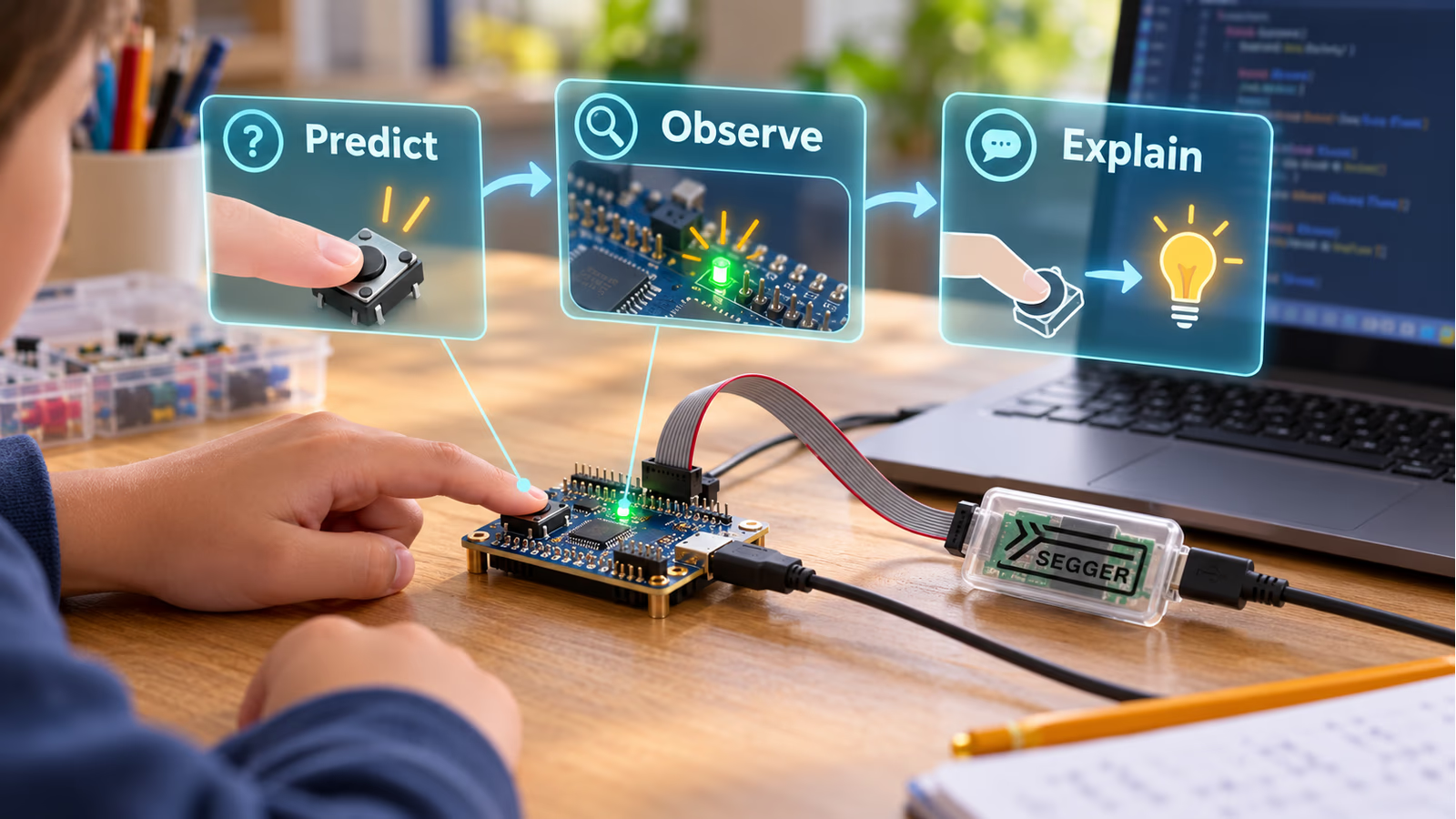
AI-generated AR-style lesson idea using a generic training board and a probe based on SEGGER imagery. It is a proposed exercise, not a photograph of a class test.
A second exercise could use a counter that wraps around sooner than expected. That gives data types a visible consequence. An eight-bit unsigned counter has a limited range; watching it move from its maximum value back to zero is a much better starting point for a discussion than memorising a table of integer sizes.
Later, I would introduce a button that sometimes registers more than one press. A breakpoint can help inspect the program’s decisions, but pausing changes the timing. That opens the door to discussing contact bounce, logging and when a logic analyser is the more useful instrument.
I would keep asking for an explanation before accepting a fix. What did you expect? What did you observe? Which change addresses the difference? The probe provides evidence, while the student still has to make sense of it.
These are proposed exercises, not classroom results I have measured. They are also why I find this category of tool so valuable for schools. It supports lessons in reasoning that remain useful after the particular development board has been replaced.
Check the revision before choosing the cables
There are two hardware revisions worth separating. SEGGER’s V2 documentation lists USB-C and target interface levels of 1.8 V and 3.3 V. The V1 page lists micro-USB-B and a 3.3 V target interface. A photograph of an older unit should not be used to describe the current connector without checking. V2 specifications, V1 specifications.
Related reading
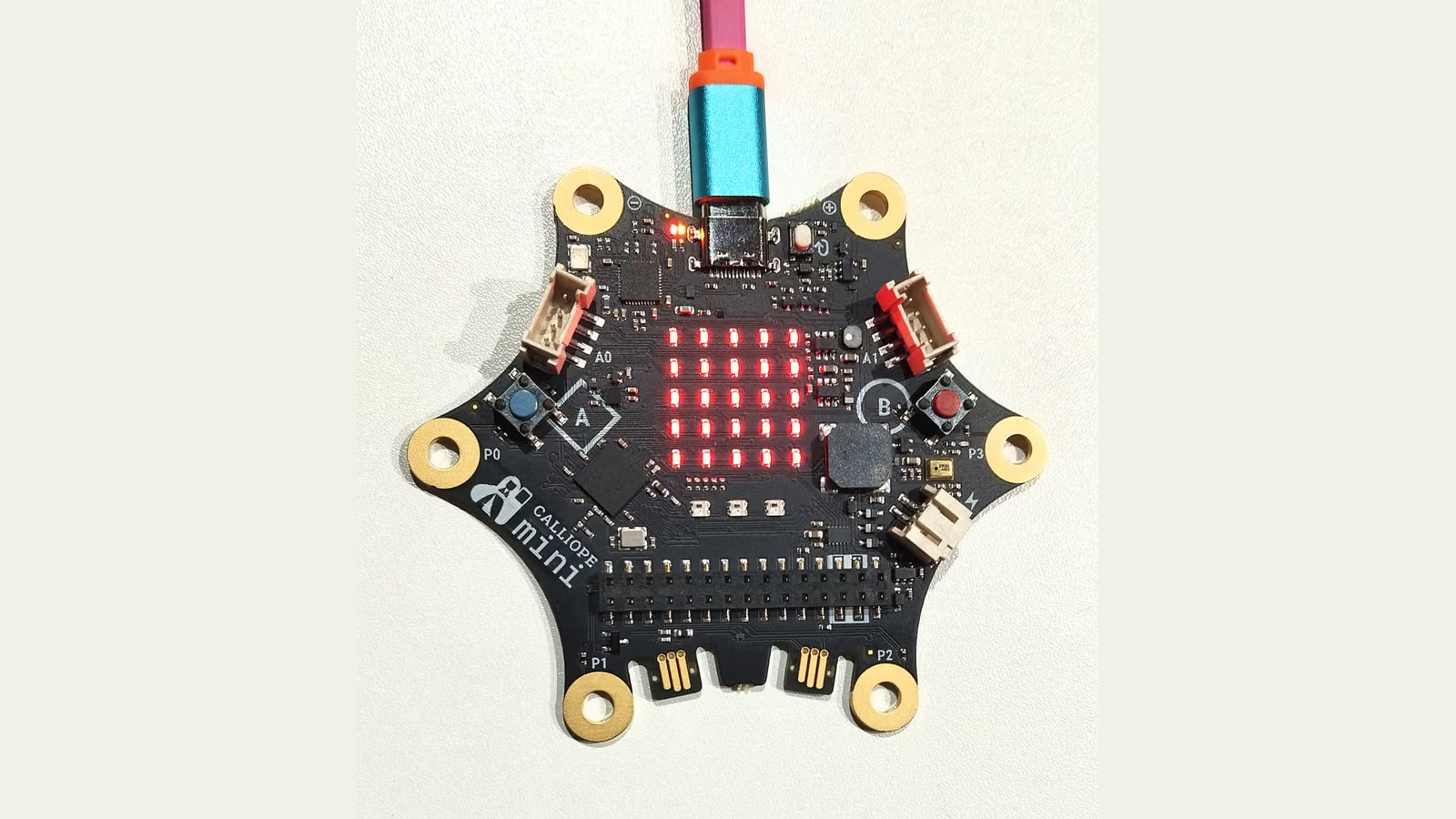
The target connector is also much smaller than the familiar breadboard headers many students meet first. SEGGER specifies a 0.05-inch-pitch connector, which is 1.27 mm. An adapter may be needed for the chosen training board. Check the actual pinout as well as the physical fit.
One particularly important detail is that the EDU Mini does not supply power to the target board. Its voltage reference connection tells the probe about the target’s logic level; it is not a convenient power output for your circuit. The board needs its own suitable supply. Electrical specifications.
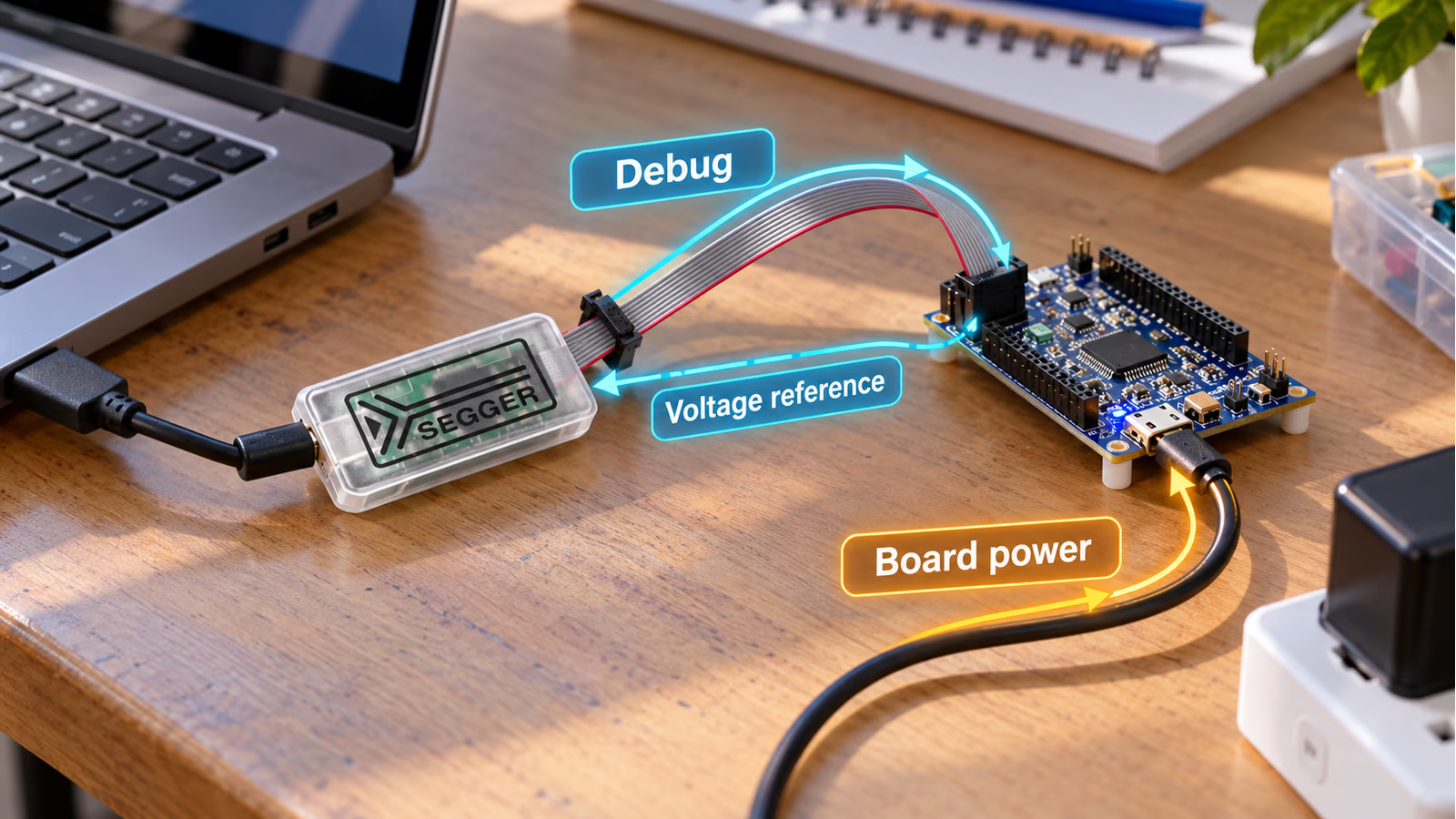
AI-generated AR-style connection concept based on SEGGER imagery. The paths are not a pinout. The target board needs its own suitable power supply.
For a school, I would prepare the complete connection once, document it clearly and keep that arrangement consistent across the benches. Label the adapters and make the intended orientation obvious. Students should spend most of the lesson learning to debug, while still understanding why the wires are connected that way.
The software is part of the purchase
The probe is only one part of the setup. The computer also needs SEGGER’s J-Link software and a debugger configured for the exact target device.
J-Link Commander is useful for checking whether the computer can communicate with the probe and target. For a GDB-based development environment, J-Link GDB Server provides the connection between GDB and the hardware. That gives a school a route into an existing toolchain rather than requiring every lesson to be built around one particular editor. Commander documentation, GDB Server documentation.
SEGGER provides software for Windows, Linux and macOS. I would still test the intended school image before buying a class set. Driver installation, USB permissions and the exact IDE configuration are practical parts of making a lesson work. A claim of operating system support cannot check a managed classroom computer for you.
I would also keep the first project deliberately plain, with debug information enabled and compiler settings that make source stepping easy to follow. More aggressive optimisation can rearrange or remove code in ways that make the relationship between a source line and execution confusing for a beginner.
Logs still have a place
Stopping a processor is useful, but some problems are easier to understand while the application keeps running. A counter may need a breakpoint. A sequence of events may be clearer as a log.
SEGGER’s Real Time Transfer, usually called RTT, provides another option on supported targets. The application writes into buffers in memory, and the host can read that information through the debug connection. A simple exercise could report button events or sensor readings without dedicating a separate UART connection to the task. RTT documentation.
There is a lesson in the limitations too. RTT needs application integration and memory. Its buffer mode matters: a blocking configuration can wait when the buffer fills, while a non-blocking configuration may discard output. Logging therefore has a cost and behaviour of its own.
The EDU Mini also lacks a built-in virtual COM port according to SEGGER’s feature table. RTT should not be described as an ordinary USB serial adapter hidden inside the probe. EDU feature table.
I like the opportunity to teach both approaches. Students can inspect a stopped program, then learn when keeping it moving gives better evidence.
A school licence has a real boundary
The low-cost educational model comes with a restriction that schools need to take seriously. SEGGER permits the EDU Mini for non-profit educational purposes. Its terms exclude commercial work and use directly or indirectly for a profit-making organisation. Being a student does not automatically make a company project eligible. Official usage terms.
A normal educational exercise and a placement project for a business may therefore need different equipment. I would keep the EDU probes assigned to eligible teaching work and check the terms before using them in sponsored or commercially connected projects. For an unclear case, SEGGER explicitly directs users to ask it for clarification.
The EDU Mini also excludes technical support. Community help is available on a best-effort basis. A teacher preparing a course should know that before treating a set of these probes as equipment with a guaranteed support response.
That does not reduce their usefulness in an appropriate class. It means the purchase should include a clear understanding of where the educational arrangement ends.
Related reading
Look at the price of a working bench
During research on 19 October 2026, the Czech HARDWARIO store listed the J-Link EDU Mini at €82.90 excluding VAT, or €100.31 including VAT. That is a specific retail example, rather than a universal SEGGER list price. Delivery, adapters and the final checkout total still need checking. Retail listing.
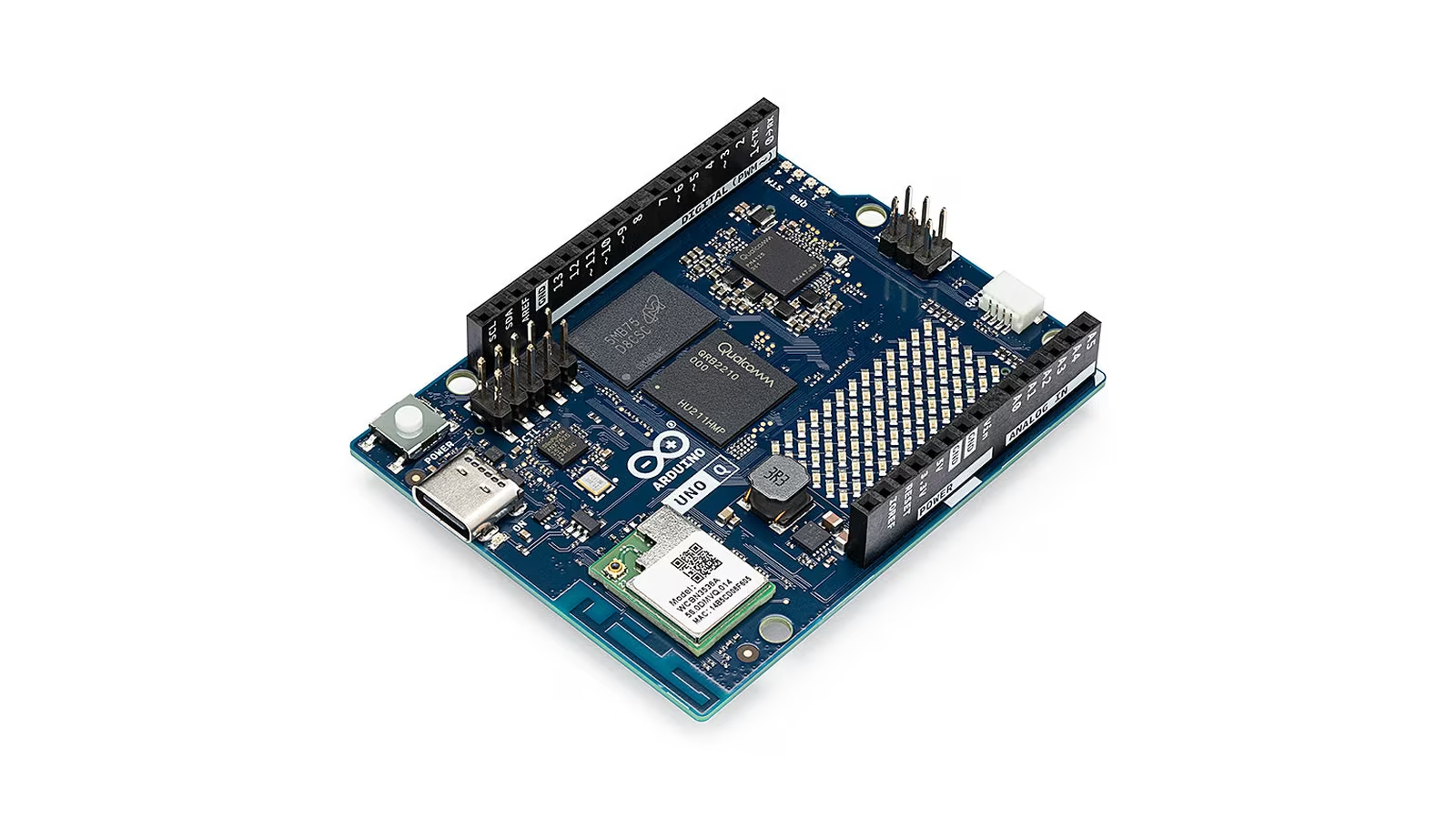
Before ordering a class set, I would run the exact first lesson on one complete bench, including the adapters and school computer. A school that already owns suitable boards with working built-in debuggers may be able to teach the first exercises without an external probe at all.
The case for the EDU Mini becomes stronger when the course uses several compatible board families or moves towards student-designed hardware. A separate probe can stay useful when the target board changes. Check the exact microcontroller against SEGGER’s supported-device information rather than assuming that every chip using a familiar architecture will work.
SEGGER also offers a direct purchasing route for educational institutions and an Educational Partnership Program. I would explore those options before budgeting a whole classroom from a single retail listing. Neither page promises that a particular school will receive free equipment. Institutional purchasing, education programme.
Why I would make room for it
The J-Link EDU Mini is small, and its advertised programming speed is modest compared with higher-end equipment. SEGGER quotes up to 200 KB/s; I have not measured that figure here. For the short programs used in introductory lessons, I would give more weight to a dependable, prepared setup than to the fastest possible download. Product specification.
It will not make every board compatible, fix a poor connection or turn an unfinished course into a good one. An external probe is most useful when the lessons actually use its ability to inspect execution. Spending the entire term only uploading firmware would leave much of its educational value untouched.
For a technical secondary school teaching microcontrollers, though, I think proper hardware debugging belongs alongside the multimeter and the basic development board. The J-Link EDU Mini is a strong candidate for that role, provided the chosen hardware and use fit its limits.
I would want students to leave a lesson able to explain why a program made a particular decision. They have seen the counter and followed the branch, so they can point to the reason. That is a worthwhile job for a very small piece of equipment.
Review scope: this is a research-based assessment of educational use. The classroom exercises are proposals, not reported teaching trials. No personal test duration, download benchmark or specific IDE-and-board result has been supplied. Hardware revision details, features, licensing and prices come from the linked sources. Illustrations are AI-generated and use generic equipment.
One email a month: new articles, reviews and the upcoming live webinar + free recording. No spam, unsubscribe anytime.