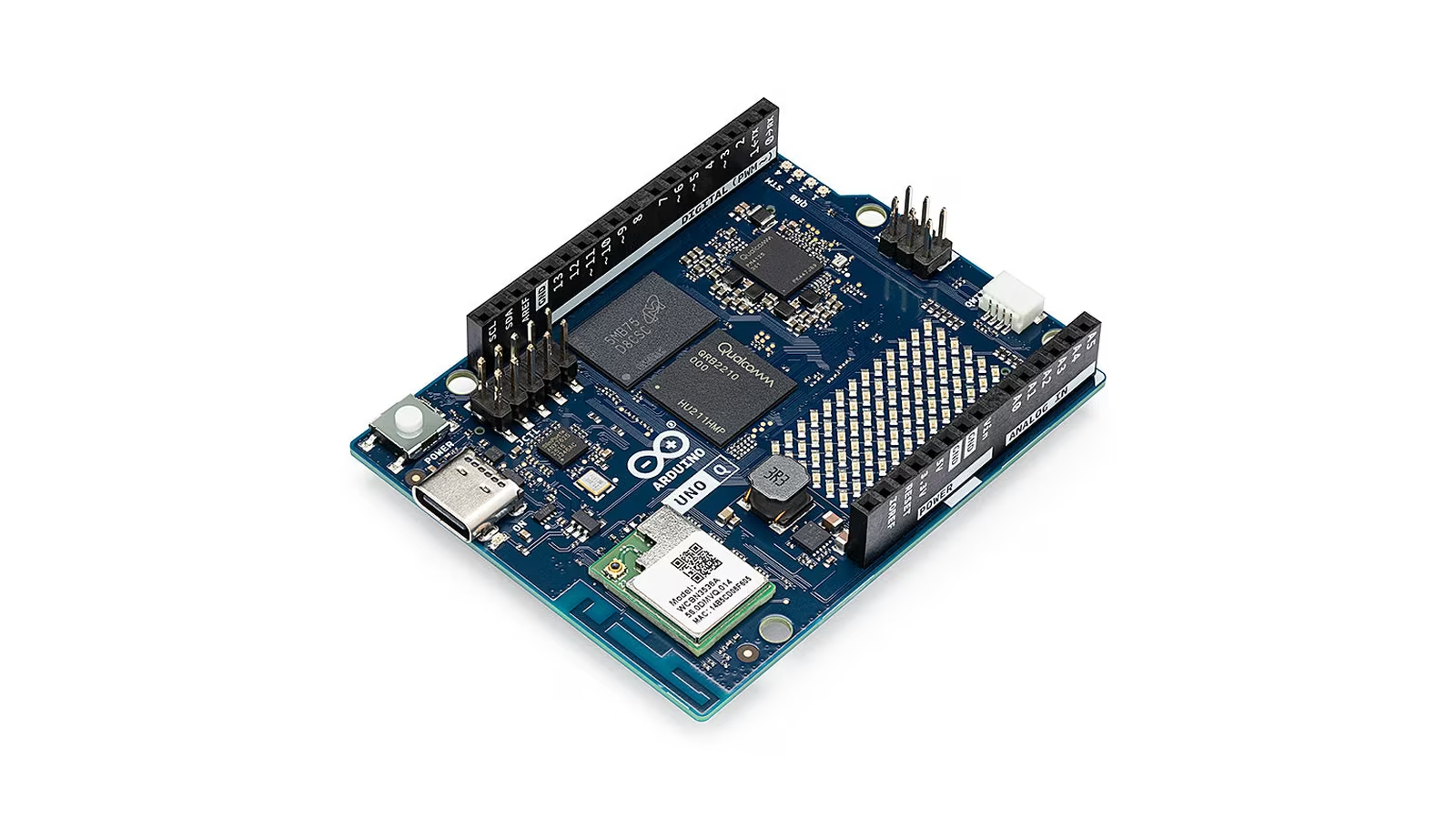
For most of Arduino’s history, the UNO has meant a small microcontroller board that runs one sketch, reads a sensor and switches a load. The UNO Q keeps the outline and the headers, then puts a Linux computer next to the microcontroller. It is the most ambitious board Arduino has released under the UNO name, and it is an excellent one.
Arduino introduced the UNO Q in October 2025, in the same post that announced its agreement to join Qualcomm. The hardware shows the connection. The application processor is a Qualcomm Dragonwing QRB2210 running Debian, and the real-time side is an STMicroelectronics STM32U585. Arduino calls the arrangement dual-brain, and its App Lab software exists to make the two halves behave like one project.
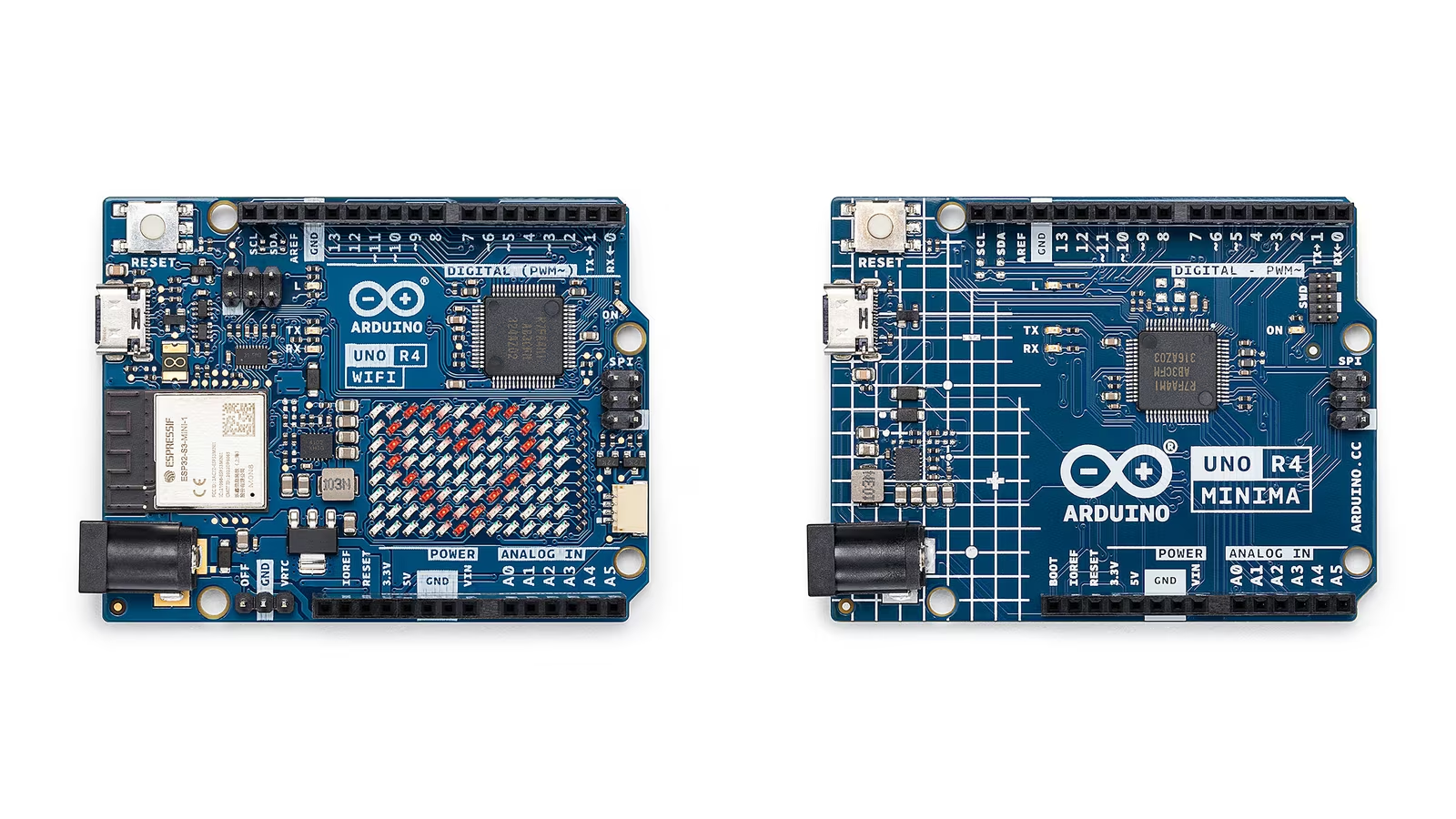
Arduino sent the UNO Q together with an UNO R4 and described the pair as two stages of one path: start on the R4, then move to the Q when projects become more advanced. That is the right lens for this review. The UNO Q is a poor first board for someone who has never wired an LED, and an ideal next board for someone who has and now wants a camera, a browser dashboard or a vision model in the same project as a motor driver.
Two processors in a familiar footprint
Arduino’s datasheet gives the UNO Q the classic 68.58 by 53.34 mm outline, with the digital, analog and SPI headers where an UNO user expects them and a Qwiic connector for I2C modules. Underneath sit two 60-pin high-density connectors and a 10-pin control connector that earlier UNO boards never had.
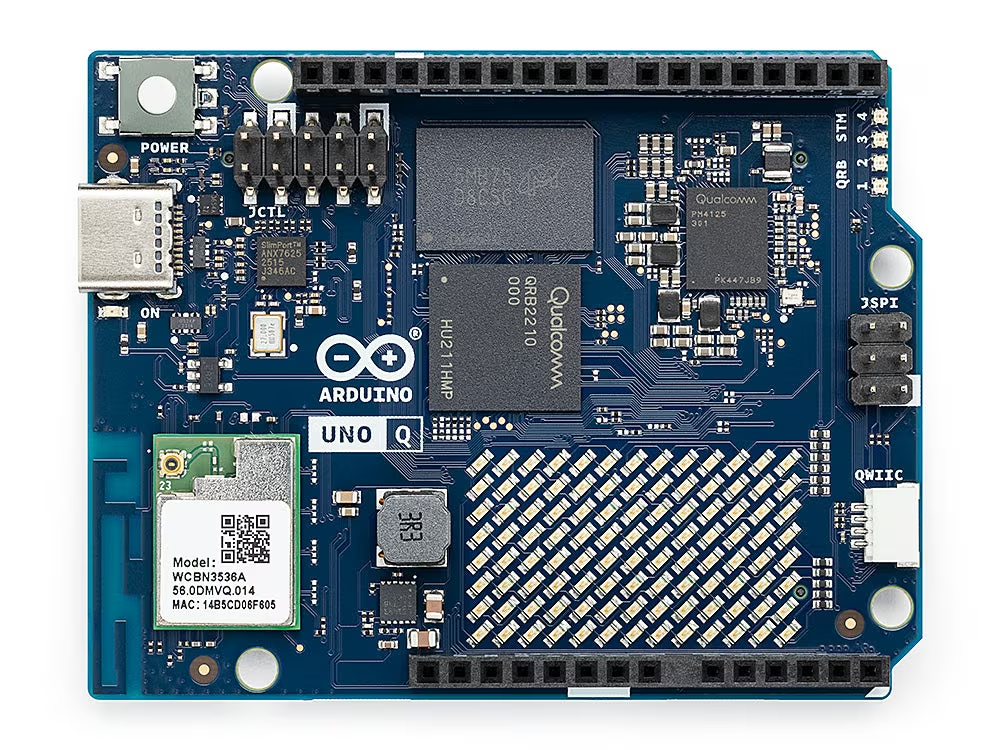
The interesting part is how the work is divided. According to the datasheet, the microcontroller owns the ADC, PWM, CAN, the LED matrix and the 3.3 V headers, while the Qualcomm processor handles high-speed media, the USB-C port, display output and Linux services. The two talk through what the UNO Q documentation describes as a built-in RPC library, Arduino Bridge.
Related reading
That division is the design decision that matters. Linux is a poor place to generate a precisely timed pulse or answer an interrupt within microseconds. A microcontroller is a poor place to host a web server, process a camera stream or run a Python environment. Projects that need both often end up as a single-board computer wired to an Arduino over USB serial, with a home-made protocol between them. The UNO Q puts both on one board and gives them a supported channel.
The board also carries its own output devices. The datasheet lists an 8 by 13 blue LED matrix driven by the microcontroller, four RGB LEDs split between the Linux side and the microcontroller side, and a user button. A first program can show something without a single jumper wire.
The Linux side: QRB2210, memory and storage
The UNO Q product page lists four Arm Cortex-A53 cores at 2.0 GHz, an Adreno GPU and two image signal processors. The datasheet names the GPU as an Adreno 702 at 845 MHz, and the documentation rates the two ISPs for 13 plus 13 megapixels, or 25 megapixels, at 30 frames per second.
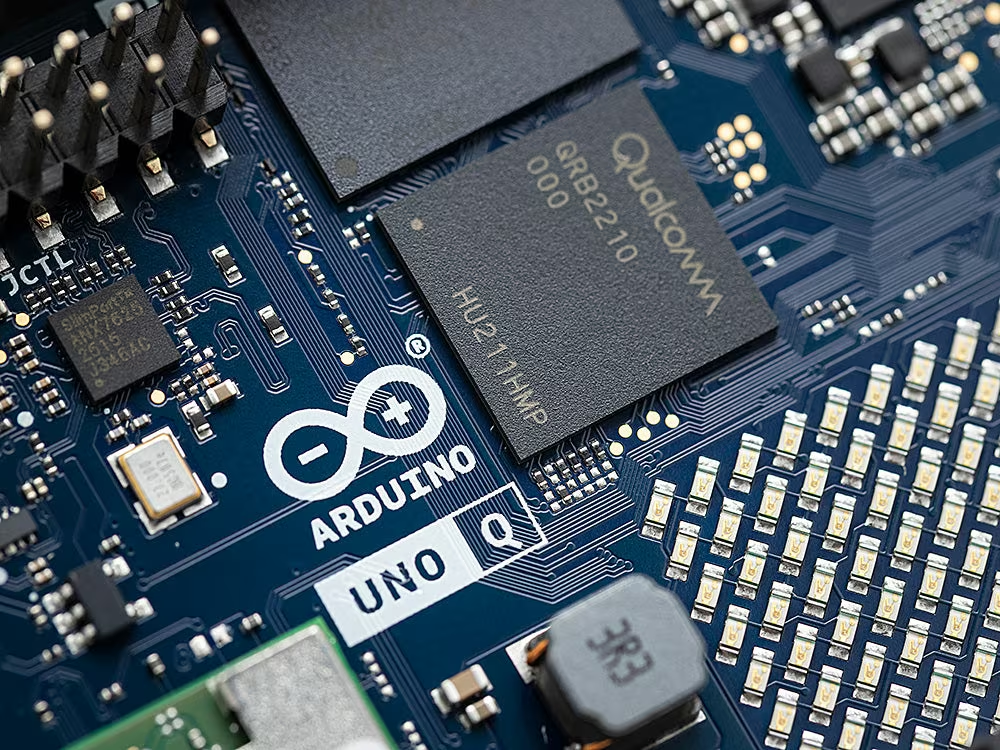
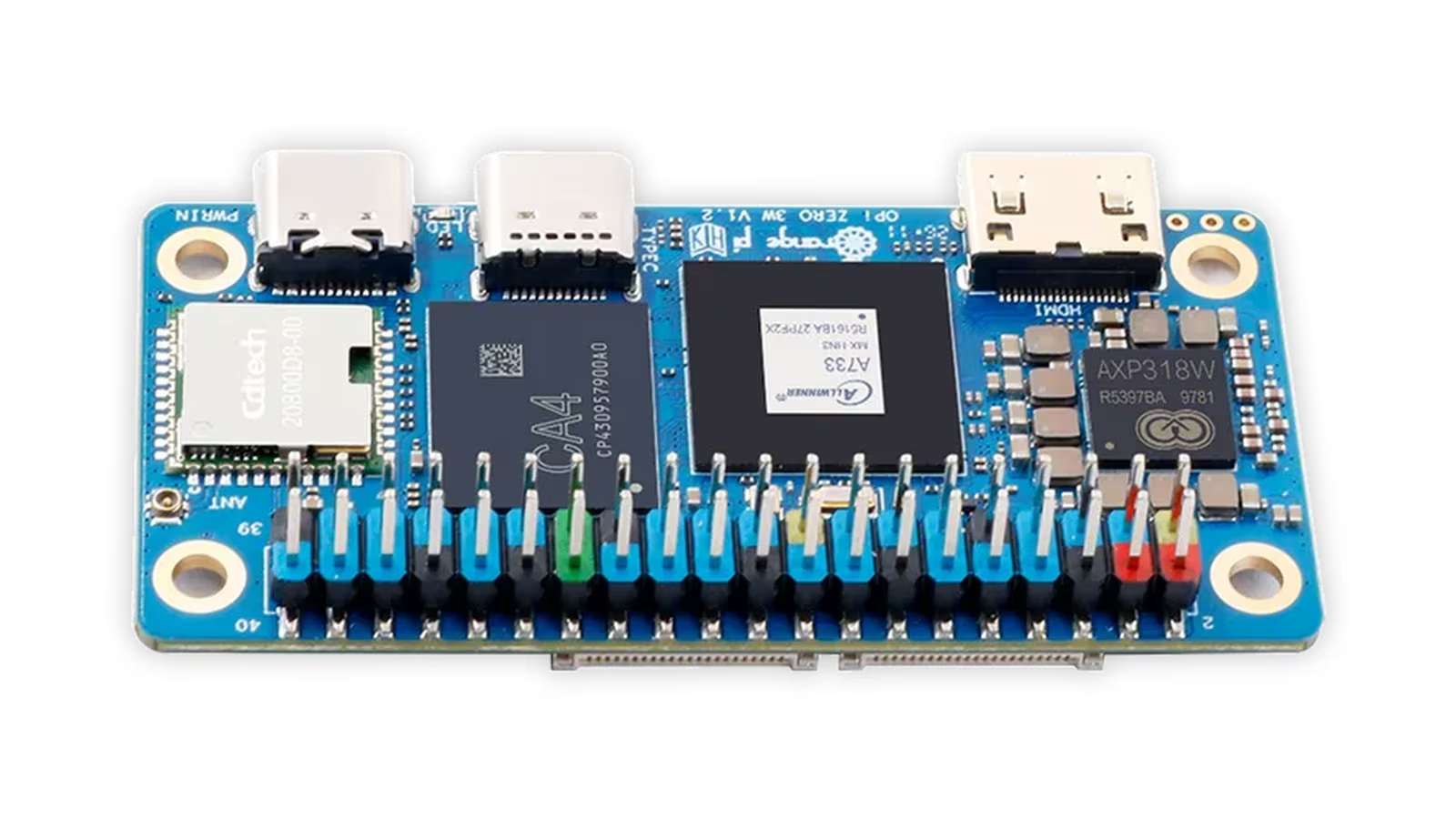
Two variants exist. The ABX00162 has 2 GB of LPDDR4 and 16 GB of eMMC. The ABX00173 has 4 GB and 32 GB. There is no microSD slot, which Arduino presents as a benefit and sums up on its product page as no SD card and no data loss. Soldered storage cannot be knocked loose or swapped by accident, although it also cannot be upgraded later, so the capacity bought is the capacity kept.
The operating system is Debian with what Arduino calls upstream support, plus Docker and Docker Compose. That phrase deserves more attention than the clock speed. Inexpensive Linux boards tend to age through their software, when a vendor kernel frozen at launch stops receiving the fixes the rest of the Linux world takes for granted. A board built around upstream support has a much better chance of still being useful in five years.
Wireless comes from a WCBN3536A module with dual-band Wi-Fi 5 on 2.4 and 5 GHz and Bluetooth 5.1, both on onboard antennas. From a performance perspective, four A53 cores are modest by desktop standards and appropriate for this job. They will not replace a laptop for compiling large projects, and they do not need to. The GPU and ISPs are what make camera work practical, and the processor is there to orchestrate, serve and decide while the microcontroller keeps time.
The microcontroller keeps the Arduino promise
The real-time half is an STM32U585, an Arm Cortex-M33 at up to 160 MHz with a floating point unit, 2 MB of flash and 786 kB of SRAM, as listed in Arduino’s documentation. For scale, the UNO R4 that Arduino positions as the starting point has 256 kB of flash and 32 kB of SRAM. The microcontroller on the UNO Q would be a capable board on its own.
It runs the Arduino core on Zephyr, and the official store listing gives the board I2C and I3C, SPI, PWM, CAN, UART, PSSI, ADC and JTAG interfaces. Sketches still look like sketches. The user manual confirms that Arduino IDE 2 and later can program the microcontroller side, although only that side. The Linux half and the combined projects belong to App Lab.
Arduino states on the product page that the UNO Q remains compatible with a wide range of Arduino shields, libraries, sketches and projects from the UNO ecosystem. For libraries written against the Arduino API, that is a reasonable promise. Any library that writes directly to the registers of a specific older chip is the exception to check before assuming a port is trivial.
App Lab, Apps and Bricks
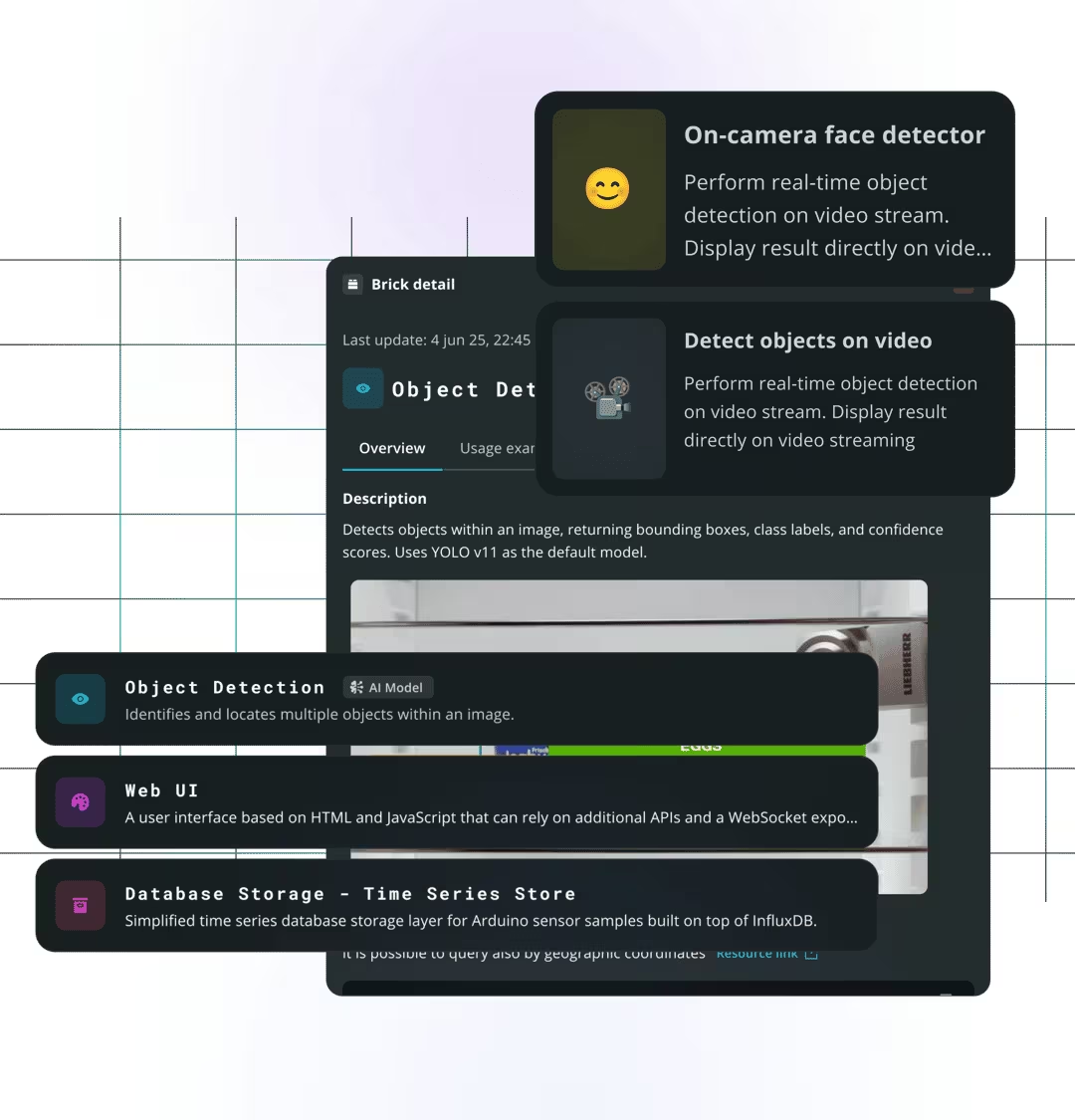
Arduino App Lab is the environment that turns two processors into one project. Arduino’s getting started page defines an App as Python code running on Linux combined with a sketch running on the microcontroller. A Brick is a modular component that adds a ready-made function, and Arduino’s examples range from computer vision and audio models to data storage and cloud integration.
Related reading
This is a sensible abstraction. A beginner can combine a computer vision Brick with a sketch that drives a servo, and never write the glue between Linux and the microcontroller. A more experienced developer can open the Python file and the sketch and see exactly what runs where. App Lab 0.7, released in April 2026, added custom Bricks, so a component written once can be packaged and reused across Apps. Arduino describes that packaging as a Python module plus a Docker Compose definition, which means a Brick is ordinary engineering rather than a closed format.
According to the product FAQ, App Lab runs on Windows 10 and later, macOS 11 and later, Ubuntu 22.04 and later, and 64-bit Debian Trixie. It also comes pre-installed on the board. The same FAQ states that App Lab and the Bricks library are open source, and that the board’s schematics and Gerber files are released under a Creative Commons BY-SA 4.0 licence.
Nobody is locked in. The product page lists VS Code, native Linux tools and containers as valid ways to work, and Arduino Cloud is supported. For a developer who already has a workflow, App Lab can be the quick start rather than the only road.
Three ways to work, and the one that needs planning
The user manual describes three modes. In PC-hosted mode, App Lab runs on a computer and the board connects over USB-C. In network mode, App Lab finds the board on the local network through mDNS. In single-board computer mode, the UNO Q drives its own monitor, keyboard and mouse, with App Lab running on the board itself.
PC-hosted mode is the simplest place to start, and it works from a Mac as well as from Windows or Linux. Network mode is convenient once the board is configured, with one caveat Arduino states plainly: guest Wi-Fi, corporate and IoT networks, VPNs and strict firewall rules can prevent automatic discovery. On a managed office network, plan on USB.
Single-board computer mode needs the most preparation. The UNO Q has one USB-C port, so a monitor, keyboard and mouse require a USB-C multiport adapter with external power delivery and video output. The manual says any such dongle works except Apple’s, and it highly recommends the 4 GB variant for a better standalone experience. That recommendation should shape the purchase.
Power is flexible. The datasheet specifies 5 V at up to 3 A over USB-C, a 5 V system pin, and a VIN input from 7 to 24 V, and the product page describes the input as protected against overvoltage and reverse polarity. The manual’s list of required hardware includes a USB-C supply providing 5 V at 3 A, which is not in the box.
Voltages, shields and the connectors underneath
This is the section to read before reaching for an old shield. The UNO R4 keeps 5 V operation. The UNO Q does not. The datasheet puts the digital, analog and SPI headers at 3.3 V. Most digital pins are 5 V tolerant as inputs, the SPI header tolerates 5 V on inputs and open-drain lines, and the analog header is not 5 V tolerant at all. The Qwiic connector is 3.3 V I2C.
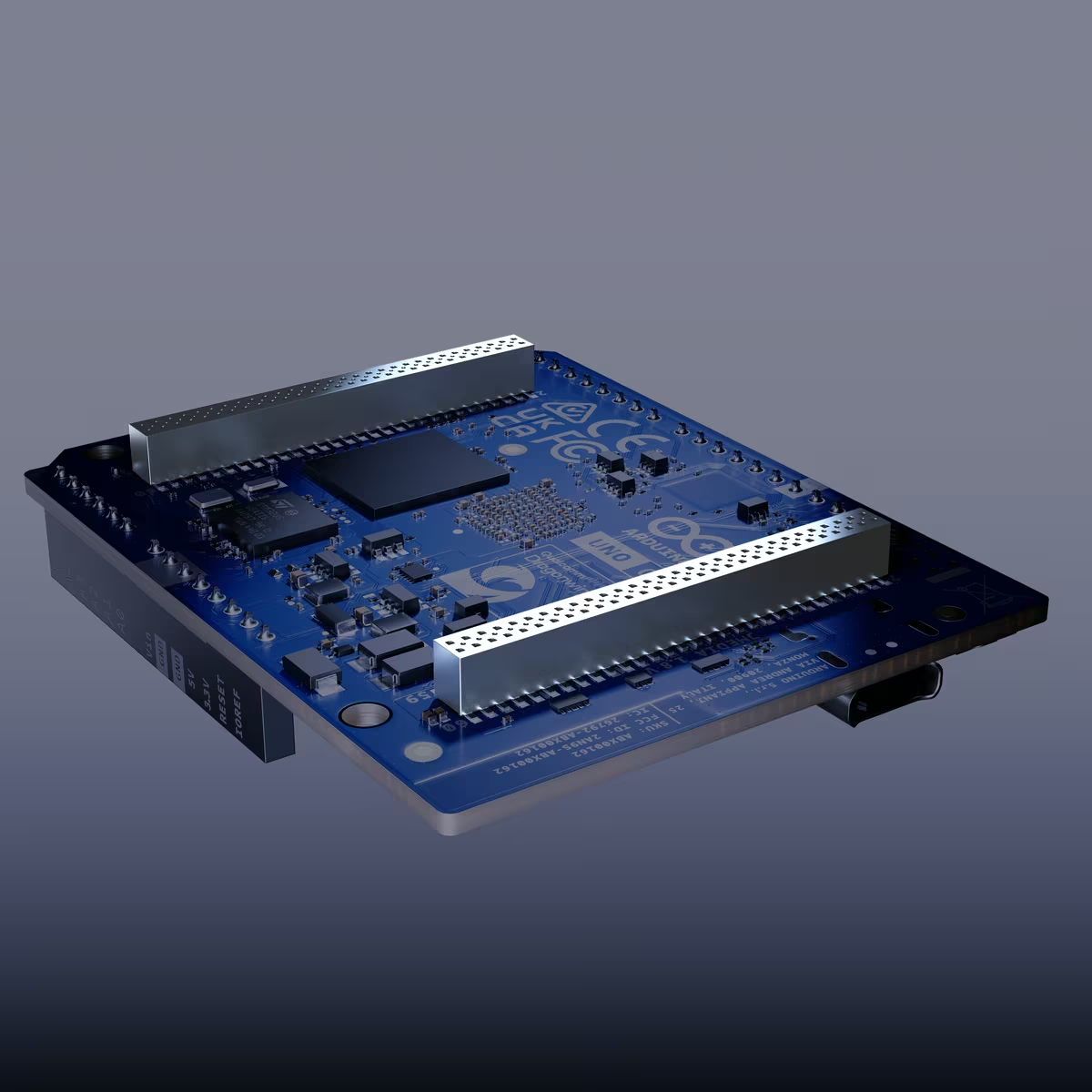
A shield that presents 5 V signals to the analog pins is therefore outside what Arduino specifies, and a shield that expects the board to drive 5 V logic will receive 3.3 V instead. Read the shield’s schematic first. That is a small amount of work for an experienced maker, and exactly the kind of detail that makes the R4 the better first board.
The bottom connectors open the board to hardware the classic UNO could not address. The datasheet describes JMEDIA as carrying the MIPI lanes for cameras and displays at 1.8 V, while JMISC mixes 1.8 V processor signals with 3.3 V microcontroller signals, and the store listing places microphone input, headphone output and line output on it. These are carrier-board connectors, not places for jumper wires. The datasheet’s operating range of minus 10 to 60 °C suits a desk, a classroom or an indoor installation.
Price, variants and where the UNO R4 fits
On Arduino’s US store, the 2 GB UNO Q was listed at $59 and the 4 GB model at $79 when checked. The European store listed €59.90 and €82.90 including VAT.
Related reading
The 2 GB board is the right choice for PC-hosted and network work, where the computer does the editing and the UNO Q only runs the App. Arduino describes it as the lower cost, balanced option. The 4 GB board is the one to buy for single-board computer mode, heavier vision workloads or several containers at once. The extra 16 GB of eMMC also matters once Docker images begin to accumulate.
Arduino’s own FAQ draws the line against the UNO R4: the R4 is a pure microcontroller board for keeping things simple, efficient and focused on hardware, while the UNO Q adds Linux, image and audio processing and web applications. That matches the journey Arduino described when it sent both boards. Someone learning electronics, working with 5 V shields, or building something that has no use for an operating system should start with the R4, which I cover in a separate review of the UNO R4 family. Someone who has outgrown a single sketch and is about to bolt a single-board computer onto an Arduino should buy the UNO Q instead.
Verdict
The Arduino UNO Q is an excellent board and a confident step for the UNO line. Pairing a Debian-capable QRB2210 with an STM32U585 on the classic UNO outline solves a real problem that makers have been solving awkwardly with two boards and a USB cable. It has earned its place on my desk.
Each trade-off below follows from putting a Linux computer on an UNO, and Arduino documents all of them openly.
Why I recommend it
- Two processors with a supported link. Linux takes the camera, the web server and Python, the microcontroller keeps time, and Arduino Bridge replaces the home-made protocol between them.
- A capable microcontroller on its own. The STM32U585 has 2 MB of flash and 786 kB of SRAM, against 256 kB and 32 kB on the UNO R4, and sketches still look like sketches.
- Software with a future. Debian with upstream support, plus Docker, gives it a much better chance of still being useful in five years than a vendor kernel frozen at launch.
- App Lab without lock-in. A custom Brick is a Python module plus a Docker Compose definition, App Lab and Bricks are open source, and VS Code or native Linux tools work too.
- Flexible power. It takes 5 V at up to 3 A over USB-C or 7 to 24 V on VIN, with protection against overvoltage and reverse polarity.
Why it may not be for you
- 3.3 V headers. The analog header is not 5 V tolerant at all, so read an old shield’s schematic before stacking it.
- Standalone use needs extras. Single-board computer mode needs a powered USB-C multiport adapter with video output (not Apple’s) and realistically the 4 GB model. The 5 V, 3 A supply is not in the box.
- Storage is fixed. With no microSD slot, the 16 GB or 32 GB of eMMC is what you keep as Docker images accumulate.
- Managed networks. Guest Wi-Fi, corporate networks, VPNs and strict firewalls can prevent automatic discovery, so plan on USB in an office.
Start with an UNO R4 if you are new, rely on 5 V shields or have no use for an operating system. Buy the UNO Q when a project needs a camera, a web interface or a model running next to the hardware: the 2 GB for PC-hosted and network work, the 4 GB for single-board computer mode and heavier vision workloads. At $59 to $79, it is the most interesting board Arduino has made in years.
Product images: Arduino.
One email a month: new articles, reviews and the upcoming live webinar + free recording. No spam, unsubscribe anytime.