During this review, the thing that pleased me most was how the product kept moving forward. Several updates arrived, bringing new features and fixes. The hardware stayed on the desk, but the software around it continued to improve.
That left a good impression. When I buy hardware, I want to see the company still working on it after the first shipment. With JetKVM, that work was visible during the review itself.
More companies should do this. It affects whether I would buy from them again, and whether I feel comfortable recommending their products.
The Mini and Mini W are appealing tools even before that discussion begins. They offer a way to see and control another computer through a browser, including situations where its normal remote desktop software cannot help. The ongoing updates give me another reason to like the idea.
This follows our earlier JetKVM Mini review. That article identifies the review unit as an engineering sample with Ethernet and wireless. The retail Mini and Mini W are separate models, so the comparison below uses their published specifications rather than claiming a test of two finished retail units.
Disclosure: JetKVM supplied the Mini free of charge for the earlier review, which describes a 60-day promotional placement. No money changed hands, and the verdict was not a condition of that arrangement.
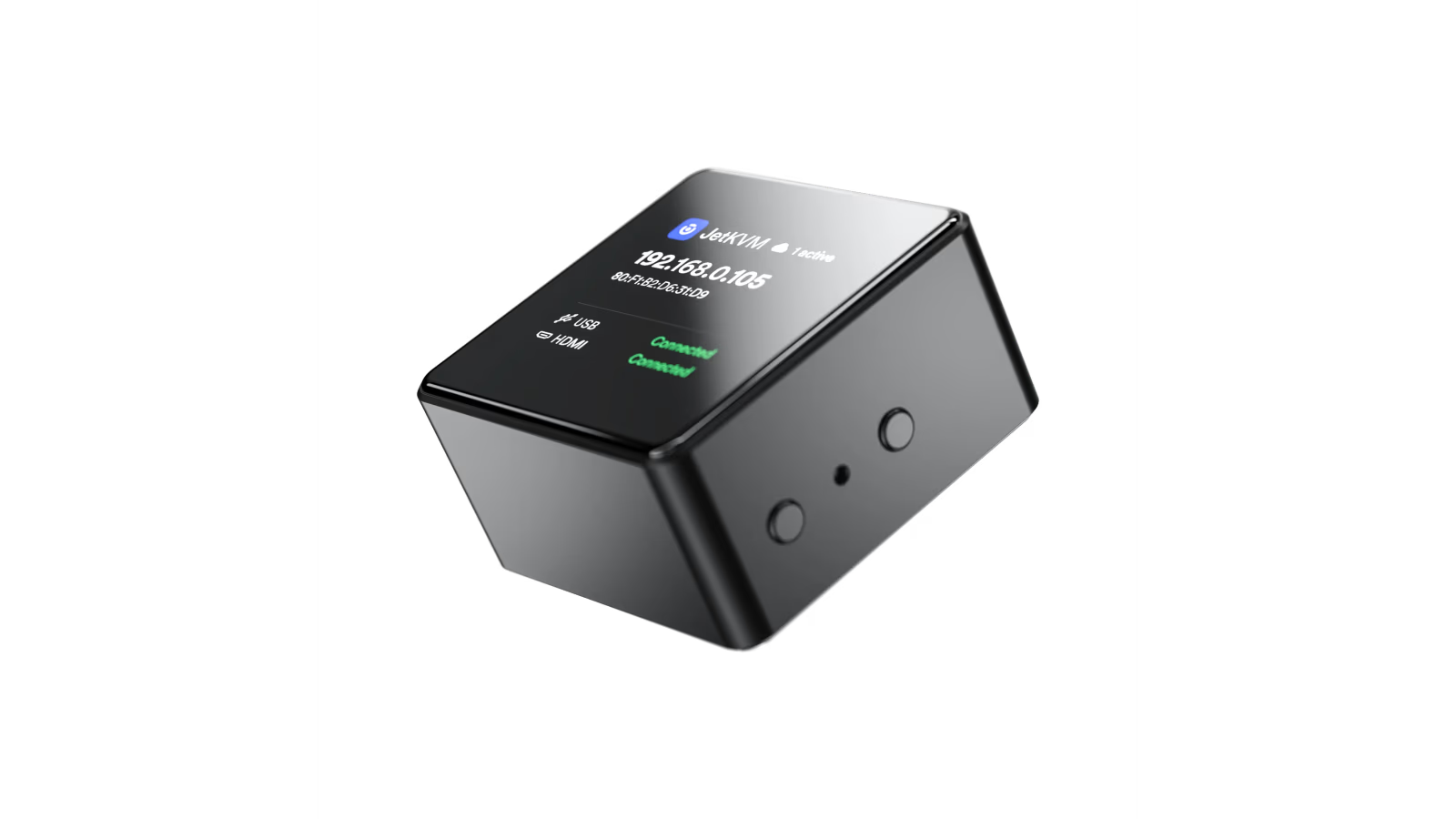
Official product image: JetKVM. It shows the wired Mini, rather than my review setup.
A keyboard, mouse and screen that you can reach from elsewhere
KVM stands for keyboard, video and mouse. A KVM over IP takes those familiar connections and makes them available across a network.
The idea is easy to picture. The target computer sends its picture to the little box through HDMI. The box sends keyboard and mouse input back through USB. You open a browser on another computer and interact with that picture.
The important detail is where those connections happen. They sit outside the target computer’s operating system. You do not need a working desktop session on that computer just to begin using the hardware connection. JetKVM describes the Mini around this video-and-USB approach. Mini announcement.
Related reading
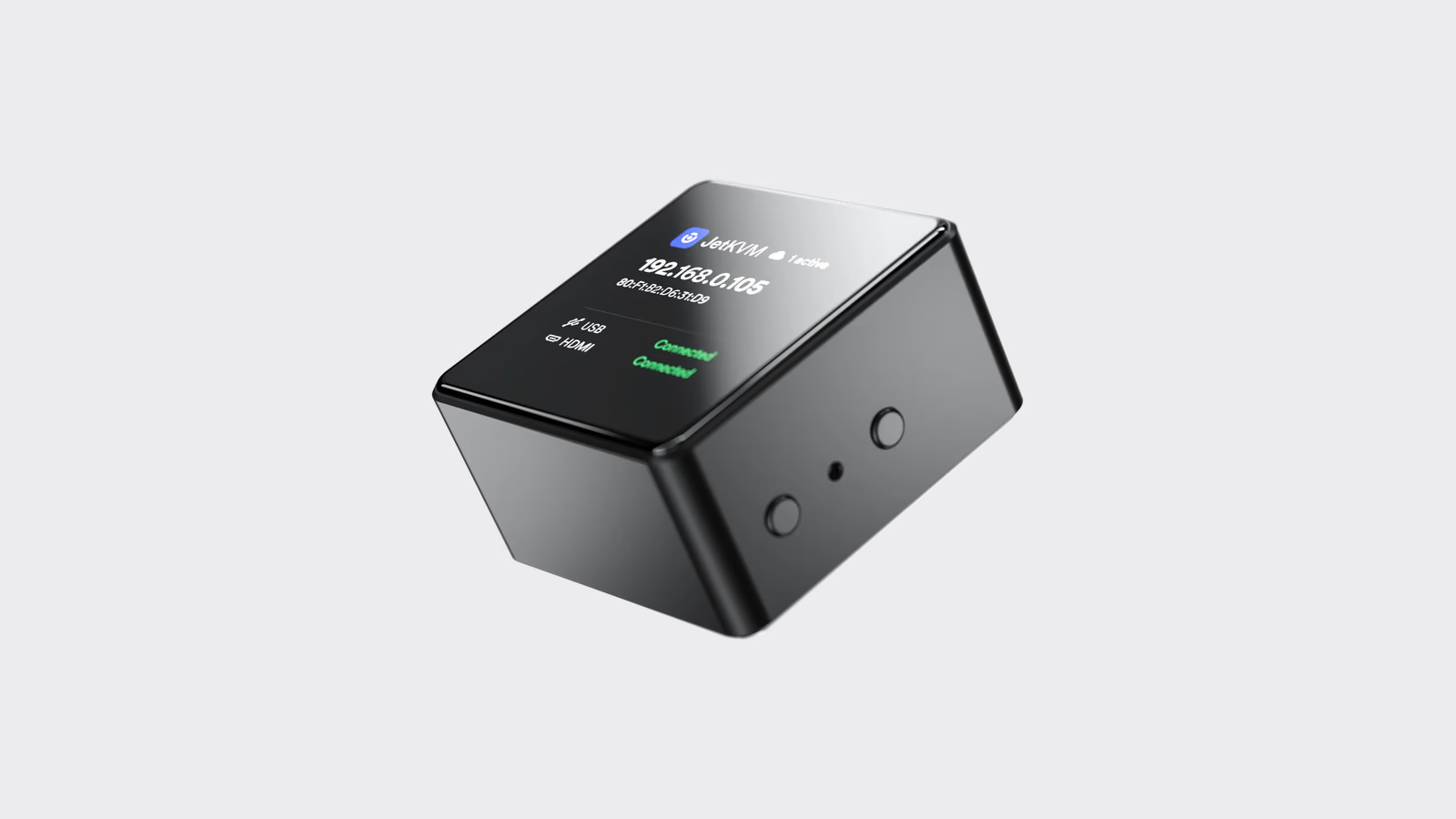
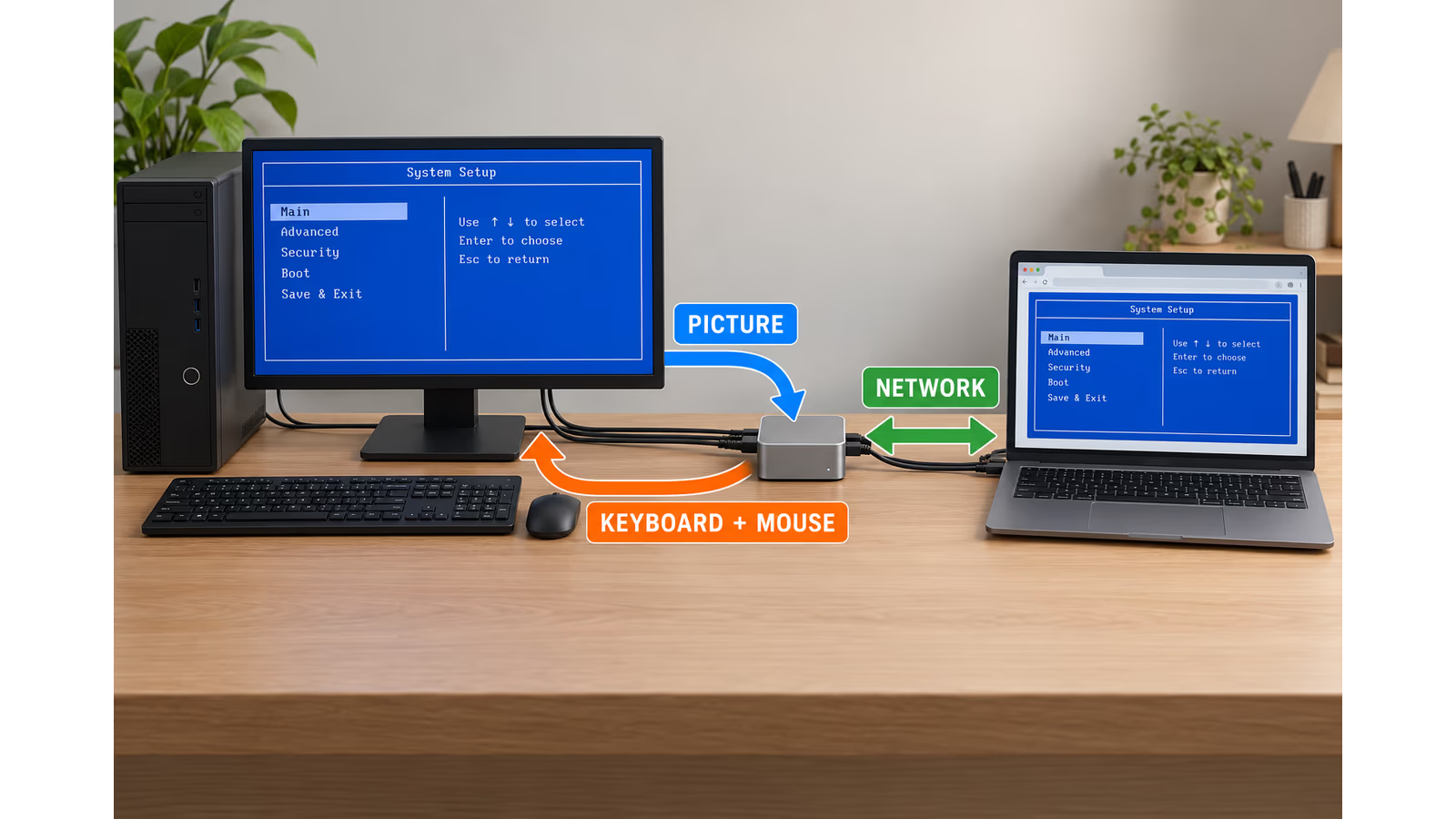
AI-generated explanation using generic devices. The arrows show the basic idea, not an exact wiring diagram or a photograph of a tested setup.
Think about a computer waiting at its firmware setup screen, or a machine that needs an operating system installed. Ordinary remote desktop software has nothing to connect to yet. A KVM can give you a route to that screen, provided the machine supplies a supported video signal and accepts its USB input.
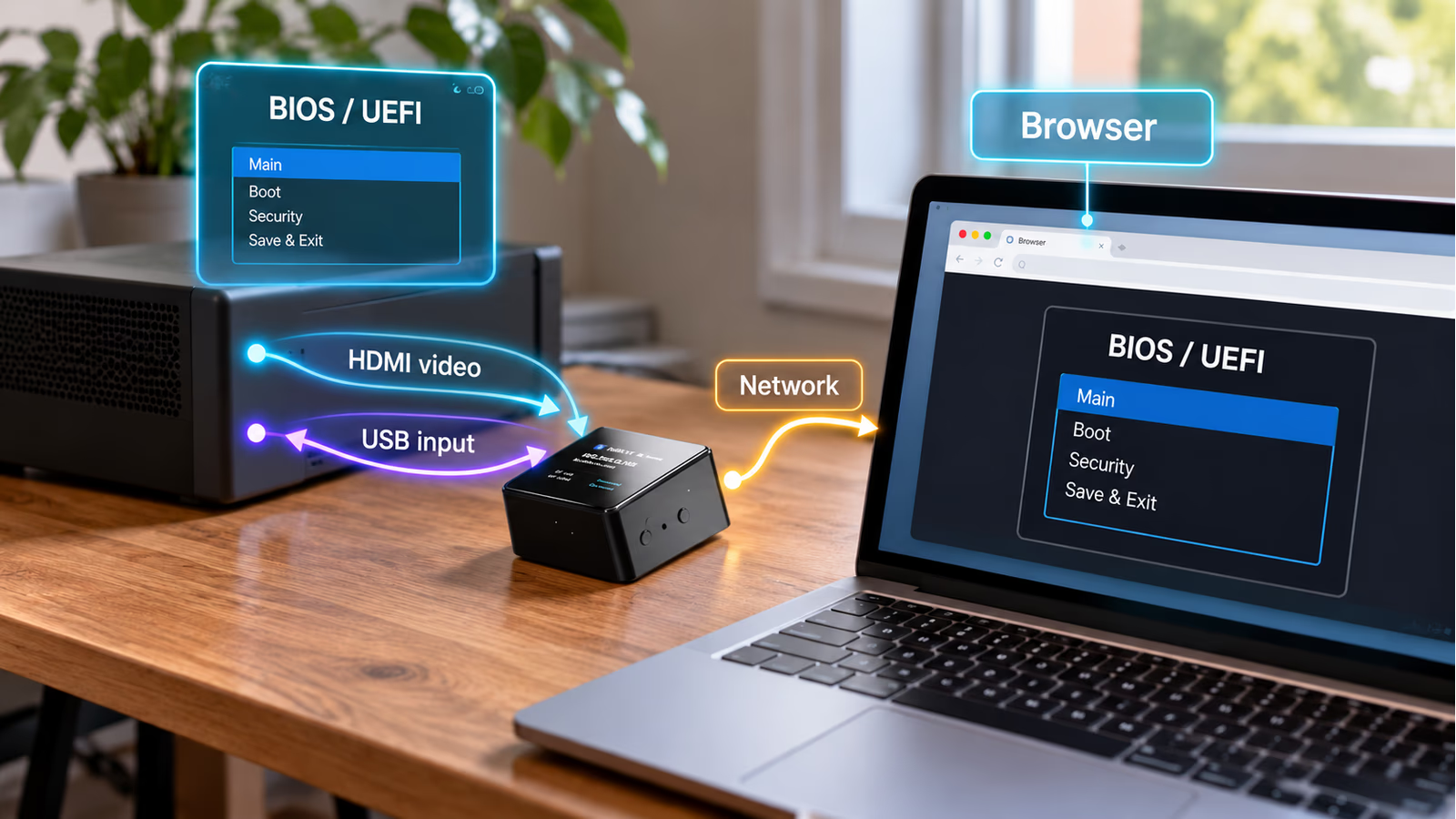
AI-generated AR-style explanation based on JetKVM product imagery. The firmware screen is illustrative, and the view still depends on supported video and USB input.
That is why I find this category useful. A computer without a permanent monitor becomes less awkward to manage. You can keep the tools you need at your own desk instead of finding a spare screen and carrying it to the machine.
Small enough to leave connected
Both models measure 42 × 42 × 23 mm. Each has a small 240 × 240 status display, and both list hardware video capture up to 1080p at 30 frames per second or 720p at 60. Mini specifications, Mini W specifications.
I like the size because a device like this makes most sense when it is already connected. If you have to find it, find the cables and reach behind the computer every time, you lose part of the convenience.
The display also has a clear job. A device with no screen would leave you searching for its network address elsewhere. Having that information on the box is a useful bit of consideration for the person setting it up. JetKVM’s local-access guide explains how to open the displayed IP address in a browser. Local access.
There is no need to turn the little display into another dashboard to watch all day. It helps you reach the browser interface, which is where the actual work happens.
Mini or Mini W comes down to the network
The wired Mini has an Ethernet connection rated up to 100 Mbps. The Mini W uses dual-band Wi-Fi on 2.4 and 5 GHz, with Bluetooth for setup. The W model removes the Ethernet socket; it is not a model with both network options built in. Mini, Mini W, model differences.
My first choice for a fixed machine would be Ethernet, assuming a cable is already available. It gives me one fewer wireless connection to think about when I need access to a computer with a problem.
That is a preference about installation, not a latency result from a comparison of the retail models. The right choice depends on where your computer lives and how you can connect it.
The Mini W makes sense for a machine in another room, or in a place where adding a network cable would be inconvenient. It gives the product a wider range of possible homes without asking you to rearrange the room around it.
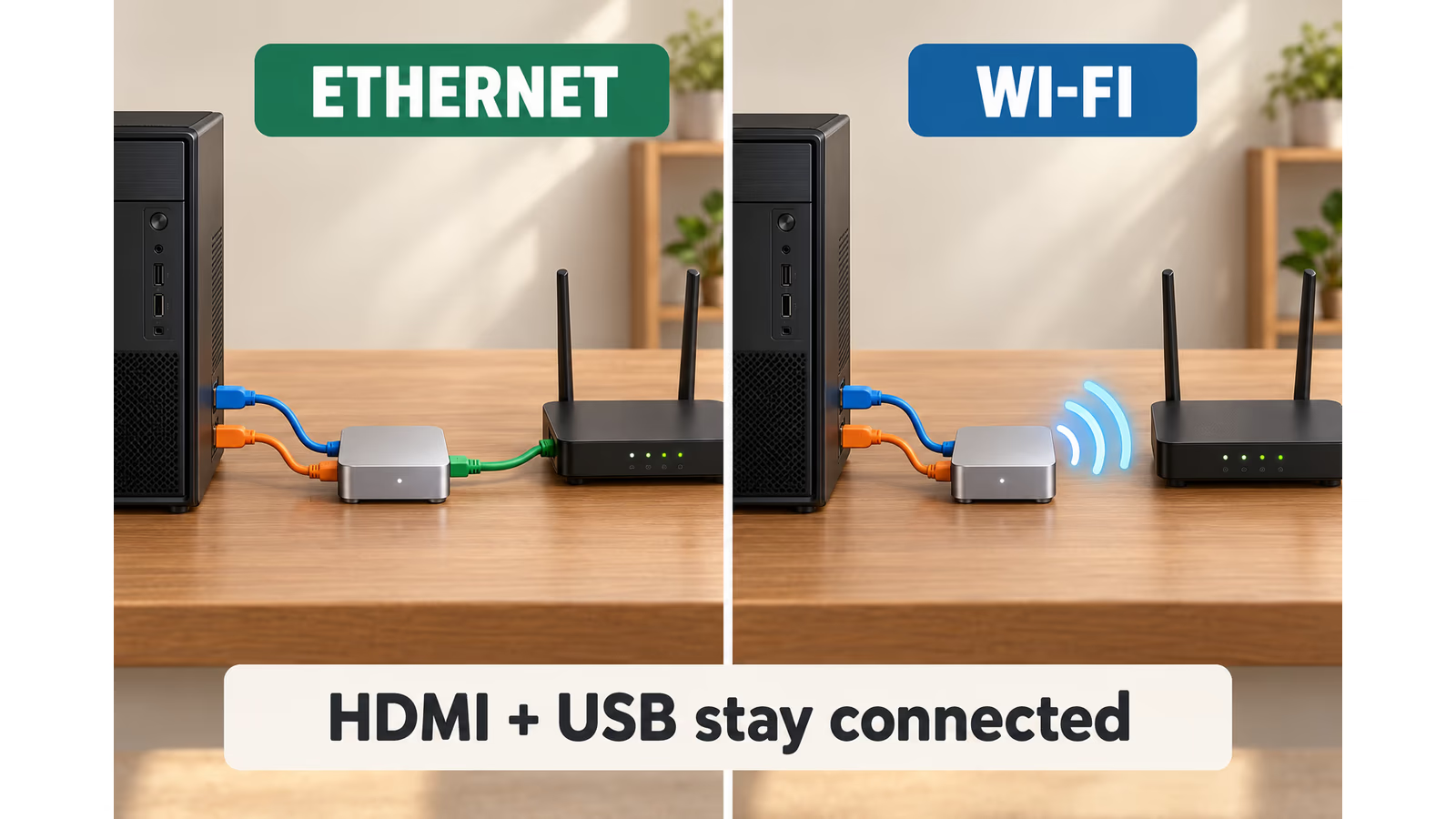
AI-generated explanation with generic hardware. Wireless refers to the network connection. The target computer still needs its physical video and USB connections.
I would decide this before looking at the small price difference. A cheaper device in the wrong place is less useful than the appropriate model connected and ready.
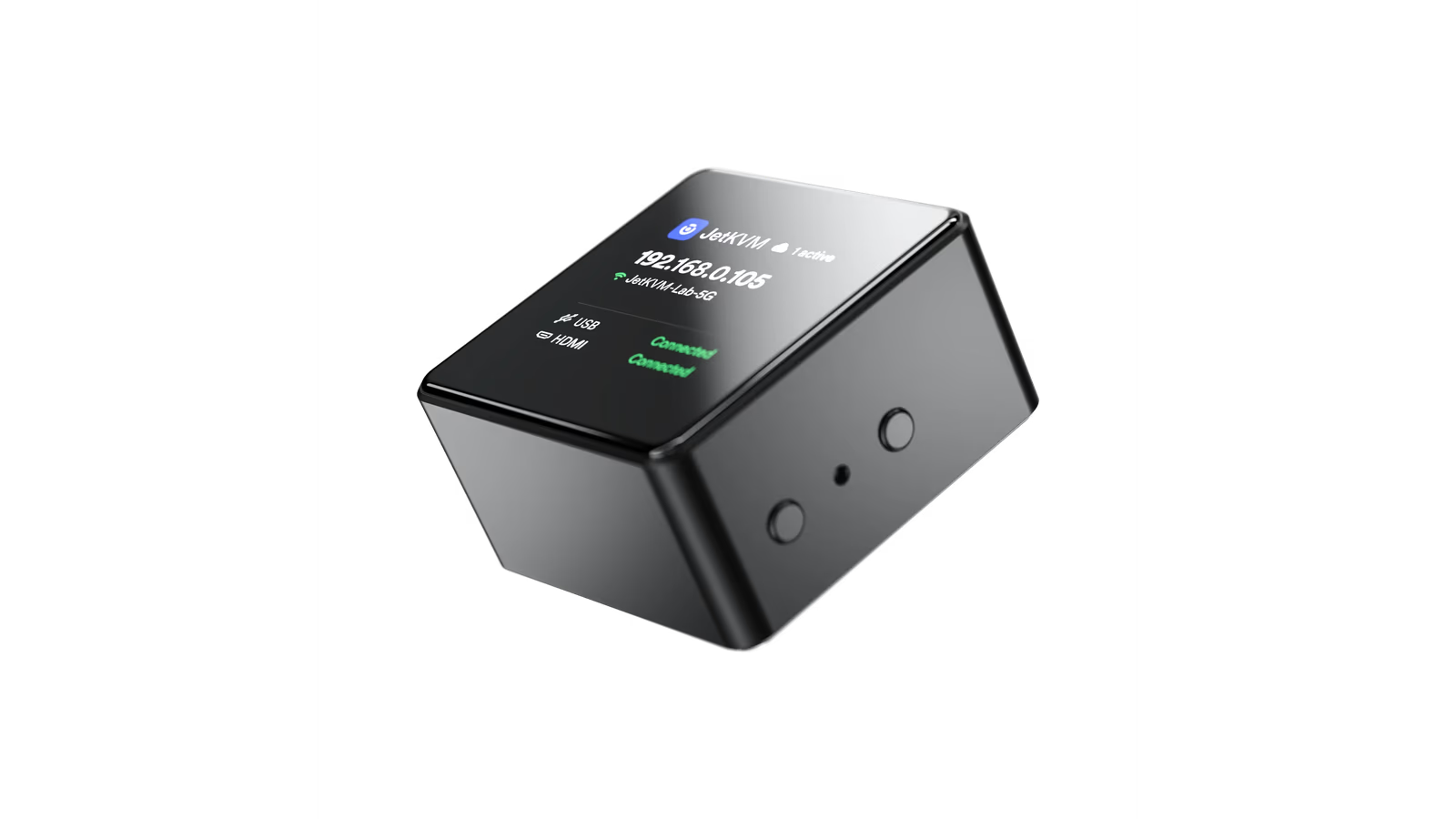
Official JetKVM Mini W product visualization, converted to AVIF. It shows the wireless model rather than the engineering sample used for the earlier review.
The updates were the best surprise
Several updates arrived during my time with the product. They brought both new features and fixes, and I was pleased to see that progress while the review was still happening.
This matters to me because a hardware purchase includes the software that makes it useful. A well-made enclosure cannot make up for an interface that nobody maintains. A promising specification becomes less interesting if a frustrating bug stays there for years.
Related reading
Seeing updates arrive gives me more confidence in the people behind a product. It suggests that the work continues after the device leaves the factory. In this case, that became part of the experience I wanted to write about.
I appreciate the combination of additions and fixes. New features give you something else to explore. Fixes take care of the smaller problems that can interrupt an ordinary task. Both deserve attention.
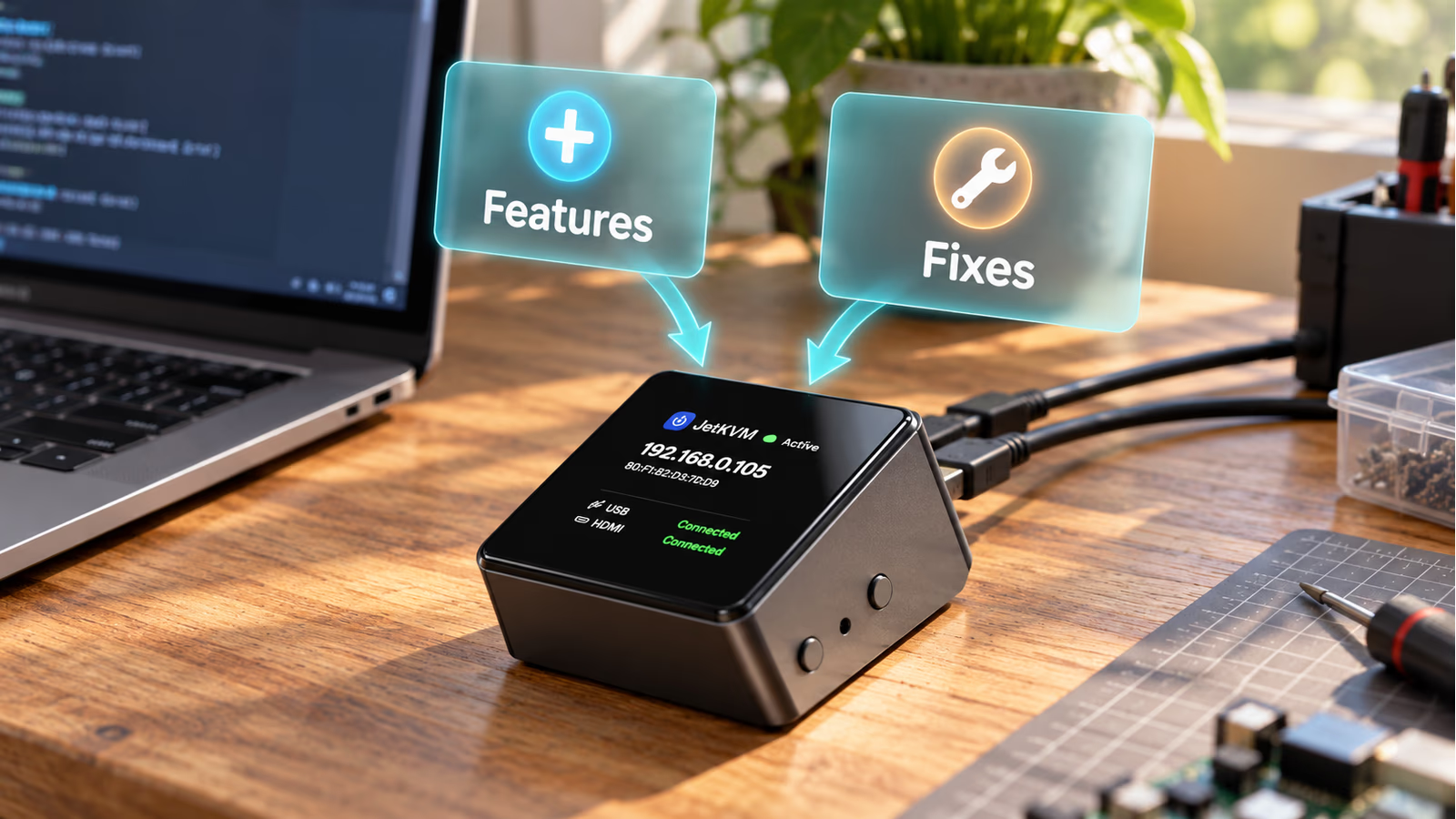
AI-generated AR-style illustration of ongoing software care. The cards are a visual metaphor, not real release notes, version numbers or an update screen.
For a KVM, the less exciting work can be especially valuable. You might open its interface because another machine already needs help. At that moment, you want the controls to behave clearly and the device to get out of your way.
There is also a public record of development in JetKVM’s wider software project. Its release notes document changes to input handling, recovery and the interface. That is useful context for the company’s approach, although a release in that repository should not automatically be read as a feature list for the Mini’s different hardware. Public release history.
My positive impression comes from receiving updates during this review. The public history gives readers a separate way to follow the wider project.
I hope JetKVM keeps this pace and care as the range grows. What I have seen so far is the kind of support I want to reward when choosing hardware.
Local access deserves its place
For equipment that controls another computer, I want a straightforward local route into it. JetKVM documents local browser access as the default, with password protection available during setup. Its cloud remote-access option is disabled until you enable it. Local access, remote access.
That is an appealing starting point. If I am at home on the same network, opening the device’s address is the natural way to use it. Access from elsewhere is a separate decision based on what I need.
Cloud access can be convenient when a machine is somewhere else. A VPN into the network is another approach I would consider, using a suitable router or separate device. I would not assume instructions for installing software on the original Linux-based JetKVM also apply to the Mini.
I would enable the local password. This box provides access to another computer’s screen and input, so its login deserves the same care as the machine it controls.
Be clear about what the video numbers mean
The Mini’s hardware capture is listed at 1080p30 or 720p60. I would choose between those modes according to the task: more detail for small text, or a higher frame rate when movement matters. Those specifications do not tell us the delay of a particular network or computer. Video specifications.
JetKVM has also announced OS Services, optional software for the target computer. The announcement describes host-side capture up to 4K60, along with clipboard sharing, a terminal and file transfer. It describes a forthcoming release; I am treating those features as announced capabilities here. OS Services announcement.
That software needs the target operating system to be running. It cannot provide a 4K firmware screen before that operating system starts. The hardware video path remains the relevant one for that situation.
I like the direction, but I would buy the device for the access it can provide through its physical connections. Extra services can become a welcome addition when available and suitable for the machine.
Power and storage need a little planning
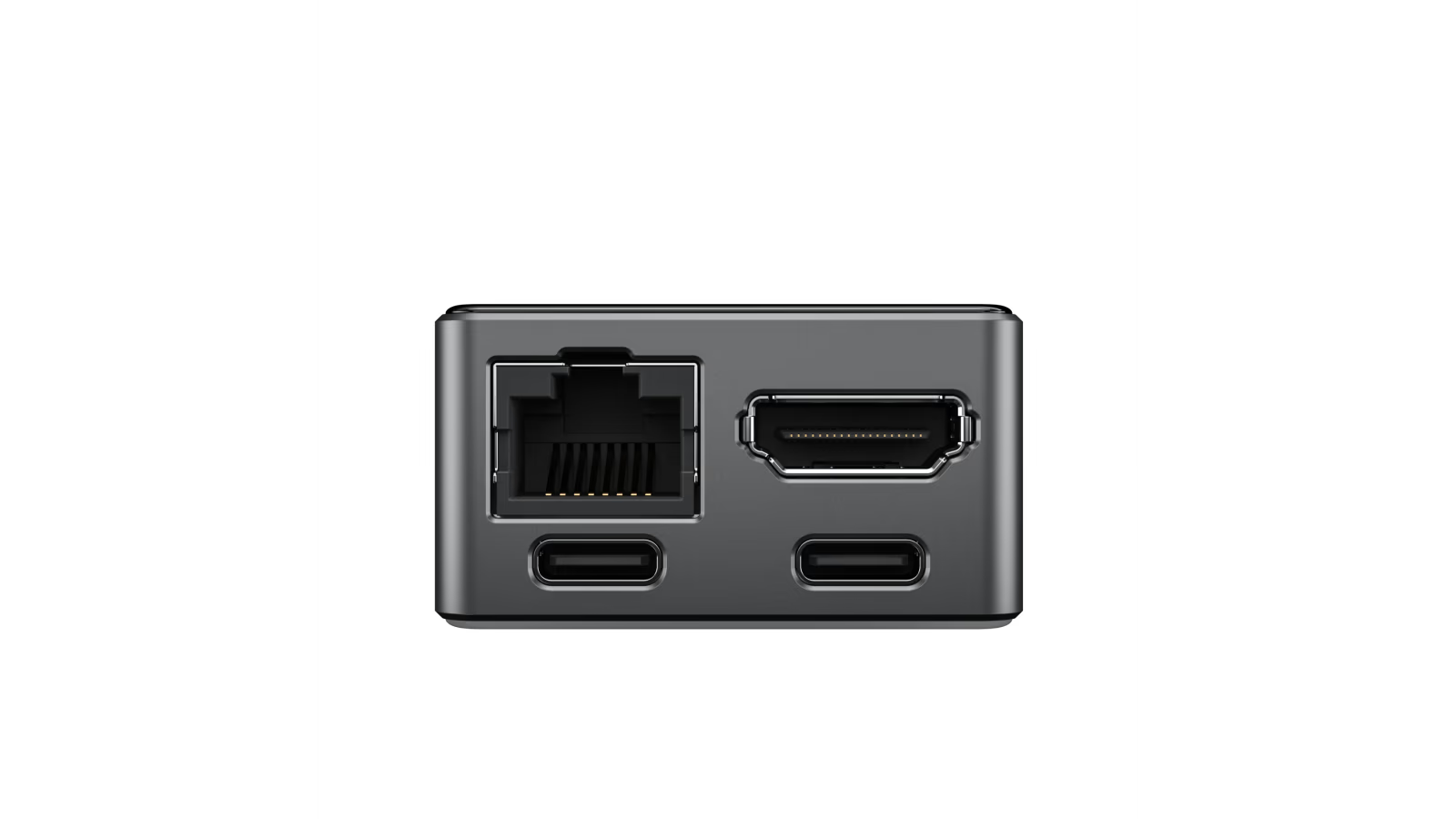
Official product image: JetKVM. This is the Ethernet model; the Mini W has a different network connection.
Both models include two USB ports and a TF card slot for virtual media; the card is not included. The announcement describes the second USB connection as an option for secondary power, and says redesigned USB extensions are coming later. Mini specifications, Mini W specifications, power and expansion.
For a permanent installation, I would give the KVM a power source that stays available when the target shuts down. Otherwise, a target USB port that loses power can take your remote view offline with it.
Keeping the KVM powered does not give it a physical power button for the target. I would check the available power-control options before leaving a computer somewhere difficult to reach. Future extensions should stay out of the list of things you rely on today.
Related reading
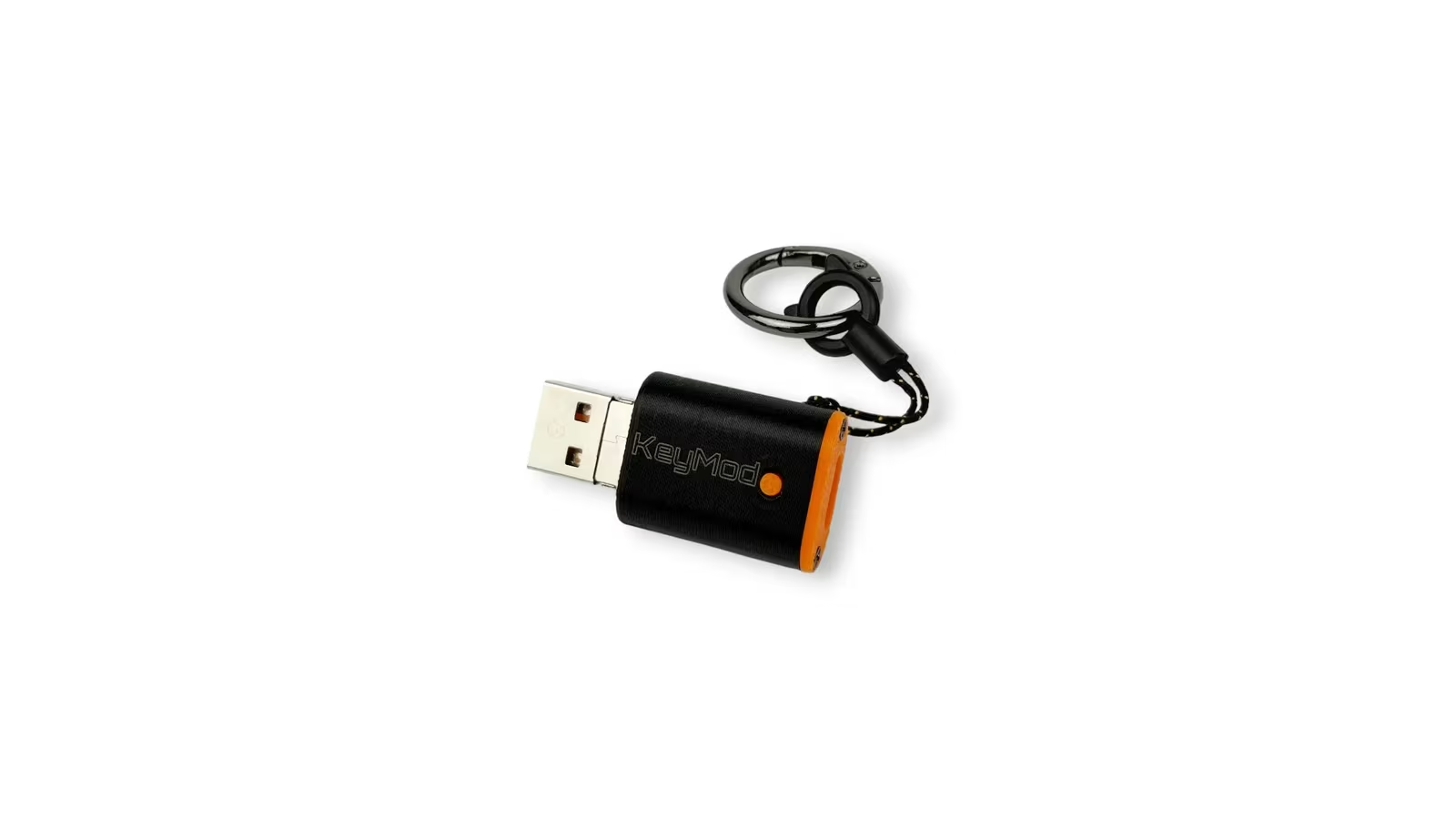
Virtual media is another useful idea: the computer can see installation media through the KVM. Before planning an unattended installation, I would check the supported image, storage and boot behaviour for that particular machine. That is a proposed use here, rather than a timed installation result from this review.
The price makes a permanent installation easier to justify
At the exchange rate used for this draft, the announced single-unit prices work out to roughly €35 for the Mini and €37 for the Mini W. In a three-pack, the advertised per-unit amounts convert to about €29 and €32, respectively. The lower starting figures apply to the packs, rather than buying one device. Official pricing.
These are conversions of the advertised US prices using the Czech National Bank’s rates for 19 October 2026. They are not confirmed European checkout totals. Check your reseller’s price, tax and delivery costs before ordering. On that research date, JetKVM listed retail availability for 26 October 2026. Exchange rates, availability.
At that level, I can see the attraction of leaving one connected to a home server or a small development machine. The cost is easier to justify when the tool stays ready for the moment you need it.
Someone who always works beside their computer may get little benefit. For someone managing machines without permanent screens, or helping with a computer in another location, the purpose is much clearer.
A great little tool, with a support approach I want to see more often
The JetKVM Mini family has a useful, understandable job. It puts a computer’s screen, keyboard and mouse within reach through a browser, in a box small enough to leave attached.
I would choose the wired Mini for a fixed installation with Ethernet available. I would look at the Mini W when getting a network cable to the machine is the main obstacle. In both cases, I would plan the power connection and judge the device by its current capabilities.
The updates are what made this review especially positive for me. Several arrived during the review, adding features and addressing problems. That continued attention made me feel better about the hardware in front of me.
If every hardware company put this much care into improving products already in people’s hands, the world would be a much better place. JetKVM has given me a good reason to watch what it does next, and a very useful little tool to recommend in the meantime.
Scope: this follow-up combines my experience of receiving updates with researched specifications for the two retail models. It does not add measured latency results, claim a test of both retail versions, or treat announced future services as features I have already tested.
One email a month: new articles, reviews and the upcoming live webinar + free recording. No spam, unsubscribe anytime.