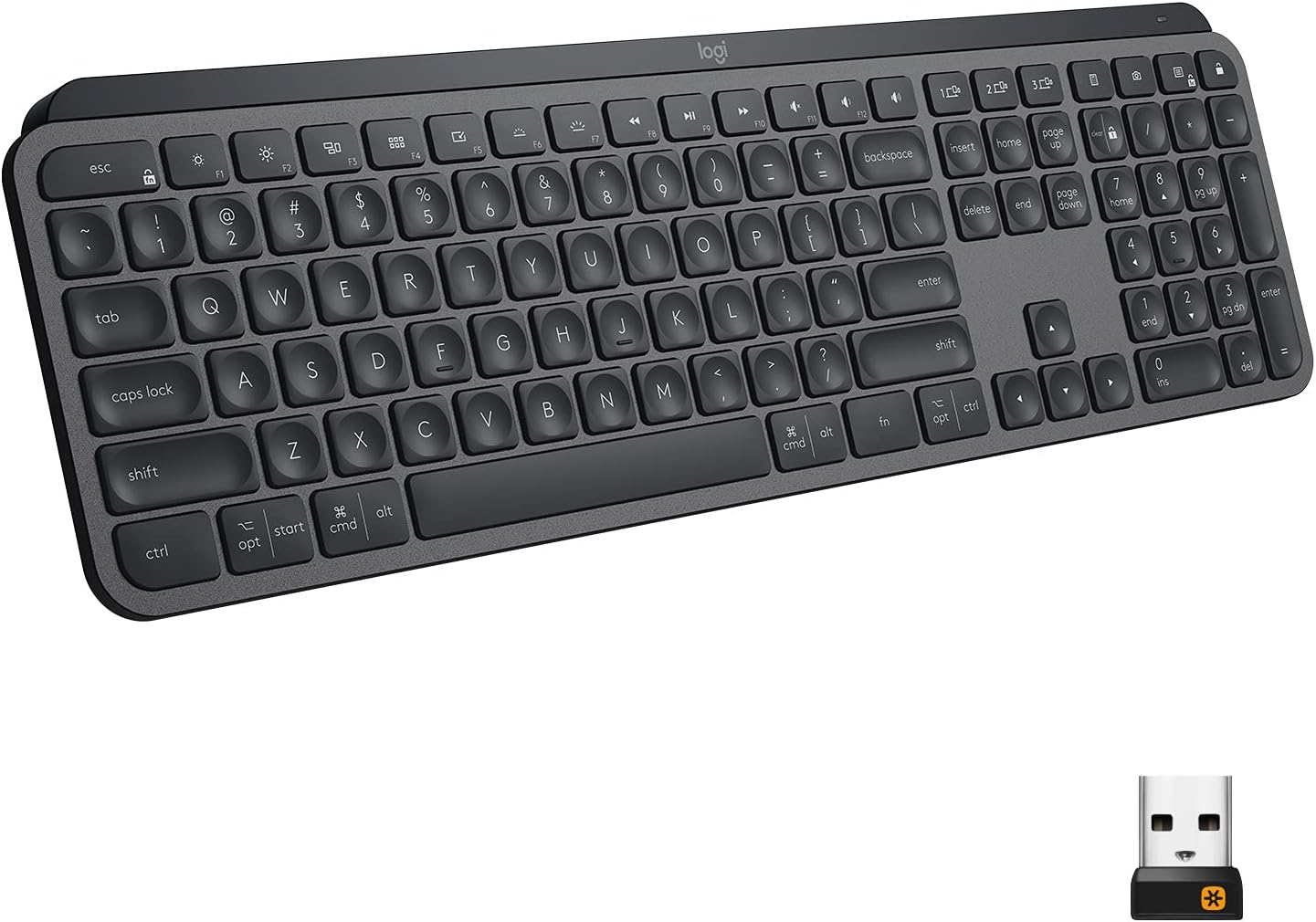
People who love the Logitech MX Keys tend to love one thing about it: the feel of the keys under their fingers. People who regret it tend to regret something else, usually a connection that misbehaved or a part that failed after a couple of years. Both groups have a point, and the order you rank them in decides whether this keyboard is for you.
First, a word on which keyboard this is. This review covers the original MX Keys, the full-size model with a number pad that pairs through a Unifying receiver or Bluetooth. It is a different product from the later MX Keys S, which moved to Logitech’s Bolt receiver, and from the compact MX Keys Mini. Unifying and Bolt receivers do not work with each other, which matters if you already own one of them.
Product image from the Amazon listing.
Why Writers Stay With It
The word that keeps coming up is pleasant. On LDLC, a French retailer, one owner says the keyboard is “very pleasant to use” after 15 months. Another who gave it a critical score still says the keys feel very nice to press. A third praises the weight, writing that it “weighs a lot for its size, which makes it feel very sturdy.” A reviewer at Cult of Mac liked the “comfortable keys, with shallow finger indents” in a solid metal frame, though that was the Mac edition of the same design.
Related reading

In a MacRumors thread comparing it with Apple’s Magic Keyboard, one owner of both calls the MX Keys a “much better typing experience.” The same person adds a detail worth hearing: the keys are “noticeably weighty and bounce back a little.” So if you love the light tap of a MacBook, this may feel like work at first. If you find Apple’s keys too thin, that extra travel is the reason to buy.
The full size also cuts both ways. You get a number pad and full arrows. You also get a wide keyboard that pushes your mouse further out. A MacRumors owner who preferred the Magic Keyboard valued it for being much smaller, and I would take that seriously if your desk is tight or your shoulder complains.
Using It With a Mac
This keyboard is sold for both platforms, and the keys carry both sets of markings. One hands-on review tested it on an iMac, an Android tablet and a Windows laptop, and reports that it assigns the right key functions when you move to a Mac. One LDLC owner found the Apple labels on the keys distracting enough to cover them, which is a fussy complaint but a real one. Mac purists may want the MX Keys for Mac edition with a proper layout.
Easy-Switch is the feature people actually use. Three buttons move the keyboard between three paired devices. One MacRumors owner switched between an iMac and a Dell laptop for a week with no connection trouble, though the backlight had to be turned back on after each switch. An LDLC owner also says that moving between computers works very well. Another could not get pairing to work on the first channel and simply used the second.
The receiver or Bluetooth choice matters more than I expected. Cult of Mac’s reviewer saw extra spaces between words and occasional lag over Bluetooth, while the Unifying receiver “proved flawless.” He also suspected his own 2016 MacBook Pro might share the blame, and the review covered the Mac edition. In the MacRumors thread, one owner had Bluetooth trouble and beachballs with the MX Keys and an MX Master mouse, then saw them vanish after moving to Apple hardware. Another uses Bluetooth with no problems at all. A third runs the receiver through a USB-C hub with no issues.
Two practical points follow. The receiver is a USB-A plug, so a USB-C-only Mac needs a hub or adapter. And if your Mac uses FileVault, one MacRumors owner reports that Logitech’s software says you need the USB receiver, not Bluetooth, to type your password at startup. Another iMac owner could not get past the login screen and used an Apple keyboard to get in, then later said the problem seemed fixed. If you lock your Mac at boot, keep the receiver handy.

Product image from the Amazon listing.
Related reading
Battery: Ignore the Single Number
Logitech’s claim, repeated across retail listings, is about 10 days with the backlight on and about five months with it off. The keyboard charges over USB-C.
Owner figures are all over that range, because backlight use and hours per day vary so much. On LDLC, one Linux user gets three to four months and charges in about 20 minutes. Another reports around six months with the backlight off. Others wanted more. One writes, politely, that they “would have appreciated a little more autonomy.” In the MacRumors thread, an owner found it needed charging more often than the Magic Keyboard.
The backlight wakes as your hands come close and adjusts to the room. That sounds pleasant, and it is also the main drain. If you touch-type in a lit room, turning it off is the easy way to make charging a rare job.
What Goes Wrong After a Few Years
This is the section I would read twice, because the keyboard is not cheap and its battery is built in.
The LDLC reviews are useful here since many are long-term reports. One owner of three years says it still looks good, with no worn keys, but has “tried everything” to stop it from disconnecting and reconnecting, mostly during games. Another had to send two keyboards back under warranty, one for a loose internal part and one for failed backlighting, and called the design fragile. A third, who still scored it well, reports that the battery swelled over time until the keyboard tilted.
I would not call those common. They are a handful of reports among mostly happy ones, and I found no sign of a pattern with keycaps wearing off. A swollen battery is a different kind of fault from a dead key, though. If your keyboard starts to rock on the desk, stop charging it and contact Logitech.
The software gets some grumbling too. One LDLC owner calls it cumbersome. Most people need it only for function key changes, and the keyboard works without it.

Product image from the Amazon listing.
Related reading
Gaming Is a Side Issue
If you game a lot, this should not be your only keyboard. The three-year owner above saw most of his dropouts in games, and reviewers who test latency treat it as an office keyboard. For writing, code, spreadsheets and email, none of that matters.
Worth the Money for a Daily Typist
My view is that the original MX Keys earns its reputation for people who type for hours and move between two or three machines. The feel is what owners keep praising, and that praise has held up for years. I would buy it for a mixed Mac and PC desk, use the receiver from the start if I had a spare USB port, and turn the backlight down.
I would pass if you already use a Bolt mouse and want one receiver, if you want a compact board, or if you want something you can repair. Mac owners who only ever use a Mac might prefer a keyboard with a true Mac layout. And if you have had Bluetooth trouble with other devices on your Mac, plan on using the receiver, because several of the Mac complaints come from Bluetooth users.
For that multi-computer typist, the Logitech MX Keys (original) is a comfortable long-term choice, as long as you keep your proof of purchase for the warranty. This is an affiliate link. As an Amazon Associate I earn from qualifying purchases.
One email a month: new articles, reviews and the upcoming live webinar + free recording. No spam, unsubscribe anytime.