The Logitech MK270 is easy to understand: a full-size keyboard, a compact mouse, and a small receiver that frees the desk from two data cables. That is enough for many ordinary workstations. The buying decision becomes less obvious when the computer has only USB-C ports, the user expects Mac-specific keys, or a missing receiver needs to be replaced.
This is a research-based review of the MK270 set linked below. I have not tested its typing feel, radio range, or battery life. Logitech’s product information supports the design details; the practical advice reflects the limits of a basic receiver-based desktop set. Regional keyboard layouts and hardware revisions vary, so the exact supplied set matters more than the model name alone.
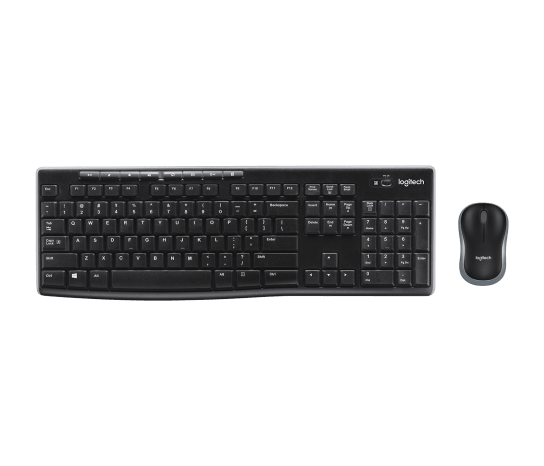
A full-size keyboard is a desk choice
The number pad is a good reason to choose a full-size keyboard if you regularly enter figures. It is also extra width that moves the mouse farther from the centre of the screen. Before buying, place your current keyboard and mouse where you normally work and notice how far your right arm reaches. A compact keyboard may suit some desks better, even when a larger one offers more keys for less money.
Related reading

The MK270 is most persuasive when the number pad and familiar layout are useful every day. It is less persuasive if the keyboard spends most of its time pushed sideways to make room for a mouse. Desk comfort comes from the whole arrangement, including chair height and screen position. A low-cost set can still be placed well, while an expensive set can feel awkward when the desk forces your hands into an unsuitable position.
What Logitech actually promises
Logitech describes the MK270 as a full-size wireless combo with media controls, a number pad, a compact mouse, and a USB receiver. Its current page advertises up to 36 months of keyboard battery life and 12 months for the mouse, with a warning that use and conditions affect those figures. It also describes limited spill resistance, which is not permission to immerse the keyboard. These are maker claims from the official MK270 product page, not measurements from this review.
Those features cover a straightforward office role. They do not establish a premium typing feel, silent keys, a high-end sensor, or the ability to switch quickly between several computers. If one of those is important, look for explicit support and a suitable test rather than assuming every Logitech keyboard shares the features of the more expensive ranges. A basic product can be useful without having to imitate a different category.
The receiver is part of the product
The MK270 uses a wireless receiver rather than ordinary Bluetooth pairing. Keep that receiver with the set. A laptop’s built-in Bluetooth does not replace it, and a random spare Logitech receiver should not be assumed compatible. The MK270 name has appeared across different versions over time, which makes old advice about receiver families particularly easy to misapply. Match the supplied receiver and current support documentation to the exact set.
For a desktop that always stays in one place, a dedicated receiver can be convenient. It avoids routine Bluetooth pairing and lets the keyboard and mouse share one connection. For a traveller, losing the tiny part can disable both input devices at once. Check the supplied storage arrangement for the receiver and use it when packing. If buying used, make the original matched receiver an explicit part of the purchase rather than treating it as an optional extra.
A modern Mac needs a more careful check
The US Amazon variation is not a Mac-specific keyboard. Its printed modifier keys and some shortcuts follow a PC layout. Basic input on a Mac and complete official support for every media key or utility are different questions. Verify Logitech’s current compatibility information for the exact version, and check the computer’s available ports. A USB-C-only Mac needs a suitable connection for the receiver, which adds another small accessory to the setup.
If you already own the set, macOS keyboard settings may let you adjust modifier behaviour to suit your habits. Test the keys you use frequently, including Command-style shortcuts, function keys, and the keyboard layout chosen in the system. Do this with a simple text document first. A mismatch between printed symbols and the selected layout can make passwords and punctuation frustrating even when the letter keys appear to work normally.
Buy the layout you actually want
A photograph with familiar letters is not enough to establish the correct keyboard layout. Check whether the listing supplies US, UK, or another regional version, and look closely at Enter, Shift, and the punctuation keys. For someone switching between a laptop and external keyboard, these differences can create repeated small mistakes. The cheapest available variation is not always the best value if it fights established typing habits.
Related reading

For multilingual use, set up the input sources you need and learn a reliable way to switch between them. Test accented characters and the symbols used in your work rather than waiting until a deadline. A programmer should check brackets and backslashes; a spreadsheet user should check the number pad’s behaviour in the chosen applications. These are practical compatibility checks that matter more than an attractive product picture on a desk.
Put the receiver where the radio can work
A receiver plugged into the rear of a large desktop may be surrounded by metal, cables, and other USB equipment. If the mouse stutters or the keyboard misses input, start by testing a clearer receiver position. A short extension cable can make that comparison easy. Logitech’s support guidance discusses receiver detection and connection troubleshooting, and the physical USB path should be checked before assuming the keyboard itself has failed.
Change one part of the setup at a time. Try a direct port, check the batteries, and temporarily simplify a crowded hub arrangement. If the set behaves well directly connected but poorly through a particular dock, focus on that path. Keep an alternative input device available while investigating, especially if the same receiver controls both keyboard and mouse. A spare wired mouse can make a desktop fault much easier to work through.
Battery life is about maintenance habits
Long battery claims are useful context, but they are not a schedule for every owner. The mouse and keyboard have different workloads, and replacement frequency depends on use. Keep a small supply of the correct batteries or a suitable rechargeable routine, following the manufacturer’s guidance. Avoid mixing depleted and fresh cells or different battery types in the same compartment when the instructions advise against it.
Use the power switches when packing the set or storing it for a long period. If equipment will sit unused, follow the battery storage guidance and inspect the compartments before returning it to service. Labeling a spare receiver and batteries in a desk drawer may sound mundane, but it directly supports the reason for buying a basic set: ordinary work should keep moving without an unexpected search for a tiny part or a particular battery size.
The mouse deserves its own decision
A bundled mouse can be perfectly adequate for occasional use while still being the wrong shape for a long workday. The MK270’s compact mouse is not a reason to ignore hand comfort. Try it at the desk with your normal documents and applications. Notice whether you grip tightly, bend your wrist awkwardly, or repeatedly reposition your hand. A bundled price does not require you to accept discomfort from either half of the set.
Use a suitable surface and check pointer speed before deciding that the sensor feels wrong. Very glossy or uneven surfaces can complicate a simple assessment. If the keyboard suits you but the mouse does not, replacing only the mouse may be reasonable. The set should be evaluated as two tools sharing a receiver, rather than one inseparable ergonomic answer. People who spend all day pointing or editing may benefit from choosing that part more carefully.
Spill resistance is a fallback
Logitech describes a limited spill-resistant design, but prevention is still the better arrangement. Keep an open drink away from the keyboard and do not treat the claim as a cleaning method. If liquid reaches it, follow the maker’s instructions rather than continuing to type to see whether it survives. Replaceable batteries and a wireless connection do not make liquid harmless to the electronics.
Related reading

For routine cleaning, turn off the devices and use the recommended method. Do not spray liquid directly into the key gaps. A shared family or office desk benefits from regular gentle cleaning and a clear place to put the mouse when wiping the surface. These habits are more likely to preserve useful service than buying a new inexpensive set every time the old one becomes unpleasant to touch.
My verdict
I would consider the MK270 for a simple supported workstation that needs a number pad, basic media controls, and fewer cables. It makes less sense for someone seeking a Mac-native layout, Bluetooth-only operation, multi-device switching, or a carefully chosen keyboard and mouse for intensive daily use. Receiver compatibility and regional layout are the two details I would verify before focusing on the price.
The best result is deliberately ordinary: plug in the correct receiver, place the devices comfortably, and work without thinking about them. Test the actual shortcuts, wake behaviour, and pointer movement during the return period. If those basics fit, the set can have a clear purpose. If they do not, a low bundle price does not compensate for small frustrations repeated throughout every workday.
Check the exact Logitech MK270 keyboard and mouse listing on Amazon. This is an affiliate link. As an Amazon Associate I earn from qualifying purchases. Confirm the keyboard layout, receiver, condition, and current operating-system support before ordering.
One email a month: new articles, reviews and the upcoming live webinar + free recording. No spam, unsubscribe anytime.