A full-size keyboard can be useful for number entry and surprisingly awkward on a small desk. The Logitech MK345 combines one with a right-handed mouse, so I would start by measuring the space between the keyboard and your normal mouse position. A matching wireless set is convenient only if both pieces suit the person and the desk. The fact that they arrive together does not settle either fit.
This is a research-based review of the keyboard-and-mouse combo identified by ASIN B00QXT5T3U. I have not typed on a sample, measured key noise or tested its special keys on macOS. The assessment uses the documented package and offers practical buying checks. The Amazon.com layout and any platform-specific key behavior should be confirmed for the exact product being ordered.

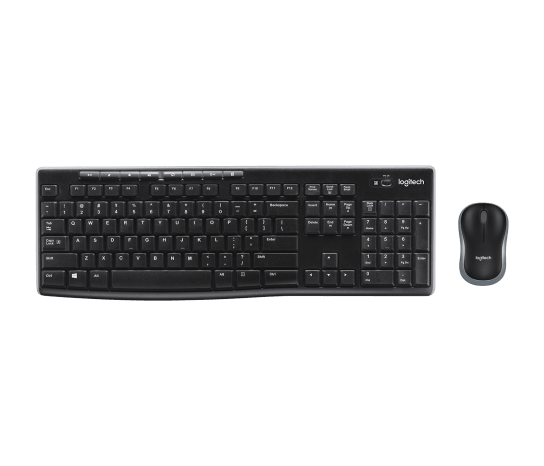
Product image: Logitech photography for the combo one-pack on the Amazon listing.
What the set is designed to do
The listing describes a full-size wireless keyboard with an integrated palm rest, media keys and a spill-resistant design. It pairs that with a compact right-handed mouse and one USB-A nano receiver using 2.4 GHz wireless. Current listing text names Windows, macOS and ChromeOS, but that does not establish every special-key function on each platform. These are supplier descriptions rather than typing or compatibility test results from this review. Source: Logitech MK345 listing.
Related reading

The strongest idea is reducing the number of separate decisions for a basic desk. One set can provide both input devices and a shared receiver. That can be useful for a family computer or a straightforward office machine. It becomes less appealing if you like one component and tolerate the other only because it was included. A bundle is good value when both pieces serve the job.
I would also distinguish ordinary wireless from Bluetooth. The receiver is part of this product’s arrangement, so it needs a suitable port. A computer with only USB-C sockets may need another component. Include that in the desk plan rather than assuming a wireless label means there is nothing to plug into the computer.
Measure the reach to the mouse
Put a piece of paper roughly the size of the intended keyboard on the desk and place your current mouse beside it. Sit normally and notice how far your arm reaches. A number pad adds useful keys, but it also moves the mouse farther outward on a typical right-handed arrangement. For some work that trade is worthwhile. For other work a narrower keyboard may be more comfortable.
Consider the tasks that justify the number pad. Regular spreadsheet entry, accounting or data work can make it valuable. If you rarely type numbers, the extra width may be paying for a feature you mostly move around. There is no universal right keyboard size. The useful choice follows from the work and body position rather than the idea that a larger layout must be more complete.
Check the desk depth as well as width. The integrated palm-rest area takes space, and a shallow desk can leave less room for your arms. Arrange the keyboard so that it does not force you to sit farther from the screen. I would judge the whole workstation together. A keyboard can be individually appealing while still being a poor fit for the furniture it must occupy.
The mouse is a separate comfort decision
The included mouse is described as right-handed, which matters for a shared computer. Do not assume a matching bundle is equally suitable for every household member. If a left-handed user regularly shares the desk, consider whether a different set or separate mouse would be simpler. A low bundle price is less useful if you immediately need to replace one half of it.
Try the mouse during ordinary work while a return remains possible. Select text, scroll a long document and drag a file. Notice your grip and whether the shape asks your hand to remain tense. I have no personal comfort result for this mouse. That is why I would make the trial relevant to the person using it rather than borrow the supplier’s comfort adjective as a verdict.
Set the pointer speed through the operating system first. Use a level that supports precise work without requiring constant lifting. If the desk surface creates inconsistent movement, compare a suitable plain surface before making software changes. A basic set is easiest to assess with a basic configuration. Add utilities only if a specific need remains after the normal settings have been checked.
Related reading

Check the layout before typing a whole day
Look closely at the photographed and selected keyboard layout. The position and shape of keys can matter more than the model name, especially when moving between US and European arrangements. If you type Czech regularly, decide how you will enter the required characters. A software language setting and the legends printed on the keys are different parts of the experience.
For a Mac, test the modifier keys and familiar shortcuts immediately. Confirm copy, paste, undo, application switching and any shortcuts central to your work. Then check media keys separately. A statement that the set works with macOS does not mean every printed Windows-oriented label becomes a native Mac label. Learn what the operating system allows you to remap before deciding whether the arrangement feels natural.
Do not judge a new layout from a password field alone. Open a document and type punctuation, numbers, symbols and a few sentences in each language you use. Check the keys you need for code if programming is part of the job. A small mismatch becomes a daily irritation when it affects brackets or shortcuts hundreds of times. The first trial should reflect your actual typing rather than a generic demo sentence.
One receiver needs a clear home
Decide whether the receiver will remain in the computer, a dock or a storage place when the set is moved. For a fixed desk, leaving it in a suitable accessible port may be convenient. For a laptop that travels, include the receiver and any required adapter in the packing routine. A keyboard being wireless does not help when its tiny connection component is left behind.
Do not assume that a spare receiver from another Logitech device can replace this one. Check the exact model’s current guidance if the receiver is lost or pairing becomes necessary. Similar branding does not establish interchangeability. Keeping the original receiver identified with the set is easier than discovering the distinction during an urgent attempt to get a work computer ready.
When troubleshooting, change one part of the path at a time. Confirm power, battery orientation according to the instructions, and the USB connection. If you normally use a dock, compare a direct supported connection where available. This helps separate a keyboard issue from a dock or port issue. Reinstalling several unrelated utilities first is more likely to obscure the cause than clarify it.
Typing feel and noise need a real room
I cannot describe the key feel as if I had typed on this sample. I would test a page of ordinary work at the desk where the keyboard will live. Notice how the keys return, whether you make unusual mistakes and whether the palm area encourages a comfortable posture. A first impression can change over a session, so give the trial enough time to become ordinary.
If the room is shared, listen from the other person’s position as well as your own. A keyboard advertised as quiet can still be distracting in a particular room. A desk surface can also change the sound of typing. The relevant question is whether the final setup is acceptable for the people using the space. There is no measured noise result here to substitute for that check.
The spill-resistant description should not become a reason to put drinks above the keyboard. Follow the cleaning and care instructions and keep the workspace sensible. If a spill occurs, use the manufacturer’s guidance rather than assuming the marketing phrase means waterproof. A little prevention is easier than trying to learn the product’s limits through an accident.
Related reading
A shared set should be easy to maintain
Keep the instructions and battery information somewhere accessible. If the desk has several users, show them the power controls and where suitable replacement batteries are kept. Labeling the receiver storage place can be useful when equipment moves between rooms. These are small ownership habits, but they often decide whether a simple set remains simple after the person who installed it is away.
Review the desk arrangement after a week. A new keyboard can shift the mouse, notebook and screen in ways you did not notice at first. Move the equipment to restore a comfortable reach rather than accepting the first layout as permanent. The purchase should support the workstation you need. It should not make you organize the whole day around the footprint of an inexpensive bundle.
My assessment
I would consider the MK345 for a straightforward desk that benefits from a full-size keyboard and whose primary mouse user is right-handed. I would make the first checks about layout, comfortable reach, receiver connection and the shortcuts used every day. I would pass when a compact keyboard, a left-handed mouse or a clearly native platform layout is more important than obtaining both devices together.
The exact bundle is available through my Logitech MK345 Amazon link. This is an affiliate link. As an Amazon Associate I earn from qualifying purchases. This review does not claim hands-on typing, noise or full macOS-function testing.
One email a month: new articles, reviews and the upcoming live webinar + free recording. No spam, unsubscribe anytime.