A television computer does not need the same keyboard as a writing desk. It needs an easy way to type a search, dismiss a dialog and move a pointer without finding space for a separate mouse. That is the useful role for the Logitech K400 Plus. I would review it as a living-room control surface, not as a promise that typing on the sofa becomes a comfortable full working day.
This is a research-based review of ASIN B014EUQOGK. I have not typed on this sample, measured wireless range or tested its gestures across operating systems. The practical assessment uses the documented design and the needs of a computer connected to a television. Compatibility with a smart television, a particular Mac or special software functions needs its own current check.

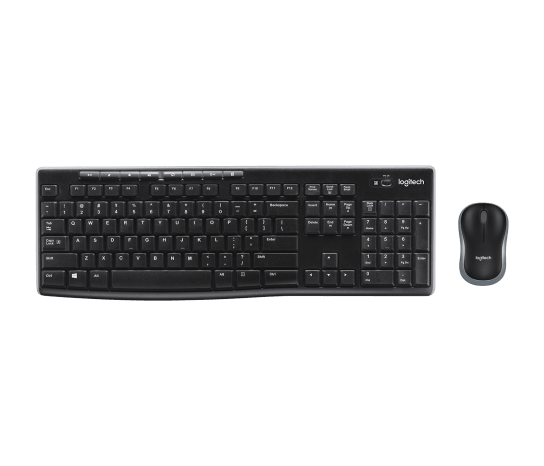
Product image: Logitech product photography from the Amazon listing.
A pointer beside the keys
The listing describes a wireless keyboard with an integrated touchpad and a USB Unifying receiver. It advertises up to eighteen months of battery life and up to 33 feet of wireless range under its conditions. Its compatibility text names Windows, Android and ChromeOS versions. These are supplier statements, not my typing, battery or range results. A USB socket on a television does not by itself establish full keyboard-and-touchpad support. Source: Logitech K400 Plus listing.
Related reading

The design addresses a clear physical problem. A separate mouse needs a usable surface, which a sofa arm does not always provide. Putting the pointer area on the keyboard keeps the basic controls together. That can make a small living-room PC easier to operate. The trade is that the pointing area and keyboard must share the same object, so neither should be assumed to replace a full desk setup for every task.
I would consider it for occasional computer interaction between watching or listening sessions. It could also be useful for a small machine that is normally controlled remotely but sometimes needs local input. I would be less interested in using it for long documents or detailed design work on a television across the room. The right use is brief, practical control rather than pretending the living room is a workstation.
Check the host before buying
Identify the device that will receive the USB dongle. A small PC, a supported Android device and a television’s own operating system are different targets. Read the manufacturer’s current compatibility guidance for the exact combination. Do not infer pointer support from the fact that a keyboard can enter a search term. Special keys, scrolling and navigation can behave differently across platforms.
For a Mac, confirm the functions you need rather than borrowing a Windows feature list. This listing’s compatibility wording does not establish a complete current macOS experience. If your plan depends on particular gestures or remapping software, check those requirements before purchase. A simple keyboard becomes less attractive if it needs an uncertain software workaround just to perform the few actions you bought it for.
For a smart television, test the relevant apps while a return remains possible. The television’s home screen and a streaming app may accept input differently. Enter a search, move through results and check how to return to the previous screen. These are the actions you will actually repeat. A broad statement that the device has USB is a much weaker purchase basis than confirming those few tasks.
Put the receiver where the room can work
The advertised range is a maximum claim, not a result for your television cabinet. A receiver hidden behind a metal-backed computer or inside furniture can have a different environment from an open demonstration. Follow the product guidance and try a sensible accessible port. If the arrangement is unreliable, isolate the receiver position before changing several computer settings at once.
Check the actual seat you use, including the position in which you naturally hold the keyboard. A connection that works while standing near the television does not answer the sofa question. Try ordinary use long enough to notice interruptions. I would value consistent short commands from the normal seat above a dramatic demonstration at the farthest possible distance in the house.
Keep the receiver identified with the keyboard. If the host computer moves or a USB port is needed for another device, the small dongle is easy to forget. Consult the exact Unifying and model guidance if replacement or pairing is required. The presence of a Logitech logo on another receiver is not a reason to assume every receiver in a drawer is interchangeable.
Make the television interface readable
Before blaming the keyboard for awkward control, set the computer’s display scaling for the viewing distance. A pointer can work perfectly while menus remain too small to read. Test the text size from your normal seat. The useful arrangement lets you find a setting without leaning forward or repeatedly zooming the whole screen. Input and display readability belong in the same setup decision.
Related reading

Use the operating system’s normal pointer and scrolling settings as a starting point. A very fast pointer may help cross a large television image but make small controls frustrating. Try opening an app, selecting a result and adjusting playback. Keep one setting for a while before changing it again. Frequent tweaking can make a simple control surface feel more difficult than it really is.
If a television app is designed mainly for a remote, do not force every action through the touchpad. Keep the remote available for the jobs it handles well. The keyboard’s advantage may be entering text while the remote remains better for basic playback. A useful accessory complements the room’s existing controls. It does not need to replace every button to justify its place.
The sofa changes how typing feels
A keyboard balanced on a lap has less stability than one on a desk. Try a few search terms and a short message in the position you expect to use. Notice whether the keyboard shifts or whether reaching the touchpad changes your grip. I have not assessed the K400 Plus’s feel personally, so I would let that ordinary trial decide whether the shape works for you.
Do not judge a living-room keyboard only by typing speed. The more relevant questions may be whether it is easy to pick up, whether the pointer is close enough and whether it can be set down safely. If you intend to write long emails from the sofa, consider a proper support surface and posture. An integrated touchpad solves the missing-mouse problem; it does not solve every physical issue created by working away from a desk.
For a household, choose an obvious storage place. A keyboard pushed between cushions becomes difficult to find and may have buttons pressed accidentally. A shelf or suitable tray can make it feel like part of the room rather than loose computer equipment. The best control is the one you can find when a dialog appears on the television and everyone is waiting to continue watching.
Keep text entry simple and secure
Check the keyboard layout before entering account details. The printed legends and the host’s selected language need to match your expectations. Type punctuation and symbols in a harmless document first if necessary. A mismatched layout is especially annoying when the password field hides the character you entered. Solve the layout issue before deciding that an account or keyboard is malfunctioning.
For a shared television PC, consider who uses the browser and which accounts remain signed in. A convenient keyboard makes it easier to turn a media machine into a general computer. Keep that use deliberate. Use appropriate account security and avoid leaving sensitive work material on a shared screen simply because it is comfortable to open it from the sofa.
If the keyboard is mainly for occasional maintenance, keep a small note of the host computer and receiver location. A household should know which device the keyboard controls. This prevents a common confusion when a TV, streaming device and PC all sit in one cabinet. Clear labeling is more helpful than asking everyone to remember an invisible wireless pairing arrangement.
Battery claims and everyday care
Treat the advertised battery maximum as a planning reference. Follow Logitech’s instructions for battery type, power controls and storage, and keep suitable replacements available. A device used only occasionally can still be unhelpful if the batteries are exhausted when it is finally needed. Include it in an occasional check of the living-room equipment rather than assuming a long published maximum means no attention is ever required.
Related reading
The spill-resistant description should not be confused with permission to use it as a drinks tray. Keep food and liquids away and follow the cleaning guidance. A living-room accessory faces a different environment from a tidy office desk, so give it a place that reduces accidents. If something does happen, use the manufacturer’s instructions rather than improvising cleaning methods because the keyboard seems inexpensive.
My assessment
I would shortlist the K400 Plus for a compatible living-room computer that needs occasional text and pointer input. Its integrated layout has a clear purpose, and that purpose is more interesting than treating it as a cheap replacement for a main keyboard. I would make the purchase checks about the actual host, normal seating position, key layout and the few apps you use most.
I would pass for long typing sessions, unsupported platform requirements or detailed pointer work. A conventional keyboard and mouse or another supported controller may serve those tasks better. My verdict is to buy it for the small moments that interrupt watching: a search, a login or an occasional setting. If it handles those moments reliably in your room, the design has done its job.
The exact workbook item is linked through my Logitech K400 Plus Amazon link. This is an affiliate link. As an Amazon Associate I earn from qualifying purchases. No personal typing, range or cross-platform gesture test is implied.
One email a month: new articles, reviews and the upcoming live webinar + free recording. No spam, unsubscribe anytime.