Memory reviews are mostly boring, and that is the best news a memory module can give you. Owners of the Crucial CT16G4SFRA32A say the same thing in a dozen ways: it went in, the machine saw it, and things stopped slowing down. The rare failure story is where you learn something, and the bigger risk is buying a stick your computer cannot use at all.
I found no lab test of this part from a major site, so please read performance claims here as owner impressions.
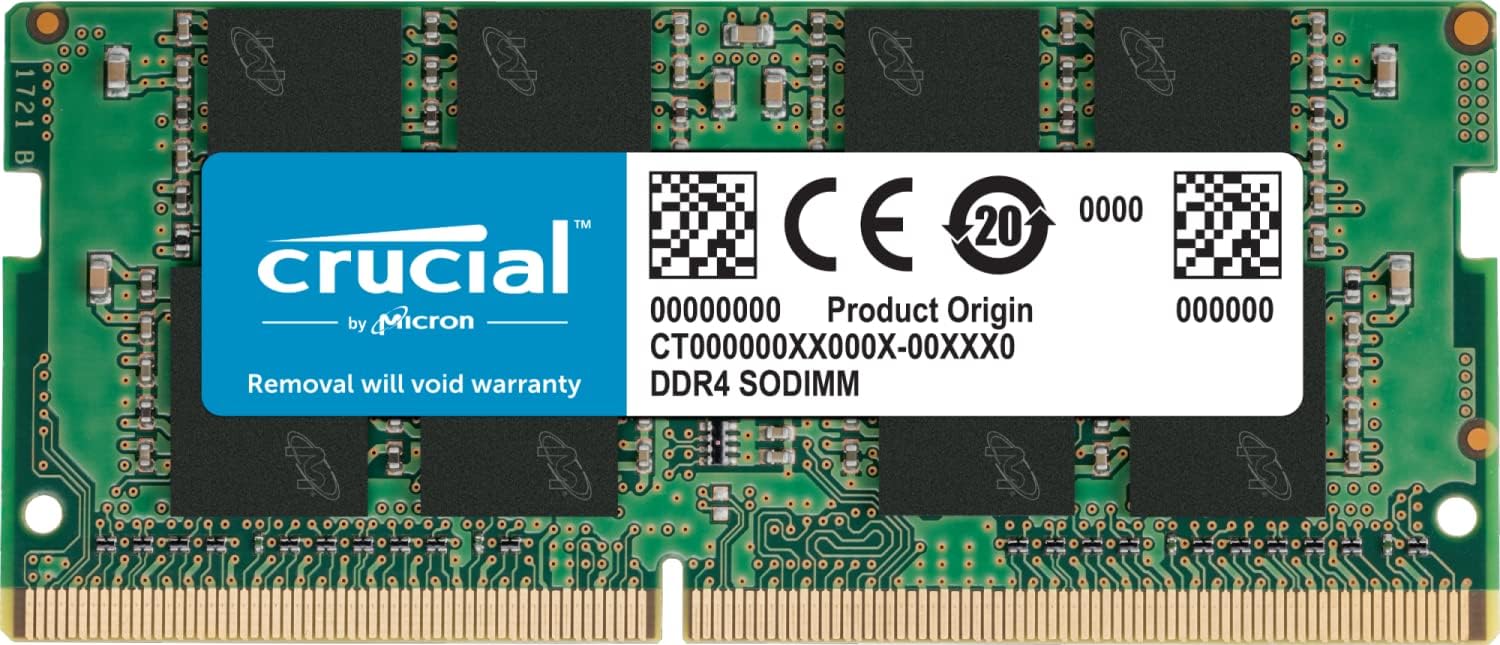
Product image from the Amazon listing.
What This Stick Is, and What It Won’t Fit
The part is a single 16 GB module of DDR4 SO-DIMM memory, the small laptop format. Sellers list it as DDR4-3200, CAS latency 22 and 1.2 V. It has 260 pins, and that number is your first check. DDR3 SO-DIMMs have 204 pins and DDR5 ones have 262, and different generations are not interchangeable in either direction. If your laptop is new enough to use DDR5, this stick is of no use to you.
Related reading

Mac owners, stop here. Apple Silicon Macs do not take memory modules, so nothing on this page helps a MacBook Air, a MacBook Pro or a Mac mini from that era. If you have an older Intel Mac, check Apple’s memory specification for that exact model before you spend anything, and do not assume a 3200 stick is what it wants.
The most common trap on the PC side is soldered memory. Many thin laptops have memory fixed to the board, with no slot at all, or with one slot beside a soldered amount. No seller page can answer that for you. Check your exact model in the maker’s service manual, or open the back cover and look.
The eBay catalog page for this part has a warning of its own. Its features section lists ECC memory, while the listing titles say non-ECC. This is a standard laptop module, and I read that as a data error, but it shows why you should go by the part number and not the bullet points.
Where Owners Actually Used It
The nice thing about this product’s owner reports is that they name real machines. On Kakaku, a Japanese price and review site, owners describe an HP Windows 11 laptop, a Lenovo E14 and a Mouse Computer X5-R5. One owner built a Ryzen mini PC barebone with it in 2023 and picked Crucial as a known, low-cost brand. That owner reported no trouble so far.
On the eBay catalog page, a March 2024 buyer put it in an HP ProOne 400 G3 on Windows 11 Pro. Another used it in a Dell i5 gaming machine alongside other 16 GB memory. A third, in late 2024, researched compatibility first, doubled the memory in a laptop and says it runs faster.
Stability is the thing you want from memory, and this is where the reports are most useful. One eBay buyer in 2022 wrote: “Passed memtest86 with no problem.” A Kakaku owner in September 2024 reports stable operation through repeated restarts with no crashes. Those are small samples, but they point the same way, and I found no pattern of crashes among these owners.

Product image from the Amazon listing.
What Owners Noticed After the Upgrade
Do not expect your laptop to feel new. Expect it to stop struggling. The most specific report comes from a Kakaku owner who took a Lenovo E14 from 8 GB to 16 GB. Windows 11 Pro and security software alone were using about 6 GB, and the owner says memory use fell by roughly 30 percent after the upgrade. Another owner had a machine with 8 GB that slowed down and threw memory errors with many browser tabs open. Those problems went away.
That matches my view of who gains from this. A computer short of memory falls back on its drive, and adding memory removes that wait. A computer that already has enough gains little. If you are at 16 GB and rarely fill it, spending on this module won’t speed up your work. If you run containers, a few virtual machines or a big browser session on a small mini PC, more memory is often the cheapest fix you can make.
Related reading

One Kakaku owner sounds less excited about a stick added as a spare, and mentions that the price fell soon after. That says more about the memory market than the product.
Speed itself needs a realistic view. As one eBay buyer noted, the module runs at the laptop’s maximum supported speed if that is lower than 3200. So in a machine limited to 2666, you will get 2666. That is a normal way for memory to behave, and it is a benefit for older machines. It also means you should not pay extra for 3200 if your laptop can’t use it. A Kakaku owner took this view, matching the stick to the laptop’s top supported speed.
The Failure Report Worth Reading
One review on that eBay page is critical. An owner of a Dell Latitude 5420 got a “memory problem code” after installing a stick marked as used. Removing a stick caused video distortion, and going back to two Dell 8 GB sticks fixed it. The owner wrote: “I belive memory is defective.”
It is one case in a sea of good reports, and no memory test result is given. Still, it teaches two things. First, it was a used module, so its history is unknown. Memory prices are low enough that I would buy new, or at least from a seller with easy returns. Second, the fix was to keep the original sticks safe. Do not sell or throw away your old memory until the new module has passed a day of real work.

Product image from the Amazon listing.
Mixing Sticks, and One Versus Two
Most laptops with two slots run faster when both are filled with matching modules. Owner reports hint at this. One Kakaku owner added this 16 GB stick to an HP laptop and ended up with 20 GB in total, which worked with no compatibility problems, but he says buying two sticks would have been better. He plans to move to 32 GB.
Mixing sizes does work in these reports, as with that HP and with other memory in the Dell i5. I would still treat a mixed setup as a budget move. If you are buying now and have two slots, a matched pair is the cleaner choice. This model number is a single stick, so check how many you are ordering.
One smaller detail: IPC Computer lists several suffixes under this part number, such as C8FF and C16FR, so the build of the module may vary between production runs. That seller describes 16 chips on both sides of the module. Since I can’t say which arrives in the box, avoid assuming two sticks bought years apart are identical.
Installing and Testing
The physical job is simple on most machines, but the warranty question deserves care. A Kakaku owner says Crucial’s warranty does not cover self-installation, and another mentions plain packaging with no warranty paperwork. Those are owner accounts and not Crucial’s terms, so read the terms before you open your laptop. Your laptop maker’s warranty may have its own rules as well. Another owner says Crucial’s site confirmed that the stick would fit their PC, so use that tool, or the maker’s manual, before you order.
Related reading

Afterward, confirm that the system sees the full amount in Task Manager or your system information screen. Then run a memory test such as MemTest86 overnight, as that 2022 owner did, particularly if your machine is a mini PC that will run around the clock. A home server that crashes once a week from bad memory is a miserable thing to debug, and a test now costs you only one night.
A Dull Upgrade, in the Best Sense
My opinion is simple. If you have a laptop or mini PC with a free or replaceable DDR4 SO-DIMM slot and you are short of memory, this is a safe, sensible choice. Owners across several machines report that it works, and I found no sign of a common fault.
Skip it if your machine uses DDR5, if the memory is soldered, or if you own an Apple Silicon Mac. Skip used sticks unless the seller takes returns. And check whether you really need more memory first, since this upgrade only helps a computer that is running out.
For a compatible machine, the Crucial DDR4 SODIMM 16GB (CT16G4SFRA32A) is an easy pick, provided you confirm your slot and generation before you buy and run a memory test after you install it. This is an affiliate link. As an Amazon Associate I earn from qualifying purchases.
One email a month: new articles, reviews and the upcoming live webinar + free recording. No spam, unsubscribe anytime.