There is a particular kind of Mac problem that sounds trivial until you try to solve it. You want to record one application, your microphone, and perhaps the person speaking to you in a call. You do not want notification sounds. You do not want the whole system output. You definitely do not want to discover after an hour that only your half of the conversation made it into the file.
QuickTime is not built for that job. A screen recorder can sometimes get close, but it usually treats audio as an accessory to the picture. A full digital audio workstation can do much more, though now you are opening a studio to record something that should have required one button.
Audio Hijack occupies the useful space between those extremes. It treats the audio moving through a Mac as a set of sources, processors, meters, and destinations. You connect those pieces visually, save the result as a session, and run that session again whenever the same job returns.
That last part is the reason the application makes sense to me. The attraction is not simply that it can record Safari, Zoom, a microphone, or the entire system. The attraction is that it turns an improvised routing problem into a repeatable piece of equipment.
A session is the product
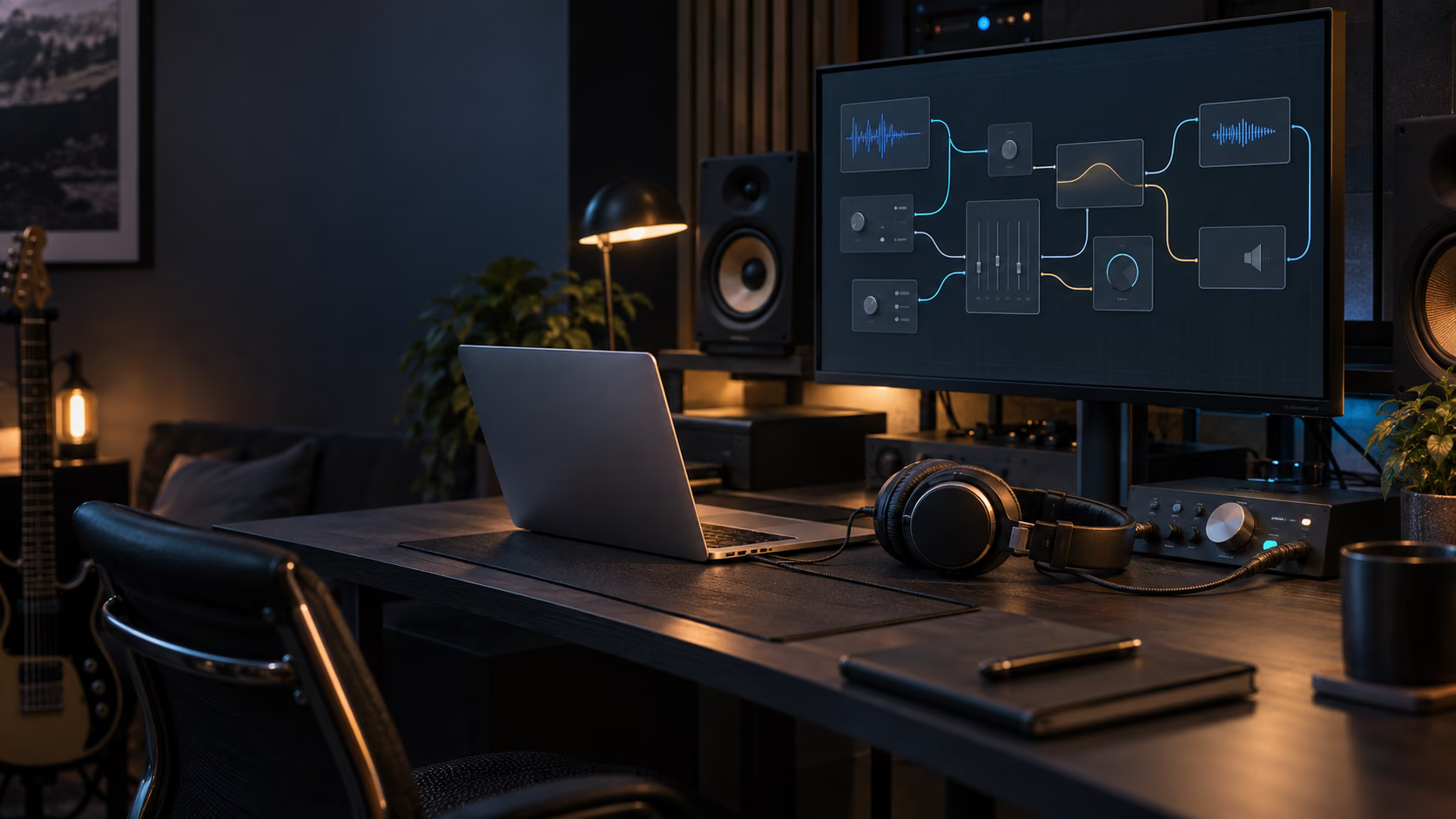
Audio Hijack makes its case through the session canvas. Place an Application block on the left, connect it to a Recorder, and you have the simplest useful chain. Add an Input Device for a microphone, meters to watch the levels, an equalizer or compressor if the signal needs help, and a second Recorder if you want an untouched safety copy.
The blocks are not decoration. They expose the route in a form that can be inspected. That matters when the chain becomes more complicated because audio failures are often routing failures. The wrong device is selected. A monitor path feeds back into the source. One channel is muted. A processor clips a signal before the final meter. A visible graph gives those mistakes somewhere to reveal themselves.
It also changes how the setup behaves the next time. A good session should reopen with the same sources, destinations, file format, and processing. You still check levels because microphones move and remote callers change, but you are checking a known system rather than rebuilding it from memory.
This is the practical difference between Audio Hijack and a pile of one-off utilities. The pile may be cheaper. It may even produce the same file once. It rarely gives you a configuration you can name, inspect, duplicate, and keep beside the work it supports.
Rogue Amoeba’s Audio Hijack manual is unusually useful here. It explains sessions, blocks, permissions, recording, scripting, and the less obvious tools without pretending that every reader wants the same setup. I would read the session basics before building anything important, then create a deliberately small chain and add complexity only when a real need appears.
Related reading
Capturing one application is the difficult trick
Recording a microphone is ordinary. macOS already exposes input devices to applications. Capturing the sound made by one process while excluding everything else is the more interesting capability.
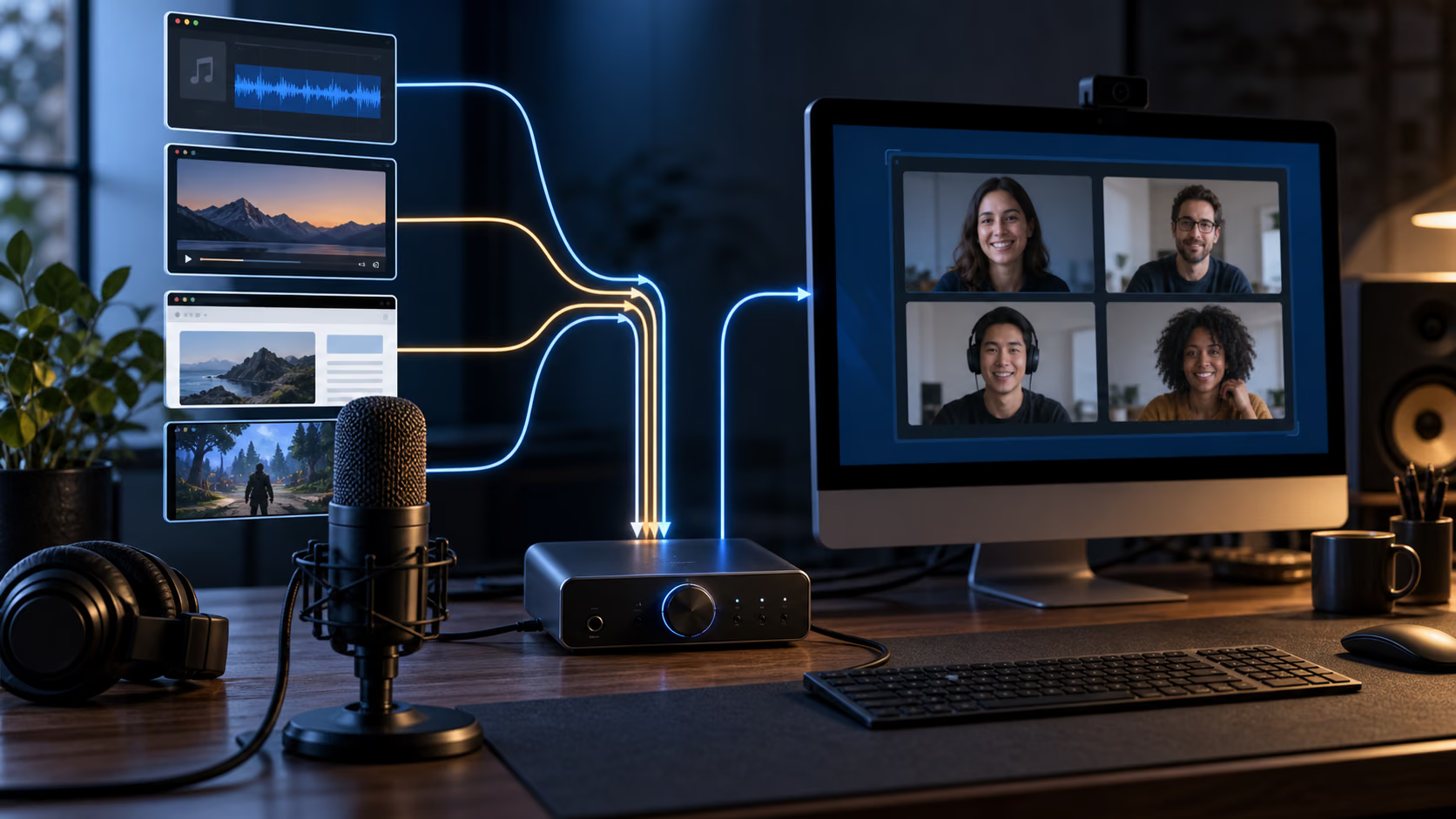
Audio Hijack’s Application source lets you choose a program and capture its output. Recent versions can distinguish between audio sent to the current system output and audio sent to other devices. Rogue Amoeba documents those choices in its application audio capture guide.
That control is useful for a reason that has nothing to do with studio perfection. Macs make noise. Mail arrives. Calendars complain. A browser tab starts playing something you had forgotten existed. Capturing the entire output device means every one of those sounds is a potential edit. Capturing the application means the recording contains the source you chose.
The same distinction matters in calls. A reliable recording needs a clear account of both sides and a monitoring path that does not create an echo. The product provides templates and guidance for VoIP recording, but I would still make a short test call before every important session. Say the date, name each participant, speak over one another briefly, and play the file back through headphones. Thirty seconds of embarrassment is cheaper than discovering a silent channel after the real conversation.
The application can also capture all system audio when that is genuinely what the job requires. That is useful for archiving a live stream, recording a demonstration, or collecting several sources that cannot be addressed individually. The important point is that whole-system capture is a choice rather than the only mode available.
Latency is a setting with consequences
Audio software reviews often describe latency as low or high. Those words are not enough. Digital audio moves in buffers, and the size of those buffers creates a floor below which a route cannot go.
At 48 kHz, a 128-sample buffer represents about 2.67 milliseconds of audio. A route that crosses several buffered stages accumulates delay. Plug-ins may add their own look-ahead or internal buffering. The output device adds another part of the path. Monitoring your voice through that chain can turn a small technical delay into an oddly distracting echo.
Audio Hijack exposes a latency preference with a useful warning. The more reliable end of the control gives the system more time to process each block. Moving toward lower latency reduces the delay but leaves less room for a complex session or a busy Mac to finish its work before the next buffer arrives. Rogue Amoeba explains that trade-off in the Audio Hijack settings documentation.
I would leave the reliable setting alone for unattended capture. A recording that is not monitored live gains little from shaving a few milliseconds, while a dropout can damage the only copy of the material. Live voice monitoring is different. There, I would lower the setting one step at a time while keeping the exact session running and listening for clicks over a sustained test, not a ten-second success.
That distinction is easy to miss because both jobs use the same blocks. The correct configuration depends on whether a person needs to hear the processed signal immediately. Reliability deserves priority when nobody is waiting on the return path.
CPU cost depends on the chain you build
There is no honest single CPU figure for Audio Hijack. An Application block connected directly to a Recorder is a different workload from several channels of Audio Units, transcription, live streaming, and multiple output files.
The useful way to think about cost is incremental. Start the Mac at rest and note its normal background activity. Run the simplest session. Add one processor, then another, while watching both Audio Hijack and the system as a whole. Activity Monitor can show CPU time and memory. Audio Hijack’s meters tell you whether the signal is behaving. Your ears still have the final vote on dropouts and distortion.
Built-in blocks cover common jobs such as equalization, dynamics, channel adjustment, metering, and recording. Audio Units open the door to far heavier processing. That flexibility is welcome, but every third-party plug-in becomes another component that can misbehave after an update or at a smaller buffer size.
My preference is to keep the capture session conservative. Record a clean source when possible. If a processor is essential to the live output, consider recording both the processed and untouched signals. Disk space is cheap compared with an interview that cannot be repeated. A visible split in the session makes that safety choice easy to understand later.
Audio Hijack 4.6 also includes a local Transcribe block. Rogue Amoeba says the 4.6 release updates its Whisper.cpp backend and adds a recommended model intended to balance accuracy with processor use. That is a useful convenience, particularly when the text never needs to leave the Mac, but transcription is still an interpretation of the recording. I would keep the original audio and treat the transcript as an index, not as evidence that every word was captured correctly.
The macOS dependency cannot be ignored
Application capture on macOS depends on facilities controlled by Apple. That makes operating-system compatibility part of the product, not a footnote.
Rogue Amoeba has been solving Mac audio problems for a long time, and the company maintains a current software status page for exactly this reason. At the time of writing, Audio Hijack 4.6.0 supports macOS 14.4 through macOS 27. Older systems have separate legacy downloads.
Related reading
I like the existence of that page because it acknowledges the awkward truth. A working audio setup can be broken by a major system update even when the application itself has not changed. If a session is tied to paid work or an event with a fixed date, I would not install a new macOS release on the production machine simply because the installer appeared. I would first check the vendor’s status, update Audio Hijack if required, and run the complete saved session against a disposable recording.
The release history is useful evidence too. Version 4.6 added macOS 27 support. Earlier updates contain fixes for VoIP sources, mono processing, streaming settings, device changes, and operating-system audio bugs. The release notes are detailed enough to show which parts of the product have needed attention.
That does not prove that a future update will be painless. It does show that the developer treats compatibility as continuing work. For software that sits between applications and the audio system, I value that more than a long list of decorative features.
Permissions should feel proportionate
Audio capture requires access that a text editor does not. macOS may ask for microphone access, screen and system audio recording permission, or other approval depending on the sources and features used. Scheduling can install an additional helper so the Mac can wake and run a timed session.
The right question is not whether the application asks for permissions. It is whether each request corresponds to a capability you chose and whether the application remains understandable when you decline it.
I would grant access incrementally. Build the microphone path and approve the microphone. Add application capture and follow the prompt for that feature. Install the scheduler only if timed recording is part of the job. This keeps the security decision connected to an action you can see.
External scripts deserve extra care. Audio Hijack can run scripts and exposes automation controls, but the setting is optional. Leave it disabled unless a session needs it. A powerful automation surface is valuable when you wrote the automation and unnecessary when you did not.
This measured approach to permissions also helps with troubleshooting. If a source is silent, you know which capability was just introduced and which approval belongs to it. Granting everything during the first launch may feel faster, but it removes that useful connection.
Recording for an hour is different from recording for a minute
The first test of a session tells you whether the graph is connected. It does not establish that the graph is dependable.
Long recordings expose storage limits, file-format choices, sleep behavior, device disconnections, and processors that slowly accumulate trouble. A laptop may switch power states. A USB interface may disappear after a cable is touched. The target volume may fill. A call application may update itself and return with a different audio route.
For anything important, I would run the exact session for longer than the expected job before trusting it. Record silence, music you are allowed to use, and occasional spoken markers. Let the display sleep. Connect the charger. Exercise the applications involved. Then inspect the full file, including its duration and ending.
File format matters here. Uncompressed WAV or AIFF is straightforward and widely supported but large. Lossless compressed formats save space without throwing audio away. AAC and MP3 are convenient delivery formats but are poor choices for the only master if later editing matters. Audio Hijack supports the familiar options, so the decision remains yours.
I would also choose a sensible recording directory and verify that Time Machine or another backup system is not the only protection. A live file is not safely backed up merely because a backup application exists. For a one-off event, a second Recorder block writing a separate file can be easier to reason about than hope.
Where Audio Hijack fits beside Loopback and OBS
Audio Hijack and Loopback are often mentioned together, but they solve different parts of the route. Audio Hijack builds and runs a processing or recording session. Loopback creates virtual audio devices that other applications can select as if they were hardware.
If the destination is a file, a broadcast, or a processed output managed inside the session, Audio Hijack may be all you need. If Zoom, Teams, a browser, or another application needs to receive a carefully mixed virtual microphone, Loopback is the more natural bridge. The two can work together, but buying both before understanding the route adds complexity without automatically adding reliability.
OBS is excellent when the job is a video production, screen recording, or live stream with scenes. It can mix audio too. I would choose it when pictures are central and Audio Hijack when audio routing, capture, and reusable signal processing are central. For a simple microphone recording, neither may be necessary. The Voice Memos app or QuickTime can be the better tool because there is less to configure.
This is not a weakness. Specialist software earns its price by making difficult jobs repeatable, not by replacing every free tool on the Mac.
Related reading
Price and the value of ownership
Audio Hijack 4.6.0 costs $69 for a single-user licence. One licence covers the buyer’s personally owned Macs. The current version requires macOS 14.4 or later, and Rogue Amoeba keeps legacy builds available for older systems. The company also offers a free trial and a discounted bundle with Loopback. Current details are on the purchase page.
I prefer this model to a subscription for a utility with a defined job. The licence buys the current major version, and an owner can decide whether a future paid upgrade is worth it. The practical caveat is that macOS compatibility creates pressure to keep audio software current. Ownership does not freeze the operating system around it.
The free trial is important. Audio setups are personal and occasionally strange. Before paying, build the route you actually need. Test the call application, interface, plug-ins, output format, and monitoring path. If the trial cannot make that exact chain behave, a list of supported features is irrelevant.
Verdict
Audio Hijack is for Mac users who repeatedly face audio jobs that are too specific for the built-in tools and too small to justify rebuilding a production environment every time. Podcasters are an obvious audience, but so are developers recording demonstrations, teachers capturing remote sessions, musicians testing signal chains, and anyone who needs one application’s sound without the rest of the Mac joining in.
The session canvas is the decisive feature. It turns routing into something visible and reusable. The application-level capture is the difficult capability that makes the whole product more than a pleasant recorder. Detailed documentation, a readable release history, and explicit operating-system status give the tool a level of seriousness that matters in this category.
I would not buy it to record an occasional microphone note. I would not add live processing simply because the blocks are available. I would also keep a production Mac one step behind a major macOS update until compatibility is confirmed.
For the awkward jobs, though, Audio Hijack has a convincing answer. Build the route once, understand every permission it uses, save a clean source, and test the complete session before the red light matters. That is the kind of software I want near an irreplaceable recording: flexible enough to solve the problem, but clear enough to show me what it is doing.
Screenshot: Rogue Amoeba.
One email a month: new articles, reviews and the upcoming live webinar + free recording. No spam, unsubscribe anytime.