An external drive does not become a backup simply because important files sit on it. If those are the only copies, the drive is storage, and losing it loses the files. The Toshiba Canvio Basics 1 TB is a simple portable hard drive that can form part of a useful backup routine. The routine matters more than the claim about the speed of its USB connection.
This is a research-based review of the 1 TB Canvio Basics associated with Amazon ASIN B079D359S6 and model HDTB410XK3AA. I have not measured sustained writing, random access, temperature, or recovery on a physical unit. Toshiba’s product information and the exact listing support the hardware description. The workflow advice below is practical guidance, not a claim that this particular drive has passed a long-term reliability test.

A hard drive has a clear role
This Canvio Basics is a portable mechanical hard drive, rather than an SSD. It is intended for straightforward external storage over USB and takes power through that connection. The linked older model is not automatically identical to every newer Canvio Basics bearing a similar name. Toshiba’s product information describes the family, while the exact Amazon listing identifies this capacity and model.
Related reading

A mechanical drive can make sense for a separate copy of documents, photographs, or completed projects when cost per unit of capacity matters more than compact high-speed work. It is less appealing as a travel work drive that is repeatedly moved while active or as the place for a workload dominated by many small random reads. Those are design considerations, not measured comparisons between this drive and a particular SSD.
The USB rate is not the disk rate
A USB interface’s advertised capacity describes the connection, not a guaranteed file-copy speed from the mechanism inside. A portable hard drive cannot be judged by reading the largest USB number and treating it as its sustained write rate. File sizes, source storage, destination format, software, and the drive’s own behaviour all affect a transfer.
For your own evaluation, copy a representative group of files and also one large file. Time the complete operation rather than the most flattering instant shown by a progress window. Keep the source and cable the same when comparing arrangements. A large backup completed overnight may be acceptable even if the same drive would feel slow as an active project disk. Define what speed the actual task needs before deciding whether the product is suitable.
Capacity needs headroom
One terabyte is a useful capacity category, but it should be compared with the data you need to protect and the way your backup software retains history. A drive with barely enough room for today’s files leaves little space for future growth or older versions. Measure the source data first and check the backup application’s capacity recommendations rather than choosing solely from the cheapest available model.
Also expect the number shown by the operating system to differ from a simple reading of the advertised decimal capacity. Formatting and system conventions affect what is displayed and available. That does not remove the need to check that a new drive reports a plausible capacity and accepts a meaningful amount of data. If the reported size is wrong or a new drive repeatedly disconnects, resolve the problem during the return period rather than trusting it with the only copy of anything.
Choose the format before filling it
Toshiba supplies Windows-oriented formatting on versions of the Canvio Basics family, and its documentation explains that Mac use may require reformatting. Check the actual drive and intended application before making changes. Reformatting erases data, so copy anything important elsewhere first. Do not follow a generic instruction to erase a drive that already contains material you need.
For a Mac-only backup, follow the current requirements of the backup software. For file exchange between Mac and Windows, choose a format both systems and the particular devices support. A drive for a television, camera recorder, or game console can have different requirements again. Avoid trying to make one partition serve every possible role without a clear plan. A simple, documented purpose is easier to recover than a drive whose layout nobody remembers.
A backup should survive more than one kind of mistake
A second copy on this drive protects against some failures, but it does not cover every risk. If both the computer and backup remain in the same bag, one loss can take both. If the backup stays connected constantly, some forms of accidental deletion or malicious software may reach it too. Consider a separate location and another independent copy for data that would be difficult or impossible to recreate.
Related reading

Use versioned backup software when you need to recover an earlier state rather than only the latest overwritten copy. Keep a small written description of what is included and how to restore it. A drive labelled backup does not tell another person which folders are covered, whether encryption is enabled, or which account holds the recovery key. Those details become valuable precisely when the main computer is unavailable.
Test recovery while the computer still works
After the first backup completes, restore a few representative files into a separate test folder. Open the restored photograph, document, or project with the application that normally uses it. Check more than the filename. A backup process can appear successful while an important folder is excluded or a project depends on another file stored elsewhere.
Repeat a small restore test after changing backup software, storage layout, or major settings. This does not require destroying the working copy or running a dramatic recovery drill. A quiet check of a few meaningful files gives evidence that the path works. I have not performed this test on the Canvio Basics reviewed here, so there is no claim of verified recovery performance. It is the ownership habit I would consider essential regardless of the drive brand.
Keep it still while it works
A mechanical drive deserves a stable place during a transfer. Avoid picking it up, placing it on a vibrating surface, or letting it hang from its cable. A laptop moved suddenly can pull the drive off a desk, so leave enough slack and route the cable away from elbows and chair arms. Portability means it is easy to transport when properly disconnected, not that rough handling during operation is harmless.
Use the operating system’s normal eject procedure and wait for activity to stop before disconnecting. If a transfer is still running, allow it to finish. A drive repeatedly unplugged during writes is a poor basis for judging either hardware reliability or file-system behaviour. A small protective pouch for transport may help keep the connector and enclosure from collecting damage, but it is not a substitute for careful handling.
The cable is a fault worth checking
A faulty or unsuitable cable can make a good drive appear unreliable. Start with the supplied cable and a direct, suitable USB connection where possible. If the computer uses USB-C, use a supported cable or adapter arrangement and avoid putting the drive through an untested chain of hubs. Power and connection stability matter as well as the shape of the plug.
If the drive disconnects, check another known-good port and cable before running repeated large backups. Note whether the problem follows the drive or stays with a dock. Keep the drive’s original model and cable information in your notes so a replacement is straightforward. A storage device that intermittently vanishes should be investigated before it is trusted, even when reconnecting makes it appear to work again.
Encrypt the copy when appropriate
A portable drive is easy to lose. If it contains personal records, client work, or other sensitive files, use a suitable supported encryption method and keep the recovery information separately. Check that the intended computers can open it before relying on encrypted cross-platform exchange. The best choice depends on the systems and backup software you actually use.
Related reading
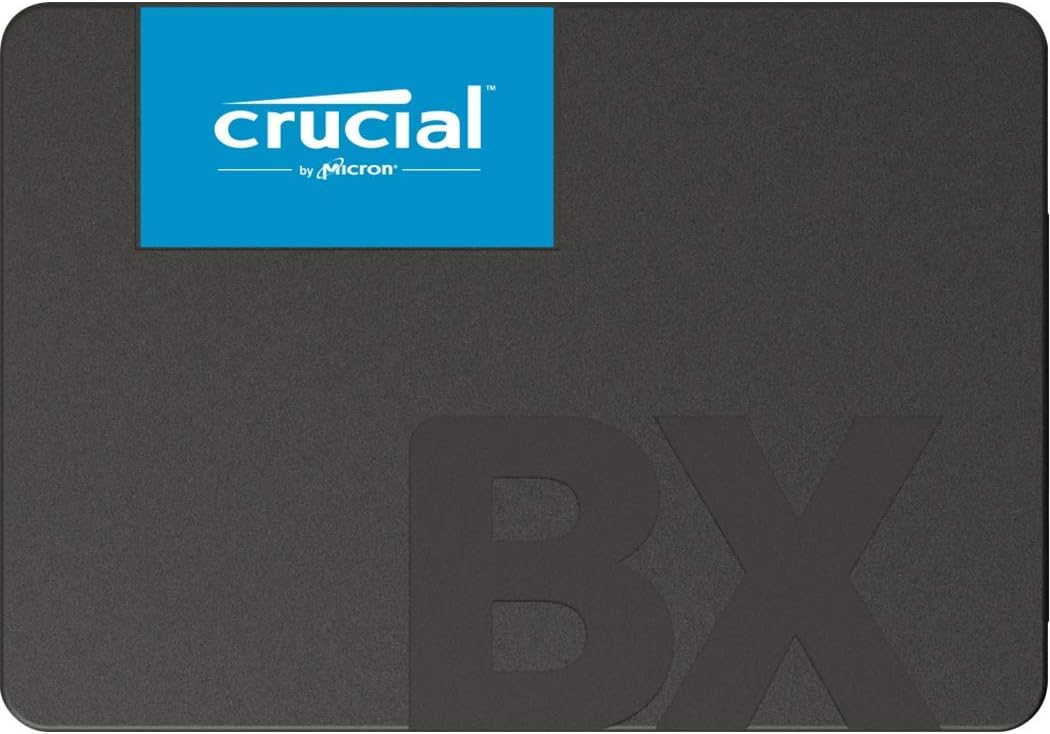
Do not store the only recovery key on the computer whose backup you are trying to protect. Use a password manager or another planned recovery route. Also understand that encryption protects confidentiality; it does not make a damaged drive recoverable or replace additional copies. Storage planning works best when each tool has a clear purpose rather than when one feature is expected to solve every kind of failure.
Buying judgment
I would consider the Canvio Basics 1 TB for a modest secondary copy or an occasional transfer job where mechanical-drive speed and handling requirements are acceptable. I would prefer an SSD for a frequently moved active-work setup, and a larger or more comprehensive arrangement when the backup data already approaches the drive’s capacity. The right choice follows the data and recovery requirement, not the colour of the enclosure.
The real value appears after the first copy: the drive is labelled, the backup runs when expected, and a restored file opens correctly. If you cannot describe that process, improving it may be more useful than changing brands. A simple external hard drive can play a valuable role when the surrounding habits make it a recoverable copy rather than another single point of loss.
Check the exact Toshiba Canvio Basics 1 TB Amazon listing. This is an affiliate link. As an Amazon Associate I earn from qualifying purchases. Confirm model, capacity, condition, supplied cable, and return terms before ordering.
One email a month: new articles, reviews and the upcoming live webinar + free recording. No spam, unsubscribe anytime.