An old computer does not need the fastest storage on sale. It needs storage that fits, works with its interface and contains a safe copy of the files you care about. That is the sensible context for the Samsung 870 EVO 1TB. I would consider it for a planned SATA upgrade, with the backup and installation steps settled before the box arrives.
This is a research-based review of ASIN B08QBJ2YMG and the corresponding 1TB 870 EVO. I have not benchmarked this sample, measured a long write or verified its failure history. The speed figures below come from Samsung. My assessment focuses on deciding whether the interface suits your computer and making the upgrade useful without confusing a new drive with a backup.
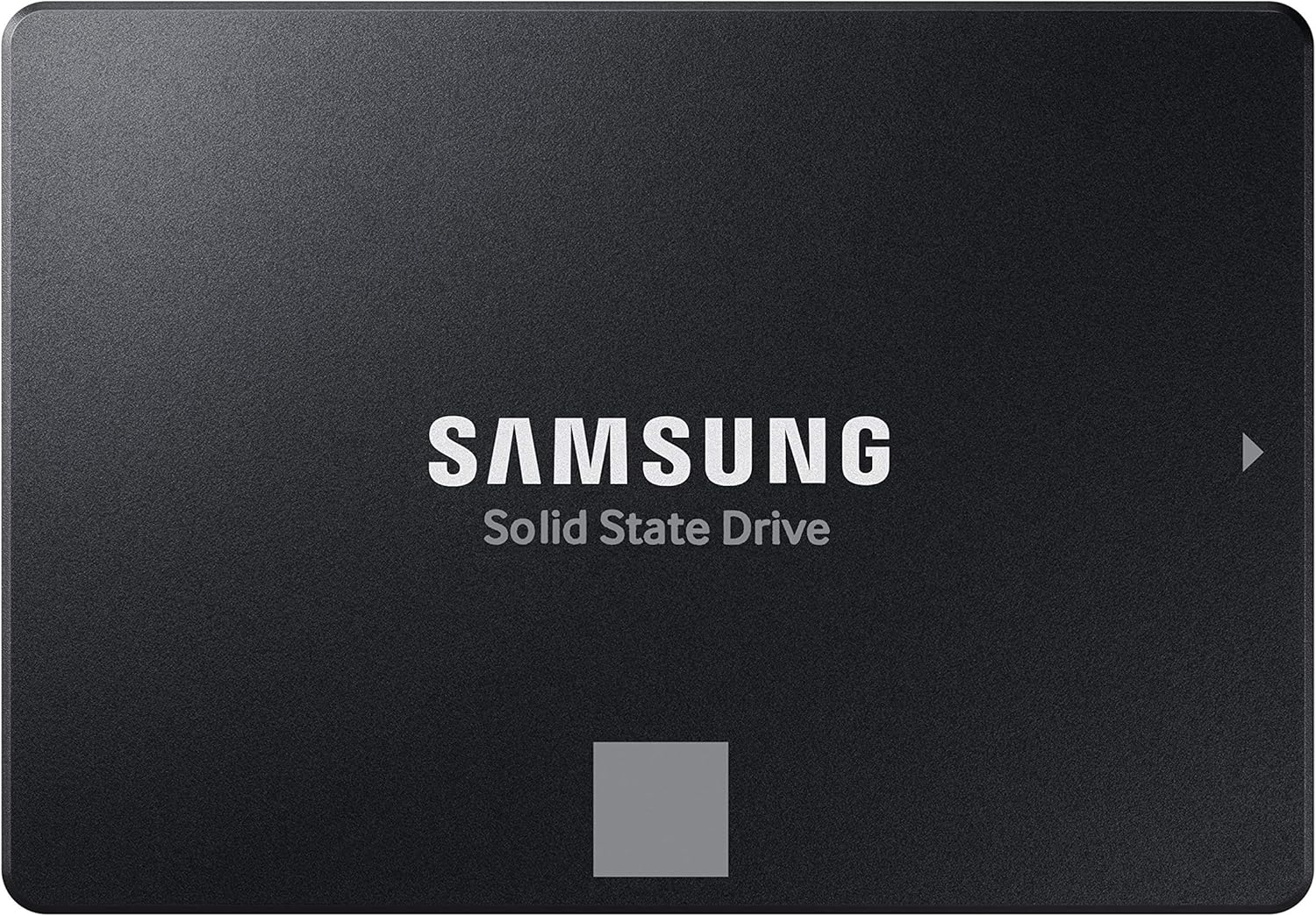
Product image: Samsung product photography from the Amazon listing.
It is a SATA drive
Samsung specifies a 2.5-inch SATA 6 Gb/s design and advertises sequential reads up to 560 MB/s and writes up to 530 MB/s. The official 1TB product information identifies 1,000 GB of nominal capacity and warns that usable capacity can be lower. These figures describe a particular interface and test conditions, not the speed of every file operation. Source: Samsung 870 EVO 1TB.
Related reading
Samsung’s data sheet also makes capacity-specific distinctions, including its write performance outside the accelerated region. That is a reason to read the exact model’s documentation rather than copy numbers from a smaller or larger drive in the family. I have not reproduced those measurements here. For this review, the main point is that this product belongs in a compatible SATA installation, not an NVMe socket. Source: Samsung data sheet.
That distinction saves a lot of wasted shopping. A computer described simply as a laptop or a Mac is not enough information. Find the exact model’s service documentation and storage requirements. Confirm the interface, physical space, cable or caddy, and whether user replacement is supported. A familiar brand on the drive cannot overcome an incompatible connector or storage that is not designed to be replaced this way.
Decide what problem the upgrade should solve
Write down the reason you want the new drive. Perhaps the current disk is full, applications take too long to open, or an older mechanical drive has become the main obstacle to using the machine. Each reason suggests a different check after installation. If the problem is primarily memory pressure or a demanding application, changing storage may help less than the purchase page encourages you to imagine.
For a computer that still uses a mechanical disk, an SSD is worth considering as part of a broader assessment of the machine. Check its operating-system support and the condition of the battery, display and cooling. Spending money on storage makes more sense when the rest of the computer can still do the job. I would not buy a drive merely to postpone deciding whether the machine itself remains suitable.
For a capacity upgrade, inspect what occupies the current disk before choosing 1TB. Old installers, duplicate exports and forgotten videos may explain some pressure, but important work still needs adequate room. Plan for the files you expect to create over the next year. A drive that is comfortable on installation day can become another cramped workspace if you choose capacity only from today’s minimum requirement.
Make the backup before touching the old drive
The first practical step is a separate backup of the files you cannot replace. Do it while the current computer still works. Then open several files from that backup, including a document, an image and something from your current project. A completed progress bar is reassuring, but a successful restore is better evidence that the backup can help when you need it.
If the machine is already behaving badly, avoid turning the upgrade into a series of unnecessary experiments on the only copy of your data. Copy the important material first and seek appropriate help if the drive appears to be failing. A new SSD does not recover files merely by replacing the old one. Data preservation and installation are related tasks, but they should not be treated as the same task.
Keep account details and recovery information available through a safe method before beginning. You may need them when reinstalling software or restoring encrypted data. Do not store the only copy of the recovery instructions on the computer you are about to dismantle. The useful question is whether you can complete the upgrade if that computer becomes temporarily unavailable halfway through the process.
Cloning and a fresh installation have different benefits
Cloning can preserve an existing environment, but only when the chosen method supports your source, destination and operating system. Check the migration tool’s current requirements instead of assuming that a product-family software name covers every platform. I would also ensure the source data fits the destination and keep the separate backup intact. A clone is an installation route, not a reason to skip protection against mistakes.
Related reading

A fresh installation offers a chance to rebuild a simpler setup. It also means reinstalling applications, restoring files and checking that work tools are ready. Choose that route because you want the result, not because it sounds cleaner in principle. Someone with a carefully configured work environment may value continuity more. The right method is the one whose requirements and recovery path you understand.
Keep the old drive untouched until the new setup has been checked. Label it with the computer and date, store it appropriately and avoid reusing it immediately for another job. If you later decide to erase it, make sure that decision follows a verified backup and a working replacement. The temptation to reclaim the old disk quickly is not a good reason to remove your simplest fallback.
An external enclosure changes the equation
This drive can also be part of a suitable external SATA enclosure, but the enclosure and host connection become part of the performance and reliability story. Confirm the enclosure’s supported drive type and size. Check its cable, power arrangement and intended operating system. A drive with a published SATA speed does not guarantee that a random USB adapter delivers that result.
For a desk backup, I would favor a setup that stays connected predictably and is easy to identify. Label the volume clearly so you do not confuse it with another disk when copying files. Use the operating system’s appropriate removal procedure before disconnecting it. The same care applies whether the enclosure looks like a finished retail product or a small adapter cable hanging off a bare drive.
For travel, think about physical protection and the number of loose parts. A separate enclosure, cable and drive can be practical, but a purpose-built portable SSD may be more convenient. Compare the complete price and the actual bag arrangement. Do not compare the bare 870 EVO price with a finished portable drive and assume that the cheaper number describes the whole purchase.
Check the upgrade with normal work
After installation, confirm that the correct drive and expected capacity appear in the system. Install any appropriate updates through official tools supported for your setup. Then open the applications and files you actually use. A synthetic benchmark may be interesting, but the first acceptance check should be whether the machine starts, your work is present and the everyday problem has improved.
Copy a representative folder and verify the result rather than timing a single convenient file. If you want to compare performance, use the same data and describe the connection and conditions. Keep the files backed up while testing. I would avoid presenting one large sequential transfer as a universal verdict on editing photos, building code or opening a collection of small documents. Those are different workloads.
Leave some room for work to grow and keep an eye on storage use. A new drive can encourage careless accumulation because space suddenly feels abundant. Set a reminder to review large folders and the backup status after the first month. This is not a special maintenance burden unique to Samsung. It is a way to turn the upgrade into a lasting improvement rather than a short pause before the next capacity problem.
A new drive still needs a backup
Do not make the 870 EVO the only home for important data. The fact that an SSD has no spinning disk does not make it immune to failure, accidental deletion or loss of the computer. Keep another copy through a method suited to the importance of the files. Include a copy separate from the machine when the consequences of losing both would be serious.
Related reading

Test recovery periodically with something ordinary. Restore a document to a temporary location and open it. Check that a backup includes the folders where new work is now saved, especially after changing accounts or reorganizing the computer. A storage upgrade often changes habits and paths. The backup plan needs to follow those changes rather than remain configured for the arrangement you had before the new drive arrived.
My assessment
I would consider the 1TB 870 EVO for a compatible SATA computer that still has a useful life, or for a carefully chosen external enclosure. Its documented interface and size are the foundation of that recommendation. I would compare current pricing with suitable alternatives and include any installation parts. There is no reason to pay extra for a well-known drive if the complete upgrade no longer offers sensible value.
I would pass for an NVMe-only machine or an upgrade whose compatibility has not been established. My verdict is that this can be a practical SATA purchase when the whole job is planned. The important achievement is a working computer with verified files and a separate backup. A headline transfer figure is useful context, but it is not the goal of the project.
The exact workbook item is available through my Samsung 870 EVO 1TB Amazon link. This is an affiliate link. As an Amazon Associate I earn from qualifying purchases. No benchmark or personal reliability result is implied by this research review.
One email a month: new articles, reviews and the upcoming live webinar + free recording. No spam, unsubscribe anytime.