This keyboard is old enough to have its own history. iFixit’s device page dates the K350 to 2009, and it has outlasted a lot of smarter, slimmer boards since then. People keep buying it for one reason. They like the shape, and few cheap keyboards offer it.
Some points below rest on a small number of voices.
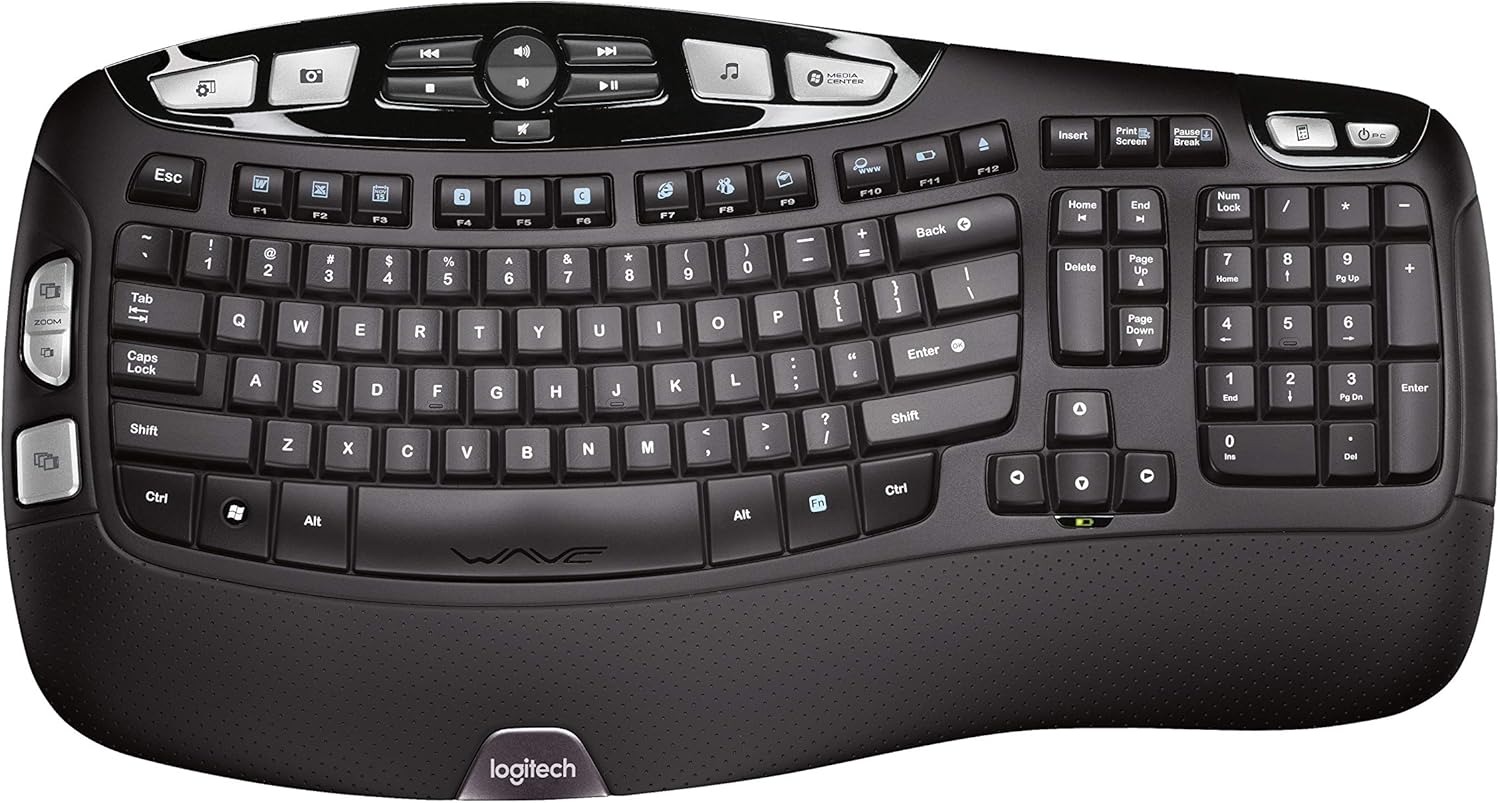
Product image from the Amazon listing.
My opinion, up front: this is a good full-day keyboard for a Windows user who has a big desk and has already decided they want a curve. For a Mac, I would look at something else first.
Related reading
What the Wave Shape Actually Does
Most ergonomic keyboards split the keys or tent them upward. The K350 does something milder. The keys sit in a gentle wave that rises and falls across the board, and there is a padded palm rest along the front. PCWorld’s review describes two dips that follow the natural lengths of your fingers, with sculpted keycaps that are easy to find by touch.
Nobody should expect a medical result from this. It is a modest change, and that is also why it suits so many people. You can move to it from a flat keyboard without learning to type again, which is not true of a fully split board.
It does not work for everyone. PCWorld’s reviewer found the shape somewhat gimmicky and distracting, thought it would take some time to adjust, and suggested trying one in person if you can. On the other side, one owner said they had used this style of Wave keyboard for at least ten years, across three different employers. Loyalty like that says more than a spec sheet can. People who get along with the curve may well stay with it.
Big, Heavy and Loud Enough to Notice
Logitech’s specification page gives a width of 500mm and a weight of 998g. That is close to a kilo of keyboard, and the depth from front edge to back is 265mm. Measure your desk or tray before you order. The palm rest is built in, so you can’t take it off to save space.
The height can catch you out as well. PCWorld warns that with the feet fully extended, the keyboard can stop a tray from sliding back under the desk. Anyone with a pull-out tray should check that gap.
The typing feel is where I have the most doubt. PCWorld says the keys feel hollow and cheap and are fairly loud. RTINGS describes rubber dome switches that feel heavy, with a lot of travel. Those two views fit together. If you like a light touch, or you came from a laptop or a Magic Keyboard, your fingers will work harder here. In a shared office, your neighbours may notice too.
Over an eight-hour day, that heavy press is the real test. The shape helps your wrists, while the switches ask more of your fingers. I can’t tell you which one wins for you, and owners don’t agree.
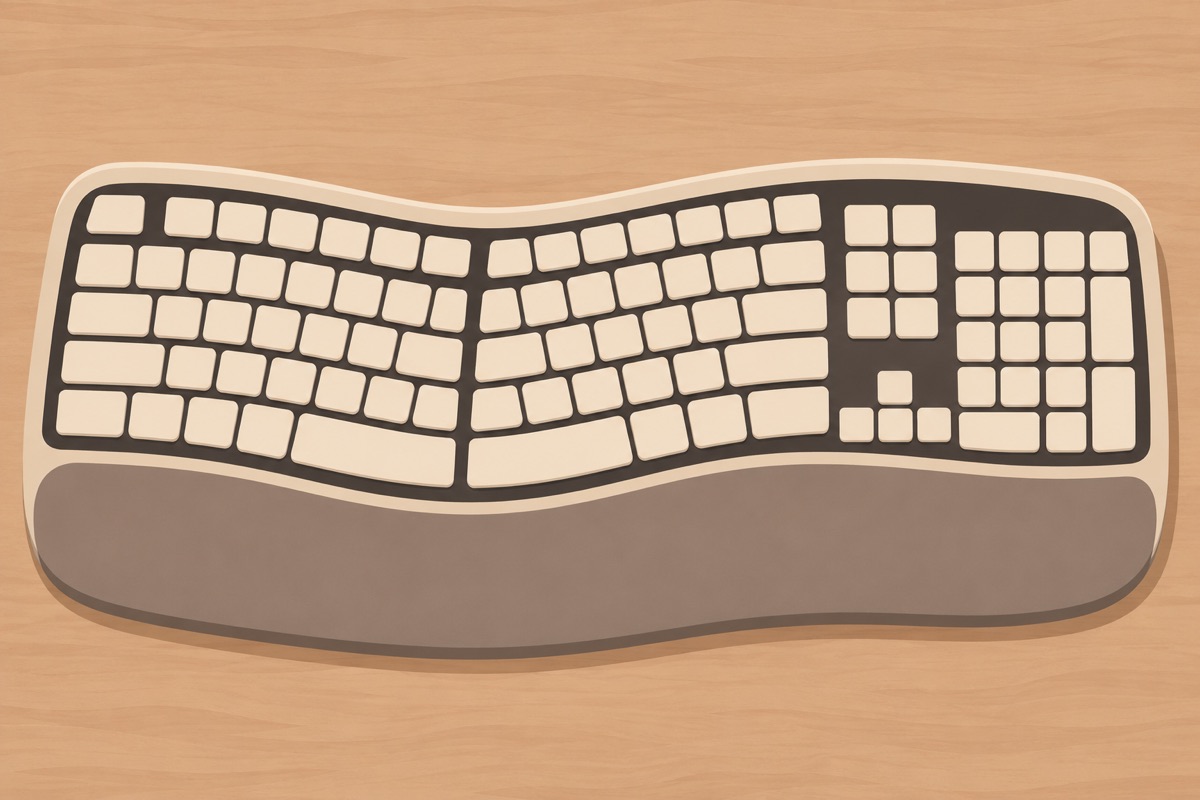
Illustration of this type of product, not a photograph of the Logitech K350 Wave Keyboard.
What Wears Out
The durability reports are mixed, and they follow a pattern. In Slickdeals deal threads, owners describe the letters wearing off the keys over time, especially with gaming. One of them got a replacement from Logitech under warranty. Another reported worn letters on some home keys and a couple of keys going soft after about five years. A separate owner said the keys start to stick a little after years of use, and a Newegg reviewer also complained of sticky keys causing typos after long use.
Related reading

Then there is the palm rest. A post on r/logitech from February 2024 describes the thin top layer of the rest peeling away. It began with a small scratch and kept spreading. That is one owner, and a child was picking at it, so I would not call it a known fault. Soft coatings do age badly, though, and this one is the part your hands rest on all day.
None of that sounds like a serious flaw for a cheap keyboard after five years of daily use. If you type by touch, faded letters on a few keys hardly matter. One owner reported a unit failing within about six weeks, but that was a single case on an earlier listing, and I would not read much into it.
Battery life is the K350’s quiet strength. It runs on two AA batteries, which come installed, and Logitech advertises a long life from them. Owners tend not to mention batteries at all, and with a keyboard that is usually good news.
Mac Owners Should Read This Part Twice
Logitech does not list macOS for this keyboard. Its specification page names Windows 7, 8, 10 and 11, and nothing else. PCWorld’s reviewer found it worked anyway: “While Logitech says the K350 will work only with Windows PCs, anecdotally it also connected to my iMac.”
So it will probably type on a Mac, because it is a standard keyboard behind a USB receiver. The trouble is everything around the typing. The keys are labelled for Windows. The Windows key acts as Command and Alt acts as Option, which puts those two in the wrong order for Mac muscle memory. You can swap them in macOS keyboard settings, but the labels stay the same.
The roughly 30 hotkeys are a bigger loss. PCWorld says there was no Mac version of SetPoint, so Mac users could not customise them. One Apple Community reply mentions Windows-oriented keys that did nothing on macOS, which fits. Some media keys may still work on a Mac. Please don’t buy it counting on the rest.
The software story has also aged on the Windows side. Logitech’s K350 customising guide still walks through SetPoint, and then says SetPoint is no longer supported or maintained, pointing users to Logi Options+. I found no confirmation that Options+ supports the K350, and PCWorld reported back in 2019 that the older Options app did not. If reprogramming those keys matters to you, check that before you pay.

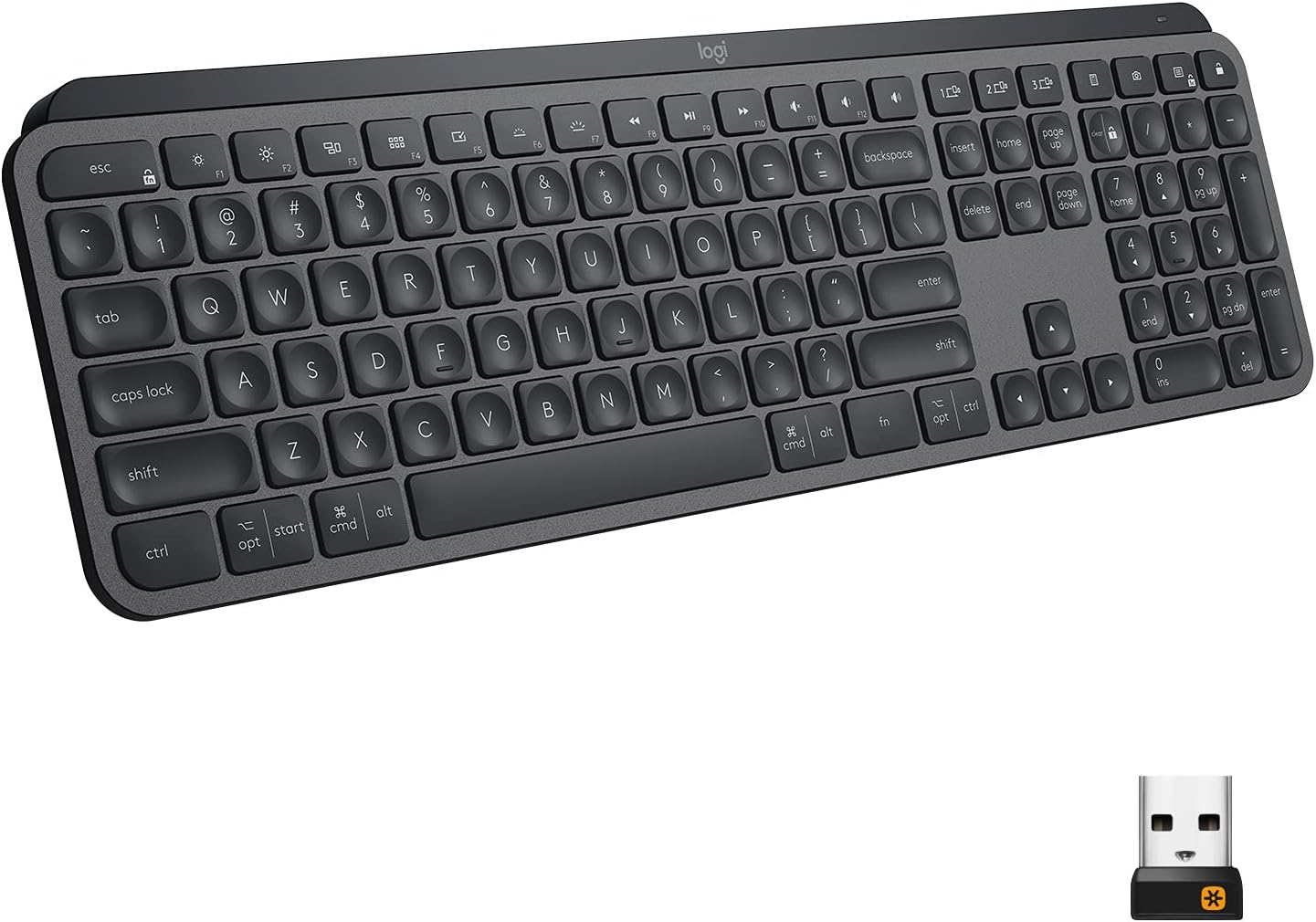
Illustration of this type of product, not a photograph of the Logitech K350 Wave Keyboard.
The Receiver and Your Laptop
The K350 connects through a small Unifying USB receiver, and the user guide shows the receiver plugging into a USB-A port. There is no Bluetooth. That has a good side, since the keyboard works as soon as the receiver goes in. It has a bad side too. A recent MacBook has no USB-A port, so you need an adapter or a hub, and the keyboard can’t switch between devices at the press of a key.
Related reading

The box contents in that guide also show a USB extension cable, which is a sensible extra if the signal is weak behind a desktop tower. Logitech’s guide is an older document, so don’t assume today’s box matches it.
One more check before you order. Listings for this model have covered different regions and layouts over the years. Look at the key layout in the photos on the page you buy from, and make sure it is the one you type on.
A Fine Windows Keyboard That Needs Desk Space
I would buy the K350 for a Windows desktop on a deep desk, for someone who types all day, wants a little wrist relief and does not mind a firm, noisy key. Its long life on the market and the loyalty of owners who like the curve are the best things about it, and the worn lettering looks like a fair price after years of use.
I would skip it for any Mac. Logitech also sells Wave Keys for Mac, which has a cushioned palm rest, and that is where I would look first. Skip it as well if you have a small desk, a shallow tray or a quiet office, or if you want a light touch.
If that first description sounds like you, the Logitech K350 Wave Keyboard is a fair choice, and I would buy it from somewhere with easy returns in case the curve does not suit your hands. This is an affiliate link. As an Amazon Associate I earn from qualifying purchases.
One email a month: new articles, reviews and the upcoming live webinar + free recording. No spam, unsubscribe anytime.