A Mac already contains a capable authenticator. The Secure Enclave protects keys that never leave the chip, Touch ID confirms the person, and iCloud Keychain syncs passkeys across every Apple device signed into the same account. So why plug in a small black key at all?
The answer is separation. A synced passkey is as strong as the Apple Account behind it. A hardware security key holds its credentials on a device that does not sync, cannot be exported and has to be physically present. That makes it inconvenient in exactly the way some accounts deserve: the email that resets everything else, the domain registrar, the password manager, the Apple Account itself.
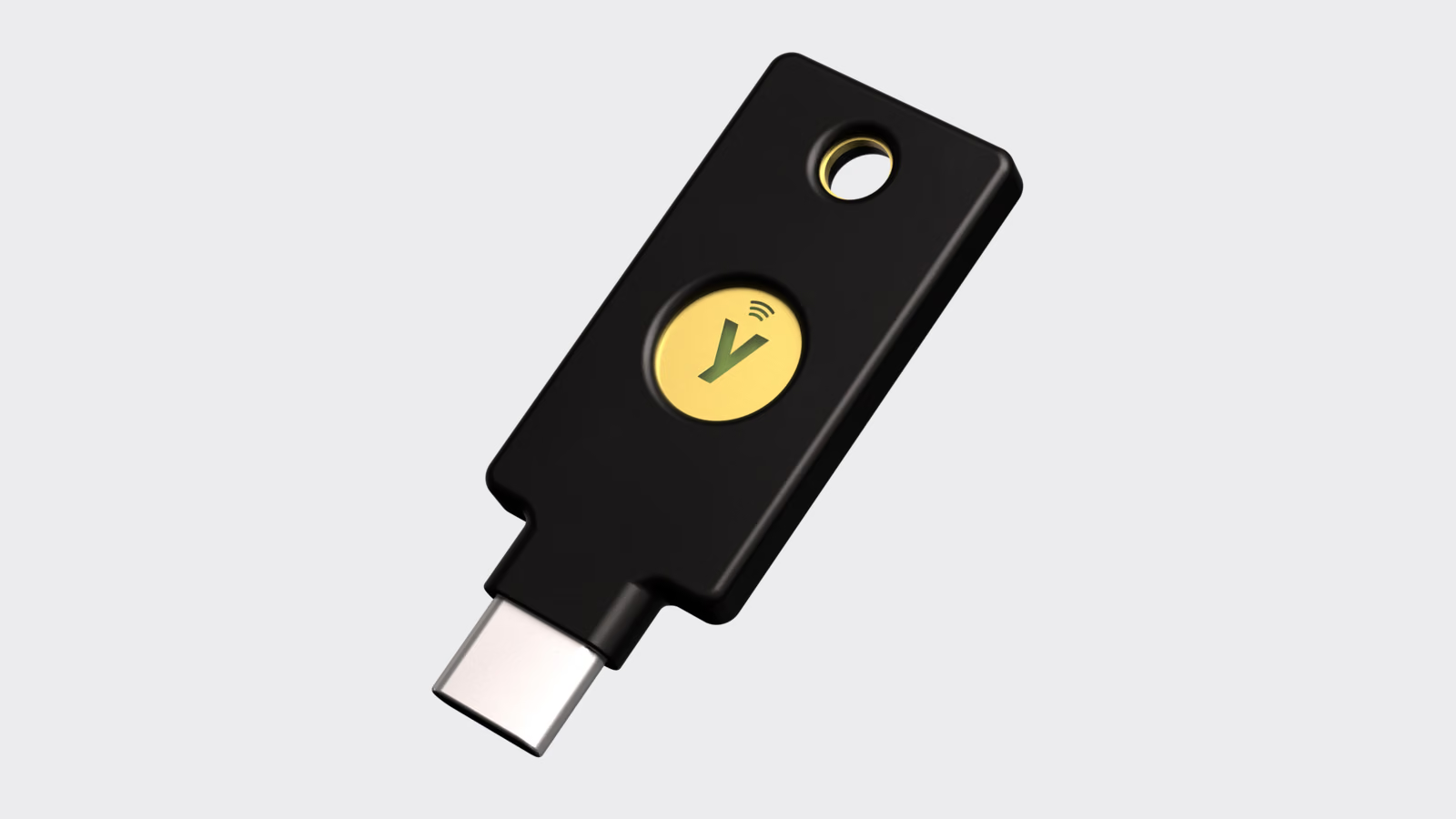
Yubico sent two kinds of key. The YubiKey 5C NFC is the full multi-protocol model. The Security Key C NFC is the cheaper FIDO-only model. Both use USB-C and NFC, and both now store up to 100 passkeys. This review is about living with them on macOS, where the friction is rarely in the key and usually in the browser.
Two keys, two different jobs
The YubiKey 5C NFC speaks FIDO2 and U2F, but also PIV smart card, OpenPGP, OATH one-time codes, Yubico OTP, challenge-response and a static password slot. Yubico’s current page lists firmware 5.8, 100 passkey slots, IP68 dust and water resistance, and a weight of 4.1 grams.
The Security Key C NFC drops everything except FIDO. It does WebAuthn, FIDO2 and U2F, keeps the same 100 passkey slots, and costs roughly half as much. It cannot store TOTP codes for the Yubico Authenticator app and cannot act as a smart card.
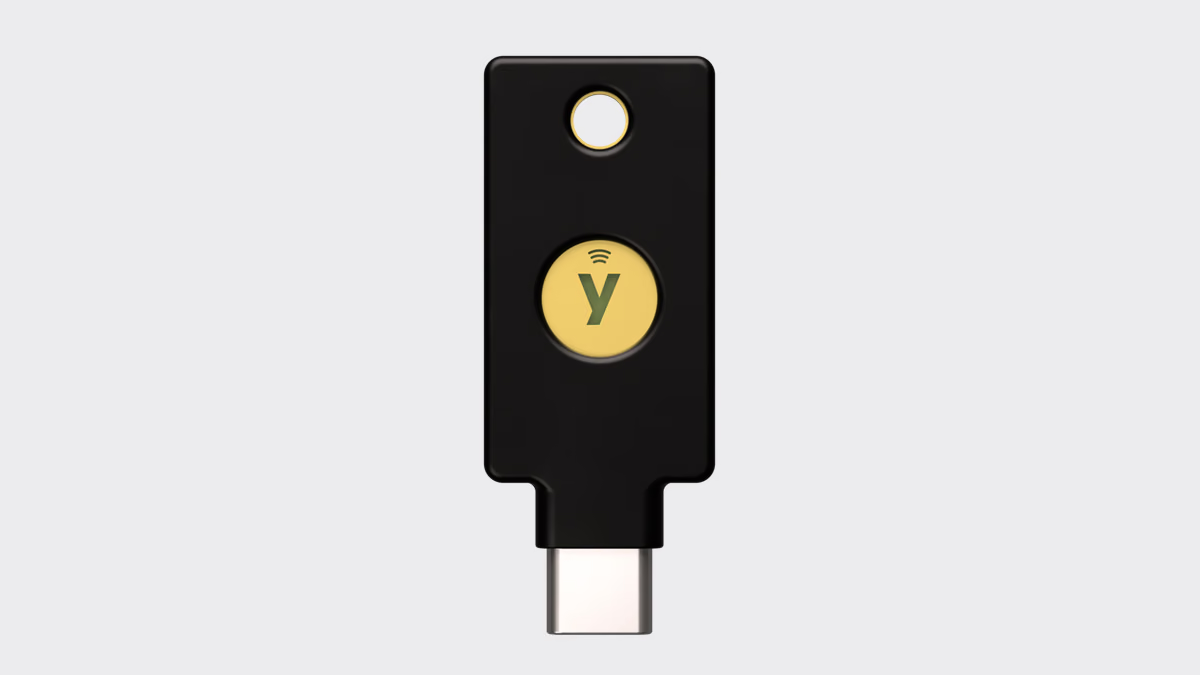
For most people protecting web accounts, the FIDO-only key is enough. The 5 Series earns its price when a key needs to sign Git commits through OpenPGP, unlock a smart-card login, hold TOTP secrets away from the phone, or serve a legacy system that only understands one-time passwords.
Related reading
Safari and Chrome treat the key differently
WebAuthn is a standard, but each browser draws its own interface around it. On macOS that matters more than any specification sheet, because the user decides in a dialog that changes by browser and by operating system version.
Safari defers to the system. When a site asks for a passkey, macOS offers the iCloud Keychain passkey first and places “use a security key” as a secondary option. That is sensible for most people and confusing for anyone who wanted the hardware key. The test is to register the YubiKey on a site that already has an iCloud passkey and count the clicks needed to reach the key.
Chrome uses its own passkey interface, which can save passkeys to Google Password Manager, to iCloud Keychain or to a security key depending on version and settings. Register the same site in Chrome and record which store Chrome proposes by default. A user who clicks through the first suggestion may end up with the passkey somewhere unexpected.
Firefox completes the third browser in the test. It supports security keys well and has a simpler interface, but it is the browser most likely to differ from the other two on resident credential prompts and PIN handling.
For each browser, record the same five things: whether the key is offered at all, how many steps it takes, whether a FIDO2 PIN is requested, whether touch is requested, and the exact wording of any error.
Enrolment is where friction hides
Registering a hardware key is the step where people give up, so it deserves timing. Pick five services that support security keys: an email provider, a password manager, a code host, a domain registrar and the Apple Account. Enrol both keys on each.
Measure the time from opening the security settings to a confirmed second key. Note every service that allows only one key, every service that accepts the key only as a second factor rather than as a passkey, and every service that insists on SMS remaining available as a fallback. That last case weakens the whole point: an account is only as strong as its weakest recovery path.
A FIDO2 PIN is required for a passkey stored on the key. Set it once with Yubico Authenticator or in Chrome’s security key settings, then record how each browser asks for it. A PIN prompt that appears in one browser and not another is not a bug; it reflects whether the site asked for user verification. It still confuses users, and it is worth writing down.
Count the slots. With 100 passkey slots, a person is unlikely to fill a key, but the slots are shared across every resident credential and deleting them requires a management tool. Check that Yubico Authenticator on macOS lists the stored passkeys and can remove one.
The Apple Account is the most important enrolment
Apple supports physical security keys for the Apple Account. Adding keys requires at least two, which is the correct design: a single key is a single point of failure. Once enabled, the keys replace verification codes when signing in on a new device or at appleid.apple.com.
This is also the place to be careful. With security keys enabled, a person who loses both keys and every trusted device can be locked out. Test the procedure deliberately, on a non-critical day: register both keys, sign out of a secondary device, sign back in with each key in turn, and confirm that NFC works for an iPhone sign-in with the 5C NFC.
Write down what happens with only one key present, and what Apple offers if neither key is available. The point is not to find a failure. It is to know, before it matters, which device and which key a recovery depends on.
Related reading

Where the Secure Enclave and iCloud Keychain fit
A hardware key and the Secure Enclave are not competitors. They answer different threat models.
A passkey in iCloud Keychain is protected by the Secure Enclave on each device and end-to-end encrypted in sync. It is convenient, it is backed up, and it is available on a new iPhone after sign-in. Its security therefore depends on the Apple Account and on every device that can unlock the keychain.
A passkey on a YubiKey lives on the key and nowhere else. It is not backed up, which is both the strength and the cost. Losing the key means losing that credential, so every important account needs a second key registered at the same time.
A sensible arrangement on a Mac is mixed. Use iCloud Keychain passkeys for ordinary accounts, because they are phishing-resistant and easy. Use the hardware keys for the accounts that recover everything else. Keep one key on the key ring and one in a drawer that is not in the same bag.
Two keys and three browsers is the real test
The failure modes appear only in combination. Register Key A in Safari and Key B in Chrome on the same service, then try to sign in with Key B in Safari and Key A in Firefox. A service that registered the credential correctly will accept either key in any browser. A service with a fragile implementation may accept a key only in the browser where it was enrolled, or may lose track of which key is which.
Record every combination: two keys, three browsers, five services, both USB and, where possible, NFC through an iPhone. That is sixty sign-ins for USB alone. It sounds tedious, but it is the test that predicts whether a person will be stuck at an airport with the wrong key and a browser that refuses it.
Also test the inconvenient moments: a key inserted after the dialog has appeared, a key removed mid-prompt, a sleeping Mac woken with the key already inserted, and a USB-C hub between the Mac and the key. Hubs and docks are a common source of keys that light up but are not seen by the browser.
Repeat after every macOS point release
Passkey interfaces on macOS change more often than the keys. A point release can alter Safari’s dialog, change how Chrome talks to the system authenticator or fix a bug that broke one combination. Results recorded today expire with the next update.
The practical answer is a short regression list rather than a full repeat. After each macOS point release, sign in to the five services once with each key in each browser, sign in to the Apple Account with a key, and confirm the FIDO2 PIN prompt still appears where expected. Note the macOS, Safari and Chrome version numbers next to the result. A table with dates is more useful than a verdict without them.
Durability and daily carry
The 5C NFC is small enough to stay on a key ring and plugs into the side of a MacBook without blocking the adjacent port on most models. A key that lives on a ring catches on pockets and gets bent sideways while plugged in, so treat it like a key, not like a dongle that stays inserted.
Yubico rates the 5 Series at IP68 and quotes a crush resistance figure on its product page. Those claims describe a key built to survive a pocket, dust and the occasional spill. The more likely failure is not the hardware. It is the key being left in a hotel desk.
For desktop Macs, the nano form factor that stays permanently in a port is convenient, but it weakens the “something you physically have” model when the Mac itself is stolen. The keyring model is the safer default.
Related reading
Price and alternatives
The Security Key C NFC sits at roughly half the price of the YubiKey 5C NFC in Yubico’s European store. For pure web passkeys, two Security Keys cost about the same as one 5 Series key, and two keys are the right number to buy.
Google’s Titan keys and other FIDO2 keys cover the same web use. They differ in management tools, firmware update policy and the protocols beyond FIDO. YubiKey firmware cannot be updated, so a newer firmware feature requires a new key. Check the firmware version on the packaging or in Yubico Authenticator before relying on a feature such as the 100-slot passkey limit.
Verdict
The YubiKey 5C NFC and the Security Key C NFC work well on a Mac once they are enrolled, and the hardware is not the weak point. The friction lives in browser dialogs that favour synced passkeys, in services that allow only one key or keep SMS as a fallback, and in a recovery path that has to be tested before it is needed.
I would buy two keys, not one, and register both everywhere in the same sitting. I would use the FIDO-only Security Key for web accounts and the 5 Series only where PIV, OpenPGP or TOTP is actually needed. I would add the keys to the Apple Account last, after the other accounts are working, and rerun the short regression list after every macOS update.
Choose hardware keys for the handful of accounts that can reset everything else. For the rest, iCloud Keychain passkeys already give most of the phishing resistance with far less effort.
Product images: Yubico.
One email a month: new articles, reviews and the upcoming live webinar + free recording. No spam, unsubscribe anytime.