A desktop without Bluetooth can make a wireless keyboard or speaker feel like the wrong purchase. The TP-Link UB400 is a tiny USB adapter intended to add that missing connection to a supported PC. The important word is supported. Its small USB plug does not make it a universal Bluetooth upgrade for every computer, and TP-Link’s own guidance gives a clear reason for Mac owners to look elsewhere.
This is a research-based review of the UB400 Bluetooth 4.0 adapter linked below. I have not tested range, latency, audio quality, or controller behaviour. TP-Link’s specifications and support answers establish the platform discussion. The practical advice explains how to check a proposed setup without turning forum reports of an unofficial workaround into a promise of current manufacturer support.

The Mac answer should be clear
TP-Link’s support FAQ says the UB400 and UB4A support Windows rather than Mac or Linux. That is a more useful buying fact than a scattered report that a particular operating-system version happened to recognise one unit. I would not choose this adapter as a supported solution for a current Mac. Apple Silicon compatibility should not be assumed from the presence of USB or from an older Intel experiment.
The official Bluetooth-adapter FAQ and UB400 product page are the references here. The product page lists supported Windows versions and describes the nano design, USB interface, and Bluetooth 4.0 radio. Check the exact hardware revision and current download page before using it with an older operating system. A driver being available does not make an obsolete operating system suitable for general internet-connected use.
Related reading
Bluetooth is not Wi-Fi
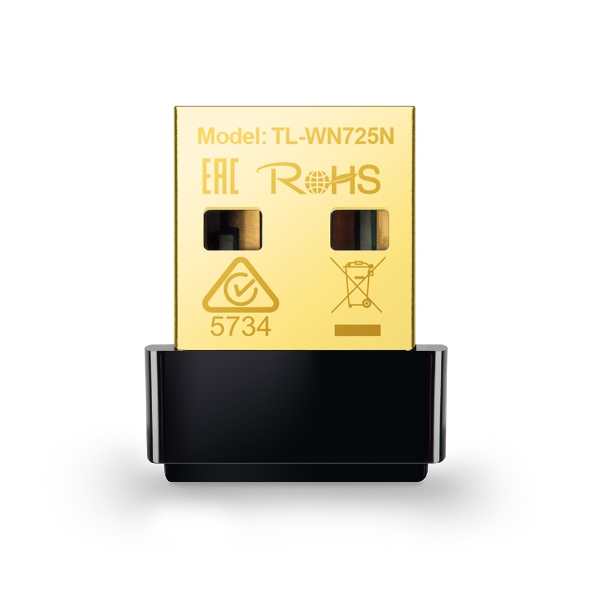
The UB400 connects compatible Bluetooth devices. It does not add Wi-Fi internet access, improve the router’s range, or replace a missing wireless-network adapter. That distinction is obvious once explained, but small USB radio accessories can look very similar in a catalogue. Choose according to the connection the peripheral actually uses, rather than buying the cheapest item described as wireless.
A mouse with its own dedicated receiver may not use ordinary Bluetooth at all. Such a device normally needs its matching receiver or another explicitly supported route. The UB400 cannot be assumed to replace a missing proprietary dongle. Check the peripheral’s manual for a Bluetooth pairing mode before buying an adapter to connect it. This one small check can prevent the most basic mismatch between the accessory and the device you wanted to use.
Decide what must connect
Make a short list of the peripherals you need: a keyboard, a speaker, a game controller, or perhaps more than one item. Check each maker’s current Windows and Bluetooth requirements. The Bluetooth version is only one part of compatibility; supported profiles, drivers, and software behaviour matter too. A device being discoverable does not establish that every feature works as intended.
If the main need is a specific game controller or headset, look for documented compatibility with that product and operating system. Some devices have their own preferred adapter or a different connection for particular features. A general Bluetooth adapter may still be useful, but it should be selected for the actual workload rather than an assumption that it unlocks everything described as wireless.
Check the computer before adding another radio
A computer may already have Bluetooth that is disabled, missing its driver, or turned off in settings. Check the device information and the computer maker’s support page first. Adding a second adapter without understanding the first can make troubleshooting more confusing. TP-Link’s support guidance discusses conflicts with existing Bluetooth adapters and drivers, so follow the documented setup for your situation.
If the computer is managed by an employer or school, use its approved support process before changing drivers or disabling hardware. At home, keep a note of what you change so the original configuration can be restored. The goal is one known working Bluetooth path, not a growing collection of overlapping utilities and radios. A simple adapter should reduce the amount of maintenance required to connect a peripheral.
Prepare the correct driver
Use the official UB400 download page and select the exact revision supplied. Follow the current instructions for the Windows version in use. Avoid unrelated driver websites or software bundles that promise to fix every device. Network and radio drivers are not a good place to accept an installer of unclear origin merely because it appears high in search results.
Save the required installer and instructions before making changes if the computer has limited connectivity. Restart when the documented procedure requires it, and confirm the adapter appears normally before pairing every device at once. Begin with one simple peripheral. A successful small setup creates a reference point, while adding several devices immediately can leave you unsure whether a fault belongs to the driver, adapter, or one particular peripheral.
Related reading

Placement affects a tiny antenna
The nano shape is convenient because little sticks out of the USB port. It also means the radio may be placed wherever the port happens to be, including behind a metal desktop case. A receiver surrounded by cables and other USB equipment can face a different environment from one in an open front port. If the connection is unreliable, test a clearer position before assuming the adapter has no useful range.
A short suitable USB extension cable can make that comparison easy. Keep the same peripheral and distance while changing the adapter position. If the connection improves, you have learned something about the physical path. If it does not, investigate the driver, peripheral state, and nearby interference. A claimed range under ideal conditions should not be treated as a promise through walls, furniture, and a crowded workstation.
Pairing is a process to learn once
Put the peripheral into its documented pairing mode and use the operating system’s normal Bluetooth controls. Give the device a clear name if the software allows it. After connecting, check the basic task before exploring extra functions. For a keyboard, type a short document and test wake behaviour. For a speaker, play audio and confirm the chosen output device.
Restart the computer and peripheral to see whether they reconnect predictably. This matters more for daily convenience than a successful first pairing. Keep a wired keyboard or mouse available while testing input devices, especially if changing radio settings could temporarily disconnect the only controls you have. The best setup is recoverable without needing the same Bluetooth connection that you are trying to repair.
Audio needs more than a version number
A Bluetooth 4.0 label does not promise a particular audio codec or low delay in every application. The operating system, driver, headset, and profile all participate in the result. Listening to stereo audio and using the same headset’s microphone can involve different modes. I would not claim high-quality calls or gaming latency for the UB400 without testing a defined combination.
If audio is the main reason for buying it, make a real call and try a video or game during the return period. Check whether the application selects the intended microphone and output. If the sound changes when a call begins, investigate the supported profile behaviour rather than assuming the speaker has suddenly failed. For latency-sensitive or important communication work, a dedicated supported connection may be the more appropriate choice.
Controller use needs its own check
A controller can pair successfully while a game still fails to recognise its buttons or expected features. Check the controller maker’s Windows guidance and the game’s supported input path. If a platform offers a dedicated wireless adapter, compare the documented differences before choosing general Bluetooth simply because it is cheaper. The correct connection depends on the features you need.
Test ordinary movement, buttons, reconnecting, and a realistic play session. Do not infer responsiveness from a brief menu interaction. I have not measured the UB400’s latency or reliability with any controller, so there is no gaming-performance result here. A return-period test with the exact controller and PC is the evidence that matters for that purchase.
Keep expectations modest and specific
The UB400’s appeal is a small, inexpensive addition for a supported Windows machine with a clear missing function. It is not an upgrade to the newest Bluetooth feature set, and it does not guarantee that newer peripherals expose every capability through an older radio. Compare a current supported adapter if the required device or software expects newer features.
Related reading
A low initial price is useful only when it avoids extra work. If the setup requires unofficial drivers, repeated reconnecting, or changes that complicate the computer’s existing hardware, reconsider the choice. There is no benefit in saving a small amount on a radio accessory and then spending every week recovering the same connection. The right adapter should quietly enable the peripheral you already want to use.
My verdict
I would consider the UB400 for a Windows PC when the exact operating system, adapter revision, and peripheral requirements match TP-Link’s support information. I would not recommend it as a supported current-Mac solution or a universal replacement for dedicated receivers. The product is most useful when its job is narrow and documented.
Check the computer first, pair one device, and verify reconnection and real use before adding more. Those steps turn a tiny dongle from a hopeful purchase into a known part of the setup. If compatibility remains uncertain, choose another device with explicit support rather than asking the UB400’s familiar appearance to stand in for evidence.
Check the exact TP-Link UB400 Amazon listing. This is an affiliate link. As an Amazon Associate I earn from qualifying purchases. Confirm hardware revision, supported Windows version, and peripheral needs before ordering.
One email a month: new articles, reviews and the upcoming live webinar + free recording. No spam, unsubscribe anytime.