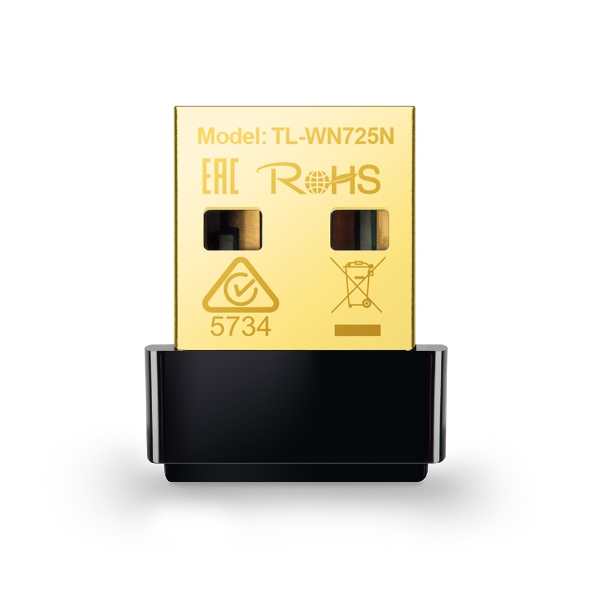
The TP-Link TL-WN725N is the kind of accessory that looks simpler than the decision around it. It is a tiny USB Wi-Fi adapter, small enough to leave in a laptop port. For an older computer with broken wireless networking, that can be useful. For a current Mac, the question is whether the required driver exists for your exact hardware and operating system at all.
This is a research-based review. I have not measured its speed, range, or stability on a computer. TP-Link’s product and support pages establish the hardware family and the need to select the correct revision. The recommendations below explain where that design may help and where I would choose another solution. I am not claiming Apple Silicon compatibility from an old mention of Mac OS X.
Solve the driver question first
A USB connector tells you how the adapter attaches physically. It does not establish that the computer can use its radio. Before ordering, find the exact hardware revision on the seller’s description and open the matching section of TP-Link’s download centre. Compare the listed operating systems with the full version installed on your computer. If the seller cannot identify the revision, you do not yet know enough to choose the correct driver.
Related reading

This matters especially with macOS. A product page that says Mac OS X can refer to software for much older Intel systems. That wording does not promise support for a current macOS release or an Apple Silicon machine. I would not buy the TL-WN725N for a modern Mac unless the manufacturer explicitly documents that particular combination. Installing an old driver and hoping is a poor recovery plan for a computer that needs dependable access to the internet.
Understand the speed on the box
TP-Link describes the TL-WN725N as a USB 2.0 nano adapter using 802.11b/g/n on the 2.4 GHz band, with a maximum advertised wireless link rate of 150 Mbps. It uses an internal antenna. Those are the useful design facts from the official product specifications. They place it firmly in the category of basic wireless access for an older machine, rather than a fast upgrade for a modern workstation.
The 150 Mbps figure is a radio link rate under suitable conditions. It is not a promised download speed, and it does not describe a file-copy result measured here. Wireless protocol overhead, signal quality, nearby networks, and the router all affect useful throughput. If your internet connection is much faster than this adapter’s link rate, the adapter can become a limit. That may be acceptable for email and documents, but it should be understood before replacing an existing connection.
Size is the attraction and the compromise
The small body leaves little sticking out from the computer. That is useful on a laptop that moves between rooms or travels in a bag. A larger adapter can snag or place more leverage on a USB port. Even a nano adapter deserves care, though. Check that it is not being pressed sideways by a sleeve or a nearby cable before putting the machine away.
An internal antenna in a small shell also gives you less freedom to position the radio. A desktop’s rear USB ports may sit between a metal case and a wall, with other cables crowded around them. If reception is unreliable, a short USB extension cable can let you test a clearer position. That does not guarantee better range, but it helps separate a placement problem from a driver or router problem without immediately buying another adapter.
The 2.4 GHz band has a specific role
The TL-WN725N does not give you a choice between 2.4 GHz and 5 GHz networks. It belongs to the older single-band category. If your router uses one network name for several bands, make sure the 2.4 GHz radio is enabled and configured in a compatible way. If the network is available only on another band, this adapter is the wrong tool regardless of how close you sit to the router.
A crowded 2.4 GHz environment can make a basic connection frustrating even when the signal indicator looks healthy. Nearby Wi-Fi networks and other radio devices share the area. Start by testing close to the router, then move to the intended location. If the connection works nearby and struggles at the desk, focus on distance, obstructions, and placement. If it fails in both places, start with driver support and network configuration instead of repeatedly adjusting the antenna position that this model does not have.
Prepare an offline recovery route
A Wi-Fi adapter bought to fix a missing connection creates an obvious problem: how will you download its driver? Use a working computer to obtain the correct official installer before disconnecting the old setup. Save it to a USB drive along with the installation instructions and the exact adapter revision. Do not rely on a tiny included disc being useful on a computer without an optical drive.
Related reading

Keep that installer after the first successful setup, but check the official support page for updates when necessary. Avoid driver-download sites that mix unrelated software with the file you need. A network driver operates close to the operating system, so its origin matters. If an installation asks you to weaken security settings in ways the current manufacturer instructions do not explain, stop and reassess whether the adapter is an appropriate solution for that machine.
Test the boring parts of a connection
A successful first connection is only the start. Check that the adapter reconnects after restarting the computer and after sleep. Try unplugging and reconnecting it according to the operating system’s normal procedure. Open the websites or remote services you actually use. For a machine used in meetings, make a test call rather than treating a speed-test result as proof of a good experience.
For a local file-transfer test, use the same large file and the same destination when comparing positions or settings. Keep other large downloads paused so the comparison has a clear meaning. Record the computer, operating system, adapter revision, and router band if you want results you can interpret later. These are useful checks for your own installation. They are not performance figures for this review, because I have not run them on the hardware.
Separate internet trouble from local Wi-Fi trouble
If a website feels slow, compare another device connected to the same router. A problem with the internet service can look like an adapter failure. Conversely, a fast phone connection does not prove a tiny adapter behind a desktop case has the same radio conditions. Look at both the shared network and the individual machine before changing settings at random.
A useful practical check is to copy a file to a local server while the internet is otherwise idle. If local networking works consistently but online access fails, investigate the router’s internet connection or the service itself. If both local and internet access drop together on this one computer, the adapter, USB connection, driver, or local signal becomes a more likely place to look. Change one thing at a time so you can tell which action helped.
Security compatibility deserves a clear answer
Older wireless equipment can support a narrower set of security modes than current hardware. Check the requirements of the network you want to join against the exact revision’s documentation. Do not weaken an otherwise suitable household or work network simply to accommodate a very cheap adapter. The cost of choosing a supported device can be smaller than the consequences of changing security policy for every connected machine.
For a workplace or managed computer, ask the responsible administrator which adapters are supported before installation. Some organisations restrict drivers and network devices for good operational reasons. A small physical size does not make a network adapter exempt from those rules. At home, keep the router firmware maintained and use the strongest mutually supported configuration that the manufacturer recommends for your equipment. If the required compatibility is missing, a different adapter is the cleanest answer.
When a cable is the better accessory
The TL-WN725N is most persuasive when you genuinely need wireless access on a compatible older computer. If the computer stays at a desk close to an Ethernet connection, a supported Ethernet adapter or a direct cable may be easier to maintain. It avoids the radio placement problem and can offer a clearer path to troubleshooting. Check the computer’s ports and operating-system support before assuming a different USB accessory will automatically work.
Related reading

For occasional repair work, a tiny Wi-Fi adapter can also be useful as part of a toolkit, provided you know which systems it supports. Label it with its revision and keep the relevant installer nearby. It is less useful as an emergency accessory when nobody remembers the chipset, driver, or intended operating system. Good preparation makes inexpensive older equipment useful; vague compatibility assumptions are what turn it into a drawer full of nearly helpful parts.
My buying judgment
I would choose the TL-WN725N only after confirming a supported driver and a modest bandwidth requirement. Its small size is a real advantage when a compatible laptop needs basic Wi-Fi without a large protruding adapter. I would choose something else for a current Mac without explicit support, a fast NAS workflow, or a network that requires a radio band or security mode this model cannot provide.
The key decision happens before the checkout: match the computer, operating system, hardware revision, and network. If all four fit, the product has a clear and limited job. If one is uncertain, a low price is not enough to make it a good bet. A network accessory should restore access with a manageable amount of work, and driver support is the foundation of that promise.
Check the exact TP-Link TL-WN725N listing on Amazon. This is an affiliate link. As an Amazon Associate I earn from qualifying purchases. Confirm the revision and current driver support before ordering.
One email a month: new articles, reviews and the upcoming live webinar + free recording. No spam, unsubscribe anytime.