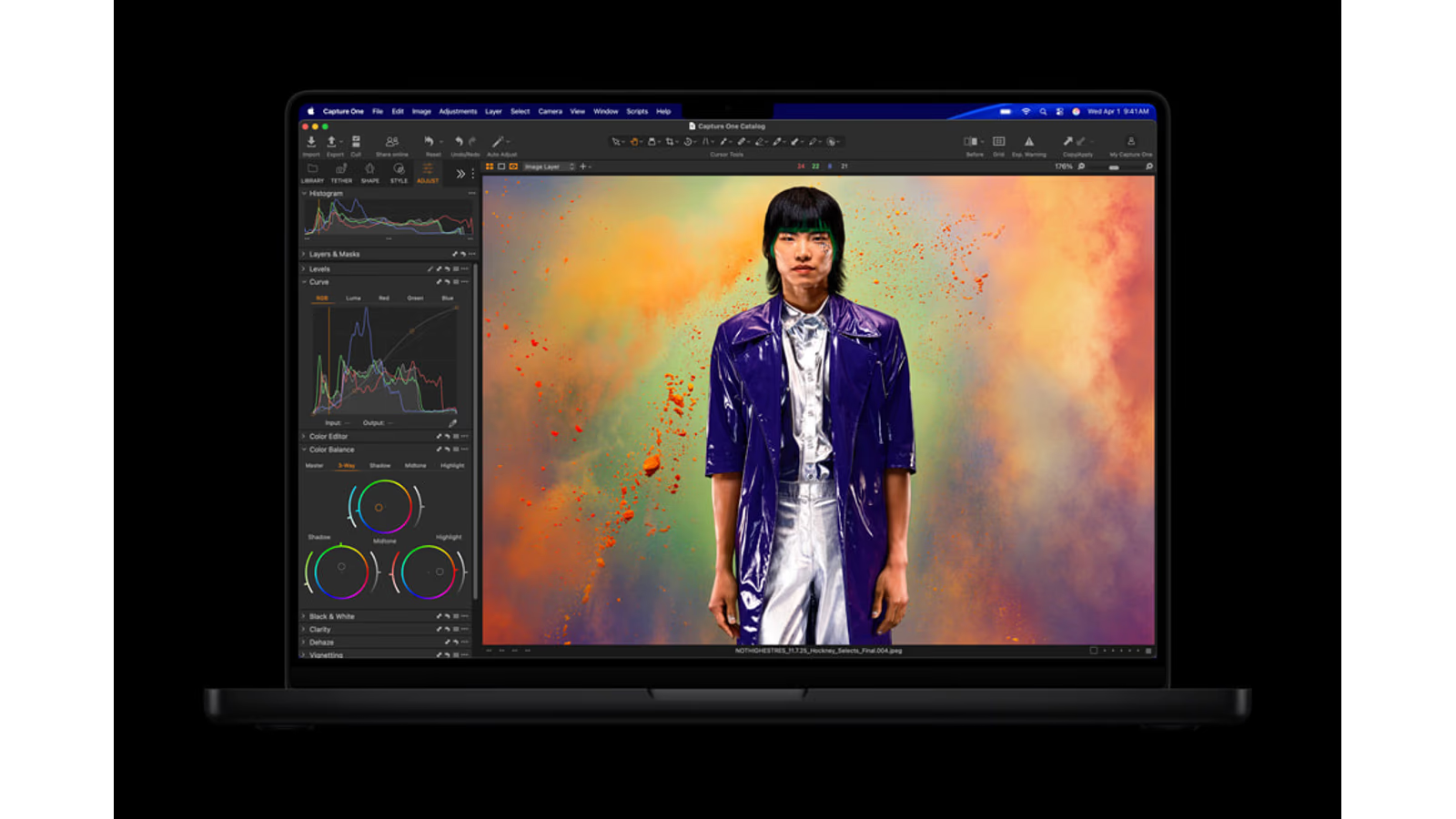
Official product image: Apple Newsroom. Reused as a 1600 × 900 AVIF without changing the hardware.
The most irritating mobile workstation problem can be a tiny missing adapter. The laptop is ready, the project is ready, and the room’s screen has a connection you cannot use. A faster chip does nothing for that meeting. A well-planned travelling setup does.
This fifth MacBook Pro Workbench article examines moving between a home desk and another workplace. It is a research workflow guide, checked on 21 October 2026, rather than a report of my own dock or battery tests. My aim is a setup that is simple to connect, easy to diagnose and small enough that you will actually carry it.
Give each desk a clear job
Two desks do not have to be identical. The permanent editing desk might need a large display and working storage. The second desk might only need power, a keyboard and a presentation screen. Trying to reproduce every connection at both locations can add cost without improving the work done there.
Write down the first task at each location. If the first task is a video call, test the camera, microphone and speakers before optimising the storage connection. If it is a colour review, the display deserves more attention than the number of spare USB sockets. This small exercise turns a shopping list into a plan for a working day.
Use Apple’s MacBook Pro specifications to identify the connections and display support of the exact configuration. The family name alone is not enough. Save those details with your setup notes so a future cable or display purchase can be checked against the machine you own.
Related reading
A connector is only the beginning
USB-C describes a connector shape used by connections with different capabilities. A cable that charges the laptop may not support the display or data link you intend to use. A dock’s collection of sockets also does not mean every socket has an independent high-speed path to the computer.
I would label the important cables by their actual job: desk display, working drive, charging and travel spare. The label does not need a complicated technical code. It needs enough information to stop someone putting the wrong cable in the bag at the end of the day.
Apple’s Thunderbolt connection guidance provides background for checking compatible devices and cables. For a particular dock, the dock manufacturer’s own compatibility information is also necessary. This article does not certify an untested combination just because its plugs fit.

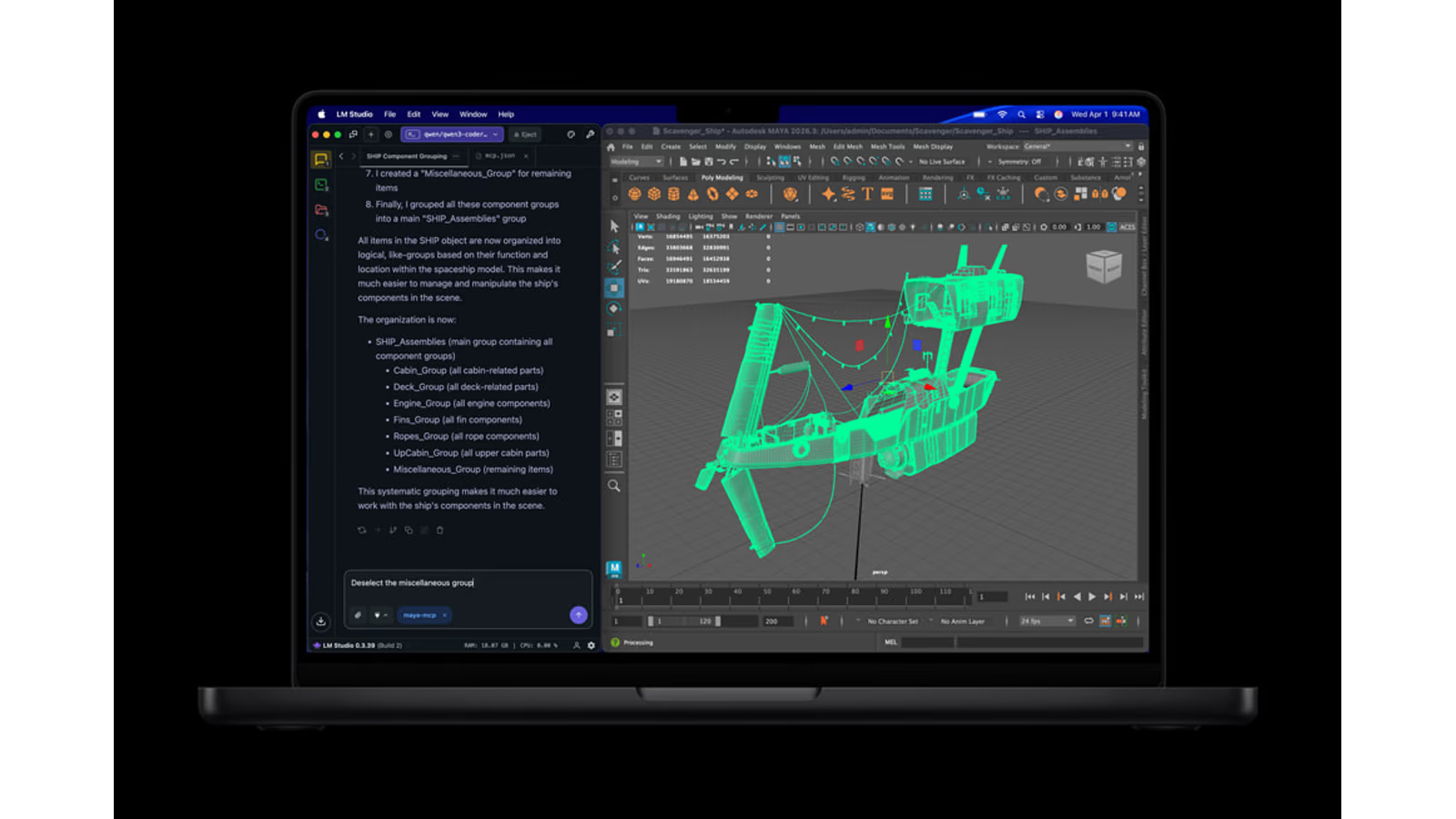
Official product image: Apple Newsroom. Reused as a 1600 × 900 AVIF without changing the hardware.
Decide what should stay connected
A fixed desk benefits from leaving the awkward parts in place. A display cable routed behind furniture, an audio interface and a backup drive do not become more useful by travelling in a bag each morning. Keeping them at the desk reduces the number of connections that can be forgotten or damaged.
The travelling kit should have a different standard: every item needs a reason to be there. I would carry a dependable charging path and the presentation connection required by the places I visit. An occasional specialist reader can join the bag for the job that needs it. This keeps the default kit lighter and easier to inspect.
There is a trade-off. Duplicate essentials cost money, and a spare still needs occasional checking. Compare the complete euro cost of keeping a charger at each regular location with the inconvenience of carrying one. The useful answer depends on your route through the week, not on whether a minimal bag looks attractive in a photograph.
Related reading
Test waking up, not just plugging in
A successful first connection is encouraging. A useful desk also needs to work after sleep, after the laptop returns from another location and after a peripheral has been unplugged. These transitions are where small setup problems often become visible.
My proposed trial starts with a normal session. Put the Mac to sleep, disconnect it as you would when leaving, then reconnect at the second desk. Check the display arrangement, sound input, sound output and network connection. Open a project from the expected location. Then repeat the journey in the other direction.
If something fails, simplify the path. Connect the affected device directly where possible and compare. Change one cable or port at a time. This is slower than replacing the entire dock immediately, but it gives you an explanation. Keep a note of the known working arrangement so the next troubleshooting session starts with evidence.

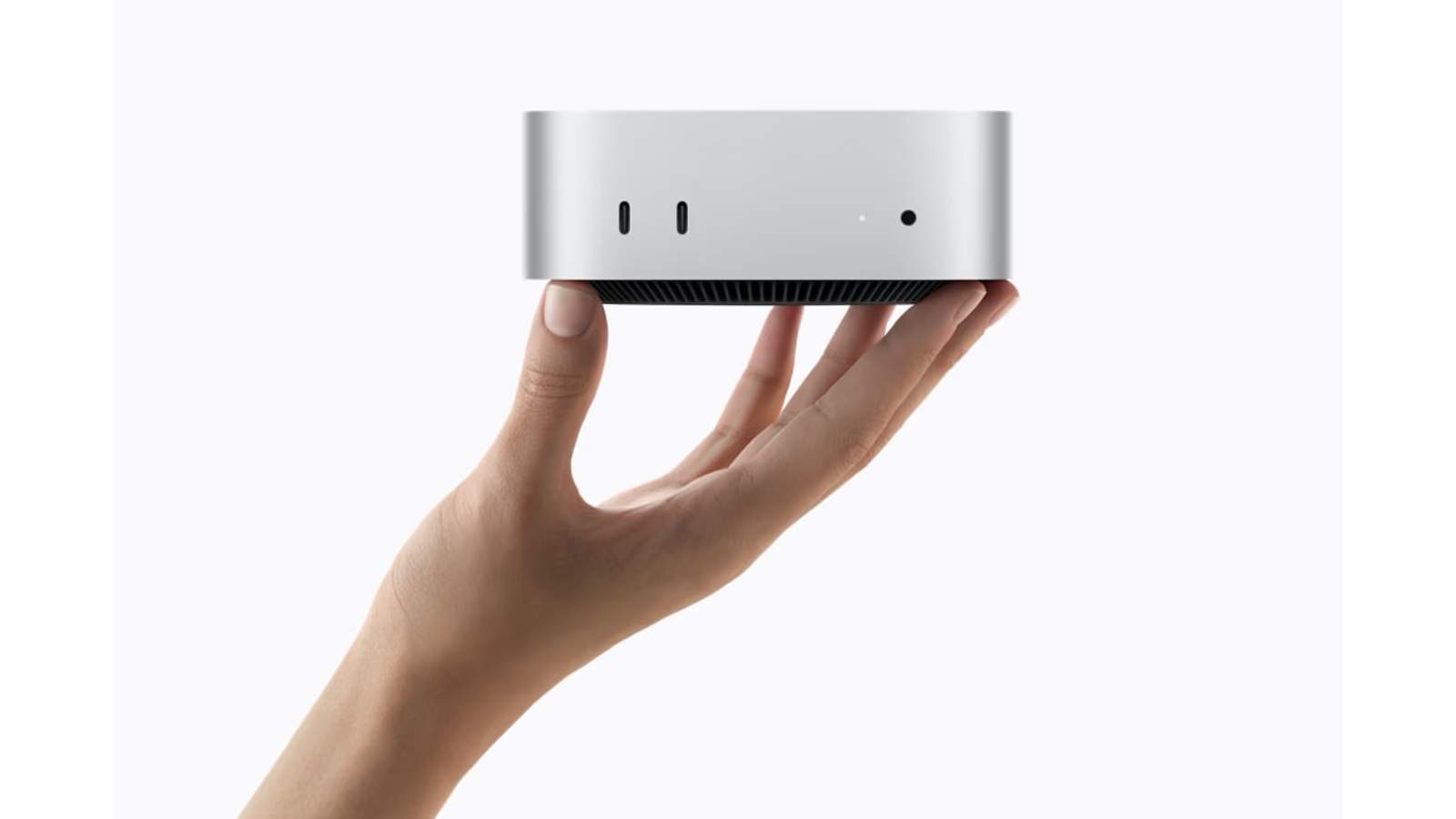
Official product image: Apple Newsroom. Reused as a 1600 × 900 AVIF without changing the hardware.
Make project access independent of the desk
A mobile computer can still depend on files left at home. A project may open while its source media, font or reference document is missing. That is a different failure from a dock problem, and it deserves a separate check before leaving.
For an active job, identify which files must be local and which can wait for a network connection. Download the required material and open it while away from the original storage path. Do this with a copy when changing project organisation. The objective is to discover missing dependencies while there is still time to retrieve them.
Cloud synchronisation can help move documents between locations, but it is not proof that every file has arrived or remains available offline. A status icon is a starting point for checking. Actually opening a representative file is stronger evidence. For a presentation, also keep a delivery format that can be opened without the full authoring setup.
Power needs a normal-day trial
Apple documents separate energy choices for battery and external power in About Power Modes on your Mac. Available options depend on the model. These settings are worth recording when comparing behaviour at two desks; they can otherwise become an invisible difference between sessions.
I would test the second desk with the devices normally attached. A display or dock may provide a charging path, but the complete arrangement must be suitable for the laptop and workload. Watch whether the battery is charging, holding steady or declining during the intended task. A charging symbol by itself does not describe the entire working session.
For travel, build the plan around real charging opportunities. A reliable break near a socket may be enough. A long day of editing away from power asks for a different plan. I have not measured either case on this machine, so I would not turn Apple’s battery marketing into a promise about your route.
Related reading
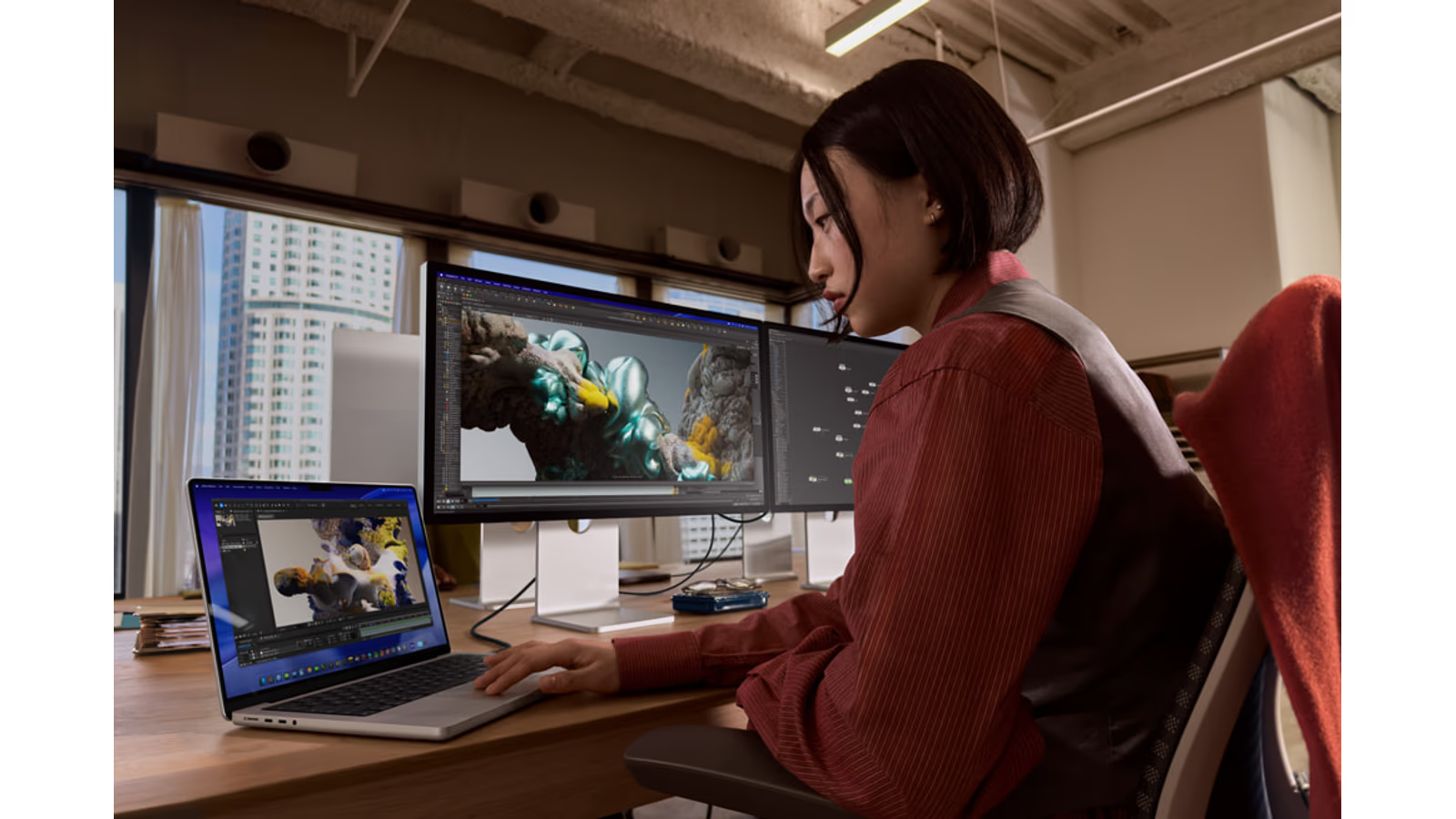
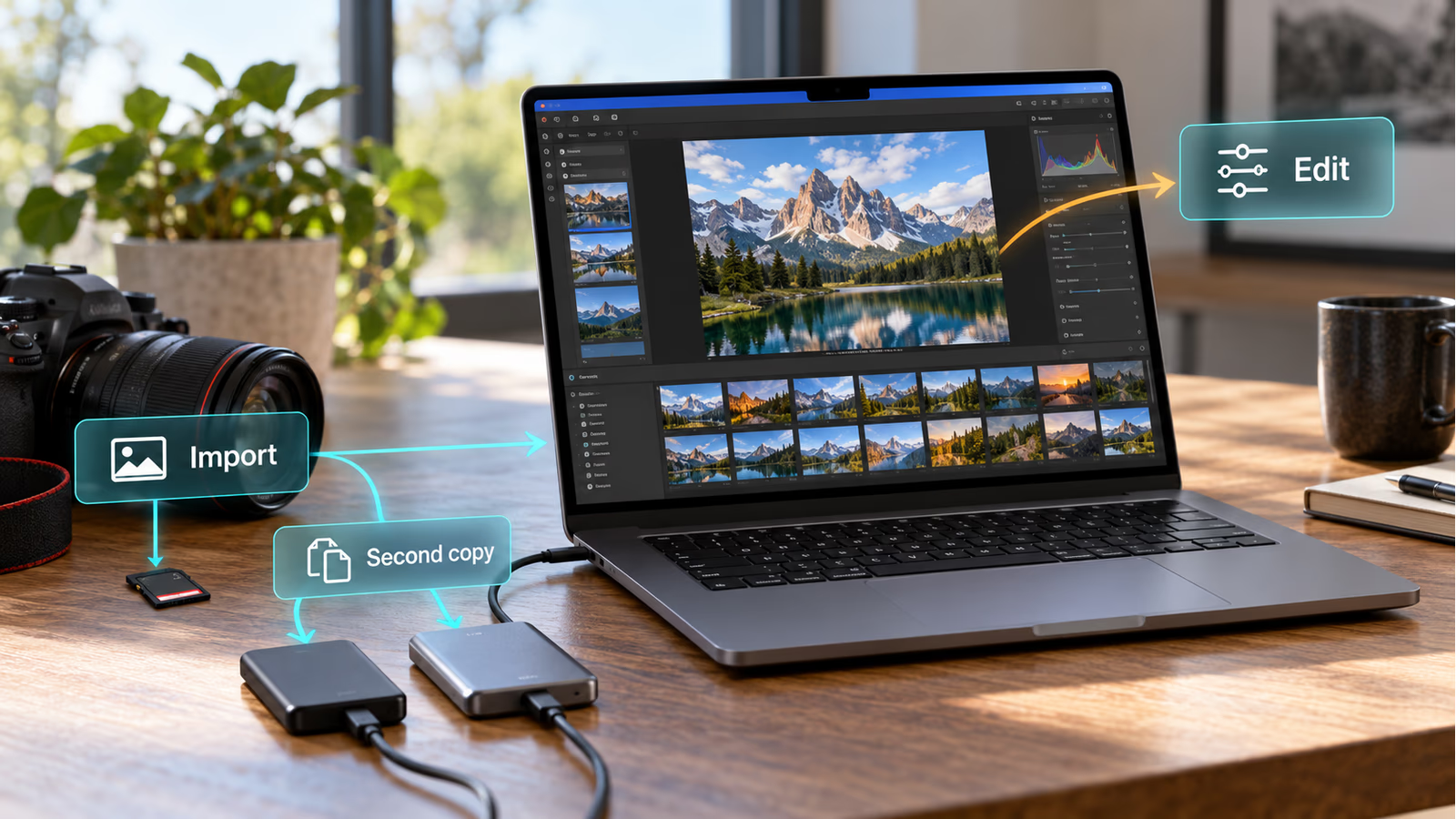
AI-generated conceptual illustration, reused from the earlier Apple series. Product appearance follows its Apple reference. Overlays explain a related workflow; they are not real app screens, built-in AR features or measured results.
The forgotten-drive rehearsal
Suppose the second desk has a good screen and power, but the project normally uses a drive left at home. The laptop opens the library and shows recent thumbnails. That can make the setup look complete until a particular clip or source file is needed.
I would rehearse the next session with the home drive disconnected before leaving. Open the difficult part of the project and produce a small output. The check should include supporting material such as sound, fonts or linked documents, according to the application. This tests the job rather than the appearance of its recent-file entry.
If the project cannot travel conveniently, divide the work deliberately. The second desk might serve writing, selection or review while the main workstation retains the heavy media task. That is a valid mobile arrangement when the boundary is clear. It becomes frustrating only when the laptop is expected to do a job whose inputs were never packed.
After returning, identify which copy contains the new work and how it joins the main project. Do not leave both desks with plausible current versions and hope the names explain themselves. A simple handoff note can preserve more useful time than another accessory, because it stops the next session beginning with an argument between two almost identical folders.
A desk checklist that earns its space
| When changing location | What I would confirm |
|---|---|
| Before leaving | Project files open without the original drive |
| On arrival | Correct display layout and usable text size |
| Before a call | Intended microphone, camera and speakers selected |
| During demanding work | Suitable power connection and stable peripherals |
| Before unplugging | External storage ejected and transfers complete |
The final row is easy to rush. An external drive may still be doing useful work after the visible document has closed. Leave time to finish transfers and eject it through the operating system. A travel routine should protect the project as well as the convenience of leaving quickly.
I would keep the checklist short enough to use. It should cover the failure that would spoil the next session, rather than every setting the computer offers. Once the routine is stable, the checklist becomes a quick glance at a few essentials. That is a better outcome than rebuilding the desk from memory every morning.
My verdict is that MacBook Pro’s value between two desks depends on the whole connection plan. Build a permanent setup where it helps, carry a small kit with a clear purpose, and test the move in both directions. The computer can then arrive ready to work, which is the kind of portability that matters after the first week.
Continue reading
- AI coding on MacBook Pro: count the accepted change
- MacBook Pro power modes: test the session you need
- Mac Studio: smooth playback beats a fast export
- External SSD for Mac: choose the job before the drive
- MacBook Pro M5 Pro vs M5 Max: a product assessment
- MacBook Pro for video editing: build a mobile studio
Product search
As an Amazon Associate I earn from qualifying purchases. Affiliate disclosure.
Search Amazon.com for MacBook Pro (affiliate). This is a search page, not a verified recommendation for an individual listing. Confirm the exact model, configuration and regional terms before buying. No Amazon price or stock is quoted.
One email a week with practical Mac workflows, useful comparisons and honest tech recommendations.