The Logitech G502 HERO makes more sense when you want extra controls under one hand than when you simply want the largest sensor number. Its shape, buttons, scroll wheel, and optional weights define the everyday experience. A very high sensitivity setting is not a shortcut to better aim or more efficient work, and it cannot make a mouse comfortable if the body does not suit your hand.
This is a research-based review of the wired G502 HERO associated with Amazon ASIN B07GBZ4Q68. I have not measured click latency, tracking, or long-session comfort, and I have not played games with a review unit. Logitech’s product information supports the features described below. This is not the wireless LIGHTSPEED model or the differently designed G502 X.
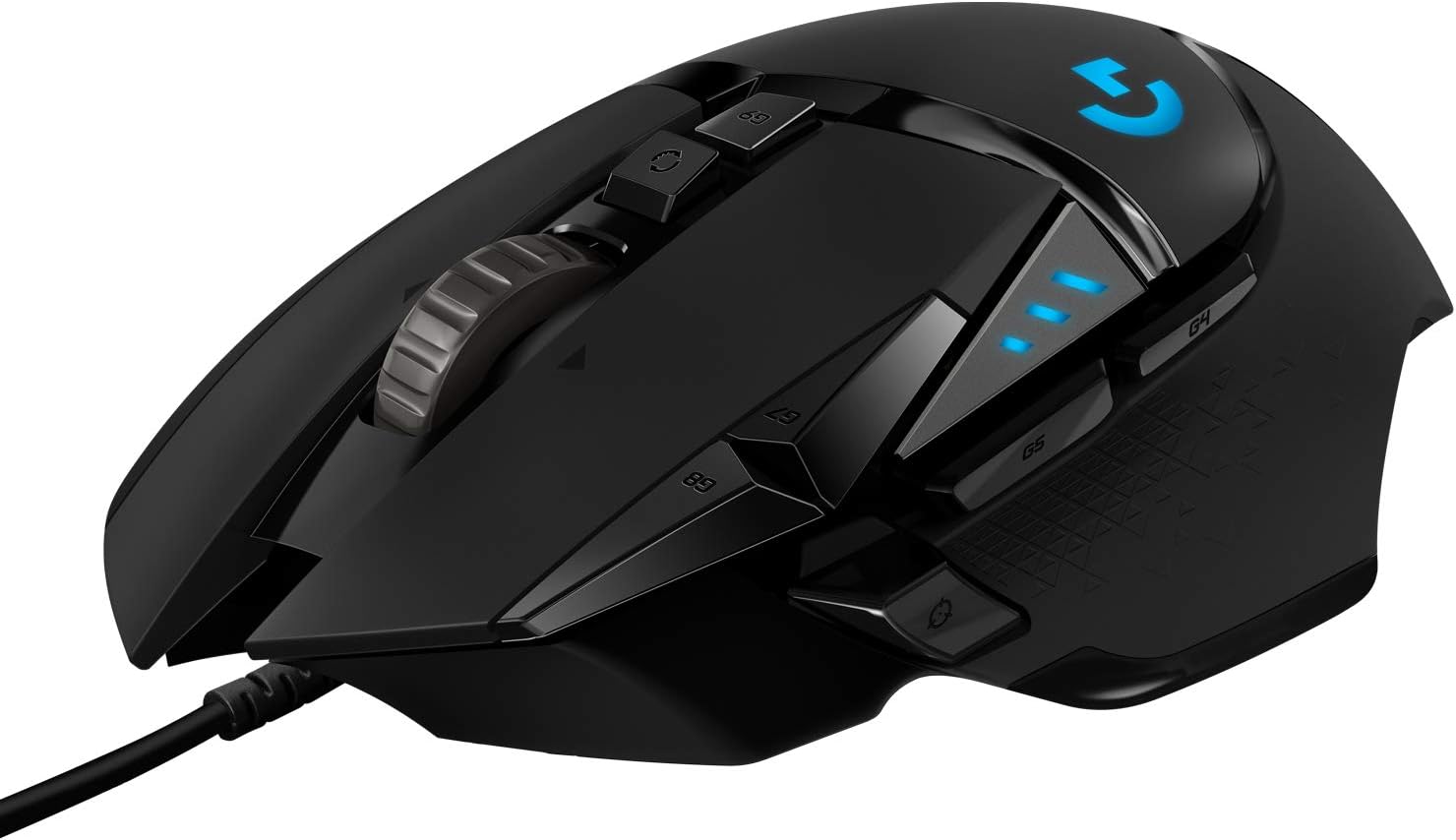
Start with the shape and your desk
Look at where your thumb and fingers would sit, then consider the way you normally hold a mouse. A prominent thumb rest and several nearby controls can be useful for some grips and awkward for others. Try the physical shape where possible, or use a seller with practical return terms. Hand dimensions alone do not fully describe grip, movement, and comfort during the tasks you actually do.
Also check the desk area. A mouse used with broad arm movements needs room, while a crowded full-size keyboard can push it too far to the side. Adjust the chair, keyboard, and pointer settings before blaming every discomfort on the device. The G502’s feature list does not replace a sensible physical arrangement. A tool that feels secure for a short demonstration may still be tiring when used through a long work or gaming session.
Related reading

What Logitech documents
Logitech describes the G502 HERO with its HERO 25K sensor, eleven programmable buttons, adjustable weights, onboard profiles, and RGB lighting. The current page gives a sensitivity range up to 25,600 DPI and explains configuration through G HUB. Those are manufacturer features from the official G502 HERO page, not performance measurements in this review.
That design supports a specific kind of customisation. You can place useful commands on accessible buttons and set a preferred sensitivity. It does not mean every button must be assigned, every profile must be automatic, or the maximum DPI must be used. The best configuration may be much simpler than the software permits. Choose what improves a repeated task and leave the rest easy to understand.
Add commands gradually
Start with the normal left and right buttons, scrolling, and a comfortable pointer speed. Add one extra command that you use often, such as a documented in-game action or an application shortcut. Practise until it is reliable, then decide whether another assignment is worthwhile. Filling all the buttons immediately can make it hard to remember what each one does and harder to diagnose an accidental action.
For desktop work, choose reversible actions while learning. A navigation or view command is a safer starting point than a complex sequence that sends a message or deletes something. Keep the ordinary keyboard route available so the mouse does not become the only way to perform a task. The point of programmable controls is to reduce effort, not to create an elaborate personal control scheme that interrupts work whenever a profile changes.
Profiles need a clear purpose
Separate game or application profiles can be useful when the same button should do different jobs. They can also surprise you if automatic switching occurs at the wrong moment. Give profiles meaningful names and test which one is active before using important commands. Start with a simple default that remains understandable on the desktop.
Logitech documents onboard memory for supported saved settings. Check which of your intended functions can be stored and which depend on G HUB running. A complex software macro and a basic button assignment should not be assumed to behave identically when you move to another computer. Test the actual arrangement without the usual software environment if portability is part of the reason for buying. Keep a copy of the configuration where the supported tools allow it.
Sensitivity should match the task
A headline DPI value describes an available setting, not the quality of your movement. Begin at a moderate level that lets you place the pointer accurately without excessive effort. In a game, adjust the combination of mouse and in-game sensitivity deliberately. Change one setting at a time and give yourself enough time to adapt before deciding whether it helps.
If you regularly trigger sensitivity changes by accident, reduce the available steps or change the relevant button assignment where supported. Five sensitivity levels are not useful when you only need one. For desktop work, test small targets, text selection, and movement between screens. For games, use a familiar practice situation rather than judging the mouse during an unusually good or bad match. I have not run a tracking or gameplay test, so no claim of competitive improvement is made here.
Related reading

Weight is a preference to investigate
The G502 HERO includes removable weights, which let you alter the feel and balance. Start without adding everything. Try normal use first, then make a small change if you have a clear reason. More weight is not automatically more precise, and less weight is not automatically comfortable for every task. The useful question is whether your hand can move and stop the mouse naturally over the required session.
Keep unused weights in a labelled place so they do not disappear. Avoid treating constant adjustment as a substitute for checking grip and desk position. If the basic mouse already feels too large or heavy for you, adding or moving weights may not solve that mismatch. A different shape can be the more direct answer, even when this model offers more customisation on paper.
Give the cable room
The wired connection removes a mouse charging routine and provides a straightforward data path, but the cable still affects movement. Route it with enough slack for the full area you use. Check that it does not catch on a monitor base, desk edge, or another cable. A small tug at the end of a wide movement can feel like inconsistent tracking when the problem is physical resistance.
If a cable support helps your desk, use it to guide the lead without forcing a sharp bend. Do not assume a particular cable material from an old review, because supplied revisions can differ. Inspect the actual unit and protect the connection when packing it. The wired HERO should be chosen because its connection and shape fit your routine, rather than as a way to inherit features of another G502 model with a different cable or radio.
The scroll wheel can serve work too
A wheel that suits long pages and documents can make a gaming mouse useful outside games. Test controlled scrolling, middle click, and any side-scroll functions you intend to use. The behaviour can vary by application, so a smooth spreadsheet experience does not establish identical results in a browser or design tool. Configure the parts that help your real software.
If the wheel offers different scrolling modes, learn the changeover and choose the one that suits the task. Fast scrolling through a long page and precise movement through a small list ask for different control. Keep accidental middle clicks or nearby button presses in mind while assessing fit. A large set of controls is valuable only when the ones you need are easy to reach without triggering the others.
Mac support is more than a USB connection
Basic pointer input and full configuration support are different questions. Check Logitech’s current G HUB requirements for the macOS release and computer you use. A USB-C-only Mac also needs a suitable physical connection for the mouse’s plug. Do not assume a feature demonstrated on Windows has identical software support on every Mac.
Install software only from the official source and understand any system permissions it requests for the functions you want. Test assignments after a restart and after switching applications. If the computer is managed by an organisation, follow its approved process before installing input-control software. A device bought to simplify shortcuts should not depend on a configuration you are not allowed to maintain.
Reliability needs ordinary checks
During the return period, test single clicks, dragging, wheel movement, and the buttons you actually plan to use. If a drag unexpectedly releases or a single press produces repeated input, check the application and connection before documenting the fault for the seller. Do not assume a product is trouble-free because of its reputation, or defective because of another person’s experience with a different unit.
Related reading

Keep the surface and sensor area reasonably clean using the manufacturer’s care guidance. Avoid opening a new mouse or applying unofficial fixes before using the warranty route for a genuine fault. I have not performed a durability test, so there is no lifetime claim here. A sensible purchase includes a clear way to deal with a unit that does not behave normally.
My verdict
I would consider the wired G502 HERO when its shape fits and several well-chosen buttons would help both games and desktop work. I would choose another design for someone who wants a very light, minimal mouse or cannot comfortably reach the controls. The highest DPI number is not the deciding feature; the useful combination is fit, predictable movement, and a configuration you can remember.
Start simple and earn each extra assignment through use. If the mouse lets you perform repeated tasks with less effort and no accidental input, it has a clear role. If the configuration and shape create constant small interruptions, more available controls do not make it the right tool for you.
Check the exact Logitech G502 HERO Amazon listing. This is an affiliate link. As an Amazon Associate I earn from qualifying purchases. Confirm the wired HERO variant, current software support, seller, and return terms before ordering.
One email a month: new articles, reviews and the upcoming live webinar + free recording. No spam, unsubscribe anytime.