A gaming mouse should let you stop thinking about the mouse once a game begins. The Logitech G305 has a clear approach to that job: receiver-based wireless and one replaceable AA battery. I would consider it for someone who prefers that arrangement to another device that needs a charging cable. The decision still starts with how the shape fits your hand, not the largest sensitivity figure on the box.
This is a research-based review of the black G305 LIGHTSPEED, ASIN B07CMS5Q6P. I have not measured input delay, tested its sensor or played with this sample. Any performance figures mentioned below are Logitech’s claims. The practical assessment describes how I would choose and evaluate the product without turning those claims into personal gaming results.

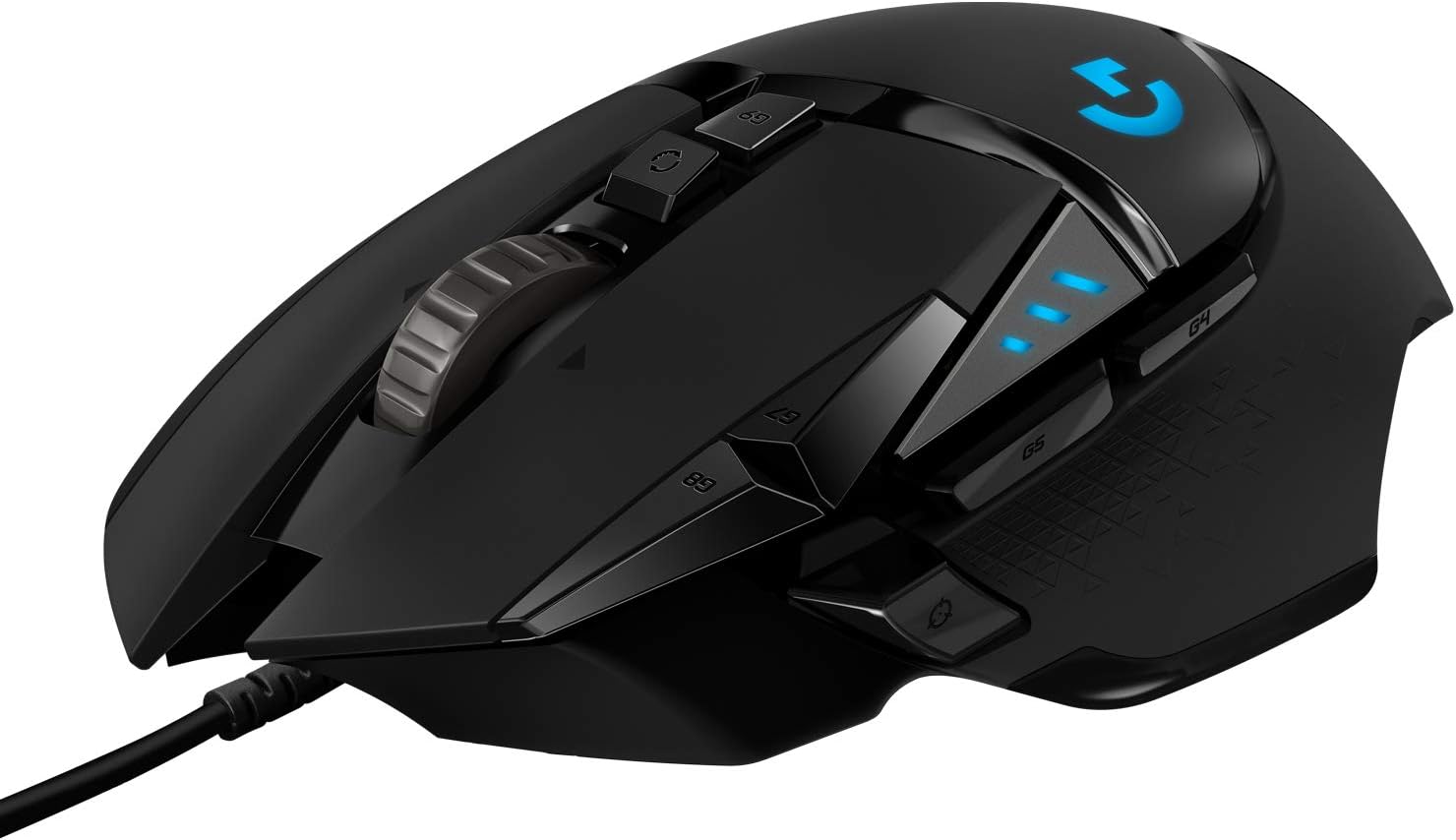
Product image: Logitech product photography from the Amazon listing.
A simple battery choice
The listing identifies a HERO sensor with sensitivity up to 12,000 DPI, LIGHTSPEED wireless with a claimed 1 ms report rate, six programmable buttons and onboard memory. It advertises up to 250 hours of continuous play from one AA battery and built-in receiver storage. These are supplier specifications, not my latency, tracking or battery measurements. The documented wireless arrangement uses a receiver, so it should not be presented as Bluetooth. Source: Logitech G305 listing.
Related reading
The replaceable-battery arrangement could suit someone who values a quick battery change over regular charging. It also makes the spare battery part of the kit. I would decide whether that trade fits my desk and travel habits. Neither a rechargeable battery nor an AA cell is automatically more convenient for every person. The useful design is the one you can keep ready without interrupting ordinary use.
If this would replace a working mouse, name the actual problem first. Perhaps the cable catches, the old shape is uncomfortable or a button is missing from your workflow. A new sensor specification is not enough by itself to establish a meaningful improvement. A purchase is easier to judge when you know what it needs to change in your own setup.
Shape is the first acceptance test
Try the mouse with the grip you naturally use rather than copying a pose from a product photograph. Move across the desk, make a precise click and reach the side buttons without squeezing the body. A compact mouse can suit some hands very well and leave others tense. I have not assessed this shape personally, so a real trial is more useful than a borrowed comfort verdict.
Include a full ordinary session while a return remains possible. Notice whether you keep repositioning your fingers or lifting your wrist to reach a button. If the shape is wrong, do not try to compensate with extreme sensitivity settings. Pointer tuning can change movement, but it cannot make an unsuitable physical shape become the right size. Comfort should remain a reason to keep or reject the product.
Consider the keyboard and mouse position together. A wide keyboard can push the mouse outward, affecting the way your arm moves. Bring the mouse within a comfortable reach and leave enough clear space for the games you play. The best mouse cannot fully compensate for a cramped corner of the desk. Make room before deciding whether the hardware itself suits you.
Give the receiver a clear place
Check the USB connection on the actual computer or dock. If your laptop uses only USB-C, include a suitable adapter in the setup. For a fixed gaming desk, choose a receiver position that follows Logitech’s instructions and is not easily knocked. A wireless mouse removes a moving cable from the mouse, but it does not remove the need for a deliberate connection to the computer.
If movement becomes inconsistent, troubleshoot with a simple baseline. Check the battery and supported receiver arrangement, then compare a known suitable USB port and surface. Avoid changing software profiles, router settings and several USB devices simultaneously. A controlled change teaches you more than a large collection of fixes applied at once. It also makes it easier to explain a genuine issue to support.
When traveling, use the documented receiver storage place and confirm that it is occupied before leaving. A small dongle left in a computer at home can turn a portable mouse into a useless object in the bag. Keep the battery and receiver routine simple enough to follow at the end of a busy day. Practical reliability often includes these small packing habits.
Related reading

Sensitivity is not a competition
Start at a comfortable sensitivity in the operating system and the game. A high maximum DPI is a capability, not a target you need to use. Choose settings that let you make small deliberate adjustments without running out of desk space during larger movements. Test a familiar scene or practice area. The useful number is the one that supports your control, not the highest one the product can advertise.
Keep the settings stable long enough to learn them. If every missed action leads to a new sensitivity value, it becomes difficult to distinguish practice from a hardware issue. Make a modest change, repeat a known task and record the setting if it helps. This is a practical way to tune your own setup, not evidence that a particular profile makes every player better.
For work and games on the same computer, consider whether one reasonable setting covers both. If separate profiles are helpful, give them clear names and understand how switching works. I would not build a complicated set of automatic changes before learning the default behavior. A gaming mouse should make input more predictable, and an unexplained profile change can do the opposite.
Use extra buttons for a reason
Choose one or two repeated actions that genuinely benefit from a mouse button. Test the mapping in the applications or games that matter. Check current official software support for your operating system before depending on customization. The listing’s button count does not establish every supported action on every platform. A simple reliable assignment is better than an elaborate mapping that fails after an update.
Avoid assigning an important destructive action to a button you press accidentally. Learn the physical controls first. For work, a back action or another reversible shortcut may be easier to assess than a command that closes unsaved material. For games, check the rules and supported input behavior of the title. The purpose is convenient control, not a reason to add automation that creates problems elsewhere.
If onboard memory is part of your intended workflow, verify the exact behavior with the current software and another supported computer if needed. I have not tested it here. Do not assume every setting you see in a desktop application is stored in the same way. A short deliberate check prevents a surprise when the mouse moves to a different machine.
A fair gaming comparison needs a baseline
Use a familiar game and the same settings when comparing with your current mouse. Play enough to become used to the shape before judging small differences. I would look first for clear practical changes, such as a cable no longer catching or a button becoming easier to reach. I would not claim a measurable competitive advantage from a short session or a more dramatic product name.
If you want to discuss latency, it needs an appropriate measurement method and a description of the whole path. The claimed report rate is not a personal end-to-end delay result. The computer, game, display and software also affect the experience. This review has no such measurement, so I will not attach an invented millisecond comparison to the G305.
For ordinary acceptance, consistent tracking, comfortable use and predictable controls may be enough. A person does not need to reproduce a laboratory review to decide whether a mouse suits a desk. The distinction is in the wording: your trial can establish that it feels suitable to you, while a technical performance claim needs evidence matched to the claim.
Related reading

Battery ownership is uncomplicated when planned
Follow Logitech’s instructions for the battery and power modes. Keep an appropriate spare nearby and note roughly how long your normal use lasts before replacement. The advertised maximum is useful context, but your settings and habits determine the practical routine. A spare battery earns its place when you can find it during a session without emptying several drawers.
Check the mouse before a trip or an important session instead of waiting for a warning at an awkward time. Keep its contacts and housing cared for according to the manual. Do not improvise battery modifications merely to chase a lower weight figure from an online discussion. The documented product should first be assessed as the product you bought, with the battery arrangement its maker specifies.
My assessment
I would consider the G305 for a buyer who wants a receiver-based gaming mouse and likes the simplicity of an AA cell. I would make shape, button reach and stable operation the first checks. I would pass if the hand fit is poor, Bluetooth is required or the USB arrangement is awkward. A strong specification does not repair those basic mismatches.
The exact item is linked through my Logitech G305 LIGHTSPEED Amazon link. This is an affiliate link. As an Amazon Associate I earn from qualifying purchases. This review does not contain measured gaming latency, sensor accuracy or battery-life results.
One email a month: new articles, reviews and the upcoming live webinar + free recording. No spam, unsubscribe anytime.