A four-port USB hub can make a desk easier to live with without doing anything dramatic. A keyboard, mouse receiver, printer and occasional flash drive can remain connected instead of competing for one accessible port. The Anker Ultra Slim hub is built around that kind of small expansion. Its usefulness comes from putting suitable connections within reach, not from turning one port into a full docking station.
This review covers ASIN B07L32B9C2, the USB-A four-port data hub in the workbook. Anker sells several hubs with similar names, different upstream connectors and different cable lengths. Check the exact selected option. A photograph of four familiar sockets does not tell you whether the plug at the computer end fits your machine.
The job it is designed to do
The selected Amazon listing describes four USB-A data ports and explicitly says charging is not supported. Anker’s A7516 product page identifies the Ultra Slim USB 3.0 family and its up-to-5 Gbps data connection. That is a simple peripheral hub, not a laptop charger, display dock or Thunderbolt expansion box.
I would buy it to improve access to ordinary peripherals on a compatible computer. A desktop with ports hidden behind the monitor is a clear example. Bringing a few data ports to the front can reduce reaching, unplugging and cable wear. That is a practical improvement even if the devices involved use very little bandwidth.
It is a weaker answer if the real problem is charging several phones or powering demanding accessories. The listing is clear about its charging limitation. Buying a data hub and then hoping it behaves like a powered charging station is a poor plan. Choose a product that documents the power and data functions you actually need.
Related reading
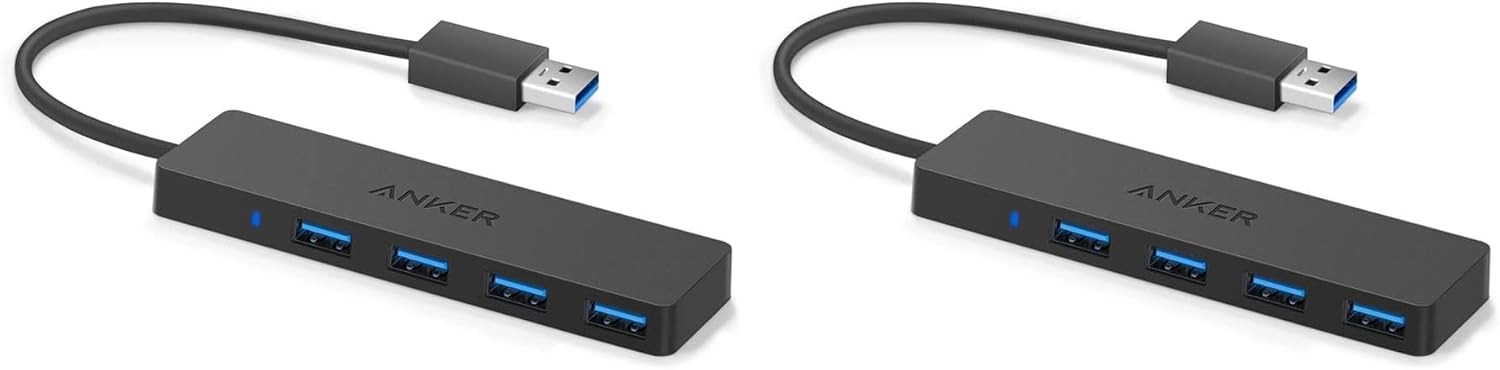
Product photograph: Amazon listing.
Check the connection at both ends
The computer needs an appropriate USB-A port or a separately verified adapter arrangement. If your laptop only has USB-C sockets, include that requirement before comparing prices. An adapter can add length and another physical connection, and it may remove the neatness that made this small hub attractive in the first place.
Look at the cable length of the actual offer. The checked listing describes a two-foot upstream cable, while the product family has been sold in other lengths. A short cable can suit a laptop on a table but leave a desktop hub hanging behind the computer. A longer cable can bring ports to the desk but also adds wire to manage.
Before sticking anything under a desk, place the hub and connect your normal devices. Check whether the cables reach without pulling the hub towards an edge. Make sure bulky plugs do not obstruct the next socket. A four-port count is useful only if the actual accessories can sit together comfortably.
Keep the computer-end connection accessible enough to inspect. If the hub loses connection, you should be able to reseat it without dismantling the whole desk. An attractive cable arrangement that prevents basic maintenance can be more frustrating than a visible cable. The purpose is a calmer working setup, not a permanent installation that is difficult to change.
Four ports share one route
The up-to-5 Gbps figure describes the USB connection, not four separate high-speed links back to the computer. Several active devices share the upstream route. Protocol overhead and the attached devices also affect real transfers. The number should not be read as a promise that four storage drives will each copy at the headline rate at the same time.
For a keyboard, mouse and printer, that shared route is usually a different concern from transferring several large video folders. Decide which situation describes your desk. A simple peripheral hub can be useful even if it is not the best choice for a storage-heavy workflow. Trying to make every accessory solve the most demanding possible job can lead to an unnecessarily expensive setup.
This review contains no throughput measurement, so I cannot promise a particular file-copy speed. If a storage task is important, test a representative folder through the hub and directly through the computer. Keep the file, port and drive the same. That comparison tells you whether the hub changes a task you actually perform.
Do not confuse an internet speed test with a USB storage test. Measure the path that matters. If the complaint is a slow external drive, investigate the drive and USB arrangement. If a printer is unavailable, check its connection and software. A hub sits in several workflows, and a clear symptom is a better starting point than replacing it at random.
Related reading

Power is a separate limit
A small hub without a separate power supply gets its operating power from the computer connection. Attached accessories still need enough power for their own operation. Check the documented needs of the devices rather than assuming four sockets mean four arbitrary loads can be supported together.
For a portable hard drive, audio interface or another demanding accessory, read its guidance about hubs and external power. If a device disconnects during use, try a direct connection and simplify the arrangement. A problem that disappears when other devices are removed deserves a power and compatibility investigation, not just a different file-copy setting.
I would keep critical recording equipment on a connection tested for the exact workload. Make a normal recording, play it back and confirm that the system remains connected through the session. That is a practical verification step, not evidence that this review has measured the hub’s audio performance. Reliability belongs to the full setup you use.
If several demanding devices must stay connected at once, a hub with a suitable documented power supply may be the clearer choice. Include the extra adapter and space in the plan. A powered product is not automatically better for every desk, but it can be appropriate when power delivery is a real requirement rather than an occasional concern.
Make the simple peripherals genuinely convenient
For a mouse receiver and keyboard, position matters more than a dramatic transfer-rate claim. Put the hub where the receiver is not squeezed behind a metal computer case or buried in a cable tray. If the pointer behaves poorly, try a clearer position and compare it with a direct connection before assuming the mouse is faulty.
Add devices one at a time during the first setup. Confirm that each works before connecting the next. This creates a useful point of comparison if something later stops responding. Plugging every accessory into an untested hub at once makes it harder to tell whether one device, a driver or the upstream connection caused the problem.
For a printer or scanner, check that its software recognizes the device after normal sleep and restart. A connection that works immediately after setup may still need testing through the routine that happens every day. If waking the computer is part of your morning, make it part of the acceptance check.
Label any cable that will otherwise be hard to identify. A small label for printer, keyboard or upstream connection can save time when rearranging the desk. The hub is simple hardware; good cable organization supplies some of the clarity that a more elaborate product might try to provide through software.
Storage needs safe removal too
If you use the hub for a flash drive or card reader, wait for transfers to finish and use the operating system’s supported eject process before unplugging. Removing the entire hub disconnects every attached device at once. Remember that before treating the hub’s upstream plug as a quick way to clear one accessory.
Keep a second copy of important files while testing a new arrangement. A successful small transfer is a useful first check, but it does not cover a long write to a nearly full drive. Open copied files and confirm the result before deleting the source. These are ordinary storage habits, independent of which brand makes the hub.
Related reading

For travel, coil the cable gently and protect the plugs from pressure in a packed bag. A compact hub can be convenient beside a laptop, but it should not hang from its upstream connection under the weight of several cables. Put it on a surface or otherwise support the arrangement as the manufacturer permits.
My verdict is that this Anker hub is a sensible candidate for a compatible USB-A desk needing a few accessible data ports. Its limits are equally clear: shared bandwidth, power drawn from the host and no supported charging role. Choose it for ordinary peripheral access, confirm the cable length and test your real devices. If you need a dock or powered expansion system, start with that requirement instead.
This is a research-based review using the linked product documentation. It does not report personal ownership, measured performance or a hands-on test. The assessment and practical advice are based on the documented design and its limits. Retailer pages can change; confirm the selected model, condition and regional compatibility before ordering.
This article contains an affiliate link. As an Amazon Associate, I earn from qualifying purchases. You can check the selected product through my Amazon link.
One email a month: new articles, reviews and the upcoming live webinar + free recording. No spam, unsubscribe anytime.