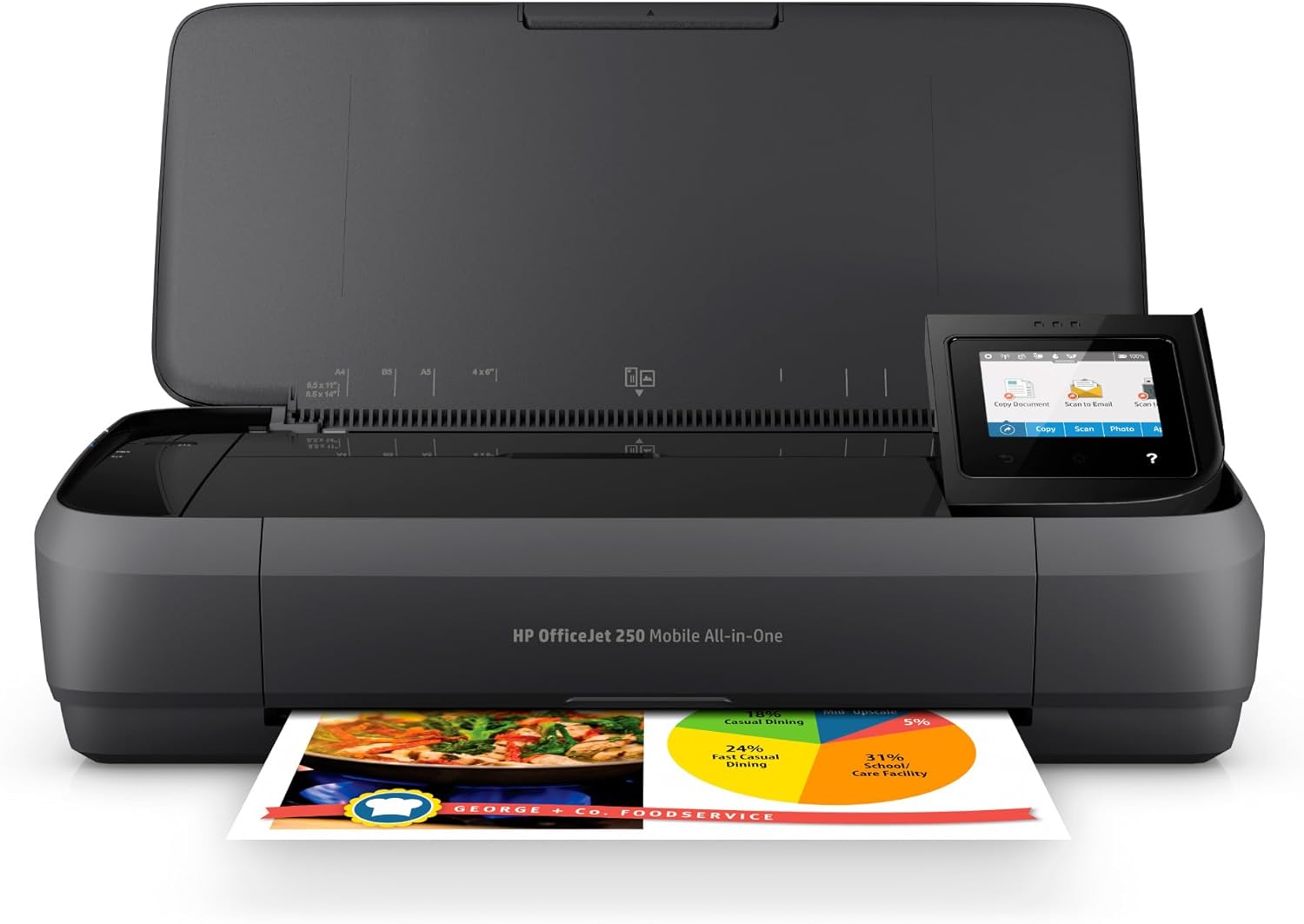
HP OfficeJet 250 Wireless Mobile Printer, Scanner, Copier - Portable, Battery Included (CZ992A)
HP OfficeJet 250 Wireless Mobile Printer — compact all-in-one with printing, scanning, and copying. Features wireless connectivity, rechargeable battery, mobile printing support, and portability for business on the go.
The HP OfficeJet 250 is a battery-powered inkjet that prints, scans, and copies from a body small enough to ride in a car trunk or a large bag. It exists for a narrow audience: field workers, inspectors, agents, contractors, and traveling professionals who have to produce or capture paper somewhere a desktop printer can’t go.
The honest position: for that audience, it’s one of very few real options and it does the job. For everyone else — anyone whose printing happens at a desk — it’s the wrong purchase, because portability is the only dimension where it beats an ordinary desktop all-in-one, and you pay for that portability in speed, page costs, and capacity.
That narrowness is worth stating twice, because the OfficeJet 250 is the kind of product people buy on a romantic idea of mobility and then resent for being a mediocre desk printer. Read it as a piece of field equipment — closer in spirit to a job-site tool than to office electronics — and every design decision in it starts making sense.
What “portable” means here
Manage expectations first. This is portable the way a toolbox is portable: you carry it to the job, not in a jacket pocket. It’s a chunky unit weighing a few kilograms with a fold-open paper path, clearly heavier and bulkier than pocketable photo printers or thermal receipt printers, and it occupies real space on a passenger seat or in a trunk organizer. It is, however, dramatically smaller than any desktop all-in-one, and unlike a desktop machine it’s built to be closed up, latched, and bounced down a gravel road.
The build reflects that intended life. The shell is hard plastic with a lid that latches over the paper path, the controls live behind a small color touchscreen that folds away, and the whole thing closes into a self-contained brick with nothing dangling. Owners who genuinely work out of vehicles — the machine’s natural habitat — generally describe it as holding up to years of transport, which is not something anyone says about desktop printers pressed into car duty. The fold-open design does mean a bit of ritual at each stop: flip the lid, raise the output flap, load paper, work, reverse the sequence. Thirty seconds each way, hundreds of times a year. It becomes muscle memory, and it’s the physical price of a printer that travels closed.
The battery is the point
The battery is what you’re actually buying, and it’s included in the box rather than sold as an accessory — worth checking twice with mobile printers, where “portable” sometimes quietly means “needs a wall socket anyway.” It charges inside the unit from the same power adapter, holds enough capacity for a realistic day of field printing in short bursts, and turns the printer into a genuinely self-contained station: a car seat, a kitchen table during a client meeting, a folding table at a job site with no outlet in reach.
The usage pattern that suits it is bursts — a contract here, a permit there, a dozen pages across a day of stops — rather than sustained runs, and the sensible habit owners settle into is topping the battery up overnight or off the vehicle between jobs the way tradespeople cycle tool batteries. Cold mornings and hot trunks are the battery’s enemies, as with every lithium-powered tool that lives in a vehicle; parking the printer indoors overnight is the cheap insurance. None of this is exotic. It’s simply a different relationship with a printer than desk life ever requires, and the people the 250 is for already live that way with the rest of their kit.
Print, scan, and copy off the grid
The all-in-one part is what separates the OfficeJet 250 from most mobile printers, which only print. There’s a small automatic document feeder on top — ten pages or so at a pass — so scanning a multi-page contract on-site is genuinely practical rather than a page-at-a-time chore. That single feature is often the deciding reason people in document-heavy field work choose this machine over cheaper print-only alternatives: the job isn’t just producing paper, it’s capturing the signed version before leaving.
In practice the loop looks like this: print the agreement in the driveway, hand it over, collect signatures, run it back through the feeder, and the signed scan is a PDF in your email or cloud folder before you’ve pulled away. Copying works the same way for the client who wants to keep a version. For real estate closings, insurance adjusting, notary work, and inspections, that closed loop — produce, sign, capture, all off-grid — is the entire value proposition, and no phone-camera scanning app fully replaces feeding a stack of pages through actual hardware.
Copying deserves a separate mention because it needs no device at all. The small touchscreen drives walk-up copies directly — pages into the feeder, a couple of taps, done — which matters in exactly the situations this printer is bought for: a client holding the only original, a form that must be duplicated on the spot, a phone that’s dead or in the truck. The printer stands alone as a complete paper station, and that independence from every other gadget in the kit is easy to undervalue until the day it’s the only thing that works.
The scanner side is modest by flatbed standards: sheet-fed only, so books and thick or fragile originals are out, and quality is document-grade rather than photo-grade. For contracts and forms, which is the whole use case, it’s exactly enough.
Connectivity and the software dance
Connectivity covers the realistic field cases. On a normal network, it’s an ordinary wireless printer. In the middle of nowhere, Wi-Fi Direct lets a phone or laptop talk straight to the printer with no network involved at all — the mode field users end up living in — and a USB connection remains as the fallback that always works. From an iPhone or iPad, standard AirPrint behaves as expected; HP’s Smart app adds scanning to the phone, status, and ink levels, and is effectively mandatory for the full loop.
The software experience is the usual HP story: functional, occasionally naggy, and thicker than a printer strictly needs, with account sign-ins and prompts along the way. The standing advice from owners is unambiguous — do the entire setup at home or in the office before the first field job. Join it to your phone’s hotspot or Wi-Fi Direct, print a test page from every device you’ll realistically use, run one scan through the feeder to your email, and only then put it in the truck. The machine is reliable once configured; configuring it in a client’s driveway with a signature deadline is how the one-star reviews get written.
Output quality and speed
Print quality is solid inkjet fare: crisp black text that looks fully professional on a contract, respectable color for charts, form overlays, and the occasional photo-on-paper documentation shot. Nobody examines a permit for gamut. On plain paper in a moving workflow, the output is indistinguishable from what a desktop office inkjet produces, which is all the category requires.
What it is not is fast. Page rates sit well below any modern desktop printer, and the first page after a sleep or a cold start takes noticeably longer as the machine wakes and primes. There’s also no automatic duplexing, so double-sided documents mean flipping pages by hand — mildly tedious at a kitchen table, genuinely annoying in a car. For the intended use of a handful of pages per stop, neither limitation matters much; the client signing a five-page agreement doesn’t notice the difference. If your field days routinely involve twenty-page reports, print them before you leave, and let the 250 handle the exceptions — that division of labor is how experienced owners actually run it.
Ink, running costs, and the idle-inkjet problem
This is where the honest math lives. The OfficeJet 250 uses HP’s small two-cartridge sets — one black, one tri-color — and cost per page runs well above a desktop machine’s, which is the standing price of miniaturized cartridges. The tri-color design carries its own quiet tax: exhaust one color and the whole cartridge is done. High-yield XL versions improve the math and are the default recommendation; carrying a spare set in the vehicle is the other, because ink dying mid-job defeats the purpose of a printer that exists to save you trips.
Do the arithmetic against your actual volume before buying rather than after. A field professional printing a modest stack of pages per week will find the per-page premium a rounding error next to the billable time the machine saves; a household hoping this doubles as the family printer will find the same premium infuriating within a quarter. The cartridges’ small capacity also means replacements arrive more often than desktop owners expect, so the working habit is to reorder when the spare goes in, not when the printer complains mid-job.
The other cost is behavioral. Inkjets want regular use, and a printer that sits idle in a trunk for three weeks will greet you with dried nozzles and a cleaning cycle that consumes ink to fix — the classic failure loop of occasionally-used inkjets everywhere. A page or two printed weekly keeps the heads happy and is cheaper than the cleaning cycles it prevents. Add the small paper tray, around fifty sheets, which wants topping up often, and the picture is consistent: modest consumable capacity everywhere, as miniaturization demands. None of it is unusual for the category; all of it argues against buying this as your only, mostly-idle household printer.
A machine with a track record
One quiet advantage of the OfficeJet 250 is that it isn’t new — it has been HP’s answer in this niche for years, which brings the benefits maturity usually brings. The consumables are established and easy to find rather than exotic, the failure modes are documented, accessories like vehicle charging exist, and the pool of long-term owner experience is deep. The recurring long-term reports are about the economics and the setup ritual, not about hardware mortality; machines that ride in trunks for years keep working, which is the single most important durability fact about a product bought for exactly that.
Maturity also shapes the vehicle side of ownership. Options for charging on the road — from purpose-made vehicle power solutions to an ordinary inverter off the 12-volt socket — are well trodden by the owner community, and the established pattern is to treat the printer like any other cordless tool in the van: charged overnight, topped up between stops when the day runs long, never trusted at a critical moment without a power fallback thought through in advance. Buyers stepping into this niche inherit years of other people’s field experience, which is worth more than any spec.
The flip side of maturity is that the electronics feel their age in places — the small touchscreen and the general pace of the interface are from an earlier generation of expectations, and waiting an extra beat for the panel to respond is part of the texture of ownership. The category has seen remarkably little new competition, which says something true about how narrow the niche is: the OfficeJet 250 has kept its job mostly unchallenged.
The field kit around it
The 250 rarely travels alone, and it slots into a mobile office more naturally than it stands by itself. The laptop side of that kit can be almost anything — a premium travel machine like the MacBook Air 13 M4 if the laptop is your main tool, or a deliberately cheap field unit like the HP Stream 14 if it only exists to fill forms and drive the printer. Plenty of field workflows skip the laptop entirely: an iPad like the iPad Air 13 printing over AirPrint covers forms, signatures, and email from the passenger seat with less to carry and charge.
For the document archive the scanner produces, a rugged pocket drive such as the Samsung T9 is a sensible companion for the same reason the printer is: field documents you can’t afford to lose shouldn’t live in one place. None of this is required; all of it reflects how actual owners assemble the vehicle office this printer anchors.
What else to consider
Be sure the 250’s specific niche is your niche, because adjacent needs have better answers. If your field paper is receipts or labels, dedicated thermal printers are smaller, cheaper to run, and tougher, with no ink to dry out. If your printing merely happens away from your desk but near outlets — hotel business centers, client offices, a branch location — a compact desktop all-in-one plus a little planning covers it for less money and lower page costs. And if capture is your real need rather than output, a phone scanning app plus digital signatures eliminates the paper loop entirely, where your counterparties allow it.
The OfficeJet 250’s defensible territory is precisely full-page documents, plus multi-page scanning, away from power and network infrastructure. Courts, municipalities, older clients, and regulated industries keep that territory alive — wet-ink signatures and physical forms have outlasted every prediction of their death. In that overlap the 250 has remarkably little direct competition, which is why it has held its post for years.
The verdict on who needs one
Buy it if your work regularly produces or consumes paper in the field — real estate, insurance adjusting, inspections, mobile notary work, construction paperwork — and especially if the scanner and feeder close a signature loop you currently solve with return trips. Buy the XL cartridges, do the setup at home, print something weekly, and it will pay for its bulk and running costs in saved journeys, which is the only currency this machine deals in.
Skip it if you print at home or in an office, however small — a desktop all-in-one is faster, cheaper per page, and less fussy in every way that matters at a desk. And skip it if your mobile need is occasional enough that planning ahead solves it. This machine answers exactly one question: how do I print and scan where there is no power and no network? If that’s genuinely your question, almost nothing else answers it this completely. If it isn’t, nothing about the OfficeJet 250 will grow on you.
Our take
Verdict: A true mobile all-in-one — print, scan and copy anywhere on battery, with the trade-offs of going portable.
The problem. Mobile workers sometimes must print or scan on the road, where a desktop printer can’t go. Why it matters. For specific field jobs, on-site printing and scanning save real time and trips. What it is. HP’s OfficeJet 250: a battery-included portable inkjet that prints, scans and copies, with wireless connectivity in a carry-along body.
Pros
- Genuinely portable with a built-in battery
- All-in-one: print, scan and copy on the go
- Wireless printing from phones and laptops
Cons
- Slower and pricier per page than desktop printers
- Ink and running costs add up
- Bulky and heavy compared with “portable” expectations
Who should buy it
- Field workers and travellers who must print or scan away from an office
Who should skip it
- Home and office users who never print on the road — a desktop printer is cheaper and faster
Bottom line. A niche problem-solver — buy it only if you truly need to print and scan in the field.