Most people who buy this reader want to get pictures off a card and onto a MacBook, then forget about it. That is a low bar, and a small reader like this has a good chance of clearing it. The more interesting question is how much speed you should expect, and whether a cheap stick is the right tool for the work you do.
Owner evidence for this exact listing is thin, so I will keep my claims small and tell you which ones are my own reasoning.

Product image from the Amazon listing.
What the Listing Actually Is
The listing is titled UGREEN SD Card Reader USB C, USB 3.0 Micro SD Card Reader. UGREEN sells many readers with nearly the same name, so this needs care. ShopSavvy’s summary of reviews for this listing describes a stick with both a USB-C plug and a USB-A plug, one SD slot and one microSD slot, a separate cap for each plug, and a keyring loop. It says the size is about that of a standard USB flash drive.
Both plugs on one body is the feature I like most here. You can use it with a new MacBook today and with an old desktop or a friend’s Windows laptop tomorrow, with no adapter in your bag. If your house has a mix of old and new computers, this is a practical reason to choose it over a USB-C only model.
Related reading

When it arrives, check that yours matches this description. If you need a specific plug, look at the photos on the listing before you order, since UGREEN sells near-identical readers with a different set of plugs.
Do You Need It at All?
This is the first thing to check on a Mac. Some MacBook Pro models have an SD slot built in, and for a full-size SD card that slot may be all you need. A MacBook Air has no SD slot, so a reader or a hub is the only way in.
If you already carry a USB-C hub with SD and microSD slots, this reader adds little. It makes sense if you don’t want a hub in your bag, or if your hub’s card slot is unreliable. It also makes sense as a spare. A small reader weighs almost nothing, and it costs little to keep a second one in a camera bag.
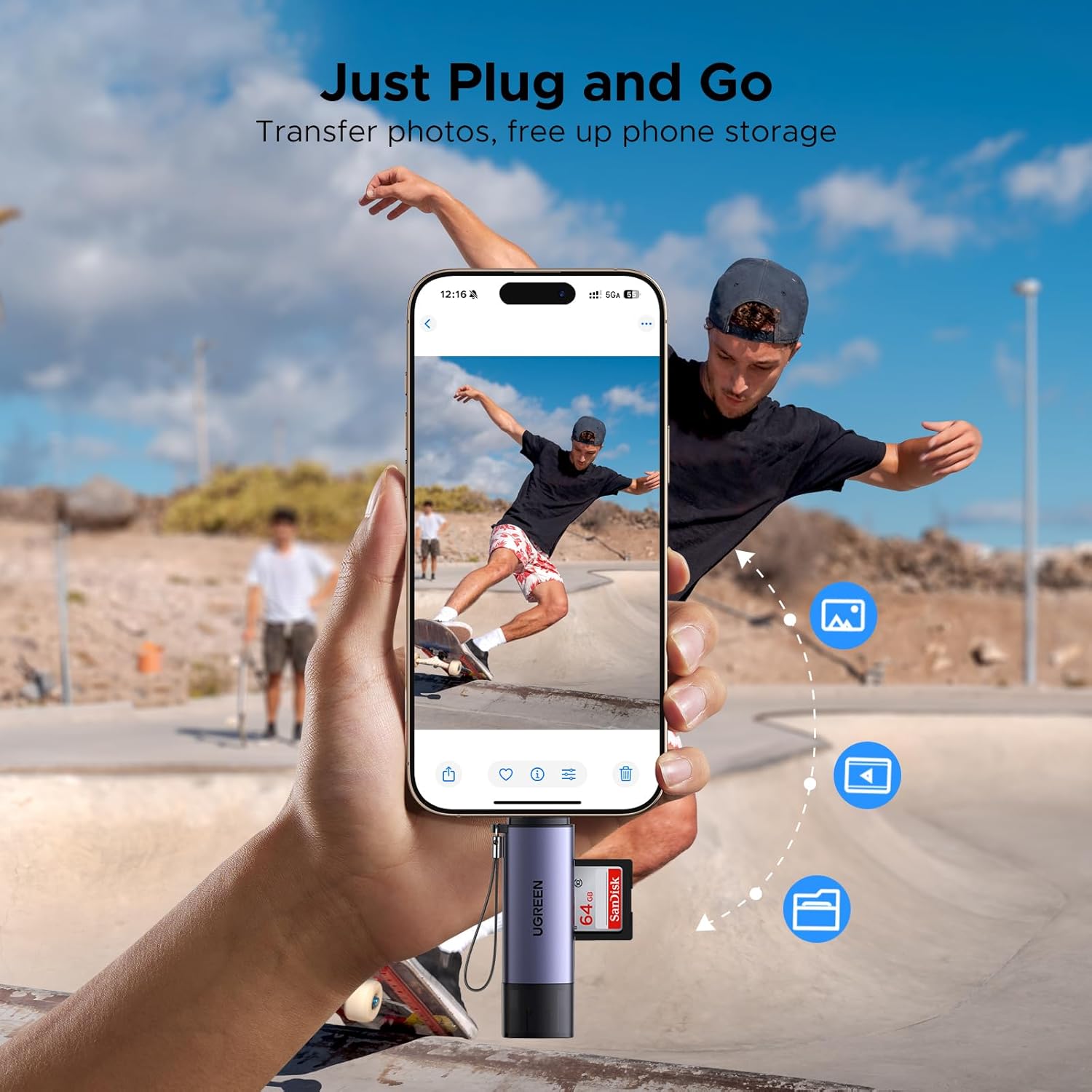
The other group owns a phone or a tablet. ShopSavvy’s summary lists iPads and Android phones among the devices that work with it. There is one catch. A thick phone case can stop the USB-C plug from going all the way in, and the summary warns you may need to take the case off. If you plan to use it with a phone, expect that extra step.
Product image from the Amazon listing.
How Fast Will It Be?
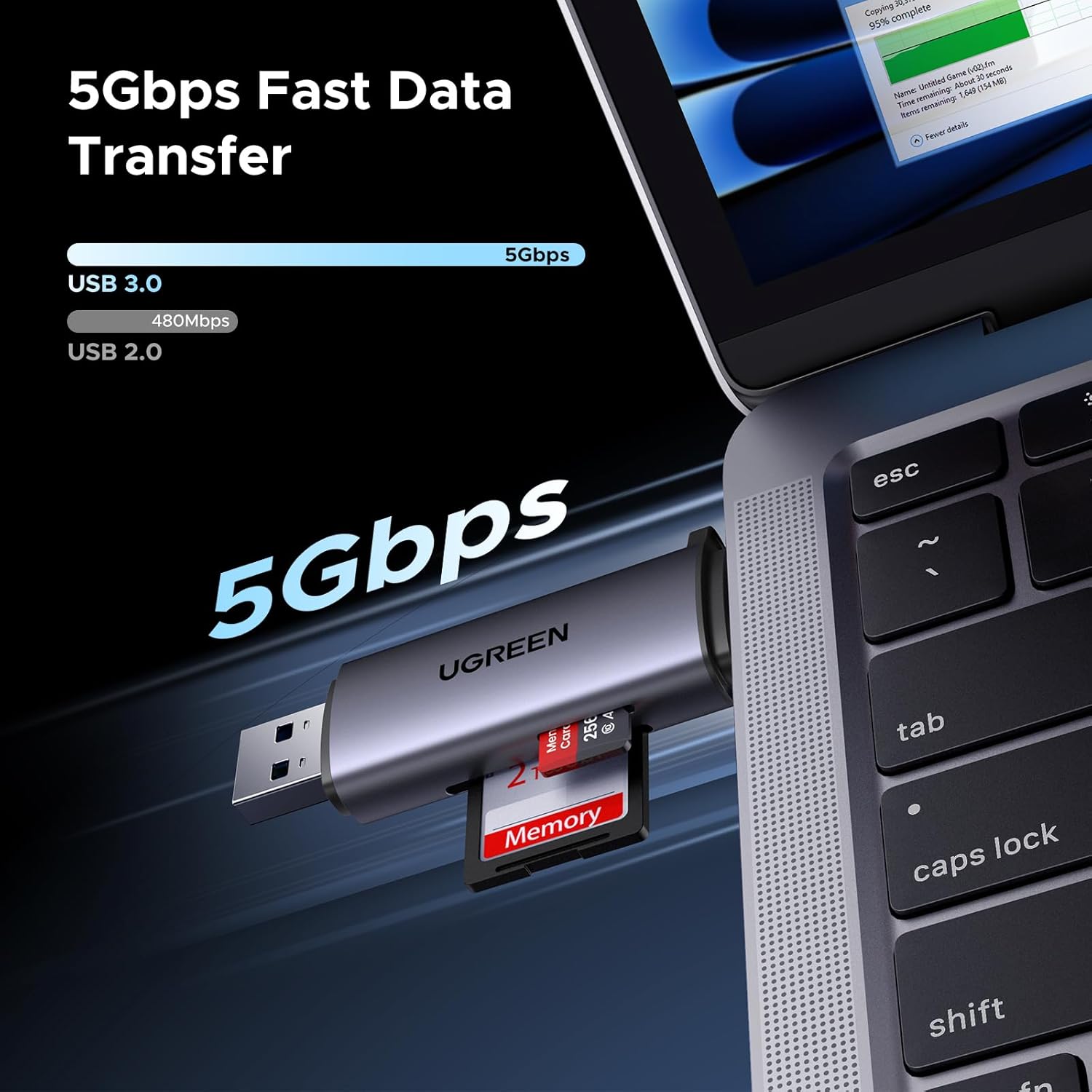
The listing and the summary both point to USB 3.0, at up to 5 Gbps. That is the most the connection can carry in theory, about 600 MB/s. You will never get close to that here. The card is what holds you back.
The summary says the reader supports UHS-I speeds. ExpertPhotography explains, in a guide that covers other readers, that UHS-I tops out at about 100 MB/s however fast your computer is. So a good card in this reader should land somewhere below that. No owner I can point you to has published a measured figure for this exact listing, so please treat 100 MB/s as a ceiling and not a promise.
Here is what that ceiling means in practice, and this is my own arithmetic. A 32 GB card takes a little over 5 minutes at 100 MB/s. A 128 GB card takes a little over 21 minutes. A 256 GB card from a long trip takes about 43 minutes. Real times will be longer, because cheap cards are slower and thousands of small photo files don’t move as smoothly as one large video.
For a hobbyist, that is fine. You start the copy and make a coffee.
Related reading
For someone who shoots video on fast UHS-II cards, it is a real limit. The summary warns that this reader may bottleneck higher-speed cards, especially those used for 4K video. A UHS-II card will still work, but only at UHS-I speed. If you pay for fast cards, pay for a reader that can use them too. Otherwise your expensive card is waiting on a cheap stick.
Two Slots, One Road
After a shoot you may have two cards to empty. ShopSavvy’s summary says this reader can read SD and microSD cards at the same time, so you don’t need to swap them. You can move files from a drone’s microSD card straight onto an SD card. Or you can copy from both cards in one sitting.
Just don’t expect two cards to finish twice as fast. Both cards share a single USB connection. A 2019 test of a similar two-slot reader from Anker makes the point well: its owner found that reader could “handle two cards at once, but at half the speed.” That is a different product, so it says nothing direct about UGREEN. Still, the same basic limit applies to any reader with one plug and two slots. I would treat the second slot as a convenience, not a speed feature.
Product image from the Amazon listing.
What Buyers Like and What Bothers Them
The praise in the summary is what you would hope for from a simple tool. Buyers call it reliable and sturdy, and they report that it works plug and play with Windows and MacBooks. Some like that the microSD slot clicks in and out, which is easy even with gloves on. There is a small LED that shows power, so you can see that it is alive.
The complaints are more interesting, because they are specific.
There is no card lock, so a card could fall out in theory, although the summary says this has not been reported in normal use. The metal edges around the card slots are described as a bit sharp. And the LED shows power but not card activity, so you can’t tell from the light whether files are still moving. You have to rely on your computer.
That last point is the one I would take seriously. Pulling a card while it is being written to is how people damage files. On a Mac, always eject the card in Finder first and wait for it to disappear from the sidebar. The light on this reader won’t warn you, so make the habit part of your routine.
The summary is a roundup, and it does not quote individual buyers or name its sources. I am treating it as a general picture, not as hard proof. I found no pattern of owner reports about this exact listing corrupting cards, but with so little detailed feedback, that absence does not prove much either way.
Habits That Matter More Than the Reader
A card reader rarely fails in a dramatic way. When photos go missing, the cause is more often a bad card, a pulled plug or a card formatted too early. So a few habits are worth more than any spec.
Related reading

Copy first, then check that your files open on the computer. Only then format the card, and do it in the camera, not on the Mac. Keep the original on the card until a second copy exists somewhere else. If a card stops showing up, try it in another reader or in the camera before you decide which part has failed. And plug straight into the computer when you can, since a long chain of hubs and adapters gives you more places for trouble.
Keep those caps on in your bag as well. A bent plug is one of the few ways to kill a device this simple.
A Handy Spare for Light Work
I would buy this as a travel reader for a MacBook Air, for a home with both USB-C and USB-A computers, or as a cheap spare for a camera bag. It covers the two card sizes most people use, and the two plugs make it more flexible than most readers at this level.
I would skip it if you have a Mac with a working SD slot and no microSD cards. I would also skip it for regular work with fast UHS-II cards or large video jobs, where a faster reader will pay for itself in saved time.
For everyday photo copying with no fuss, the UGREEN USB-C SD card reader looks like a sensible buy, with modest expectations on speed. This is an affiliate link. As an Amazon Associate I earn from qualifying purchases.
One email a month: new articles, reviews and the upcoming live webinar + free recording. No spam, unsubscribe anytime.