
Here’s my unpopular opinion after two years of daily AI use: the browser tab is where AI productivity goes to die. Every time you switch to a ChatGPT tab, you context-switch, you get distracted by the previous conversation, and the thing you wanted to ask has lost half its urgency by the time you’ve pasted the context in.
The AI that actually changes how I work lives in the menu bar and behind global hotkeys — one keystroke from whatever app I’m in. Selected text in Xcode, an error in Terminal, a paragraph in Mail: the model comes to the work, not the other way around. Here’s my current stack on the Mac Studio and the MacBook Pro, with the specific killer use case for each, what it costs, and whether it can run on local models.
Raycast — the spine of the whole setup
Raycast replaced Spotlight for me years ago, but Raycast AI is why it’s first on this list. Hit ⌥ Space, type a question, get an answer — or better, select text anywhere and invoke an AI Command on it: “Fix grammar,” “Explain this code,” “Make this email shorter.” Custom AI Commands are the killer feature. Mine include “convert to ISO 8601,” “write a conventional commit message from this diff,” and “translate to Czech, keep the formality.”
Pricing: the core launcher is free; Raycast Pro with AI is $8/month, and the Advanced AI tier ($16/month) adds frontier models like GPT-4-class and Claude models. Local model support: yes — Raycast AI can talk to Ollama as a provider, so your custom commands can run against llama3.1:8b on your own silicon for zero marginal cost.
Related reading

The one habit to build: stop opening a browser to ask anything. Everything starts at ⌥ Space.
MacWhisper — dictation that embarrasses Siri
MacWhisper runs OpenAI’s Whisper models entirely on-device. The killer use case is system-wide dictation via a hold-to-talk hotkey: hold a key, talk, release — and accurate text appears in whatever field your cursor is in. I dictate commit messages, Slack replies, and rough drafts of articles like this one. With the large-v3-turbo model on Apple Silicon, transcription is near-instant and handles my Czech-accented English without flinching — something macOS dictation never managed.
It also batch-transcribes files: drop in a 60-minute meeting recording and get a speaker-labeled transcript in two or three minutes on an M-series Pro chip.
Pricing: free version with smaller models; Pro is a ~€59 one-time purchase (no subscription, bless them). Local model support: it’s local-only by design. Nothing leaves the machine, which means you can transcribe confidential meetings without a compliance headache.
BoltAI — the floating chat that speaks both cloud and local
BoltAI is the answer to “I want ChatGPT, Claude, and my local Ollama models in one window, summoned from anywhere.” It sits in the menu bar, pops up over any app with a hotkey, and — its killer trick — inline AI in any text field: type a trigger, write a prompt, and the response is typed into place, whether you’re in Pages, VS Code, or a web form.
What earns it a slot over a dozen similar wrappers is the provider flexibility. You bring your own API keys (OpenAI, Anthropic, Gemini, Mistral) and pay per token instead of a markup subscription, and it connects natively to Ollama and any OpenAI-compatible local endpoint. I route quick rewrites to a local 8B model and only burn API tokens on hard problems.
Pricing: one-time license from $39, plus whatever your API usage costs. Local model support: first-class, not an afterthought.
ChatGPT desktop — worth it for one shortcut
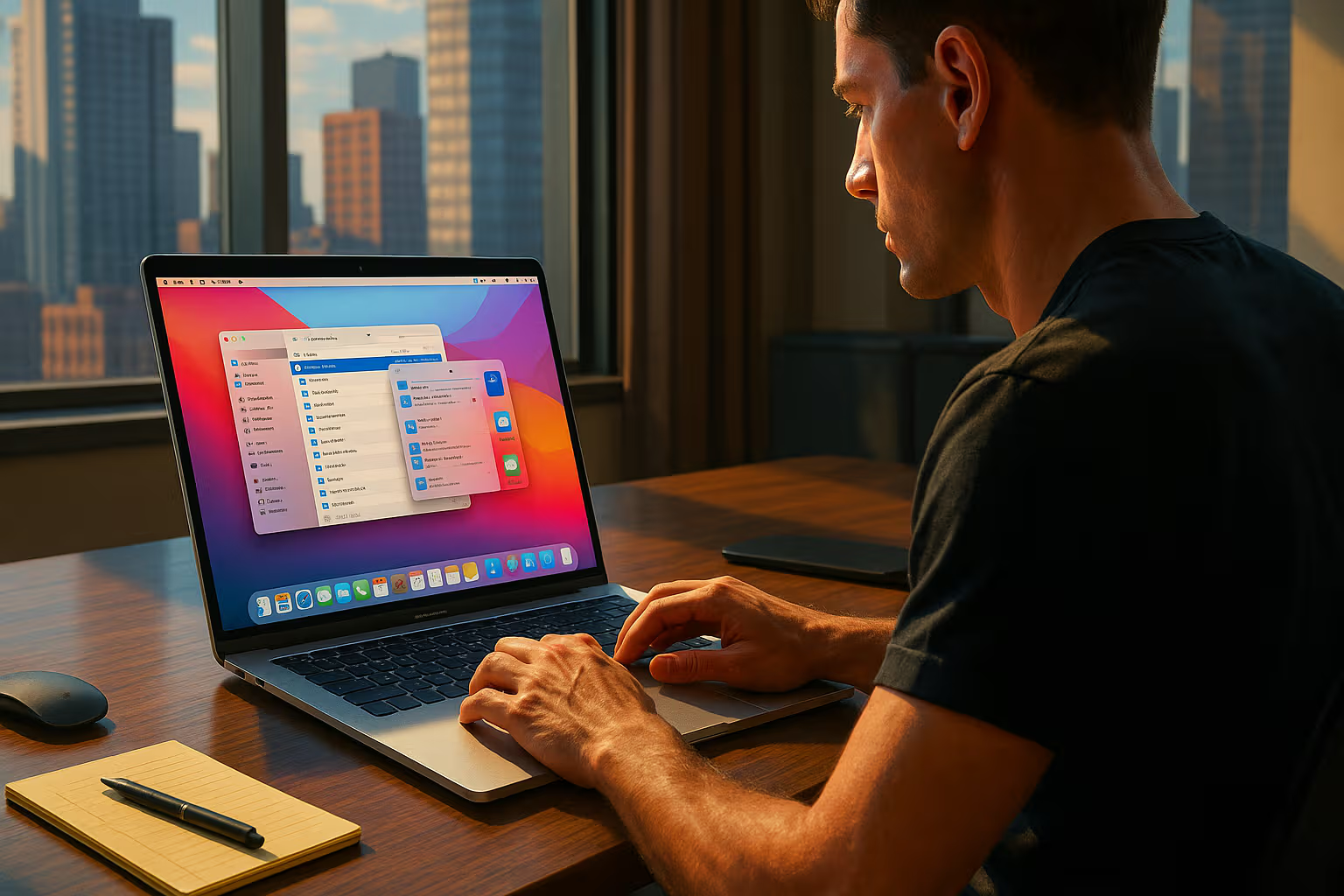
The official ChatGPT Mac app earns its place for exactly one reason: ⌥ Space summons a lightweight composer over any app, and it can see your screen or work with the focused app’s content — it reads what’s in Xcode or Terminal when you grant it access, so “why is this failing?” needs no copy-paste. Voice mode from the menu bar is the bonus: I think through architecture decisions out loud while pacing the room — a rubber duck that talks back, and the workflow genuinely works.
Related reading
Pricing: the app is free; you’ll want Plus at $20/month for the good models. Local model support: none, obviously — this is the cloud-only corner of the stack.
Note the conflict: ChatGPT and Raycast both default to ⌥ Space. We’ll fix that below.
CleanShot X + AI — screenshots as prompts
CleanShot X is the best screenshot tool on macOS, full stop, and it’s the front half of my favorite AI workflow: screenshot-to-AI. Capture a region, and CleanShot’s overlay lets you copy it instantly — from there a Raycast AI command or BoltAI chat with vision (“extract this table as CSV,” “what does this error mean?”) finishes the job. CleanShot’s built-in OCR (⇧⌘2 in my layout) handles the pure text-extraction cases without any model at all.
Receipts to expense lines, chart screenshots to data, error dialogs to fixes — once “screenshot it and ask” becomes muscle memory, you’ll use it ten times a day.
Pricing: $29 one-time or included in Setapp ($9.99/month, which also covers several other apps here). Local model support: indirect — pipe captures to a vision model like llama3.2-vision via Ollama if you want fully on-device.
The minimal stack: pick three
You don’t need all five. If you install only three things, make it:
- Raycast (free tier + Ollama) — launcher, AI commands, clipboard history. The spine.
- MacWhisper — voice input everywhere, fully private. The biggest “why didn’t I do this earlier.”
- BoltAI — one window for every model, cloud and local, with inline writing in any field.
That trio covers text in, voice in, and screenshots in (Raycast can grab screen captures into AI commands), with local-model support across the board and a worst-case cost of one $39 license plus one €59 license. No mandatory subscriptions.
A hotkey layout that doesn’t fight itself
The unglamorous part that makes or breaks this setup. Default shortcuts collide — Raycast, ChatGPT, and half these apps all want ⌥ Space. Here’s my layout, built on one rule: everything AI lives on the right Option key plus a mnemonic letter, which nothing in macOS or common apps uses:
Related reading

⌥ Space      Raycast (launcher + AI chat)
⌥ A          BoltAI floating chat ("A" for assistant)
⌥ V          MacWhisper hold-to-talk ("V" for voice)
⌥ C          ChatGPT desktop composer (changed from ⌥ Space)
⇧⌘2          CleanShot OCR capture
⇧⌘4          CleanShot region capture (replaces system default)
Two configuration notes. First, change ChatGPT’s shortcut in its Settings → Shortcuts pane before it fights Raycast for ⌥ Space — whichever app launched last wins, and the loser silently does nothing. Second, if you use a non-US keyboard layout where ⌥ + letter types special characters, switch these to ⌃⌥ + letter instead; the principle (one consistent modifier family for all AI) matters more than the specific keys.
The thesis, restated
Browser-tab AI is a destination; hotkey AI is a layer. The difference sounds cosmetic and is anything but — my Raycast stats say I trigger AI commands 40-some times a day, and I can promise I was not opening a ChatGPT tab 40 times a day before. Friction determines usage, usage determines value.
Start with the free tiers of the minimal stack, wire up the hotkey layout, give it one week. The browser tab will start feeling like dial-up.
One email a month: new articles, reviews and the upcoming live webinar + free recording. No spam, unsubscribe anytime.