
Twenty years of digital life. That’s what was sitting on my Mac Studio when I finally decided to deal with it: 89,000 photos, a Downloads folder that had quietly swollen to 200GB, and a Documents directory that looked like a crime scene. Files named final_v2_FINAL(3).pdf. Screenshots from 2014. Three copies of my passport scan in four different folders.
I gave myself one weekend and one rule: every tool had to run on-device. No cloud uploads, no “AI organizer” SaaS that wants to index my tax returns on someone else’s server. Here’s exactly what I did, what worked, and the before/after numbers.
Apple Photos is already doing the work — you’re just not asking
Before installing anything, understand this: if your photos are in Apple Photos, an on-device neural network has already analyzed every single one of them. Face recognition, object detection, scene classification, text recognition — it all runs locally via the Neural Engine, mostly overnight while your Mac is plugged in.
Most people never use it. Try these searches in Photos right now:
- “receipt” — finds every photographed receipt across two decades
- “whiteboard” — every meeting photo you took instead of taking notes
- “dog beach 2019” — compound semantic queries actually work
- A person’s name after tagging one face in People & Pets — Photos finds them in thousands of images, including profile shots and group photos from 2008
The duplicate detection deserves special mention. Open Photos → Utilities → Duplicates in the sidebar. On my library it found 4,212 duplicates — mostly burst shots, WhatsApp re-saves, and iPhoto-era import accidents. Merging them recovered 31GB and Photos intelligently keeps the highest-quality version with merged metadata. That’s a feature people pay Gemini Photos subscriptions for, sitting unused in the sidebar.
Related reading
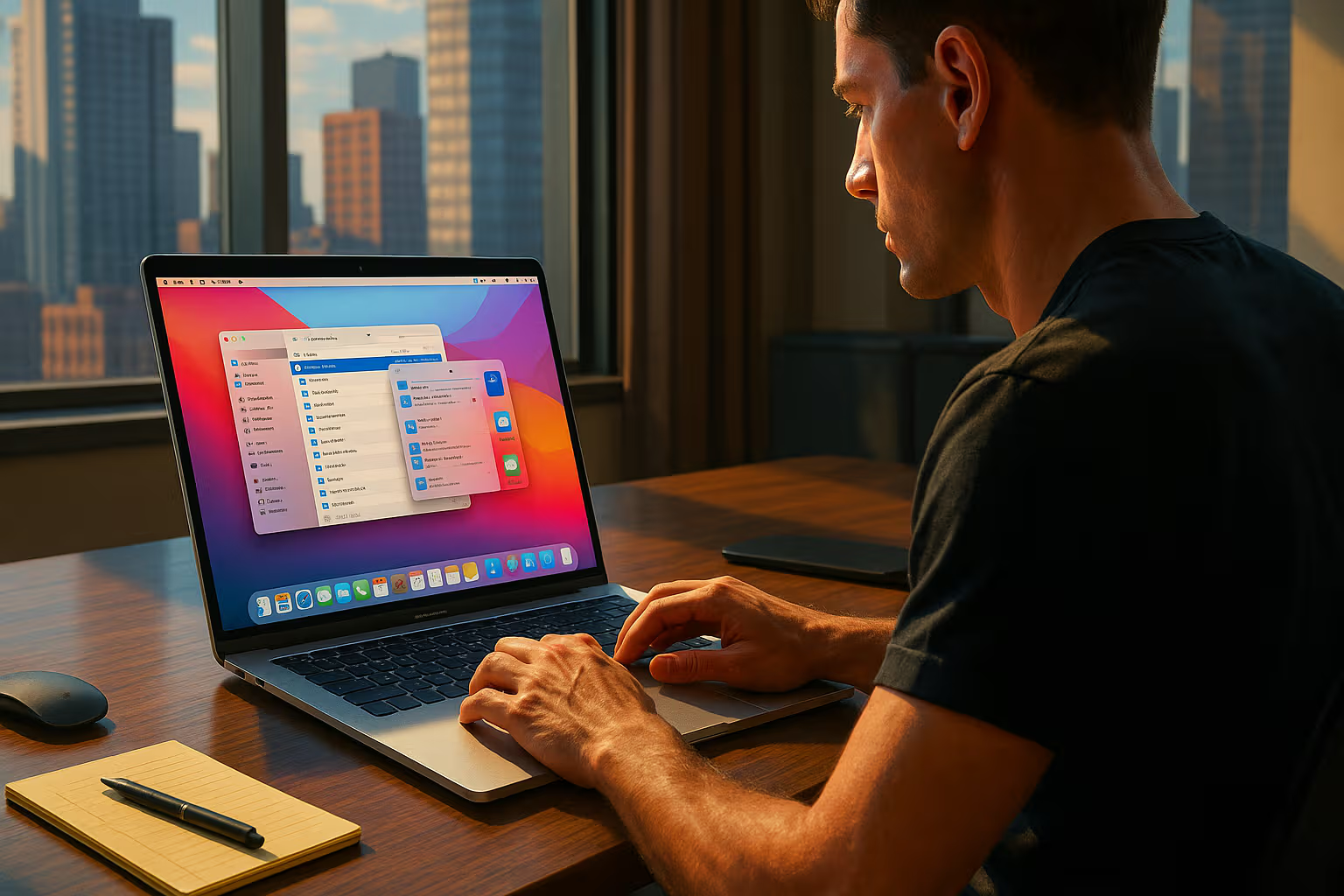
One thing I did add: tagging faces. I spent twenty minutes confirming faces in People & Pets, and suddenly “Mom 2009” is a working search query. My cat Pixel gets her own album now — Photos’ pet recognition correctly distinguishes her from my neighbor’s nearly identical British lilac, which honestly impressed me more than anything else that weekend.
The 200GB Downloads folder: local LLM as a renaming engine
This was the main event. My Downloads folder: 14,387 files, 200GB, names like download (47).pdf and Screenshot 2021-03-14 at 09.12.44.png.
The plan: extract text from each file, ask a local model what the file actually is, and rename it accordingly. I used Ollama with qwen2.5:7b — small, fast, and good enough for classification on an M-series chip.
First, text extraction. macOS ships mdls and textutil, and for PDFs pdftotext (via brew install poppler) does the heavy lifting:
pdftotext -l 2 "input.pdf" - | head -c 2000Then the rename loop. Simplified version of my script:
#!/bin/zsh
for f in ~/Downloads/*.pdf; do
  text=$(pdftotext -l 2 "$f" - 2>/dev/null | head -c 2000)
  name=$(echo "$text" | ollama run qwen2.5:7b \
    "Suggest a filename for this document: lowercase, hyphens, \
     format: YYYY-MM-topic-sender. Reply with the filename only, \
     no extension. Document text follows: $text")
  echo "$f -> $name.pdf"  # dry run first, always
done
Run it as a dry run, eyeball the output, then add the actual mv. On my M2 Ultra each file took about 1.5 seconds; a base M-series MacBook will be slower but this runs unattended, so who cares. I let it chew through 3,800 PDFs during Saturday lunch.
The results were genuinely good: 2023-04-invoice-hetzner.pdf, 2019-11-lease-agreement-prague.pdf, 2021-06-flight-confirmation-ba855.pdf. About 5% needed manual fixes — mostly scanned documents with no text layer, which brings me to OCR.
OCR everything: Live Text is a system-wide superpower
Since Monterey, macOS runs a serious OCR engine called Live Text. You can select text in any image — Preview, Quick Look, Safari, even paused video frames. But for batch work you want it scriptable.
Related reading

Apple exposes the same Vision framework to Shortcuts: the “Extract Text from Image” action. I built a Shortcut that takes a folder of images, OCRs each one, and writes sidecar .txt files. For screenshots this is transformative — every screenshot of an error message, a tweet, a recipe, or a Slack conversation becomes searchable in Spotlight.
For command-line lovers, the open-source macocr or a 10-line Swift script calling VNRecognizeTextRequest does the same:
brew install schappim/ocr/ocr
ocr ~/Screenshots/Screenshot-2021-03-14.png
I OCR’d 6,200 screenshots in about 40 minutes, fed the extracted text through the same Ollama renaming loop, and screenshots like Screenshot 2020-07-22 at 14.31.08.png became 2020-07-aws-billing-alert.png. That alone justified the weekend.
Semantic search over your documents
Renaming fixes browsing. But the endgame is asking your Mac questions like “find the document where my landlord mentions the deposit” — and that requires vector search.
Spotlight does keyword matching; semantic search matches meaning. The tool I settled on is AnythingLLM (free, runs locally, talks to Ollama). Point it at your Documents folder, pick a local embedding model (nomic-embed-text via Ollama is excellent and tiny), and it indexes everything into a local vector database on disk.
ollama pull nomic-embed-textIndexing 11,000 documents took just under two hours on my machine. After that, queries like “contract that mentions a 3-month notice period” return the right file in seconds — even when the document never uses those exact words. Alternatives worth a look: Hyperlink by Nexa AI and Khoj, both with on-device modes.
Privacy check, because it matters: Ollama, AnythingLLM, and the embedding model all run entirely on localhost. I verified with Little Snitch — zero outbound connections during indexing and querying. Your tax returns stay yours.
The before/after numbers
The honest tally after one weekend:
| Metric | Before | After |
|---|---|---|
| Downloads folder | 200GB, 14,387 files | 62GB, 5,900 files |
| Duplicates in Photos | 4,212 | 0 (31GB recovered) |
| Usefully named files | ~20% | ~95% |
| Searchable screenshots | 0 | 6,200 |
| Documents in semantic index | 0 | 11,000 |
The deleted 138GB was mostly installers (.dmg files I’d kept since 2017), duplicate downloads, and ZIP archives I’d already extracted. A quick find ~/Downloads -name "*.dmg" -mtime +180 showed me 41GB of installers older than six months — gone without a second thought.
Related reading

What I’d tell you before you start
Three lessons from the trenches. First, dry-run everything. An LLM renaming script with a bug can shred a folder in seconds. Print proposed names before any mv, and work on a copy or have a fresh Time Machine snapshot (tmutil localsnapshot takes two seconds).
Second, don’t aim for perfect taxonomy. I wasted Saturday morning designing an elaborate folder hierarchy before realizing that with good filenames and semantic search, deep folder trees are obsolete. Flat-ish structure plus searchability beats a beautiful tree you’ll never maintain.
Third, the maintenance loop matters more than the cleanup. I now have a weekly launchd job that runs the rename script on anything new in Downloads. The cleanup took a weekend; staying clean takes zero effort.
Twenty years of digital hoarding, dissolved by a 7B-parameter model running on my own silicon, a couple of shell scripts, and features Apple already shipped. Total cost: $0 and one weekend. The cloud never saw a single file.
One email a month: new articles, reviews and the upcoming live webinar + free recording. No spam, unsubscribe anytime.