I bought the Logitech MX Master 4 Special Edition, and I love this thing. The design makes me smile, and the functionality gives that enthusiasm a solid reason to exist. It is a beautiful object that also takes the work of being a mouse seriously. That combination matters when something sits beside your keyboard and stays in your hand through so much of the day.
This is the Developer Edition, the version with circuit and code-inspired details, identified by Logitech as part number 910-008022. My view of the design and overall functionality is personal: I bought it, and I am delighted with it. The detailed feature descriptions below come from Logitech’s documentation. Battery and speed figures are manufacturer claims, rather than measurements made for this review.
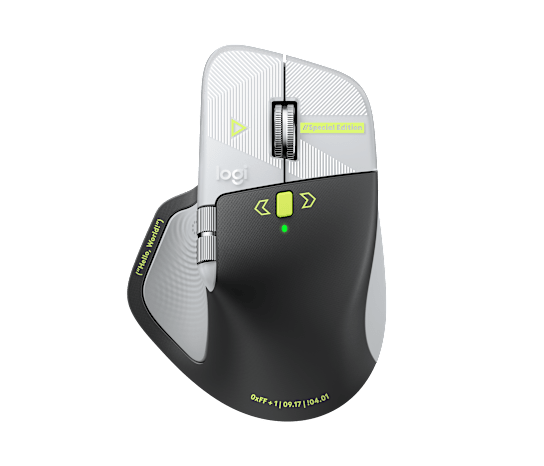
The design is a good enough reason to smile
There is something pleasing about work equipment that reflects what you enjoy. A mouse does not need to become an anonymous black shape simply because it is a serious tool. The Developer Edition takes the familiar MX Master form and gives it a visual identity that makes sense to people who spend time around software.
Logitech describes etched circuit paths, syntax prompts and small references to computing history in the Special Edition design. That is the part I find especially appealing. The theme belongs to the object. It connects a physical input device with the code and ideas that move through it, without requiring a large glowing logo or a row of lights.
I like having that little bit of personality in ordinary equipment. A keyboard, lamp or mouse can make a workspace feel more like your own. It is a small pleasure, but one you can enjoy repeatedly. There is no need to pretend that an attractive design compiles code faster to accept that it makes the desk a nicer place.
The important buying distinction is straightforward. This is a special visual edition of the MX Master 4, with the same underlying product identity. The Developer name does not establish a faster sensor, extra computing power or a separate professional software tier. Choose this version because the design speaks to you. That is a perfectly reasonable preference when you also want the mouse underneath it.
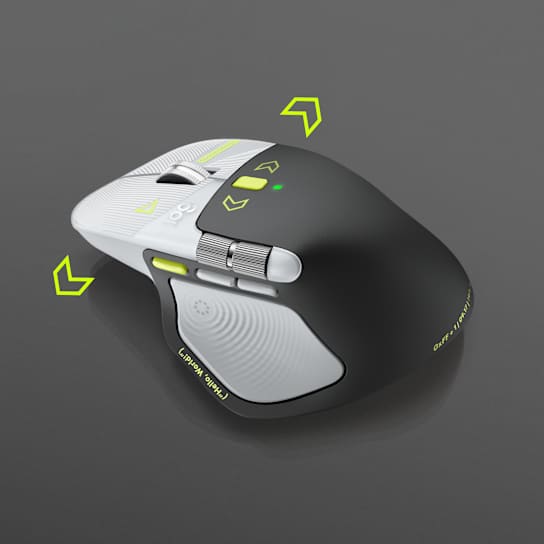
Product photographs: Logitech.
The scroll wheel is where the practical appeal begins
Long pages are a normal part of computer work. Documentation, source files, logs and spreadsheets all create the same small problem: sometimes you want to move carefully, and sometimes you want to travel a long way quickly. A wheel that supports both behaviours has a clear purpose.
Related reading

The MX Master 4 uses MagSpeed, with stepped scrolling and a free-spinning mode. Logitech’s setup guide explains how SmartShift changes between them and how Options+ adjusts the transition. The value is easy to understand. Small movements serve reading; a longer spin serves distance.
My advice is to give the transition setting a little attention. If the wheel changes mode too easily for your taste, raise the threshold. If you want it to move freely more readily, adjust in the other direction. Start with the normal setting, change one thing and use it for ordinary work before changing it again. A personal control should fit your habits rather than force you to admire the default.
Logitech’s MX Master 4 announcement advertises scrolling through 1,000 lines per second. I read that as a claim about the mechanism, rather than a target for reading. The useful part is moving through a long document without making repeated small wheel movements, then returning to a controlled pace when you reach the relevant section.
For code or documentation, keep another useful habit alongside the wheel: use search when you know what you need. Fast scrolling is excellent for exploring. A known function name or error message is often a search job. The best tool supports both habits, and a pleasant wheel should make browsing easier without replacing more direct navigation.
Give the thumb wheel one clear job
The second wheel is a strong part of the MX Master’s appeal. Horizontal movement is common enough to deserve a convenient control. Wide tables, editing timelines and large canvases all benefit from a way to move sideways that does not involve hunting for a narrow scrollbar.
Logitech documents application-specific thumb-wheel assignments, including browser tabs, horizontal scrolling and other supported controls. The sensible approach is to decide what matters in each application. A spreadsheet and a photo editor do not have to use the wheel in the same way.
Start with a task you repeat often. In a spreadsheet, that may be moving across columns. In an editor, it may be navigating a timeline. Keep that assignment long enough to learn it. If every visit to Options+ produces a new mapping, the mouse becomes harder to remember precisely when it should be reducing effort.
This is one reason I value the functionality as a whole. The controls are useful because they can serve real, small tasks. You do not need to invent a complicated automation project to justify them. Making a frequently repeated movement easier is already a worthwhile result.
Haptics need a clear meaning
The Haptic Sense Panel is one of the defining MX Master 4 features. It adds physical feedback to supported actions, so a shortcut can have a small response you feel as well as an effect you see. That is an appealing idea for a tool your hand is already touching.
Logitech’s haptic feedback guide describes supported events in Actions Ring, Smart Actions and particular gestures. It also provides several intensity settings. Those details matter because the feature is tied to specific software behaviour. It is not a promise that every button in every application suddenly gains meaningful feedback.
I would keep the feedback easy to interpret. Choose an intensity you notice comfortably, then connect it to actions where confirmation helps. A brief signal after selecting something can be useful. A collection of unexplained signals can become another thing to tune out. The point is to make a successful action clearer.
There is an important platform distinction. Options+ supports haptic features on Mac and Windows. Logitech’s Options+ release notes also describe separate native Windows integration. A Windows example involving window management should not be presented as a native macOS feature. Check which integration your own applications actually support.
If feedback disappears when the battery is low, look at the haptic settings before assuming the mouse has failed. Logitech documents a battery-saving option that can disable haptics at ten percent charge. Knowing that small detail can save a surprisingly long search through unrelated Bluetooth and application settings.

Actions Ring works best when you keep it small
Actions Ring brings a set of commands close to the pointer. That is a practical location for controls you reach for repeatedly. Instead of leaving the current area to find a menu, you can choose from a ring of assigned actions. The feature has a clear purpose when the assignments match your work.
The temptation is to fill it immediately. I would resist that. Begin with a few actions you already use and understand. They should be actions whose location you often forget, whose menu path is awkward, or whose keyboard shortcut is uncomfortable to perform while your other hand is busy.
There is little benefit in moving an effortless keyboard shortcut into a slower, unfamiliar menu just because the mouse can display it. Choose a genuine inconvenience. Window arrangement, an application tool or a repeated editing operation may be a better starting point than copying the same basic commands everywhere.
The official setup instructions describe two selection methods. One uses a press and release, followed by pointing and clicking. The other uses holding the panel, pointing and releasing. Try both calmly and keep the method that feels easier to remember. The quicker method on paper is not necessarily the one you will prefer.
Name and arrange the commands clearly. Put frequently used actions where you expect them, and keep similar actions together. When you change an assignment, use it deliberately a few times. A small amount of learning at the start is reasonable; a menu that remains a puzzle after every change is a sign to simplify it.
Related reading

A developer-focused starting point could be finding a file, searching the project, returning to the previous location and opening the editor’s command palette. Those are suggestions for assignments, rather than a claim that every editor arrives with an official Logitech plugin. Use the shortcuts provided by your own application where its Options+ profile allows them. The ring should speak the language of the tools already on your computer.
Navigation is a useful place to begin because the benefit is easy to notice. You are looking at an unfamiliar function, following a reference, then returning to the original file. A clear way back preserves your place in that small investigation. In another application, the equivalent might be returning to the previous page or changing a view. The important thing is recognizing the task, then choosing the control.
Test an assignment in an ordinary document before depending on it during a presentation or a busy working session. Check that it reaches the intended application and does what its label says. If you use several editors, keep the same purpose in the same position where possible. Consistent placement is easier to learn than a completely new ring whenever the active window changes.
Logitech publishes productivity percentages for Actions Ring from a limited study of specific desktop tasks. I would not turn those figures into a promise about my working day. The useful question is smaller: does a particular assignment save a repeated detour? That is something you can observe in your own routine without making a grand claim about being a faster developer.

Multiple computers: choose the kind of switching you need
The MX Master 4 supports pairing with three computers through Easy-Switch. That is useful for a desk with more than one system, but it is worth distinguishing simple device switching from moving continuously between computers. They are related features with different setup requirements.
Easy-Switch selects a paired device. Logitech Flow is the software-supported route for moving the pointer between compatible computers and copying supported content across them. Logitech’s documentation requires Options+ on both computers for Flow. Pairing the mouse to two machines is not the whole Flow setup.
Start by making each computer work on its own. Confirm that the pointer, buttons and required software behave correctly. Then set up the cross-computer features you need. This makes it much easier to understand a problem than connecting everything at once and trying to diagnose several new behaviours together.
There is also a useful detail in Logitech’s Easy-Switch configuration guide. A switching action can be added to Actions Ring. That gives you another route to a paired channel, provided you configure it for your devices. It is worth exploring if changing computers is a normal part of your day.
On a managed work computer, check whether the required software and permissions are allowed before depending on the advanced features. Basic pointing and a fully customized workflow are different requirements. A mouse can be appropriate hardware while a particular employer’s software policy limits what you can install.
Set the pointer for accuracy you enjoy
The official page advertises an 8,000 DPI sensor, including tracking on glass at least four millimetres thick. That is a specification with conditions. It does not mean that the highest sensitivity is the best setting for every screen or every hand.
Raise sensitivity gradually if you want to cover a large desktop with less physical movement. Then test a small target, such as a narrow selection handle or a compact toolbar button. If you repeatedly overshoot, reduce it. The useful setting is the one that makes both travel and placement comfortable.
Keep the surface consistent while adjusting. Changing pointer settings and the desk surface together makes it harder to tell what improved the result. Even when a sensor supports a wide range of surfaces, a surface you like can still be part of a pleasant setup. Compatibility is a useful option, rather than a requirement to work on bare glass.
I also keep sensor sensitivity separate from claims about response time. The 8,000 figure describes DPI; it is not a statement that the mouse sends 8,000 reports per second. The relevant attraction here is adjustable control for ordinary desktop work. That distinction helps keep an impressive specification connected to an actual need.

The shape has to suit your hand
Small details matter alongside the headline features. Logitech also lists Quiet Clicks for the MX Master 4 in its official announcement. Quieter operation is a welcome aim for a tool used near other people, a microphone or a shared table. I have no sound-level measurement to add, so the noise reduction remains a manufacturer claim. What I like is the overall direction: give the person using the mouse useful feedback while making the tool less demanding of everyone else’s attention.
The MX Master form is substantial and built around a right-handed grip with thumb controls. That arrangement gives the extra controls a natural place to live. It also makes fit a personal decision. A product can look beautiful and still be the wrong size or shape for another person.
Try it with your normal desk height and chair position. Place the mouse where you can reach it without stretching your shoulder away from the keyboard. If the desk arrangement is awkward, changing the mouse alone cannot solve every part of that setup.
Comfort should be judged over the sessions you actually have. The shape and position of the controls need to suit your hand and grip. If you want a very small travel mouse, a left-handed shape or a markedly different grip, choose around that requirement. My enthusiasm for this mouse is an owner’s preference, rather than a universal fit recommendation.
Related reading

The decoration deserves ordinary care too. The theme is part of why I like the edition, so I would follow Logitech’s cleaning guidance and avoid experimenting with strong cleaning products. Keeping it clean gently is a better plan than making assumptions about how every decorative detail will tolerate an unfamiliar cleaner.
Battery life: a useful claim, not my measurement
Logitech’s consumer guide states up to seventy days on a charge, with actual results depending on use and settings. It also describes a short charge providing a day’s use. Those are convenient claims for a wireless work mouse, and they remain Logitech’s claims here. Your own charging routine will show how the mouse fits your use.
Keep a suitable charging arrangement accessible before the battery becomes an interruption. It is easier to connect a cable at a calm moment than to find the right one during a meeting. Check the contents of the exact regional package rather than assuming every version includes the same cable or receiver.
The mouse’s USB-C charging connection should also be understood separately from its wireless connection. Do not buy it expecting the charging cable to establish a conventional wired mouse mode. Follow the documented Bluetooth or compatible Logi Bolt setup for the actual bundle you receive.
Why I am happy I bought it
My enthusiasm comes back to the same two things: the design and the functionality. I enjoy the Developer Edition’s character. I also like that the underlying controls have practical jobs, from travelling through a long page to placing a useful action near the pointer.
A good setup does not require using every feature immediately. Begin with the wheel and pointer settings, give the thumb wheel a clear role, and add a few Actions Ring commands when you know what belongs there. Let the mouse become familiar before turning every control into a new experiment.
The exact version I am talking about is Logitech’s MX Master 4 Special Edition, Developer colour, 910-008022. Check the edition, regional offer and included accessories before ordering. A standard MX Master 4 can serve the same underlying purpose if you prefer its appearance or price.
To check for the Developer Edition on Amazon.com, use my Amazon search link. This opens search results, not a verified direct offer for this edition. As an Amazon Associate I earn from qualifying purchases. Check that any result you choose is the Developer Edition, since standard MX Master 4 models may also appear.
For me, this special edition earns its place through a combination I value: useful controls and a design I am happy to look at. I bought it, I love it, and I think the pleasure of using a well-considered everyday tool is worth taking seriously.
One email a month: new articles, reviews and the upcoming live webinar + free recording. No spam, unsubscribe anytime.