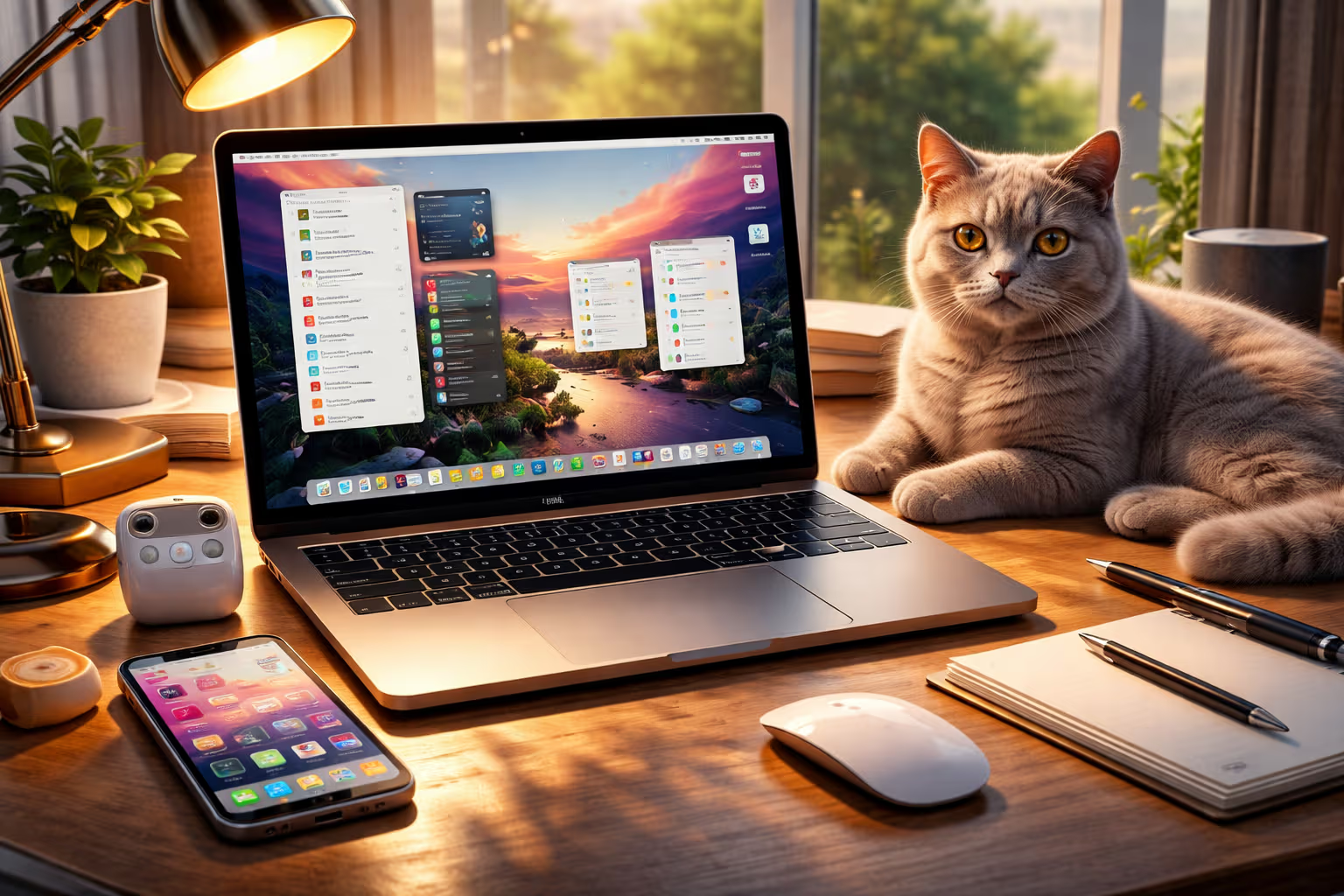
The Most Underrated macOS Features That Save Hours Every Week
The Untapped Power on Your Desk
Your Mac does more than you know. Apple builds features, announces them at WWDC, and then users ignore them for years. The default experience barely scratches the surface. Most people use their Mac like a very expensive typewriter that also browses the web.
I’ve watched colleagues struggle with tasks that macOS solves natively. Renaming hundreds of files manually. Switching between apps with mouse clicks. Searching for files in Finder like it’s 1995. The solutions exist. They’re built in. They cost nothing. They just need discovery.
My British lilac cat, Mochi, uses her environment efficiently. She knows every sunny spot, every warm surface, every optimal napping location. She’s mapped her territory completely. Most Mac users haven’t mapped theirs. They work in a subset of their machine’s capabilities.
This article covers macOS features that genuinely save time—not gimmicks, not edge cases, but practical capabilities that improve daily work. Each feature is built into macOS. Each is underused. Together, they can save hours weekly.

The features span categories: automation, navigation, file management, text handling, and system integration. Some require one-time setup. Others work immediately. All reward the few minutes needed to learn them.
Spotlight: Beyond Basic Search
Everyone knows Spotlight exists. Press ⌘-Space, type something, find it. But Spotlight does far more than basic search.

Calculations and Conversions
Spotlight is a calculator. Type any math expression—(245 * 1.21) / 3—and see the result instantly. No need to open Calculator app.
It handles unit conversions. Type 45 miles in km or $100 in euros or 72°F in celsius. Currency conversions use current rates.
Time zone conversions work too. 3pm EST in London shows the equivalent time. Useful for scheduling international calls.
Time saved: 2-3 minutes per day avoiding app switching for quick calculations. That’s 10+ hours yearly.

Application Actions
Spotlight doesn’t just launch apps—it accesses actions within apps. Type email and then a contact name to start an email to them. Type message and a name to open Messages with that conversation.
Type play followed by a song name to play it in Apple Music. Type call and a contact name to initiate a FaceTime call.
Time saved: 30 seconds per action, multiple times daily.
System Commands
Spotlight controls system functions. Type restart to restart your Mac. Type shutdown to power off. Type sleep to sleep immediately.

Type bluetooth to open Bluetooth settings. Type wifi to open Network settings. Type any System Settings pane name to go directly there.
Time saved: Navigating System Settings manually takes 30+ seconds. Direct access takes 3 seconds.
File Previews and Actions
Select a Spotlight result and press Space to preview without opening. Works for documents, images, videos, and more.
Press ⌘-Return to reveal the file in Finder instead of opening it. Press ⌘-I to show file info.

Time saved: Quick previews avoid opening apps for files you just want to check.
Natural Language
Spotlight understands natural language for dates. Type photos from last week or documents modified yesterday or files from December 2024.
This is genuinely powerful for finding things you don’t remember the exact name of but remember when you worked on them.
Time saved: Finding files through natural language beats manual folder navigation substantially.
Quick Actions and Services
Right-click any file and look at the Quick Actions menu. Most users never explore this. They should.

Built-In Quick Actions
macOS includes Quick Actions for common tasks:
- Rotate images: Right-click an image, Quick Actions → Rotate Left/Right. Batch processing works—select multiple images.
- Create PDF: Select multiple images, Quick Actions → Create PDF. Instant PDF from images.
- Convert images: Quick Actions can convert between image formats.
- Markup: Quick Actions → Markup opens annotation tools without launching Preview.
- Trim videos: Quick Actions → Trim opens a simple editor for quick cuts.
Time saved: These actions eliminate app launches for simple tasks. 5 minutes saved per task, several times weekly.

Custom Quick Actions
You can create custom Quick Actions using Automator or Shortcuts. These appear in the right-click menu for relevant file types.
Examples I use:
- Resize to 1200px: Resizes selected images to 1200px width. Essential for blog images.
- Strip EXIF: Removes metadata from images before sharing.
- Convert to MP3: Converts audio files to MP3 format.
- Compress PDF: Reduces PDF file size.
Creating these requires one-time Shortcuts/Automator work. Then they’re available forever via right-click.

Time saved: Custom Quick Actions for your common tasks save massive time. Setting up one action that you use weekly saves 50+ hours yearly.
Shortcuts: Automation Without Code
Shortcuts migrated from iOS to macOS and remains criminally underused. It’s visual automation—drag blocks, connect them, run complex workflows.
What Shortcuts Can Do
Shortcuts can:
- Manipulate files (rename, move, convert, compress)
- Process text (format, extract, transform)
- Interact with apps (send messages, create events, add tasks)
- Control system functions (change settings, run scripts)
- Fetch web data (get URLs, parse JSON, download files)
- Combine all of the above in sequences

Practical Shortcut Examples
Morning Briefing: A shortcut that opens your calendar, fetches weather, shows your task list, and opens your most-used apps. One click starts your day.
Screenshot to Clipboard: Take a screenshot, resize it, copy to clipboard ready for pasting. Avoids the clutter of screenshot files.
Meeting Prep: Given a meeting name, searches your files for related documents, opens relevant apps, and creates a note for meeting notes.
Invoice Generator: Prompts for client name and amount, populates an invoice template, saves as PDF, and opens email with the invoice attached.

File Organizer: Watches your Downloads folder and automatically moves files to appropriate folders based on type—images to Photos, documents to Documents, etc.
Running Shortcuts
Shortcuts can be triggered by:
- Menu bar shortcut icon
- Keyboard shortcut (assign any key combination)
- Spotlight (type shortcut name)
- Dock icon
- Voice via Siri
- Quick Actions (right-click menu)
- Calendar events
- Folder actions (when files are added)

The flexibility means shortcuts integrate into however you work.
Time saved: Highly variable—depends on what you automate. A single well-designed shortcut can save hours weekly.
Window Management
macOS window management has improved substantially, but many users don’t know the newer features.
Stage Manager
Stage Manager (macOS Ventura and later) groups related windows and hides everything else. Click a group on the left side to switch context entirely.

This is controversial—some love it, some hate it. For people who work in distinct contexts (writing mode, coding mode, communication mode), Stage Manager provides clean separation without virtual desktops.
How to enable: System Settings → Desktop & Dock → Stage Manager.
Window Tiling (macOS Sequoia)
macOS Sequoia finally added proper window tiling. Drag a window to screen edge to snap it to half or quarter screen. Keyboard shortcuts work too.
- Tile left half: Globe + Left Arrow (or Fn + Control + Left)
- Tile right half: Globe + Right Arrow
- Maximize: Globe + Up Arrow
- Tile to corners: Globe + Arrow combinations

This eliminates the need for third-party window managers for basic tiling.
Time saved: Proper window arrangement without manual resizing saves significant daily time.
Spaces (Virtual Desktops)
Spaces have existed for years but remain underused. Swipe up with three fingers (or Control + Up) to see Mission Control. Drag windows between spaces. Create new spaces for different projects.
Assign apps to specific spaces. Right-click an app’s Dock icon → Options → Assign to specific desktop. That app always opens in its designated space.

Practical setup:
- Space 1: Communication (Mail, Messages, Slack)
- Space 2: Writing (Word processor, notes)
- Space 3: Development (IDE, terminal)
- Space 4: Research (browser, PDF reader)
Swipe between spaces to switch contexts completely.
Time saved: Context switching with spaces beats hunting through overlapping windows.
Text Manipulation
macOS has powerful text handling that few users exploit.

System-Wide Text Replacement
System Settings → Keyboard → Text Replacements lets you define text expansions that work everywhere.
Examples:
@@expands to your email addresspphexpands to your phone numberaddrexpands to your full addresssigexpands to your email signaturetyvmexpands to “Thank you very much”

These work in every app. Set them once, use forever.
Time saved: Typing your email address takes 3 seconds. Typing @@ takes 0.3 seconds. Multiply by frequency.
Dictation
Press the microphone key (or Fn twice) to dictate. Modern dictation is remarkably accurate. It works offline for common languages.
Dictation includes punctuation commands: say “period,” “comma,” “question mark,” “new line,” “new paragraph.”
For first drafts, dictation is often faster than typing. Edit afterward for precision.
Time saved: Dictation at 150 words per minute beats typing at 60 wpm for appropriate tasks.
Text Transformation Services
Select any text, right-click, and look at Services. These transform text system-wide:
- Make text uppercase/lowercase/capitalized
- Add to Notes
- Create new email with text
- Look up in dictionary
- Summarize (uses Apple Intelligence where available)
These work in most apps, providing consistent text manipulation regardless of where you’re working.

Live Text
macOS recognizes text in images. Open any image with text in Preview or Quick Look, and you can select, copy, and search the text.
This works with screenshots too. Screenshot a webpage, then copy text from the screenshot image. Useful when the original text isn’t selectable.
Time saved: Extracting text from images without OCR apps saves substantial time when you need it.
Finder Features
Finder is more powerful than it appears. Most users barely scratch the surface.

Smart Folders
Smart Folders are saved searches that update automatically. They don’t move files—they show files matching criteria wherever they’re stored.
Examples:
- All PDFs modified in the last 30 days
- All images larger than 5MB
- All documents containing “invoice”
- All files with a specific tag
Create via File → New Smart Folder, define criteria, save. The folder stays current forever.
Time saved: Finding files through Smart Folders beats manual navigation for recurring searches.

Tags
Tags provide organization independent of folder structure. A file can have multiple tags. Tags work across folders.
Practical tagging:
- Project names (ClientA, ProjectX)
- Status (Urgent, Review, Archive)
- Type (Reference, Template, Active)
Assign tags via right-click or ⌘-1 through ⌘-7 for your favorite tags. View tagged files in Finder sidebar.

Time saved: Finding files by tag beats remembering which folder you put them in.
Quick Look
Select any file and press Space. Quick Look previews without opening the associated app. This works for:
- Images (with basic editing)
- Documents (PDF, Word, Pages)
- Videos (with playback controls)
- Audio files
- Spreadsheets
- Presentations
- Code files (with syntax highlighting)
- Archives (showing contents)
In Quick Look, press ⌘-Y to make it full screen. Arrow keys navigate to next/previous files.
Time saved: Quick Look previews in under a second. Opening apps takes several seconds. The difference compounds.
Batch Rename
Select multiple files in Finder, right-click, choose Rename. A powerful batch rename dialog appears.
Options include:
- Replace text (find and replace in filenames)
- Add text (prefix or suffix)
- Format (name and index, name and counter, name and date)
This handles renaming tasks that would take ages manually.

Time saved: Renaming 50 files manually takes 10+ minutes. Batch rename takes 30 seconds.
Gallery View and Preview Column
In Finder, View → as Gallery (⌘-4) shows large previews with file info. Useful for visual browsing of images.
Column view (⌘-3) with preview column enabled (View → Show Preview) shows file previews while navigating.
Both enable file assessment without opening.

Keyboard Shortcuts Worth Learning
macOS has hundreds of keyboard shortcuts. Most aren’t worth memorizing. These are:
Universal
- ⌘-Space: Spotlight
- ⌘-Tab: Switch apps
- ⌘-`: Switch windows within app
- ⌘-W: Close window
- ⌘-Q: Quit app
- ⌘-,: Preferences (works in most apps)
- Control-⌘-Q: Lock screen

Text Editing
- ⌘-Left/Right: Jump to line start/end
- Option-Left/Right: Jump between words
- ⌘-Up/Down: Jump to document start/end
- ⌘-Shift-Arrow: Select to line end/start
- Option-Delete: Delete word
- Control-K: Delete to end of line
- Control-A/E: Jump to line start/end
Screenshots
- ⌘-Shift-3: Capture entire screen
- ⌘-Shift-4: Capture selection
- ⌘-Shift-4, then Space: Capture window
- ⌘-Shift-5: Screenshot/recording options

System
- Control-⌘-Space: Emoji picker
- ⌘-Shift-A: Open Applications folder
- ⌘-Shift-D: Open Desktop folder
- ⌘-Shift-G: Go to folder (type any path)
- ⌘-Option-D: Toggle Dock visibility
Time saved: Keyboard shortcuts save 2-5 seconds per action. For frequent actions, this compounds to hours.
Method
This feature compilation comes from years of macOS use and systematic exploration:

Step 1: Feature Discovery I systematically explored System Settings, menu bar items, and right-click menus to identify overlooked features.
Step 2: Time Measurement For each feature, I compared time-to-task using the feature versus traditional methods.
Step 3: Personal Workflow Integration I integrated promising features into my own workflow to assess real-world value versus theoretical benefit.

Step 4: User Observation Observing other Mac users revealed which features people consistently miss and which workarounds they use instead.
Step 5: Documentation Review Apple’s official documentation and WWDC sessions revealed features I hadn’t discovered through exploration.
Continuity Features
If you have multiple Apple devices, Continuity features multiply productivity:

Handoff
Start work on one device, continue on another. Begin an email on iPhone, finish it on Mac. Start a document on iPad, complete it on Mac.
Works with Safari, Mail, Maps, Reminders, Calendar, Contacts, Pages, Numbers, Keynote, and third-party apps that support it.
How it works: The Handoff icon appears in the Dock when relevant content is available from another device.
Universal Clipboard
Copy on iPhone, paste on Mac. Copy on Mac, paste on iPad. This just works when devices share an Apple ID and have Bluetooth/WiFi enabled.

Time saved: Eliminates emailing yourself or using intermediary services for cross-device transfer.
AirDrop
Right-click any file, Share → AirDrop to instantly transfer to nearby Apple devices. No cables, no cloud services, no configuration.
Time saved: AirDrop completes in seconds what email attachments or cloud upload/download takes minutes.
iPhone as Webcam
Continuity Camera uses your iPhone as a Mac webcam. Superior quality compared to built-in Mac cameras.

How to use: With iPhone nearby, select it as video source in any video app. macOS prompts you automatically when relevant.
Sidecar
Use your iPad as a second display for your Mac. Either mirror the Mac display or extend it.
How to enable: Control Center → Screen Mirroring → select your iPad.
Time saved: A second display increases productivity by 20-30% for many tasks.

Apple Intelligence Features (macOS Sequoia and Later)
If you have a compatible Mac with Apple Intelligence:
Writing Tools
Select any text, right-click, and access Writing Tools:
- Proofread (grammar and spelling)
- Rewrite (alternative phrasing)
- Make Friendly/Professional/Concise
- Summarize
- Create key points

These work system-wide—any text, any app.
Time saved: First-pass editing by AI before human review saves substantial editing time.
Mail Summaries
Mail shows summaries of long emails without opening them. Priority messages surface automatically.
Notification Summaries
Grouped notifications are summarized to show the key information without reviewing each notification.

Image Generation and Editing
Image Playground creates images from descriptions. Photos gains AI-powered editing tools.
Time saved: AI features are new enough that time savings are still being discovered through usage patterns.
Generative Engine Optimization
The connection between macOS productivity features and Generative Engine Optimization lies in workflow optimization—a skill that transfers across domains.
Learning to optimize your Mac workflow develops:

Pattern recognition: Identifying repetitive tasks suitable for automation—the same skill identifies AI applications.
Tool selection: Choosing the right tool (shortcut, service, app) for each task parallels choosing right AI tool for each need.
Prompt-like thinking: Creating Shortcuts requires clear instruction sequences—similar to effective prompting.
Efficiency mindset: Seeking better ways to accomplish tasks transfers to seeking better ways to use AI tools.

For practitioners, the practical application: treat your AI tools like you should treat macOS. Explore beyond the obvious. Discover hidden capabilities. Build automations for repetitive tasks. Integrate tools into coherent workflows.
The people who master macOS productivity features are often the same people who master AI tools effectively. The underlying skill—systematic optimization of tool usage—transfers directly.
Creating Your Personal Setup
Rather than implementing everything at once, build systematically:
Week 1: Spotlight Mastery

Commit to using Spotlight for everything possible. Calculations, app launching, file finding, system commands. Break the habit of navigating manually.
Week 2: Quick Actions and Services
Identify your most common file operations. Set up Quick Actions for them. Add them to your workflow.
Week 3: Shortcuts for Repeated Tasks
Identify your most repetitive workflows. Build Shortcuts to automate them. Integrate via keyboard shortcuts or menu bar.

Week 4: Window and Space Management
Set up Spaces for your work contexts. Learn tiling shortcuts. Establish window management habits.
Ongoing: Continuous Improvement
Each week, identify one friction point in your workflow. Find or create a solution. Incrementally your setup becomes increasingly efficient.
Time Savings Summary
Realistic weekly time savings from full adoption:
| Feature Category | Weekly Time Saved |
|---|---|
| Spotlight advanced usage | 30-60 min |
| Quick Actions | 20-40 min |
| Shortcuts automation | 30-120 min |
| Window management | 20-30 min |
| Text features | 15-30 min |
| Finder improvements | 20-40 min |
| Keyboard shortcuts | 30-60 min |
| Continuity features | 15-30 min |
| Total | 3-7 hours |

The range is wide because it depends on your work type and starting point. But even conservative adoption saves meaningful time.
Final Thoughts
Mochi maximizes her environment. Every surface has been assessed for warmth, every hiding spot catalogued, every routine optimized for her objectives (sleeping, eating, receiving attention). She doesn’t accept the default configuration of the house. She customizes it.
Your Mac deserves the same treatment. The default experience is a starting point, not a destination. The features exist. The documentation exists. The time investment to learn them is minimal compared to the time they save.

Most people never optimize their tools. They adapt to default configurations. They work around limitations instead of eliminating them. They spend hours doing what could take minutes.
The features in this article aren’t new or secret. They’re documented, announced, and built in. They’re just ignored. The difference between struggling with your Mac and flowing through work is often just knowledge—knowing what’s possible and how to access it.
Take an hour this weekend. Explore one feature category. Set up one automation. Learn one new capability. Your future self will appreciate the investment.
Your Mac can do more than you know. Start discovering.