A developer’s Mac does not fill up with holiday videos. It fills up with things you never chose to keep, such as build output, simulator runtimes, container images, package caches and the remains of every toolchain you tried once. Finder is no help, because most of it lives in folders Finder would rather you did not open. DaisyDisk is the small Mac utility that answers the question properly. It scans a disk, draws everything on it as a ring of coloured segments sized by the space they take, and lets you walk from the whole disk down to the one folder that ate 40 GB.
Quick verdict
DaisyDisk is the disk space analyser I would install first on a developer's Mac.
- Best for
- Mac users, and developers in particular, whose disk fills up with caches, simulators, container images and forgotten folders
- Main benefit
- A fast sunburst map of the whole disk with sizes that account for hard links, clones and hidden space, and a Collector that deletes nothing until you confirm.
- Biggest drawback
- Deletion is permanent and bypasses the Trash, and network shares scan slowly and by logical size.
DaisyDisk lifetime licence
daisydiskapp.com · Worldwide
Check price and availability: DaisyDisk lifetime licence at daisydiskapp.comProduct link.
Time with the product: Everyday use since the licence arrived on 13 November 2026.
Reviewed version: DaisyDisk 4 stand-alone edition with a lifetime licence
Compatibility: Macs with Apple Silicon or Intel processors running macOS 10.13 High Sierra or later, per DaisyDisk. Scanning as administrator and purging hidden space need the stand-alone edition, not the Mac App Store one.
Review context: The review focuses on a developer's MacBook Pro, a Mac mini and a NAS share: how quickly DaisyDisk shows where the space went, how safe its deletion flow is and how it handles a network volume.
I like it for a reason that has little to do with the pretty chart. DaisyDisk is not a cleaner. It has no magic button, it does not decide what counts as junk, and it cleans nothing automatically. It shows you the truth about your disk and leaves the decision to you, which is how I want a tool with a Delete button to behave. It costs $9.99 once, and the licence does not expire.
Disclosure: DaisyDisk provided a licence free of charge for review and I keep it. No money changed hands, and DaisyDisk had no approval over the text.
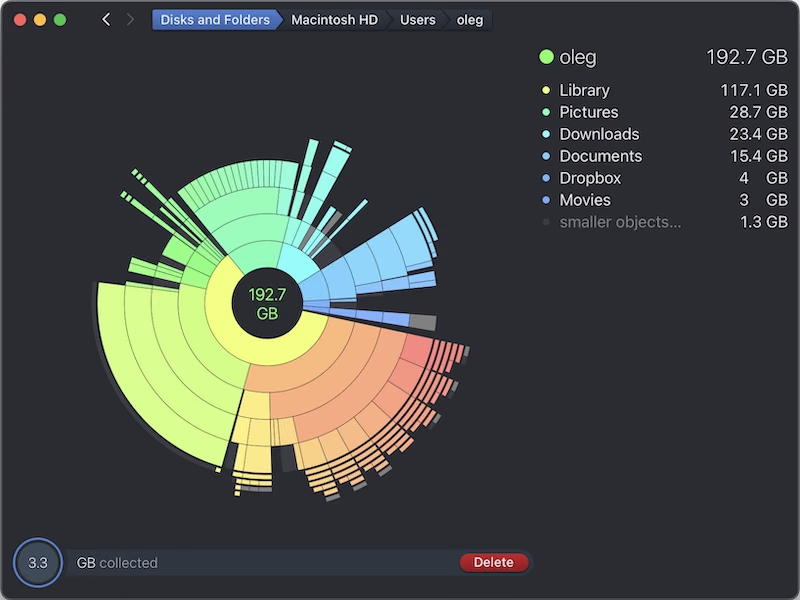
Screenshots: DaisyDisk.
What DaisyDisk is
DaisyDisk comes from Software Ambience, whose About page dates the first version to March 2009. The current release is 4.34.2 from July 2026, and the tech specs list Apple Silicon and Intel support on everything from macOS High Sierra to this year’s macOS 27. That range covers my 14-inch MacBook Pro M4 Max and the Mac mini beside it, and since one licence is valid on up to five personal Macs, both machines are covered by the same key.
Related reading

The interface is one idea carried through. The user guide asks you to think of the map as a flower. Coloured petals are folders, grey ones are files, and the wider a petal is, the more space it takes. Segments are sorted by size, pointing at a folder lists its contents in the sidebar, a click drills down and a click in the centre goes back up. Pressing Space opens a Quick Look preview, so you can see what a file is before deciding its fate.
It also does very little else, and I mean that as praise. Chris Barylick’s Macworld review opens with the same point, that there is something to be said for a utility that focuses on one set of tasks, does it very well, and does not try to be every utility under the sun.
How quickly it shows where the space went
Speed decides whether you use a tool like this. If a scan takes ten minutes you run it once a year, when the disk is already full. If it takes seconds you run it out of curiosity, which is how a large cache gets caught early.
DaisyDisk’s own figures are firmly in the second camp. The tech specs give 12 to 20 seconds for an APFS startup disk on an SSD, which is what every current Mac has, and the homepage puts a 15-second DaisyDisk scan next to six minutes for Finder to total the same disk. Those are the maker’s numbers and I have not timed anything myself, but the guide adds the detail that matters, which is that scan time depends on the number of files and the type of disk. Capacity does not come into it.
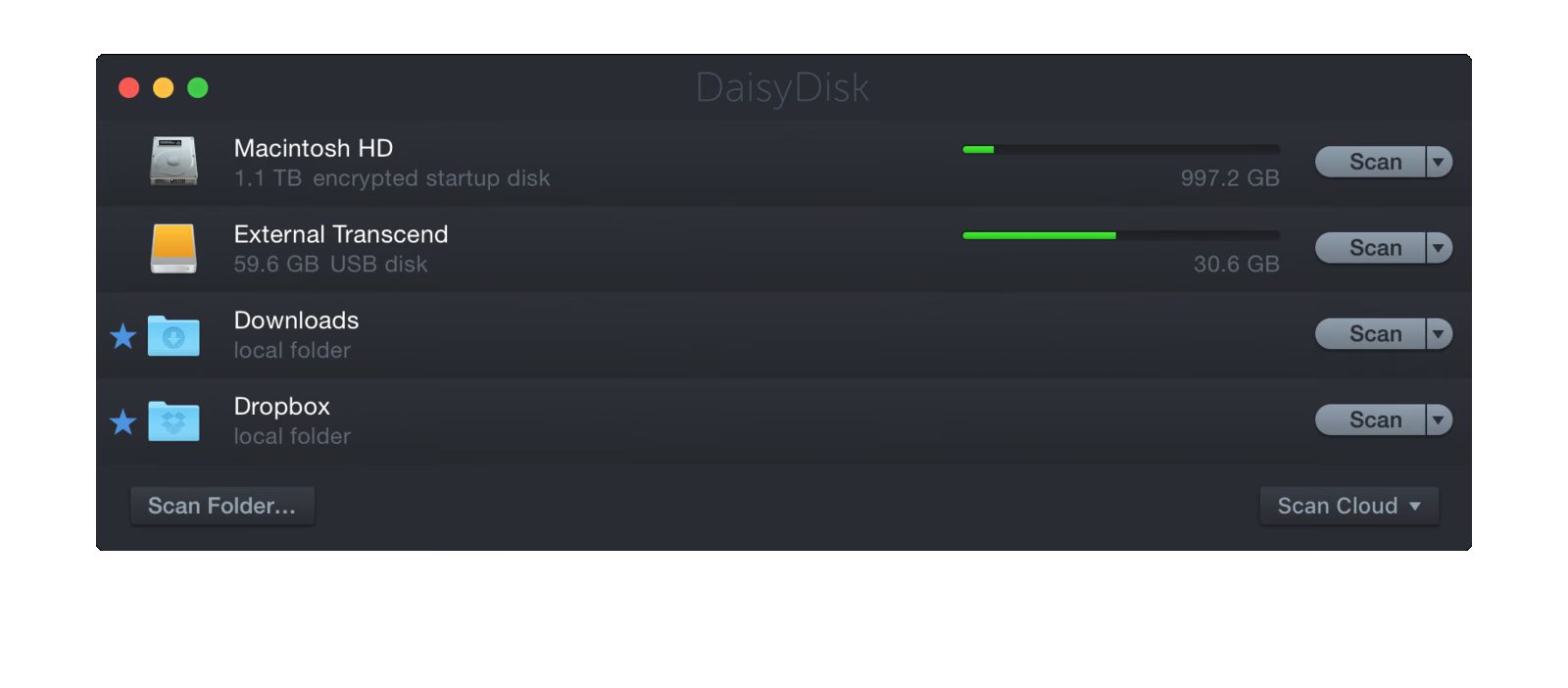
Two documented conveniences suit the way I work. You can scan a single folder instead of the whole disk, and you can star folders you scan often so they stay in the start window. My plan is to star ~/work, where the repositories and their node_modules and build folders live, and ~/Library/Developer, where Xcode keeps derived data and simulators. One of the customer reviews DaisyDisk quotes on its homepage describes finding 40 GB of old iOS simulator caches.
Why the numbers are better than Finder’s
DaisyDisk measures the physical space a file occupies instead of its logical length. The guide’s page on mismatches with Finder explains that it counts a hard-linked file once where Finder counts every link as another copy, and the release notes for version 4.34 say the same treatment now applies to APFS clones: the first occurrence gets the size and the rest count as zero. Package managers that link or clone files out of a shared store are where a naive total overstates what deleting a folder would give back.
Containers are the other example. Docker’s Mac FAQ says Docker Desktop keeps all Linux containers and images in a single large disk image file, and warns that other tools may report its maximum size instead of the space it really uses. A scanner that reports physical size should show the smaller, correct figure. That is the first thing I will check on the MacBook Pro.
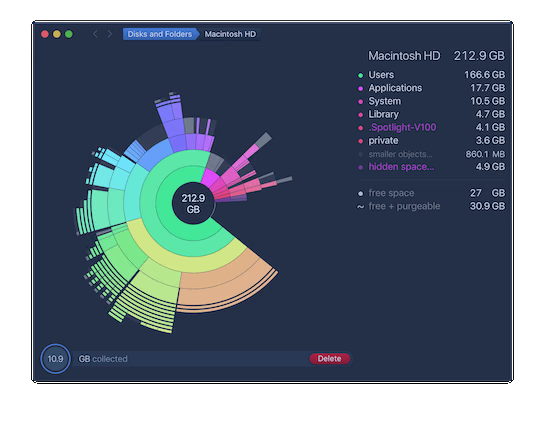
Then there is the space that is not in any folder. DaisyDisk shows a “hidden space” item for the difference between what the disk says is used and what the scan could reach, and breaks it into purgeable space, local snapshots, other APFS volumes and a remainder. Granting Full Disk Access shrinks it, and the standalone edition can rescan as administrator to reach restricted folders. The Eclectic Light Company names old snapshots as the most frequent cause of free space that Finder promises and the disk cannot deliver, and points to DaisyDisk as one of the utilities that list them.
Related reading
How safe the clean-up is
Nothing is deleted when you find it. You drag a segment to the Collector, a strip at the bottom of the window, or press Command-Delete while pointing at it. The Collector keeps a running total of what it holds, and the guide is explicit that the files remain intact until you click Delete. You can open the Collector, preview what is in it and drag things back out. Pranay Parab at Lifehacker calls it a shopping cart for things you want to delete, which is the right picture.

There are two safety stoppers on top of that. The Collector refuses folders such as /System, /Library and your home folder outright. And after you click Delete you get a five-second countdown with a Cancel button.

Now the thing to know. Once the countdown ends, the files are gone. DaisyDisk removes them permanently and does not use the Trash, because a file in the Trash frees no space. There is no undo, and the guide’s own advice is to keep Time Machine running. The stoppers protect macOS and do nothing for your project, so nothing prevents you from collecting a folder of unpushed work.
My rule for a developer’s Mac follows from DaisyDisk’s own advice for iTunes and Steam, which is to find the big items in DaisyDisk and remove them with the app that owns them. I would use DaisyDisk to find the 60 GB, then let docker system prune or Xcode clear its own stores, and keep the Collector for things I recognise as mine: old disk images, forgotten downloads, abandoned checkouts. Kevin, my British Shorthair, deletes things by walking across the keyboard, and I prefer a workflow that needs more intent than that.
How it handles a network volume
The third part of my setup is a share on the NAS. The guide says that if you can see a disk in Finder, you can scan it in DaisyDisk. The tech specs list network storage explicitly, including NAS, Samba, NFS and WebDAV, and Macworld counts the range of supported local, network and web-based volumes among the app’s strengths. Several disks can be scanned at the same time, so the NAS need not hold up the internal SSD.
The caveats are documented just as clearly. Network drives usually take much longer to scan, because of the number of files and the bandwidth of the connection. Sizes on a network drive are logical, not physical, so the precise accounting described above does not carry over. Scanning as administrator works only on local APFS and HFS+ volumes. And if the file system takes more than a minute to answer for a single file, DaisyDisk stops with a time-out error, and the guide suggests connecting over a different protocol or scanning on the machine itself.
None of that is a criticism. For a NAS, the realistic use is the occasional scan of one large share to find what should be archived. DaisyDisk can also connect to Dropbox, Google Drive, OneDrive and Box and scan them without downloading anything, though Macworld noted in 2024 that iCloud Drive can only be scanned through its local folder.
Two editions, one price
DaisyDisk is sold directly and in the Mac App Store, and the two are not the same. Because of App Store sandboxing, the store edition can detect hidden and purgeable space but not reveal or purge it, cannot scan as administrator, and hands you a Terminal command to delete snapshots. The standalone edition does all of that itself. DaisyDisk says App Store customers can get a standalone licence free of charge. I would buy direct.
Related reading

The direct licence is $9.99 as a one-time purchase, with minor updates included, use on up to five personal Macs and a 30-day money-back guarantee. There is a free trial with some functions locked. Michael Potuck at 9to5Mac writes that he uses DaisyDisk three or four times a year and that the lifetime licence feels like a bargain for the time it saves. This is not an app you live in. It is an app that is there, already paid for, on the day the disk is full.
The one reservation in the independent coverage is pace. Macworld observed in 2024 that the version number had moved slowly and quoted the developer as saying a version 5 is in development. The release log since then shows steady maintenance, including the APFS clone accounting this summer.
What this review is based on
The DaisyDisk licence arrived on 13 November 2026, and this review is a first look built on documentation, without weeks of clean-up sessions behind it. My opinion of the design and of the deletion workflow is my own. I did not time scans or measure recovered space. Scan times, supported volumes, the hidden space and Collector behaviour, edition differences and pricing come from DaisyDisk’s website, tech specs, user guide and release log. Independent judgements are credited in the text to Macworld, 9to5Mac, Lifehacker and the Eclectic Light Company, and the note on Docker’s disk image comes from Docker’s documentation.
Verdict
DaisyDisk is the rare utility I would recommend to a developer without conditions about workflow or taste. It answers one question, where did the space go, with a map you can read at a glance and sizes that account for hard links, clones and hidden space. Its deletion flow is careful in the right places, with collecting first, a review step, a refusal to touch the system and five seconds to change your mind.
The things to know are few. Deletion is permanent, the App Store edition is the lesser one, and a network share will scan slowly and by logical size. Against that stands a one-time price of $9.99 for up to five Macs. If your Mac has ever told you the disk is full and declined to say why, DaisyDisk is the first thing I would install.
What worked
- The documented deletion flow collects items first, refuses system folders and gives a five-second countdown before anything is removed.
- Sizes are physical and count hard links and APFS clones once, and hidden space, purgeable space and snapshots are shown as their own items.
What bothered me
- Deleted files do not go to the Trash and cannot be restored from within the app.
- On network drives sizes are logical, scans take longer and scanning as administrator is not available.
Who should not buy it
- I would skip it if you want a one-click cleaner that decides what to delete for you, or if your Mac never runs short of space.
Alternatives I would consider
- The Storage settings built into macOS. Enough if you only need a rough breakdown by category and Apple's own recommendations.
Evidence and sources
The article separates my judgement from specifications and claims credited to their sources. All images are screenshots from DaisyDisk's website and user guide.
- DaisyDisk
- DaisyDisk tech specs
- DaisyDisk user guide
- DaisyDisk release log
- Macworld review
- 9to5Mac storage guide
- Lifehacker disk space guide
- The Eclectic Light Company on APFS free space
- Docker Desktop Mac FAQ
Features, compatibility and rated figures from the maker are manufacturer information. My opinions are identified in the review.
Conclusion
A one-time lifetime licence for up to five personal Macs is very good value.
DaisyDisk lifetime licence
daisydiskapp.com · Worldwide
Check price and availability: DaisyDisk lifetime licence at daisydiskapp.comProduct link.
One email a week with practical Mac workflows, useful comparisons and honest tech recommendations.