
Think for a second about everything one login controls. Your Apple Account — the thing Apple used to call an Apple ID — sits in front of your photos going back fifteen years, every message you’ve ever sent on iMessage, your saved passwords, your card details, the Find My map of where your family is right now, and the ability to remotely wipe every device you own. It is the single most valuable key you possess, and an alarming number of people protect it with a password they also use for a pizza loyalty scheme. If someone gets into that account, they don’t get a slice of your life. They get all of it.
The good news is that Apple gives you a genuinely strong set of locks, most of them free and most of them switched off or half-configured by default. None of this takes special knowledge. It takes about twenty minutes and the discipline to do the boring parts now, while you’re calm, rather than during the very bad afternoon when you’d give anything to have done them already.
Start with two-factor, because everything else leans on it
If you take one thing from this article: two-factor authentication is the floor, not the ceiling. With it on, signing in to your account on a new device needs your password and a six-digit code that appears on a device you already trust. A stolen password on its own becomes useless, which is the entire game, because passwords leak constantly and there is nothing you can personally do about the breach at some company you’ve forgotten you had an account with.
Related reading
Most accounts created in the last few years already have it. Check under Settings, your name at the top, then Sign-In & Security. Make sure your trusted phone number is current — if you’ve changed numbers and never updated it, you’ve quietly built yourself a locked door with no handle. Add a second trusted number if a family member’s phone can serve as backup. This one setting does more than every other item below combined, so confirm it before you go further.

Stolen Device Protection: the setting for the worst-case afternoon
Here is the nightmare that this one feature exists to stop. A thief watches you type your passcode in a bar, then steals the phone. With only the passcode, a determined thief used to be able to change your Apple Account password, turn off Find My, and lock you out of your own life within minutes. Stolen Device Protection breaks that chain.
Turn it on under Settings → Face ID & Passcode → Stolen Device Protection. With it active, when your iPhone is somewhere unfamiliar, sensitive actions demand Face ID or Touch ID with no passcode fallback — so the shoulder-surfed passcode alone gets the thief nowhere. On top of that, the most dangerous changes, like altering your Apple Account password, trigger a one-hour security delay followed by a second biometric check. That hour is enough for you to mark the phone as lost from another device. If your phone ever leaves the house in your pocket, this is not optional in my book.
Recovery key versus recovery contact: pick your safety net on purpose
Two-factor has one weakness: if you lose every trusted device at once, you fall back to Apple’s standard account recovery, which is deliberately slow and occasionally maddening. There are two ways to harden that fallback, and they pull in opposite directions.
Related reading

| Option | What it does | The trade-off |
|---|---|---|
| Recovery Key | A 28-character code that replaces Apple’s standard recovery | Total control, total responsibility, lose it and the account can be gone for good |
| Recovery Contact | A trusted person who can generate a code to help you back in | Friendlier and forgiving, but you depend on someone else being reachable |
A Recovery Key (under Sign-In & Security → Recovery Key) is the power-user choice. Once on, nobody — not even Apple support — can help you reset the account without it, which slams the door on social-engineering attacks where someone sweet-talks a support line into resetting your password. The catch is enormous and I will not soften it: lose both the key and access to your trusted devices, and your account, photos and all, is genuinely unrecoverable. Write the key on paper, store it somewhere a flood and a fire would have to work to reach, and tell one trusted person where it is. A Recovery Contact is the gentler option and the right one for most families. Pick someone level-headed; when you’re locked out, they tap a button, read you a code, and you’re back.
Passkeys: the part that finally kills the reused password
Two-factor protects your Apple Account itself. Passkeys protect everything else — all the other logins scattered across your life — and they’re the most important security shift in years precisely because they ask less of you, not more.
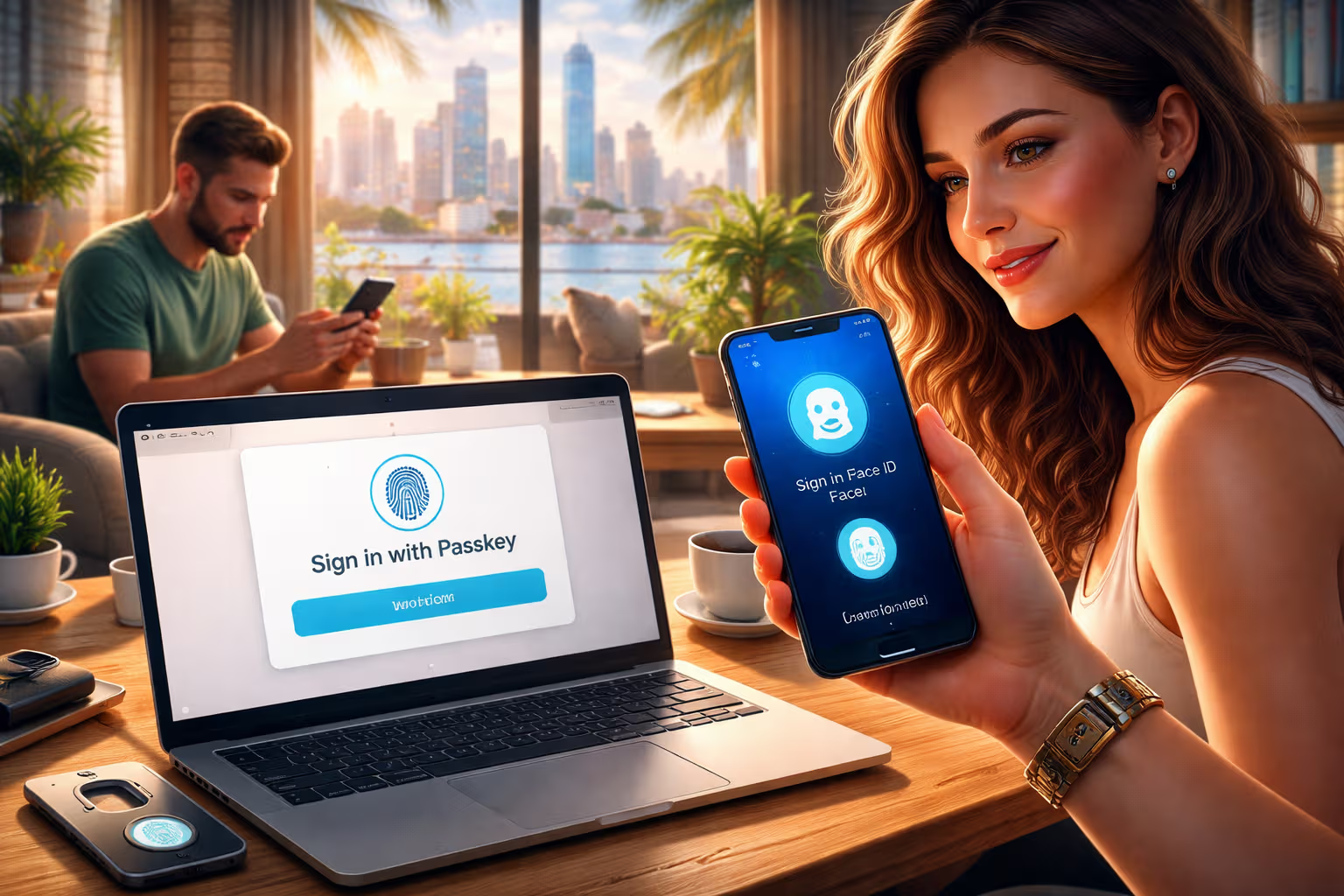
A passkey replaces a website’s password with a cryptographic key split in two. The private half never leaves your devices and never gets typed, which means there is nothing to phish, nothing to reuse, and nothing useful for an attacker to steal from the website’s end. You sign in with Face ID or Touch ID, and that’s the whole experience. Apple stores and syncs them through the Passwords app (it grew out of iCloud Keychain), so a passkey you create on your iPhone just works on your Mac.
The move is gradual and painless. Each time you log in to a major account — your bank, your email, your shopping sites — look for an offer to “set up a passkey” or “go passwordless” in its security settings, and take it. Open the Passwords app now and look at its Security section: it flags reused, weak, and leaked passwords with a frankness that is uncomfortable and useful. Convert those first. You don’t have to do all of them today. You have to start.
For the genuinely security-minded: physical keys
If you’re a high-value target — a journalist, an executive, anyone with a public profile or a reason to be specifically attacked — you can replace the six-digit codes entirely with Security Keys for Apple ID. These are small FIDO-certified hardware keys that plug into USB-C or tap over NFC, and a sign-in physically cannot complete without the key in hand. Phishing a code over the phone stops working, because there’s no code to phish. Apple requires you to register at least two keys, so that losing one doesn’t lock you out, and you set them up under Sign-In & Security → Security Keys. For most people this is overkill. For some people it’s the difference between a bad day and a ruined year.
Related reading

Don’t forget the digital afterlife
One last setting that nobody enjoys arranging and every family eventually needs. A Legacy Contact (under Sign-In & Security) is a person you nominate to access your account data after you die, using an access key you give them now plus a copy of your death certificate later. Without it, your photos and messages can be locked away from the people who’d want them most, behind a legal process that is slow and grim. It takes two minutes to set up and it is, quietly, one of the kinder things you can do for the people you’ll leave behind.
Security advice usually fails because it’s framed as a chore for paranoid people. It isn’t. The honest framing is that your Apple Account is the most concentrated single point of failure in your entire digital life, and the locks to protect it are already built into the phone in your hand, switched off, waiting. Turn on two-factor, switch on Stolen Device Protection, choose your recovery safety net deliberately, and start moving your logins to passkeys. Do that across one quiet evening and you move from “one leaked password away from disaster” to “genuinely hard to get into” — which is the most any of us can realistically ask for, and far more than most people ever bother to claim.
One email a month: new articles, reviews and the upcoming live webinar + free recording. No spam, unsubscribe anytime.